
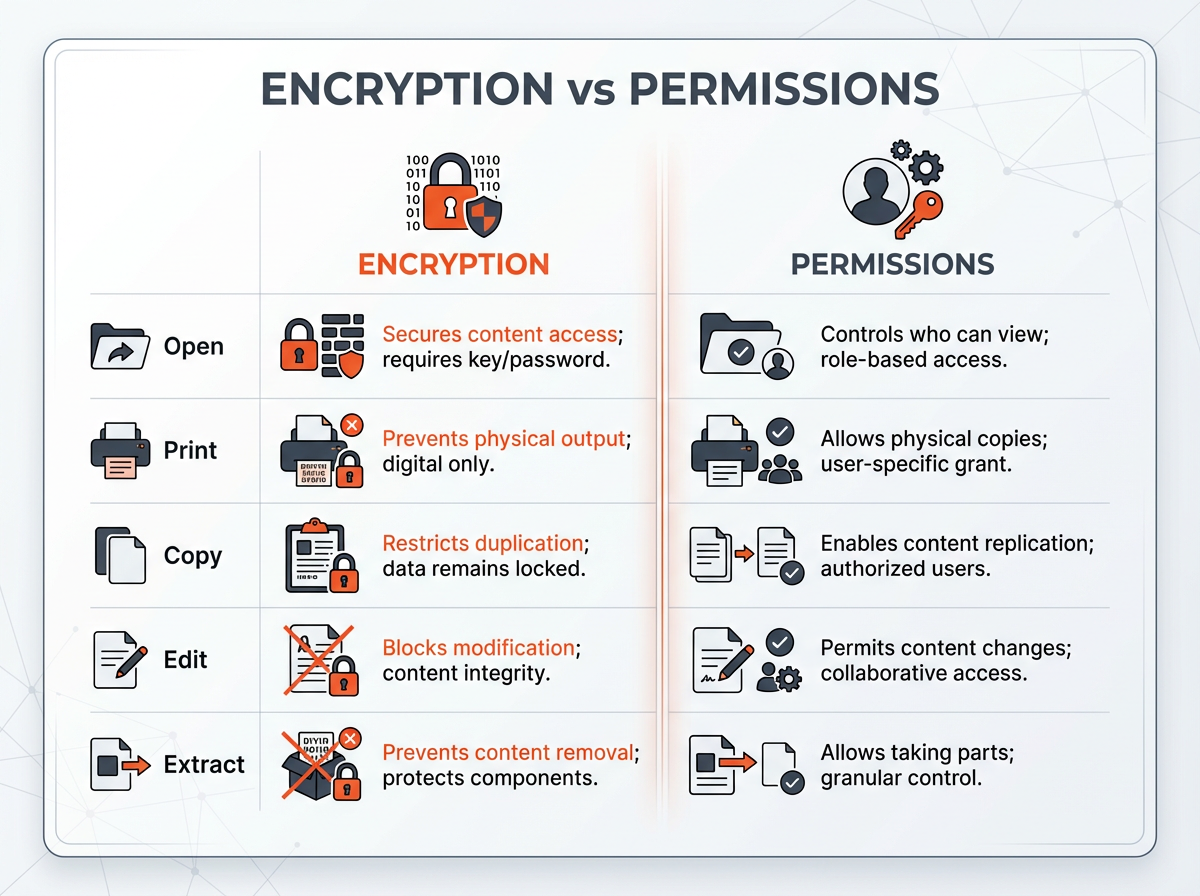

You opened a PDF and something feels “locked,” but you do not know what kind of lock it is. That confusion matters because PDF encryption and PDF permissions solve different problems. Encryption controls who can open the file. Permissions control what someone can do after the file opens. This guide shows you how to tell what kind of PDF protection you have (encryption vs permissions) using common tools, clear checks, and simple tests.
Key Takeaways
- Encryption blocks access to the PDF content until a password or key unlocks it.
- Permissions restrict actions like printing, copying, editing, or form filling after the PDF opens.
- You can check PDF security settings in Adobe Acrobat/Reader under File > Properties > Security.
- A PDF can have permissions without strong real-world enforcement if the file is not encrypted.
- You can confirm encryption status by looking for “Security Method: Password Security” and “Document Open Password” prompts.
- You can verify PDF permissions by testing print, copy, edit, and by reading the “Allowed” fields in the Security tab.
Encryption vs Permissions: The Simple Difference That Saves Time
Start with a clear mental model. This section gives you a fast way to classify the protection you see before you dig into settings. Use the definitions and the quick tests below, then move to the tool-specific steps in the next sections.
What PDF encryption means
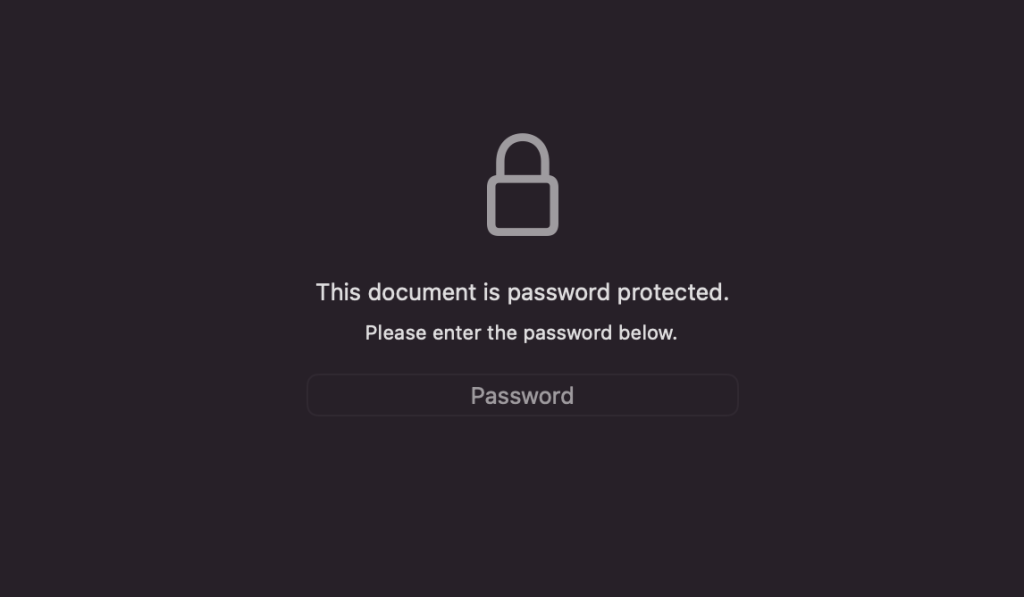
PDF encryption protects the file contents. The PDF viewer must decrypt the file before it can show text, images, or pages. Encryption usually shows up as a password prompt.
- Goal: stop people from opening the PDF without authorization.
- Common sign: the PDF asks for a password before it opens.
- Common label in tools: “Encrypted,” “Password Security,” or “AES-256.”
What PDF permissions mean
PDF permissions restrict actions after the PDF opens. The file can open, but it can block printing, copying, editing, commenting, or page extraction. Permissions often use an “owner password” behind the scenes, but many users never see it.
- Goal: control what users can do with the PDF after opening.
- Common sign: you can read the PDF, but you cannot print or copy text.
- Common label in tools: “Printing: Not Allowed,” “Changing the Document: Not Allowed.”
Quick classification test (30 seconds)
- If the PDF will not open without a password: you have encryption (document open protection).
- If the PDF opens but blocks actions: you have permissions restrictions.
- If you see both: the PDF uses encryption plus permissions (common in Acrobat security).
Next, you will confirm this using security settings in popular viewers.
How Can I Tell If My PDF Is Encrypted?
Use these checks to confirm encryption. Do not rely on a single clue. Use at least two checks so you avoid false assumptions.
Check 1: Does the PDF ask for a password before it opens?
- If you see a prompt like “Enter password to open this document,” the PDF uses encryption.
- If you only see restrictions after opening, the PDF may use permissions only.
Check 2: Use Adobe Acrobat Reader security properties
Adobe Acrobat Reader gives the clearest “plain language” view of PDF security settings.
- Open the PDF in Adobe Acrobat Reader.
- Click File > Properties.
- Click the Security tab.
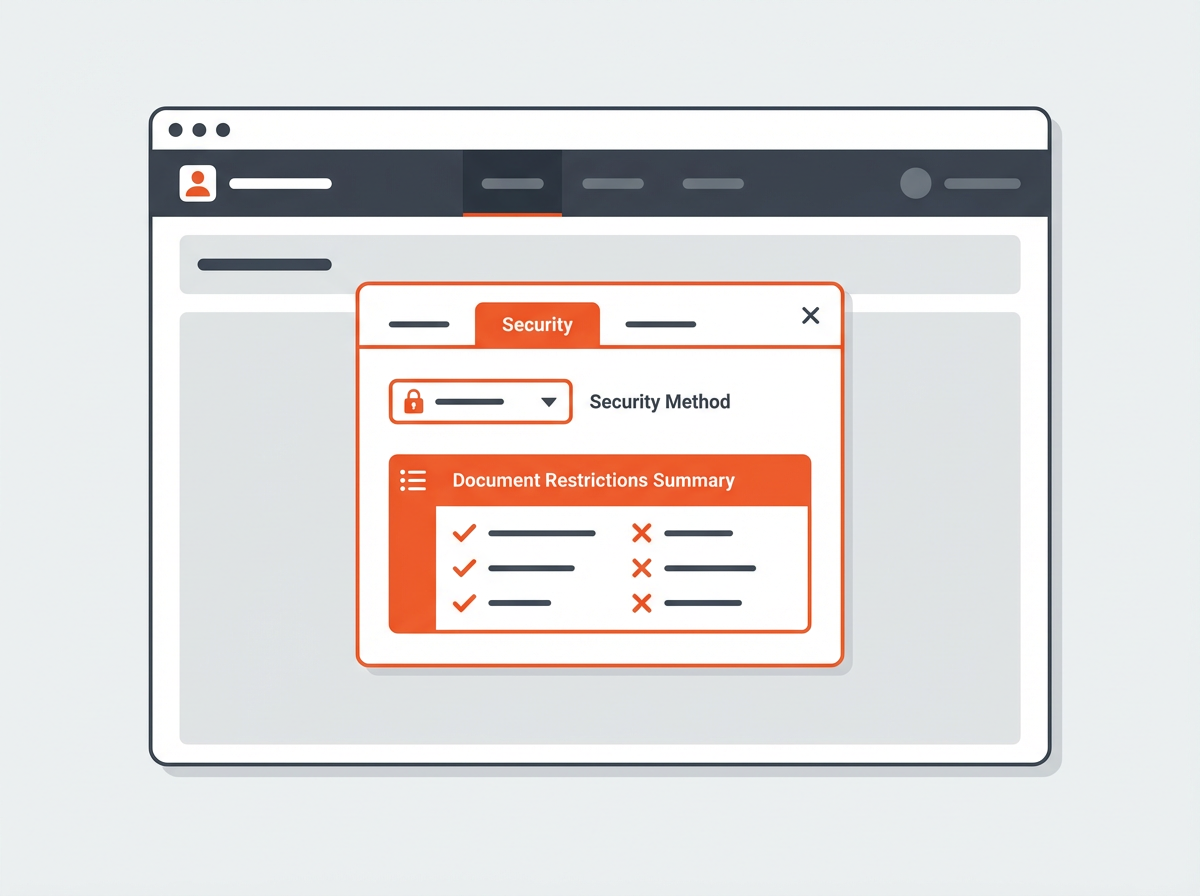
- Look for Security Method and Document Restrictions Summary.
- If Security Method shows: “Password Security” and the file required a password to open, the PDF is encrypted with a user password.
- If Security Method shows: “No Security,” the PDF is not encrypted (even if your app UI blocks some actions).
- If Security Method shows: “Certificate Security,” the PDF is encrypted with certificates.
Check 3: Look for encryption details (AES / RC4)
Many tools show the algorithm or key length. This helps you confirm encryption status.
Transition: Once you confirm encryption, you should also check permissions. Many PDFs use both, and permissions often cause the day-to-day friction.
How to Check PDF Security Settings in Common Tools
Different apps show security in different places. Use the steps that match your device. If you need a reliable answer for work or legal review, use Adobe Acrobat or a command-line tool because they report the PDF security dictionary more consistently.
Adobe Acrobat Pro (Windows and Mac)
- Open the PDF.
- Go to File > Properties > Security.
- Review Security Method.
- Review each restriction line under Document Restrictions Summary.
Acrobat Pro also lets you view and change security if you have the correct password.
Adobe Acrobat Reader (free)
- Open the PDF.
- Go to File > Properties > Security.
- Read restrictions for printing, copying, and changes.
Reader shows the status but does not remove protection.
Preview (macOS)
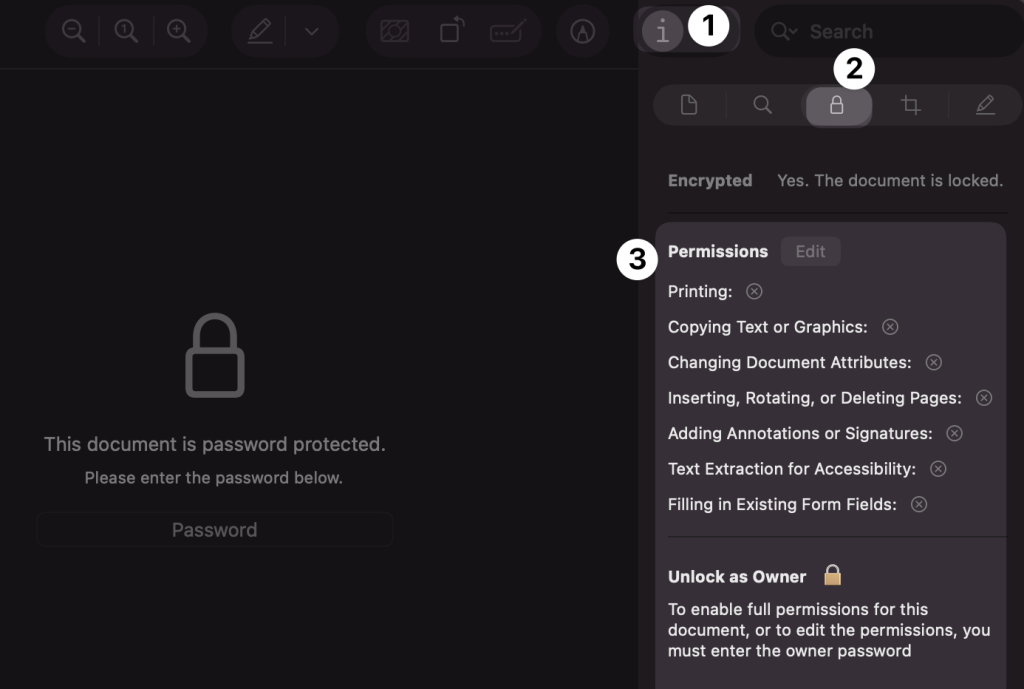
- Open the PDF in Preview.
- Click Tools > Show Inspector.
- Click the i tab (General Info).
- Look for “Encrypted: Yes/No” (wording can vary by macOS version).
Preview can show encryption, but it may not show a full permissions matrix.
Chrome / Edge built-in PDF viewer
- Open the PDF in the browser.
- Try to print and copy text.
- If printing fails or copy returns blank, permissions may be in place.
Browser viewers often hide detailed security settings. Use Acrobat for a clear report.
iPhone and iPad (Files app)
- Open the PDF in the Files app.
- If iOS asks for a password before showing pages, the PDF is encrypted.
- If it opens but actions fail, you likely face permissions limits or app limitations.
Transition: Now you know where to look. Next, you will learn how to check your encryption status with higher confidence, including technical checks that developers and IT teams use.
How Do I Check My Encryption Status? (Practical and Technical Checks)
Some PDFs open without a password because the password is saved, the system uses a certificate, or the app uses a stored key. Use these checks to confirm encryption status even when you do not see a prompt.
Check encryption status in Acrobat: what to read
- Security Method: tells you if the PDF uses password security, certificate security, or no security.
- Encryption Level: often shows AES-256, AES-128, or older methods.
- Document Open Password: indicates whether opening requires a password (some UIs show this as “Password to open document”).
Check encryption status with a command-line tool (qpdf)
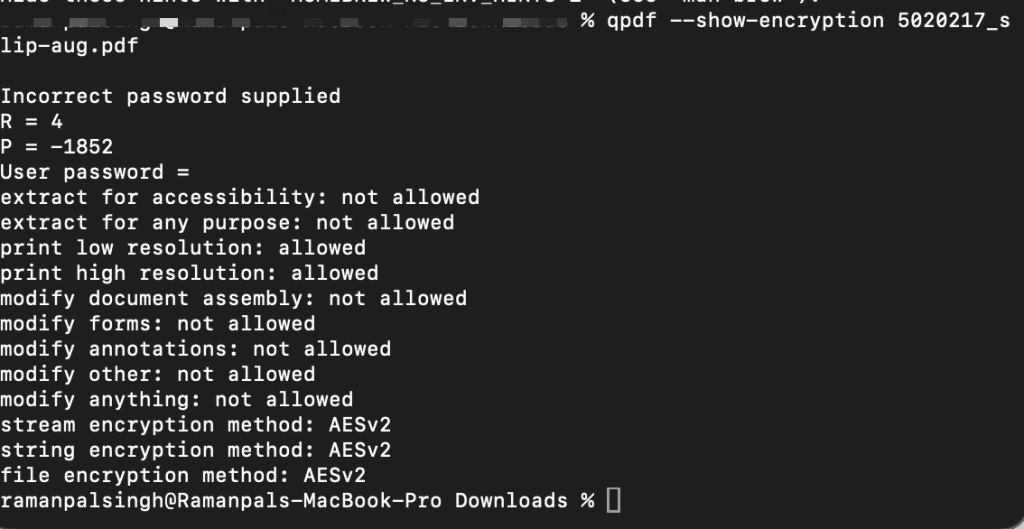
If you need a tool-based answer, qpdf reports encryption and restrictions clearly. IT teams use it for audits and batch checks.
- Run: qpdf –show-encryption yourfile.pdf
- Read the output for:
- encrypted: yes/no
- user password: set/not set (wording varies)
- owner password: set/not set
- permissions: print, modify, extract, annotate
This output helps you separate encryption from permissions in one view.
Make sure you have installed qpdf on your system.
Check encryption status by inspecting the PDF structure (developer view)
A PDF stores encryption info in the trailer dictionary. A developer can confirm encryption by checking for an /Encrypt entry. This method works even if a viewer hides details.
- If the trailer includes /Encrypt: the PDF uses encryption.
- If there is no /Encrypt entry: the PDF is not encrypted at the file level.
You can inspect this with developer tools and libraries, or by using a PDF parser.
Common encryption scenarios that confuse people
- Saved password: your app opens the PDF without asking, but the file is still encrypted.
- Certificate encryption: the system decrypts using your certificate, so you see no prompt.
- DRM systems: a separate system controls access, but the PDF may also be encrypted.
Transition: Encryption answers “who can open this file.” Permissions answer “what can they do after they open it.” Next, you will check the permissions of a PDF file step by step.
How Do I Check the Permissions of a PDF File?
Permissions matter for daily work. They control printing, copying, editing, page extraction, and form filling. Use both a settings check and a real action test, since some apps show incomplete data.
Read permissions in Adobe Acrobat (fastest method)
- Open the PDF in Acrobat Reader or Acrobat Pro.
- Go to File > Properties > Security.
- Find Document Restrictions Summary.
Look for these lines (names can vary slightly):
- Printing: Allowed / Not Allowed / Low Resolution
- Changing the document: Allowed / Not Allowed
- Content copying: Allowed / Not Allowed
- Page extraction: Allowed / Not Allowed
- Commenting: Allowed / Not Allowed
- Filling of form fields: Allowed / Not Allowed
- Signing: Allowed / Not Allowed
Test permissions by doing the blocked action
Do this simple test set. It gives you proof that matches real user experience.
- Print test: press Ctrl+P (Windows) or Cmd+P (Mac). Check if the print option is disabled or blocked.
- Copy test: select text and copy. Paste into a plain text editor. Check if the paste is blank.
- Edit test: try to add or delete text in an editor like Acrobat Pro.
- Extract test: try to extract pages or save as another PDF in an editor.
Record what fails. That record helps you request the correct password or an unlocked version.
Understand “owner password” vs “user password” in permissions
- User password (open password): required to open the PDF. This indicates encryption for access control.
- Owner password (permissions password): used to set or change restrictions. Users usually do not see it.
A PDF can have an owner password that enforces permissions while still allowing anyone to open the file.
Know the limits: permissions are not always strong control
Permissions rely on viewer compliance. Many viewers follow them, but some tools can ignore them if the file is not strongly protected. This is why encryption matters for confidentiality.
- Permissions help with workflow control inside standard PDF apps.
- Encryption helps with access control and confidentiality.
- For sensitive files, use encryption plus permissions, and control distribution.
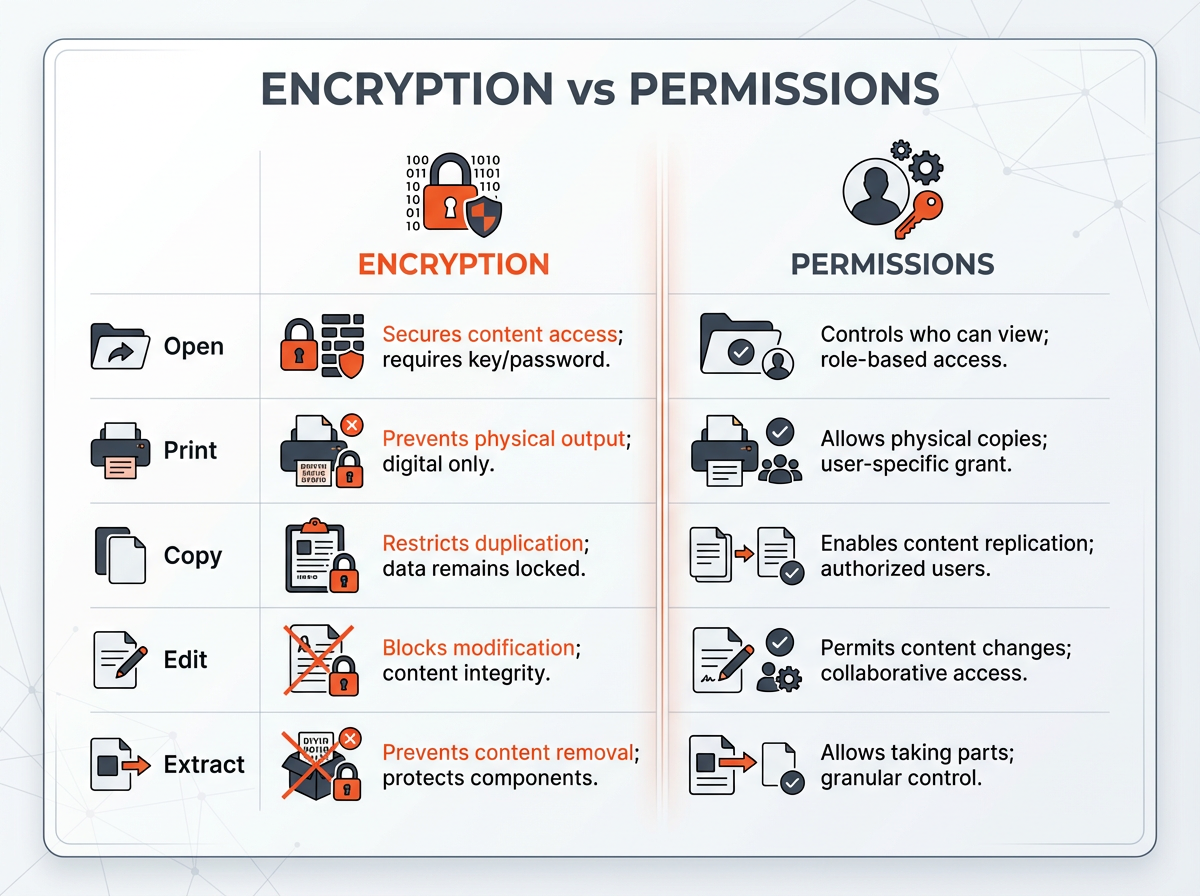
Common Protection Combinations and What They Mean
Many PDFs use more than one control. Use this section to map what you see to the likely setup, so you can choose the right next step.
Case 1: Password required to open + restrictions after open
- What it is: encrypted PDF with permissions set.
- What you can do: open only with the user password; actions depend on permissions.
- What you need to change restrictions: owner password or the source file.
Case 2: No password to open + restrictions on printing or copying
- What it is: permissions restrictions, often enforced by an owner password.
- What you can do: read content; limited actions.
- What you need: owner password or a new export from the document owner.
Case 3: No password + no restrictions, but you still cannot edit
- What it is: not necessarily security. The PDF may be a scanned image, flattened content, or a PDF/A file.
- What to check: try text selection; check if the file is image-only; check if OCR is needed.
Case 4: The PDF opens, but some pages show blank or errors
- What it is: possible corruption, unsupported encryption method in that viewer, or partial download.
- What to do: open in Acrobat; re-download; test with qpdf.
Transition: You now know how to identify the protection type. Next, use a simple checklist so you can document the status and ask for the right fix.
A Step-by-Step Checklist You Can Use for Any PDF
Use this checklist to produce a clear answer for yourself, your team, or a client. It also helps you avoid vague statements like “the PDF is locked.”
Step 1: Confirm access control (encryption)
- Does the PDF prompt for a password before it opens?
- In Acrobat: does the Security tab show Password Security or Certificate Security?
- In a tool report: does it say “encrypted: yes”?
Step 2: Confirm action control (permissions)
- In Acrobat: read Printing, Copying, Changing, and Page Extraction lines.
- Try print and copy in the viewer you use daily.
- Write down which actions fail and which actions work.
Step 3: Record what you need from the document owner
- If the PDF will not open: ask for the open password or a decrypted copy.
- If the PDF opens but blocks actions: ask for the owner password or an unrestricted export.
- If the PDF is scanned: ask for the source file or request an OCR version.
Step 4: Choose the safest next step
- If the PDF contains sensitive data: keep encryption in place and request correct access.
- If you need collaboration: request a version with allowed commenting or form filling.
- If you need editing: request the source document or an editable PDF with permissions enabled.
Frequently Asked Questions (FAQs)
How can I tell if my PDF is encrypted?
If the PDF asks for a password before it opens, it is encrypted. You can confirm in Adobe Acrobat Reader under File > Properties > Security.
How to check PDF security settings?
Open the PDF in Adobe Acrobat Reader, then go to File > Properties > Security. Read Security Method and Document Restrictions Summary.
How do I check my encryption status?
Check Security Method in Acrobat. For a tool-based check, run qpdf –show-encryption on the file and look for “encrypted: yes/no.”
How do I check the permissions of a PDF file?
In Acrobat, open File > Properties > Security and read the restriction lines for printing, copying, and editing. Then test print and copy in your viewer.
Can a PDF have permissions without encryption?
Yes. A PDF can open without a password but still block printing, copying, or editing through permissions settings.
Why does my PDF open fine but I still cannot copy or print?
The PDF likely uses permissions restrictions. Your viewer follows those restrictions and blocks the action even though the file is readable.
Final Thoughts
You can tell what kind of PDF protection you have (encryption vs permissions) by checking one core fact: encryption controls opening, and permissions control actions after opening. Use Acrobat’s Security tab to confirm both, then run quick print and copy tests to match real behavior. If you need access or edits, ask for the correct password type or request an unrestricted export from the owner. Use this checklist on every “locked PDF” so you get the right fix on the first try.