

Linking your Google Analytics 4 (GA4) account with Google Search Console (GSC) is an essential step for understanding your website’s organic search performance. Unlike Universal Analytics, GA4 does not automatically show GSC data. You must manually link the two platforms to see important data about your search queries, clicks, and the keywords that bring traffic to your website.
Once you connect your GA4 property to your Search Console account, you will unlock valuable organic search insights. These insights help improve your SEO strategy and optimize your content. This guide provides a clear process to collect and analyze your Search Console data within GA4, helping you monitor search results and understand performance reports.
Key Takeaways
- Prerequisites are critical: You need Editor access in GA4 and verified owner status in GSC using the same Google account.
- Linking is a direct process: The connection is made in the GA4 Admin panel under “Product Links.”
- Reports are not automatic: After linking, you must manually publish the Search Console collection from the GA4 Reports Library to view the data.
- Combined data offers deep insights: The integration provides two key reports—Queries and Google Organic Search Traffic—blending GSC metrics with GA4 user engagement data.
- Data discrepancies are normal: Expect minor differences between GSC and GA4 data due to different timezones and measurement methods.
- Troubleshooting is straightforward: Common issues like missing properties or data delays can usually be solved by checking permissions and property settings.
Prerequisites for Linking GA4 and GSC
Before you connect Google Analytics 4 with Google Search Console, you must meet several requirements. Fulfilling these prerequisites helps avoid common setup problems and ensures a smooth integration.
- Account Access: You need at least an Editor role in your GA4 property. You must also be a verified owner of the Search Console property. It is important to use the same Google account for both GA4 and GSC to prevent permission conflicts.
- Verified GSC Property: Your website must be a verified property in Google Search Console. Unverified properties will not be available to select during the linking process.
- Active Web Data Stream: Your GA4 property must have an active web data stream configured. The GSC integration is only compatible with web streams, not app streams.
- One-to-One Link: Each GA4 web stream can only be linked to a single GSC property. Similarly, each GSC property can only be linked to one GA4 web stream. Ensure the domains match exactly (e.g.,
www.example.comvs.example.com) to avoid errors.
Step 1: Connect Google Search Console to GA4
Linking GSC with GA4 creates a powerful combination for tracking your website’s performance. The process allows you to understand how your content performs in Google’s organic search results. First, confirm you have the necessary permissions as outlined in the prerequisites.
- Log into your Google Analytics 4 Account: Open your GA4 dashboard and click the “Admin” gear icon at the bottom left.
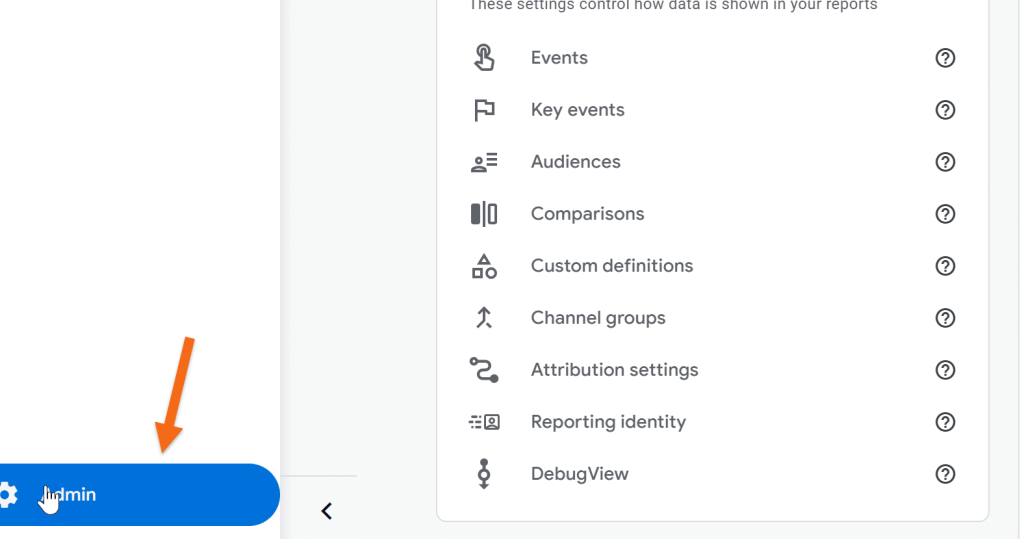
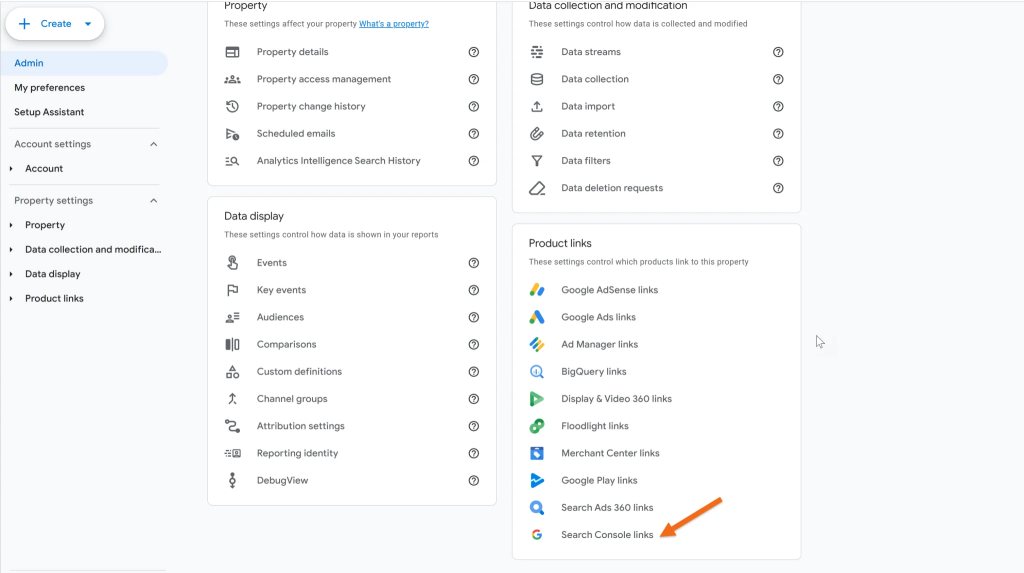
- Navigate to Product Links: In the “Property” column of the Admin section, find the “Product Links” menu and click “Search Console Links.”
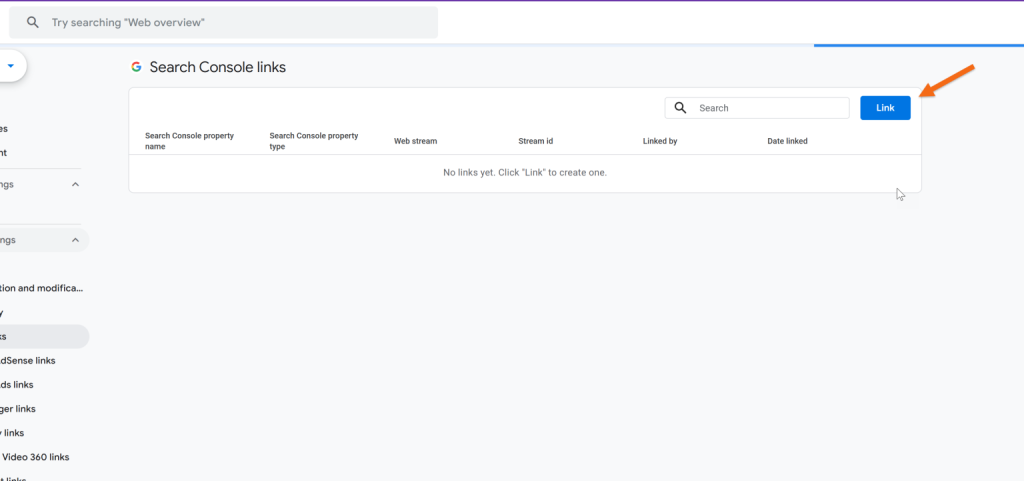
- Create a New Link: In the Search Console linking area, click the blue “Link” button to begin the setup process.
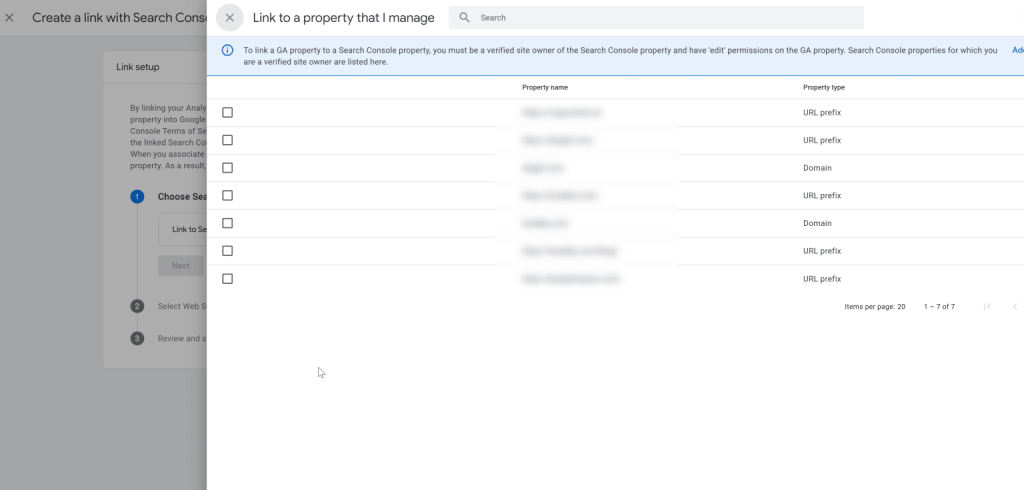
- Choose Your GSC Property: A new panel will appear. Click “Choose accounts” to see a list of GSC properties for which you are a verified owner. Select the property you want to link.
- Select Your Web Stream: After choosing the GSC property, you need to select the corresponding GA4 web data stream for your website.
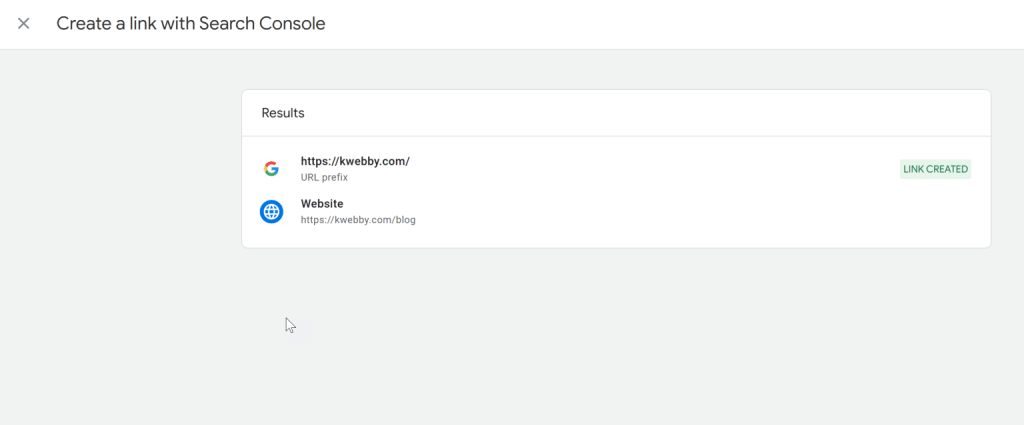
- Review and Submit: Confirm that you have selected the correct GSC property and GA4 web stream. Once verified, click “Submit” to complete the connection.
After you complete these steps, your GA4 account is linked with your Google Search Console property. If your GSC account has historical data, you may see up to 16 months of that data in your new GA4 reports. If you just set up GSC, it will begin collecting data from this point forward.
Step 2: Enable the Search Console Reports in GA4
Connecting the accounts does not automatically make the Search Console reports visible in your GA4 interface. You must publish the report collection to access the data.
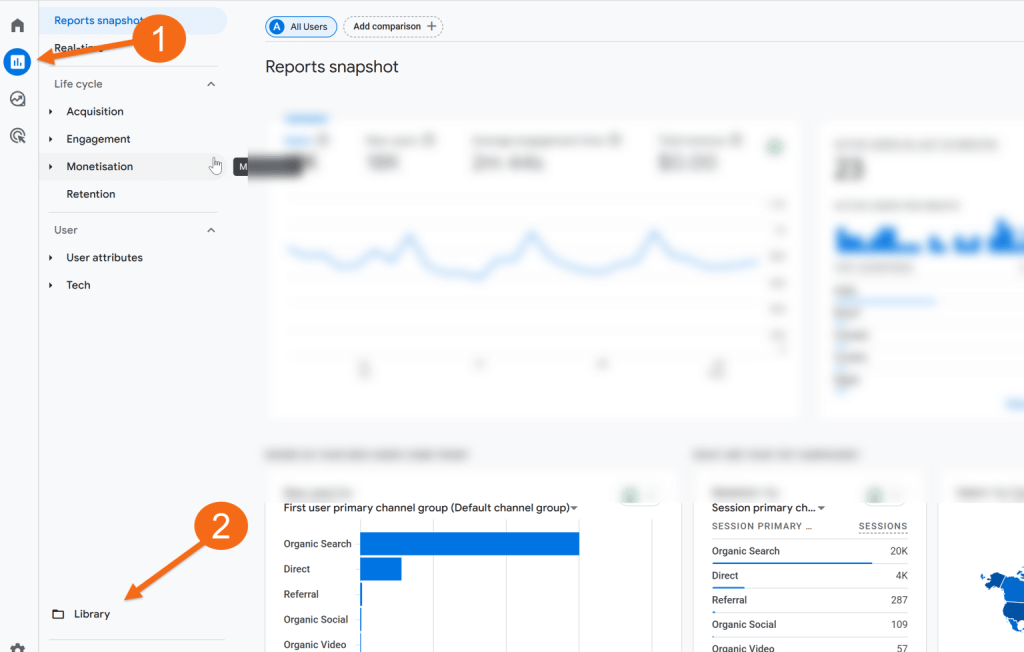
- Go to the Reports Library: From the main navigation on the left, go to “Reports.” Then, click “Library” at the bottom of the menu.
- Find the Search Console Collection: In the Library, you will see a “Collections” section with an unpublished “Search Console” card.
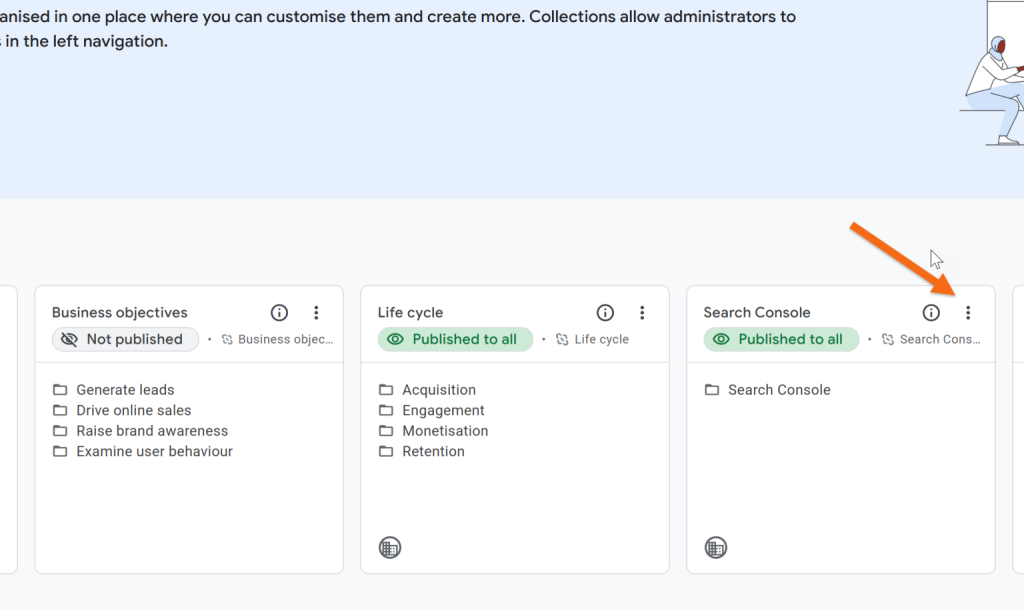
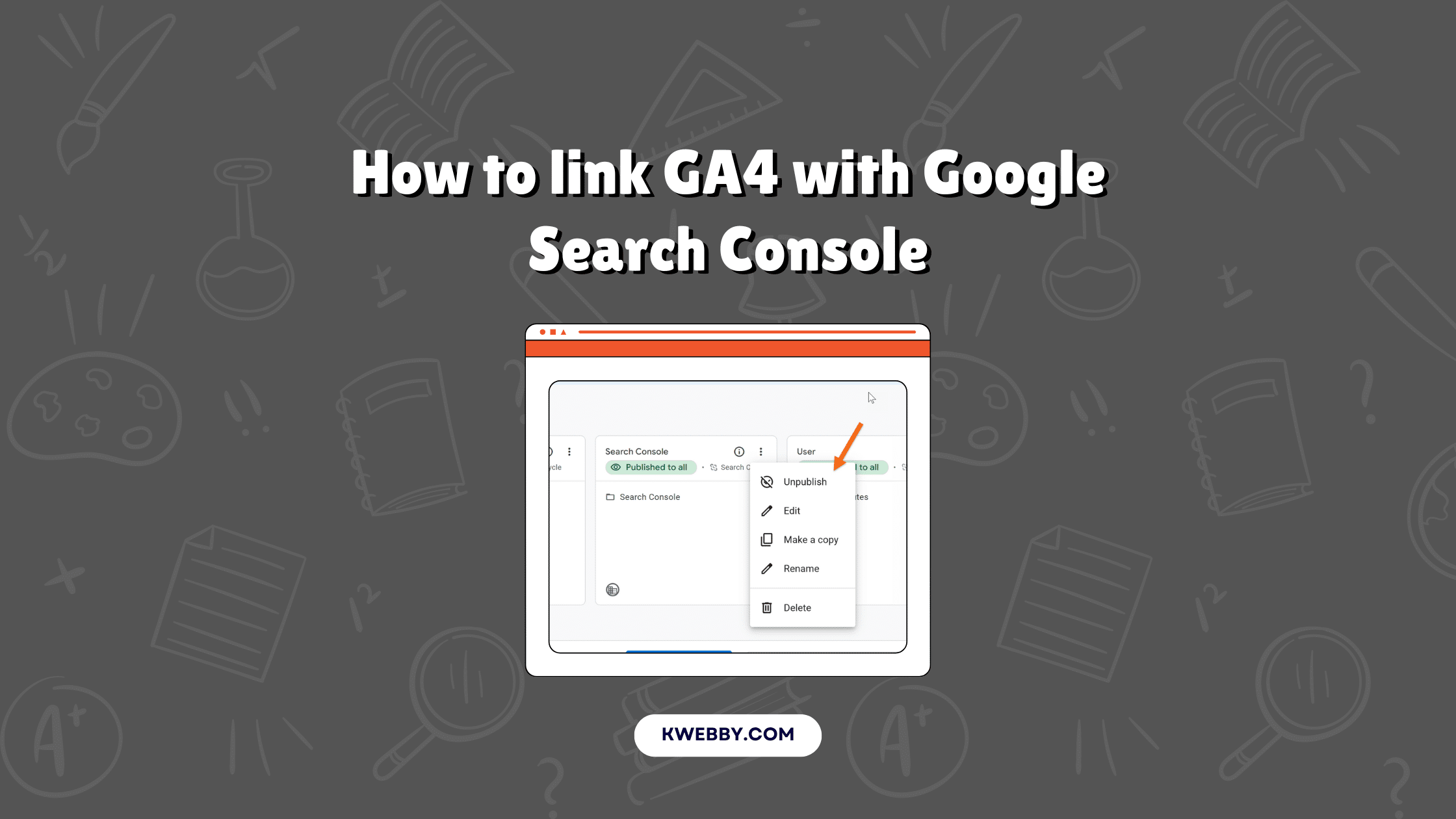
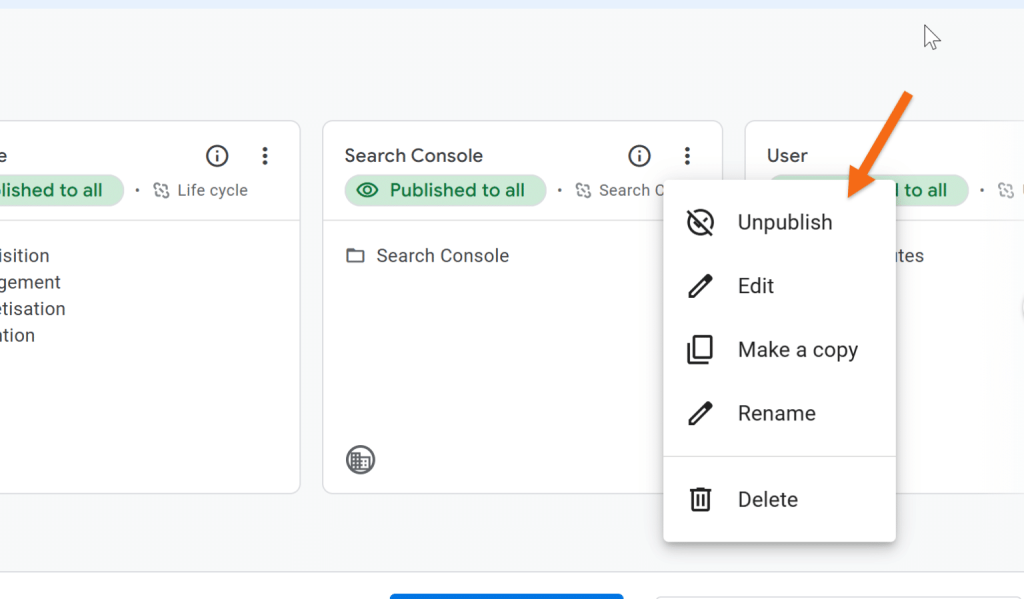
- Publish the Collection: Click the three-dot menu on the Search Console card. From the dropdown menu, select “Publish.”
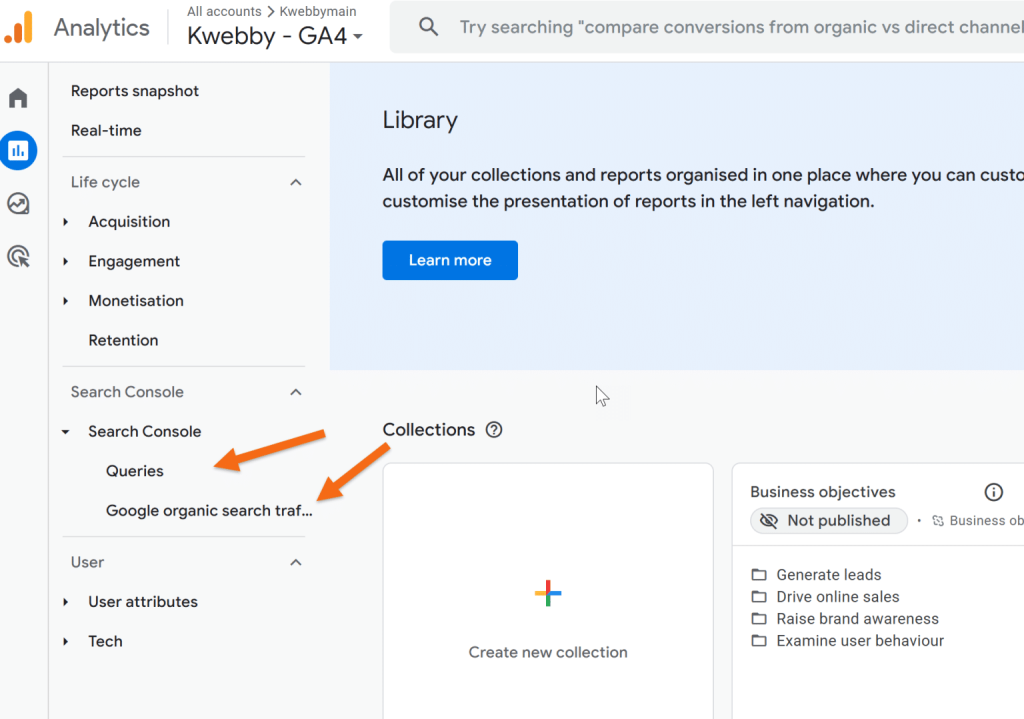
Once published, a new “Search Console” section will appear in your main “Reports” navigation. It may take 24-48 hours for data to populate in these new reports. This gives you access to powerful insights, including organic search traffic data and search queries.
Step 3: Access and Understand Your GSC Reports
With the setup complete, you can now explore the data within GA4. The Search Console reporting section is divided into two primary reports: “Queries” and “Google Organic Search Traffic.”
Queries Report
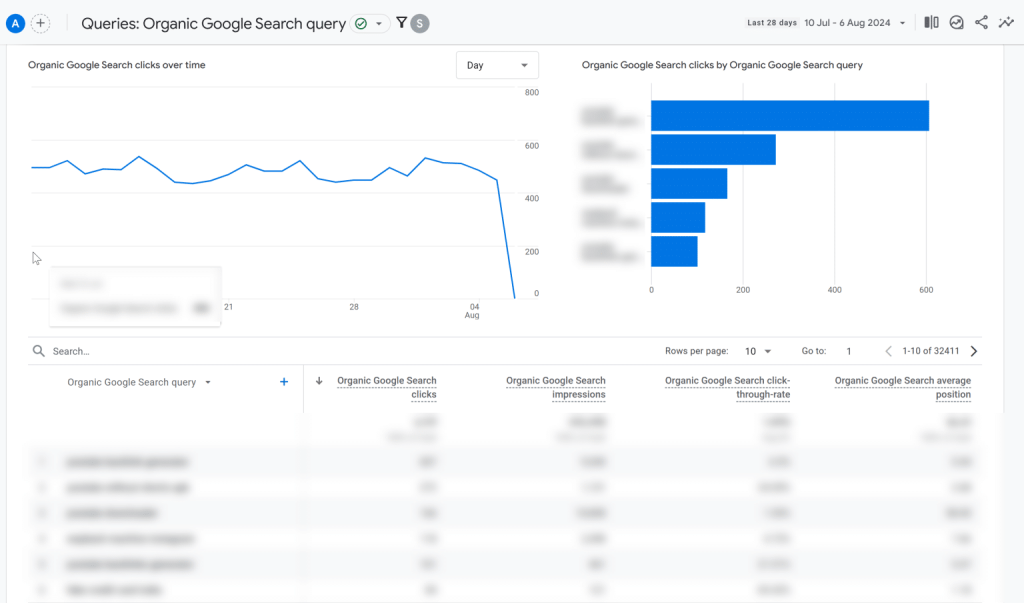
This report shows the specific search terms users entered in Google to find your website. It provides key GSC metrics to help you understand keyword performance. You can analyze data by these dimensions:
- Organic Google Search Query: See the impressions, clicks, click-through rate (CTR), and average search position for each keyword. This helps identify your most effective search terms.
- Country: View performance metrics by geographic location. This shows where your organic traffic originates and how your keywords rank in different regions.
- Device Category: Filter your data by mobile, desktop, or tablet. This helps you understand user behavior across different devices and optimize accordingly.
Google Organic Search Traffic Report
This report focuses on the performance of your landing pages in organic search. It combines GSC data with GA4 metrics like sessions, engaged sessions, and conversions. The available dimensions are:
- Landing Page: Analyze which specific pages attract the most organic traffic. This report shows GSC metrics alongside GA4 engagement data for each page, helping you identify top-performing content.
- Country: See which countries drive the most traffic to your landing pages.
- Device Category: Understand which devices users are on when they land on your pages from organic search.
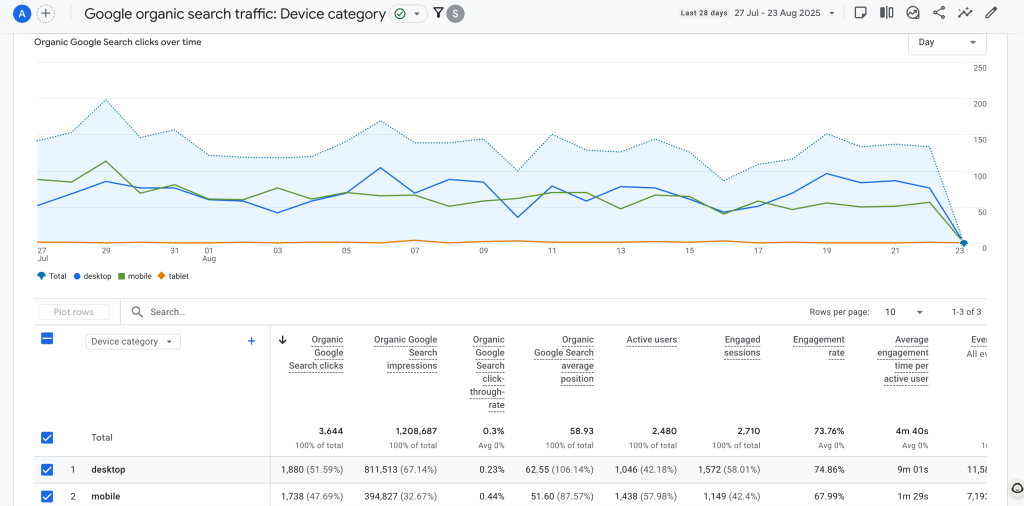
Using these reports, you can connect search performance to on-site user behavior. For example, you can identify a page with high impressions but low engagement, signaling an opportunity for content improvement.
Troubleshooting Common Issues
You may encounter issues during or after the linking process. Here are solutions for some common problems.
- GSC Property Not Visible in GA4: If you cannot find your GSC property during the linking process, confirm you are a verified owner in GSC and have Editor permissions in GA4. Also, ensure you are using the same Google account for both services.
- Data Not Appearing in Reports: Data can take up to 48 hours to appear after linking and publishing the reports. If data is still missing after this period, double-check that you linked the correct web stream to the correct GSC property. Also, confirm you published the Search Console collection in the Reports Library.
- Permission Denied Error: This error usually means your Google account lacks the required access levels in either GA4 or GSC. Verify you have Editor or Administrator permissions in GA4 and are a verified owner in GSC.
- Data Mismatches Between GA4 and GSC: You may notice small differences in data between the two platforms. This is often due to different timezones (GSC uses Pacific Time, while GA4 uses your property’s setting) and measurement methodologies. GSC tracks clicks, while GA4 measures sessions. Small variances are normal.
Why You Should Link GA4 and GSC
Integrating Google Search Console with Google Analytics 4 provides a more complete view of your website’s performance. It connects pre-click data from search results with post-click data about user behavior on your site.
- Deeper SEO Insights: Correlate GSC metrics like clicks and impressions with GA4 metrics like engagement rate and conversions. This shows a direct line from search query to user action.
- Enhanced Conversion Tracking: See which landing pages and search queries drive the most conversions. This helps you understand the true business value of your organic search traffic.
- Improved Content Strategy: Identify high-impression, low-CTR queries in the “Queries” report. This highlights opportunities to optimize your page titles and meta descriptions to attract more clicks. You can also find underperforming pages in the “Organic Search Traffic” report that may need content updates.
- Unified Reporting: View search performance and website engagement in one place. This simplifies your analysis and removes the need to switch between different tools for a complete picture.
Wrapping Up
Linking GA4 with Google Search Console is a foundational step for any effective SEO strategy. This integration provides the data necessary to understand the entire user journey, from the initial search query to on-site conversion. By following the steps in this guide, you can unlock a unified view of your organic performance.
With this data, you can refine your SEO efforts, target valuable keywords, and make informed decisions that improve your website’s visibility and engagement. Use these integrated analytics to stay ahead and drive meaningful growth through organic search.