
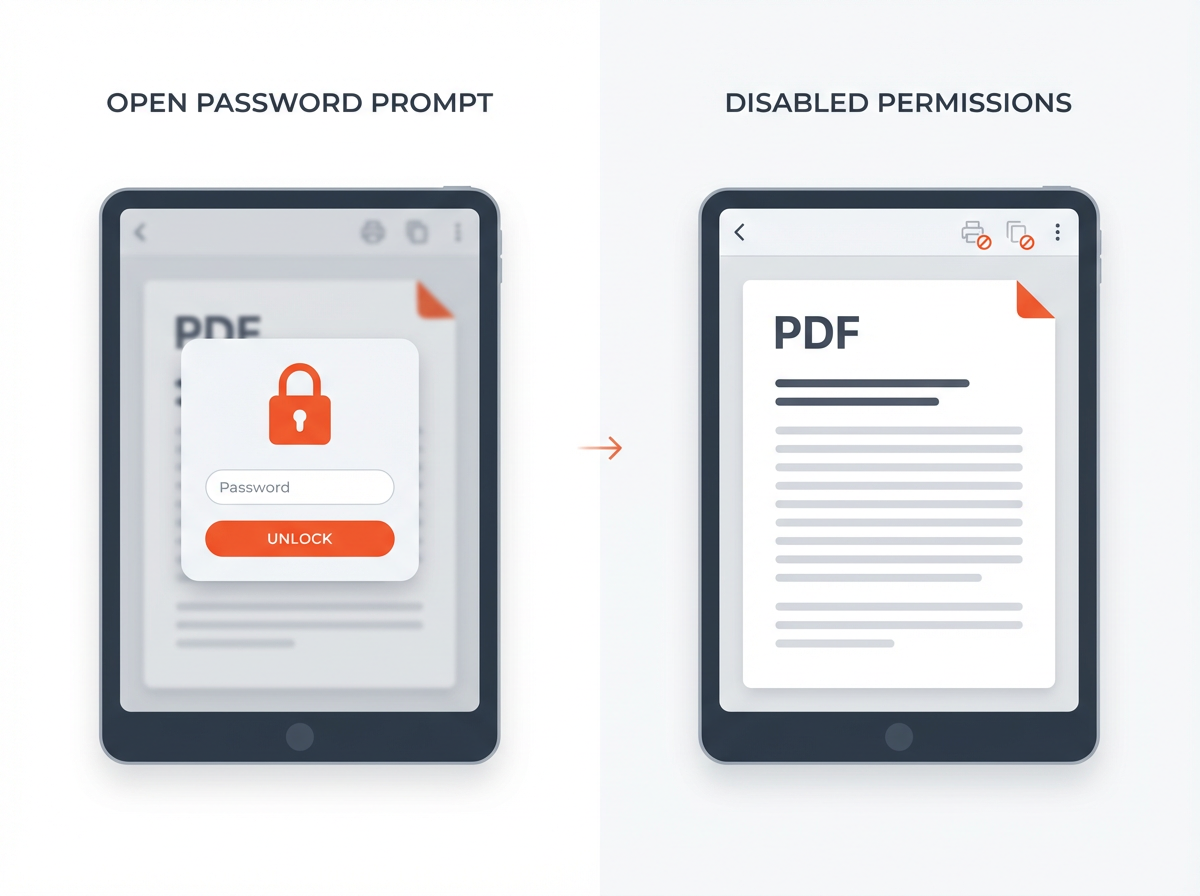

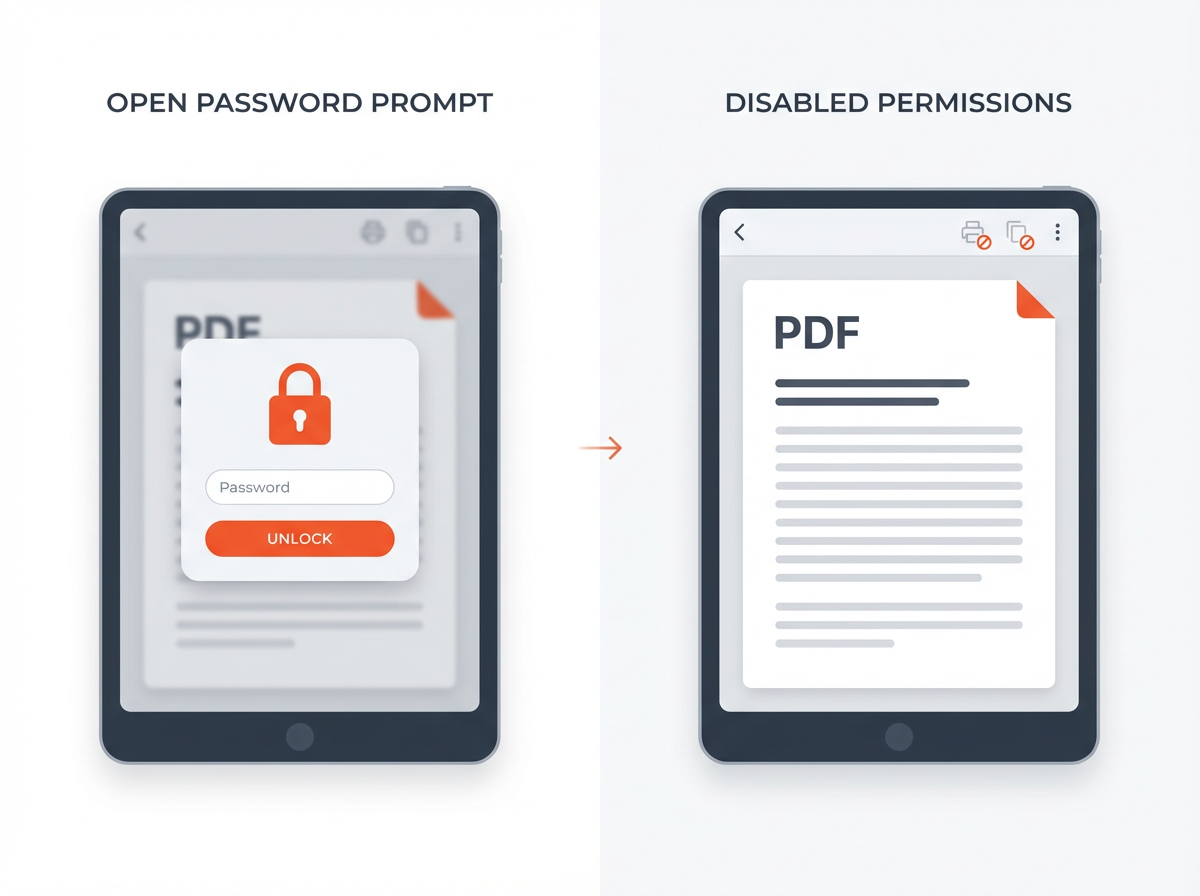
PDF passwords often confuse people because a PDF can use two different passwords for two different jobs. A user password controls who can open the file. An owner password controls what someone can do after the file opens.
This guide explains User Password vs Owner Password in PDFs (What’s the Difference?) with clear examples, common issues, and practical steps you can use right away.
Key Takeaways
- A user password (open password) blocks access and stops the PDF from opening without the password.
- An owner password (permissions password) lets a person open the PDF but restricts actions like printing, copying, editing, and form filling.
- A PDF can have only a user password, only an owner password, or both.
- “PDF asking for owner password” usually means you tried to change security settings or remove restrictions.
- PDF permissions rely on the viewer app and settings, while PDF encryption controls access at the file level.
- You can avoid lockouts by storing passwords safely and using clear security settings before you share a PDF.
User Password vs Owner Password in PDFs (What’s the Difference?)
You need a clear definition before you set PDF security. A PDF can protect access, restrict actions, or do both. The PDF standard supports two password roles. Many tools label them in different ways, but the meaning stays the same.
What is a user password in a PDF?
A user password is also called an open password or document open password. The PDF requires this password before it shows any content.
- Goal: block viewing without the password
- Result: the PDF stays closed until the correct password is entered
- Best for: sensitive files sent by email, client documents, HR files, invoices, medical records, and legal drafts
What is an owner password of a PDF?
The owner password is also called a permissions password or master password in some apps. It does not always block opening the PDF. It controls what actions a viewer can take after the PDF opens.
- Goal: control printing, copying, editing, and other permissions
- Result: the PDF opens, but actions can be blocked or limited
- Best for: shared handouts, reports, ebooks, proposals, and documents where you want viewing but not editing
Quick comparison table (simple view)
- User password: required to open the PDF
- Owner password: required to change or remove restrictions
- User password impact: access control
- Owner password impact: permission control
Next, you need to know how these passwords behave in real PDF apps so you can predict what recipients will see.
Checkout our Decrypt PDF Tool online to remove passwords from PDF.
How PDF Passwords and Permissions Work in Real Life
PDF security has two layers: encryption and permissions. Encryption protects content by locking the file. Permissions tell the PDF viewer what it should allow. Many problems happen because people treat permissions like encryption.
User password = access control (encryption gate)
A user password acts like a locked door. If the password is wrong, the PDF does not open. This is the strongest and clearest control for privacy because it blocks viewing.
- The recipient sees a password prompt before any page loads.
- The PDF content stays unreadable without the password.
- Sharing the password becomes part of your workflow.
Owner password = action control (permissions rules)
An owner password sets permission flags inside the PDF. A compliant PDF viewer reads those flags and limits actions.
- The recipient may open the PDF without a password.
- The recipient may see blocked actions like copy, print, or edit.
- The owner password is needed to change security settings.
Important: permissions are not equal to full data protection. Some tools can bypass weak permission setups. If you need strict secrecy, use a user password and strong encryption.
Now let’s make this easier with examples that match common work situations.
Common Scenarios: Which Password Should You Use?
You get better results when you match the password type to your goal. The wrong choice causes support tickets, delays, and accidental exposure.
Scenario 1: You need to stop anyone from viewing the PDF
Use a user password.
- Use case: tax forms, bank statements, private contracts
- Reason: the PDF stays closed without the password
- Tip: send the password in a separate channel (text message or secure chat)
Scenario 2: You want people to view the PDF but not edit it
Use an owner password with editing disabled.
- Use case: proposals, product sheets, policy PDFs
- Reason: readers can open and read, but cannot change content in most viewers
- Tip: also flatten forms and remove hidden layers if your tool supports it
Scenario 3: You want to limit printing or allow only low-quality printing
Use an owner password and set printing permissions.
- Use case: training manuals, paid course notes, event materials
- Reason: you can allow no printing, or allow low-resolution printing
- Tip: test the PDF in Adobe Acrobat Reader and a browser viewer
Scenario 4: You need both privacy and control
Use both passwords.
- Use case: legal review drafts shared with a limited group
- Reason: user password blocks access, owner password controls actions after access
- Tip: store both passwords in a password manager with clear labels
Next, let’s answer a question that causes the most frustration: why a PDF asks for an owner password.
Why Is a PDF Asking for Owner Password?
A PDF usually asks for an owner password when you try to change security settings or remove restrictions. The app needs proof that you have control rights over the document security settings.
You tried to remove PDF restrictions
If the PDF blocks printing, copying, or editing, your tool may show a message like “Enter the owner password to change permissions.” That prompt appears because the PDF has a permissions password set.
- Example action: “Remove Security”
- Example action: “Enable Editing”
- Example action: “Change Printing Settings”
You tried to merge, split, or edit a restricted PDF
Some PDF editors treat editing tasks as permission changes. The tool may request the owner password before it continues.
- Merging PDFs can trigger permission checks.
- Extracting pages can trigger permission checks.
- Adding text or images can trigger permission checks.
The PDF viewer follows permissions strictly
Some apps enforce PDF permissions more strictly than others. A browser viewer might allow a basic action, while a desktop editor might block it and ask for the owner password.
You do not own the PDF security settings
If someone else created the PDF and set restrictions, you may not have the owner password. In that case, you need the creator to:
- send the owner password, or
- send an unrestricted copy, or
- change the permissions and resend the PDF
Next, let’s map out the different types of passwords and security controls you may see in PDF tools.
Different Types of Passwords for PDF (And Related Security Controls)
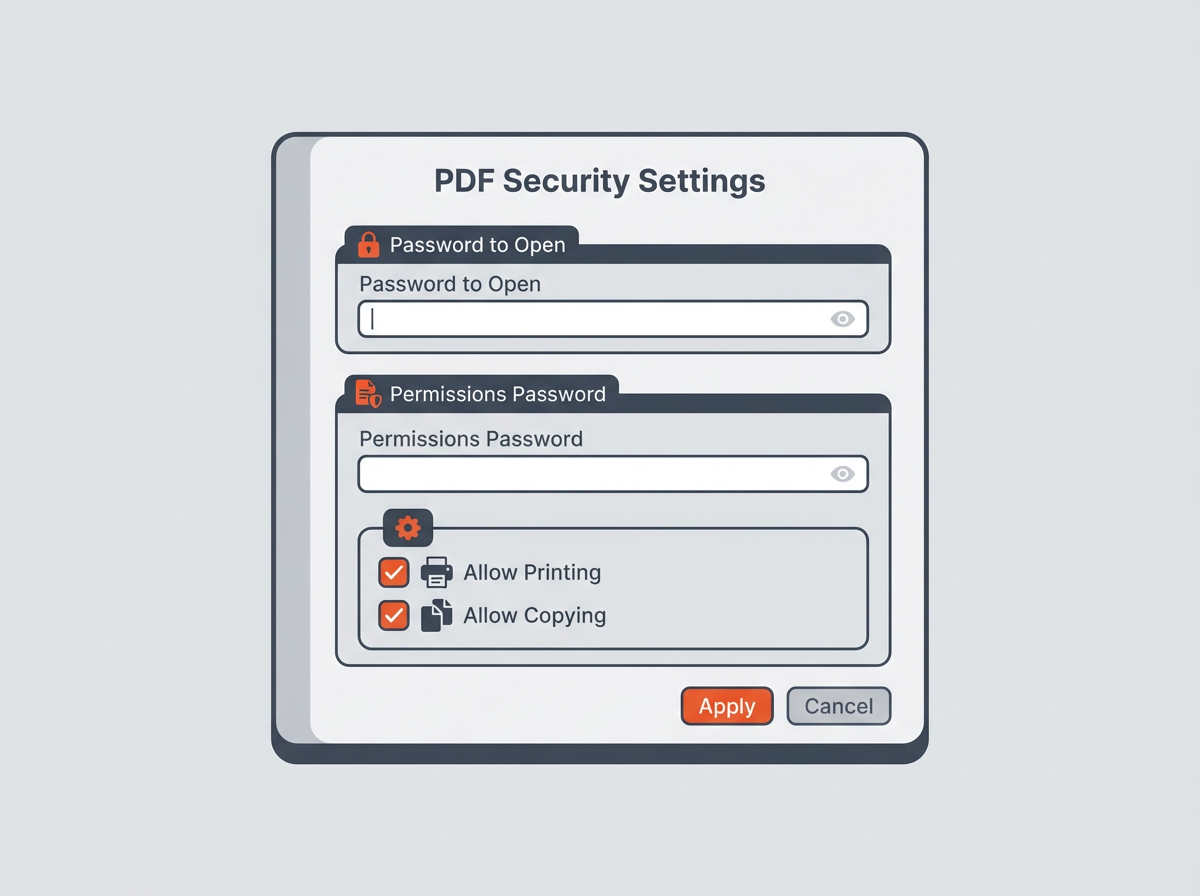
PDF tools use different labels. Some tools also add extra controls that people call “passwords,” even when they are not PDF passwords. You need to know the difference so you set the right protection.
1) User password (open password)
- Blocks opening the PDF without the password
- Best for confidentiality
2) Owner password (permissions password)
- Allows opening but restricts actions
- Best for controlling printing, copying, and editing
3) Certificate-based security (digital ID)
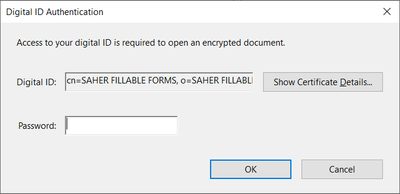
Some PDFs use certificates instead of passwords. A certificate can encrypt the PDF for specific recipients.
- Access depends on the recipient’s digital ID
- Common in enterprise workflows
4) Digital signatures (integrity, not secrecy)
A digital signature confirms that content has not changed after signing. It does not hide the content by itself.
- Helps detect edits
- Supports approval workflows
5) Redaction (content removal, not a password)
Redaction removes content from the PDF. It does not rely on a password. It changes the file so hidden data does not remain.
- Best for sharing documents with sensitive parts removed
- Prevents copy or extraction of removed text because it is gone
Next, you will learn how to set these passwords correctly and avoid common mistakes.
How to Set User and Owner Passwords the Right Way
You can set PDF passwords in many tools, but the logic stays the same. You choose access control (user password), permission control (owner password), or both. You then test the PDF in more than one viewer.
Step-by-step checklist (tool-agnostic)
- Step 1: Decide your goal (block access, restrict actions, or both).
- Step 2: Set a strong password (12+ characters, mix of letters, numbers, symbols).
- Step 3: Set permissions (printing, copying, editing, commenting, form filling).
- Step 4: Save a new copy with a clear name (example: “Contract-Restricted.pdf”).
- Step 5: Test in two viewers (Adobe Acrobat Reader + browser viewer).
- Step 6: Share the password using a separate channel.
Common permission options you should understand
- Printing: none, low resolution, or full quality
- Changes allowed: none, form fill only, comments only, or full editing
- Content copying: allow or block text and image copying
- Accessibility access: allow screen readers (often a separate setting)
Strong password rules that reduce lockouts
- Use a password manager and label entries clearly: “PDF user password” and “PDF owner password.”
- Avoid reusing passwords across files.
- Avoid sending the password in the same email as the PDF.
Next, let’s cover the limits of owner passwords and PDF permissions so you do not rely on them for the wrong job.
Owner Password Limits: What It Can and Cannot Protect
An owner password can reduce casual copying or editing. It can also support simple document control in teams. It does not guarantee that data stays secret if the PDF opens without a user password.
Owner password works best for everyday control
- Stops many viewers from enabling edit tools
- Stops many viewers from allowing copy/paste
- Stops many viewers from printing if printing is disabled
Owner password does not equal full confidentiality
- If a person can view the content, they can often capture it (example: screenshots or retyping).
- Some tools can ignore or remove weak permission settings.
- Permissions depend on viewer compliance.
Use the right control for the right risk level
- High privacy need: user password + strong encryption + limited sharing
- Medium control need: owner password + restricted editing/printing
- Public sharing: no password, but use watermarking or redaction if needed
Next, let’s answer the exact questions people search for, using clear and direct language.
Frequently Asked Questions (FAQs)
What is the difference between user password and owner password in PDF?
A user password blocks opening the PDF without the password. An owner password controls permissions like printing, copying, and editing after the PDF opens.
What is the owner password of a PDF?
An owner password is the permissions password that lets you change or remove PDF restrictions. It controls actions like printing and editing.
Why is PDF asking for owner password?
A PDF asks for the owner password when you try to change security settings or remove restrictions. The tool needs the permissions password to allow those changes.
What are the different types of passwords for PDF?
The main types are the user password (open password) and the owner password (permissions password). Some tools also support certificate-based encryption, which is not a password.
Can a PDF have both a user password and an owner password?
Yes. A PDF can use both. The user password controls opening the file, and the owner password controls permission changes and restrictions.
Is an owner password enough to protect sensitive PDF data?
No. An owner password mainly restricts actions in compliant viewers. Use a user password if you need to block access to the content.
Final Thoughts
User password vs owner password in PDFs comes down to one simple rule: the user password controls who can open the file, and the owner password controls what a person can do after it opens. Pick the password type that matches your goal, test the PDF in common viewers, and share passwords safely.
If you want stronger privacy, set a user password and use strong encryption. If you want simple control over printing and editing, set an owner password and clear permission rules. Now review your current PDFs, update weak settings, and resend protected copies with the right password setup.