

Managing your iCloud storage is important for keeping your Apple devices running smoothly. Many users find their free 5GB of storage fills up quickly with photos, backups, and files.
This can prevent new backups and stop apps from syncing data. Understanding how to manage this space ensures your important data is safe and your devices work as expected.
This guide provides clear steps to clean and organize your iCloud storage.
Key Takeaways
This table shows the different ways you can free up space in your iCloud account.
| Method | Action Required | Impact on Storage |
|---|---|---|
| Manage Backups | Delete old or unused device backups. | High |
| Optimize Photos | Enable “Optimize Storage” for photos. | High |
| Delete Photos/Videos | Remove unwanted photos and videos. | High |
| Clear iCloud Drive | Delete unnecessary files and folders. | Medium to High |
| Manage App Data | Remove data from apps you no longer use. | Medium |
| Clean Messages | Delete old conversations and large attachments. | Medium |
| Manage iCloud Mail | Remove emails with large attachments. | Low to Medium |
| Use Suggestions | Follow Apple’s storage optimization tips. | Variable |
Methods to Clean iCloud Storage
Follow these detailed instructions to reduce the data stored in your iCloud account. Performing these actions on one device will sync the changes across all devices logged into the same Apple ID.
Scan & Remove iCloud With CleanMyMac Easily (Recommended)
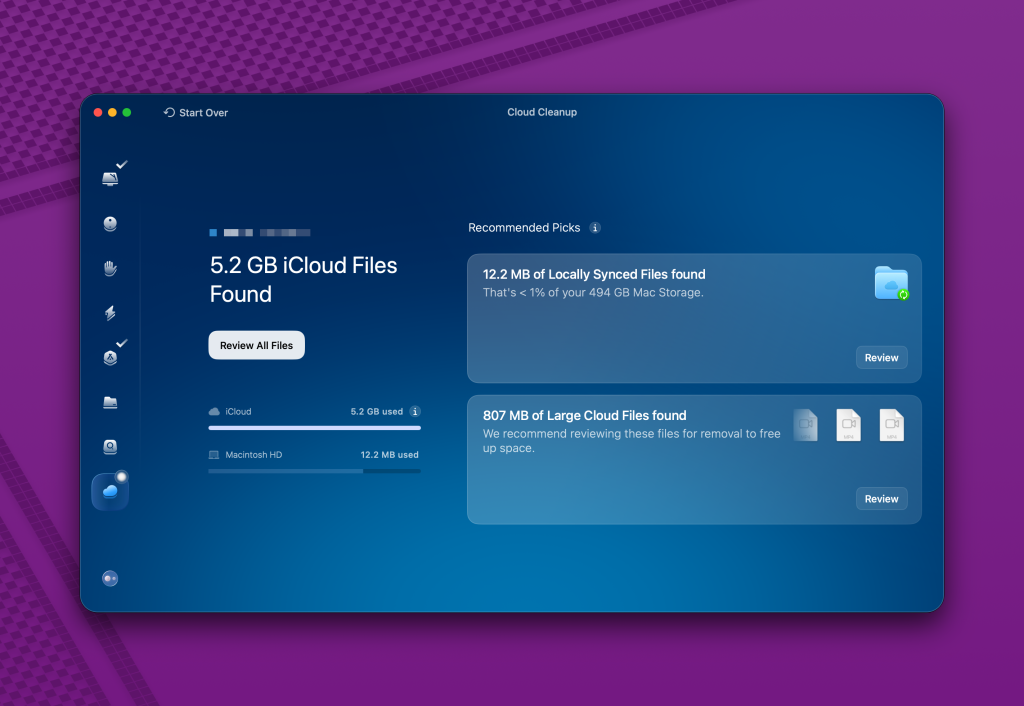
Managing your iCloud storage efficiently has never been easier. Follow these simple steps to quickly clean up your iCloud account using CleanMyMac and optimize your storage:
- Download CleanMyMac: Visit this link to download CleanMyMac for free on your Mac. Once downloaded, complete the activation process to get started.
- Open CleanMyMac: Launch CleanMyMac on your device. Select the last option in the menu and add your iCloud account to the app.
- Scan Your iCloud Data: After adding your iCloud account, select it and click on the “Scan” button. CleanMyMac will begin analyzing your storage.
- Review Locally Synced and Larger Files: Once the scan is complete, you’ll see two categories of files—locally synced files and larger files stored on iCloud. Click the “Review” buttons for each category to inspect the files before deletion. This ensures that no important data gets accidentally removed.
- Delete Unnecessary Files: After reviewing, delete the files you no longer need. This is a secure and hassle-free way to free up iCloud storage.
With CleanMyMac, you can also extend this functionality to clean up storage on Google Drive and OneDrive.
Plus, the tool offers 360° security features to ensure your data remains safe.
It’s the ultimate all-in-one solution to keep your cloud storage organized and optimized.
Review and Delete Old Backups
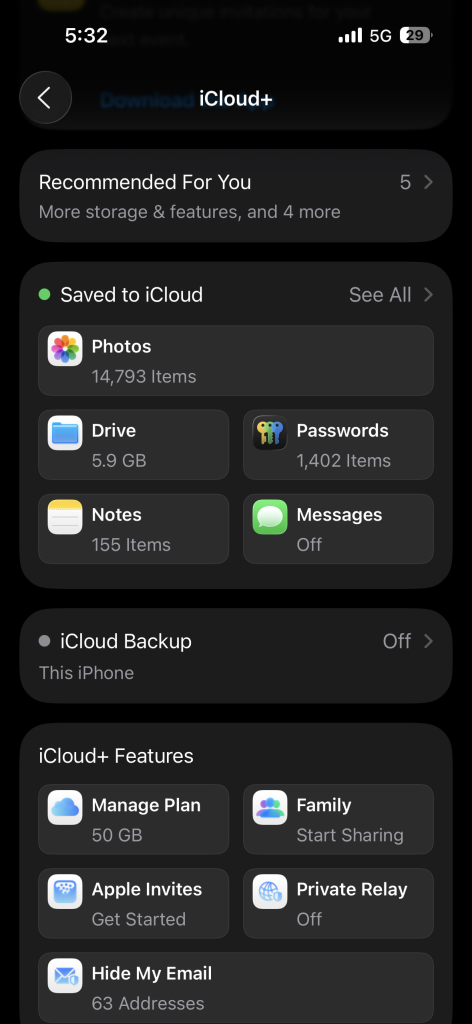
Device backups can consume a large portion of your iCloud storage. You may have backups for old devices you no longer use.
- On iPhone or iPad: Go to Settings > [Your Name] > iCloud. Tap Manage Account Storage, then select Backups. You will see a list of device backups. Tap on a backup you do not need and select Turn Off & Delete from iCloud.
Optimize and Manage Photos
Photos and videos are often the biggest users of iCloud storage. You have two main options to manage them.
- Optimize Photo Storage: This feature stores smaller, device-sized versions of your photos on your iPhone while keeping the full-resolution originals in iCloud. To enable it, go to Settings > [Your Name] > iCloud > Photos. Select Optimize iPhone Storage.
- Delete Unwanted Photos and Videos: Open the Photos app. Select the photos and videos you no longer want and tap the trash icon. Then, go to the Albums tab, scroll down to Recently Deleted, and permanently remove them to free up space immediately.
Clear Out iCloud Drive
Your iCloud Drive may contain documents, downloads, and other files that you no longer need.
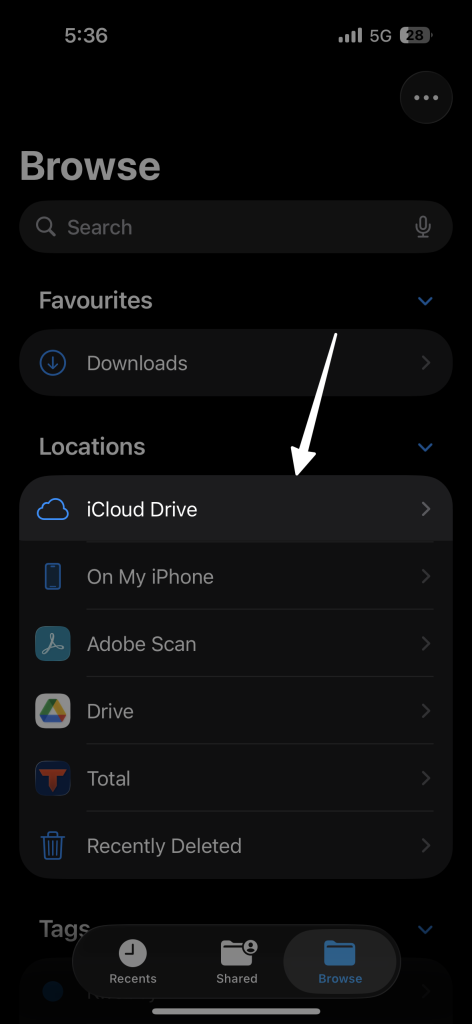
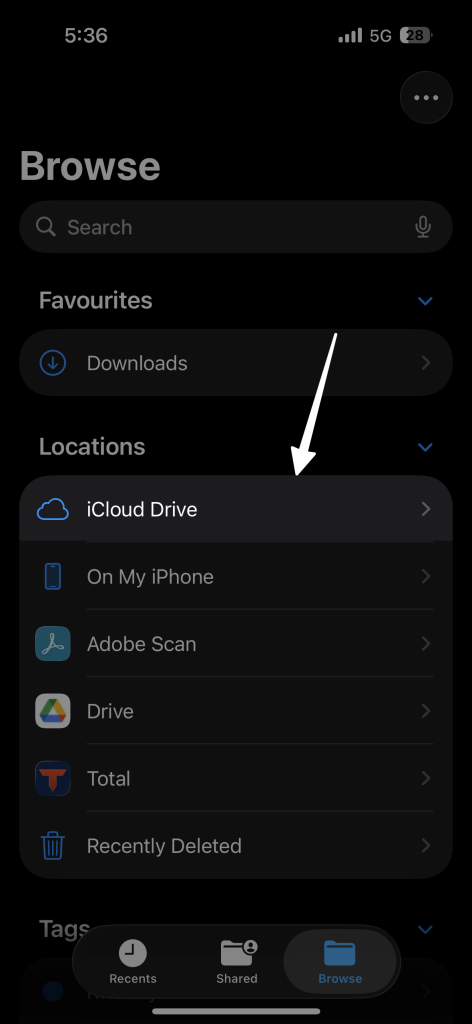
- On iPhone or iPad: Open the Files app and select iCloud Drive. Press and hold a file or folder, then tap Delete. Remember to also check the Recently Deleted location within the Files app to permanently remove items.
- On Mac: Open Finder and click on iCloud Drive in the sidebar. Drag files you do not need to the Trash, then empty the Trash.

- On iCloud.com: Log in with your Apple ID. Click on Drive. Select files or folders and click the trash icon to delete them.

Manage App Data
Many apps use iCloud to store data. You can review which apps are using the most space and remove their data.
- Go to Settings > [Your Name] > iCloud > Storage.
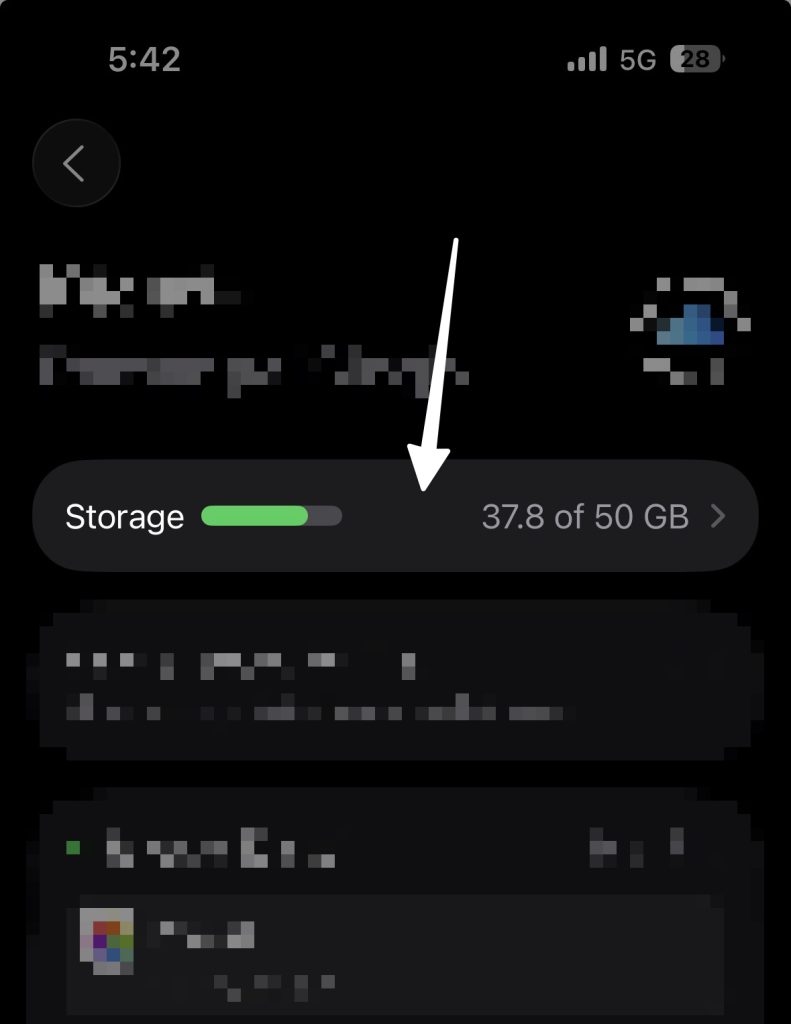
This shows a list of apps using iCloud storage, sorted by size.
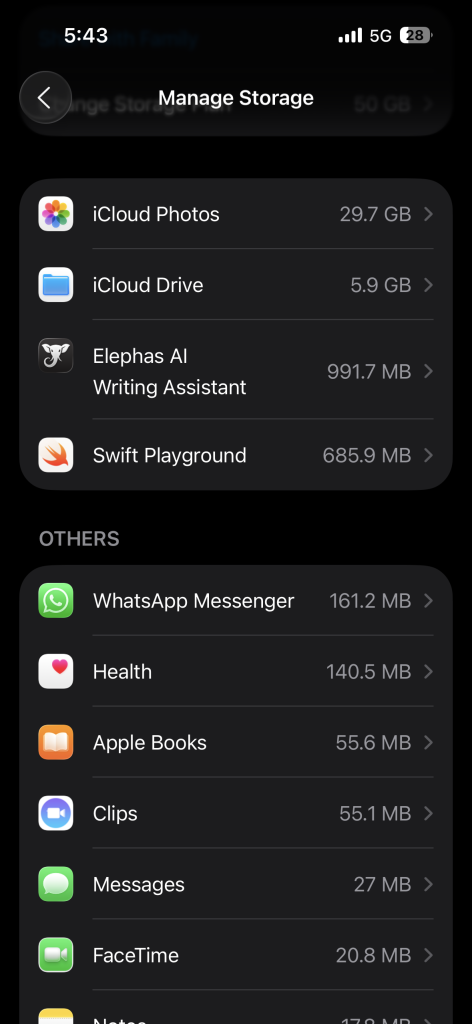
- Tap on an app to see its details. If you no longer need the data, you can tap Delete Data. This action is permanent. You can also stop an app from backing up to iCloud by going to Settings > [Your Name] > iCloud and toggling the app off.
Clean Up Messages and Mail
Attachments in Messages and Mail can accumulate over time and use significant storage.
- Messages: In iCloud settings, you can see how much space Messages is using. To clear space, open the Messages app and delete old conversations or large attachments manually.
- iCloud Mail: Open the Mail app. Search for emails with large attachments and delete them. Don’t forget to empty the trash folder in the Mail app afterward.
Best Practices for iCloud Maintenance
Keeping your iCloud storage organized requires regular attention. Follow these practices to avoid running out of space.
- Perform Regular Reviews: Once a month, check your storage usage. Go to Settings > [Your Name] > iCloud > Manage Account Storage to see what is taking up space. This helps you address issues before your storage becomes full.
- Use Alternative Storage: For large files or long-term archives, consider using other services like Google Drive or Dropbox. You can also move files to an external hard drive connected to your computer.
- Empty ‘Recently Deleted’ Folders: When you delete photos, files, or notes, they move to a “Recently Deleted” folder for 30 days. To free up space immediately, you must empty these folders in the Photos, Files, and Notes apps.
- Upgrade Your Plan if Needed: If you consistently need more space after cleaning, upgrading your iCloud storage plan might be the best solution. Apple offers several paid plans that provide more storage for your data.
Frequently Asked Questions (FAQs)
Here are answers to some common questions about managing iCloud storage.
What happens if I delete a backup from iCloud?
When you delete an iCloud backup, it is permanently removed. You will not be able to restore a device from that backup again. Before deleting, make sure it is for a device you no longer use or that you have another recent backup.
How do I recover deleted files from iCloud?
You can recover files deleted from iCloud Drive within 30 days. Go to iCloud.com, click on Drive, and look for the Recently Deleted location. You can select files from there and restore them. The same applies to Photos and Notes.
Can I stop certain apps from using iCloud?
Yes. Go to Settings > [Your Name] > iCloud. You will see a list of apps using iCloud. You can toggle off any app to prevent it from syncing and storing its data in iCloud.
What is “Optimize iPhone Storage” for Photos?
This setting helps save space on your device. It keeps smaller, compressed versions of your photos and videos on your iPhone, while the full-resolution originals are stored safely in iCloud. Your device will automatically download the full-resolution version when you view or edit a photo.
Final Thoughts
A well-managed iCloud account is key to a seamless experience across your Apple ecosystem. By regularly deleting old backups, managing photos, and clearing unnecessary app data, you can ensure you always have space for what matters most. Taking these steps not only frees up storage but also helps you keep your digital life organized and efficient.