
Sharing content is an integral part of Instagram’s appeal. Whether it’s a relatable reel, an inspiring post, or a thought-provoking image, reposting makes it easy to share your favorite content with your audience. Instagram’s new repost feature simplifies this process while providing tools to personalize your sharing experience.
In this guide, we’ll explore how the repost feature works, the steps to start reposting, and answers to common questions to help you make the most of this new option.
Key Takeaways
- Easier Sharing: Reposting allows you to share public reels and posts directly to your profile and feed.
- Content Personalization: You can add custom notes to reposts, making your shares unique and meaningful.
- Boosted Visibility for Creators: Original content remains credited, helping creators reach a wider audience.
- Dedicated Repost Tab: All your reposts are accessible in a specific tab on your profile for quick reference.
Instagram’s New Repost Feature
Instagram’s repost feature allows users to share public reels and posts they find interesting or valuable. Unlike taking screenshots or downloading third-party apps, this feature is built into Instagram for seamless and responsible content sharing.
When you repost, the original creator is credited prominently, ensuring authenticity and maintaining media rights. For creators, this feature boosts visibility, enabling their content to reach audiences beyond their existing followers.
Reposts also appear in two prominent places:
- Your followers’ main feed as shared content.
- A dedicated repost tab in your profile, so you and your audience can revisit what you’ve shared.
With these benefits, reposting becomes a powerful way to engage with content creators and build community connections.
How to Repost Content on Instagram
Follow these steps to use the repost feature effectively:
1. Locate the Content You Want to Repost
Open Instagram and find a public reel or post you’d like to share. Confirm that it’s posted by a public account, as private content cannot be reposted.
2. Tap the Repost Icon
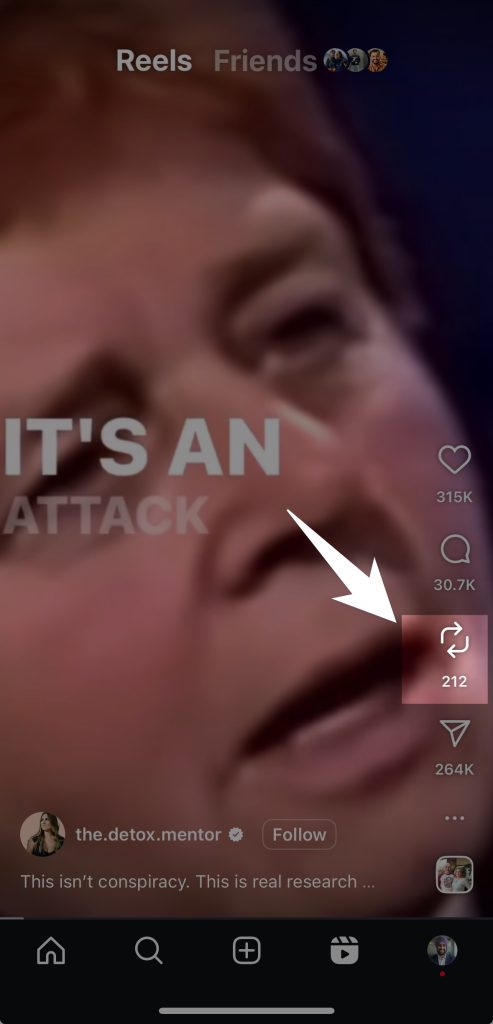
Below the post or reel, find the repost button (two arrows forming a circle). Tap this icon to start the sharing process.
3. Add a Personal Note
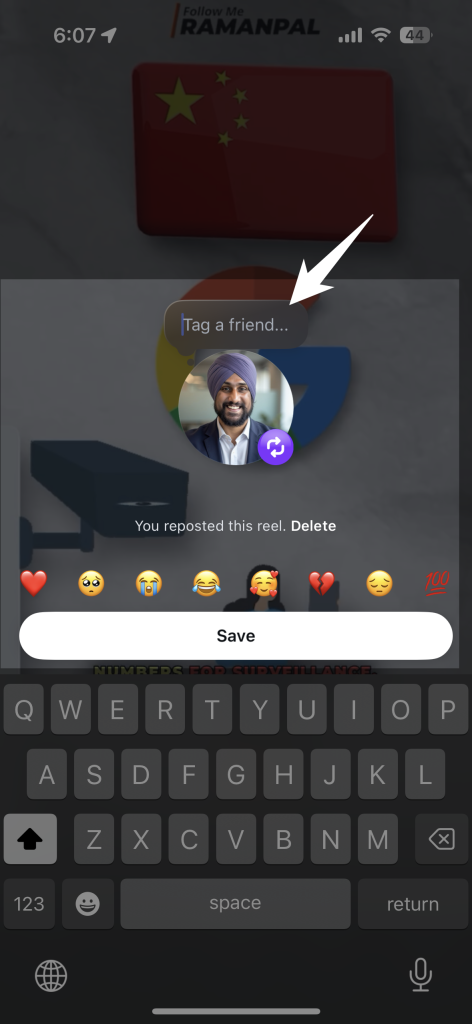
When the repost screen appears, you’ll see a text bubble where you can write a note about why you’re sharing this content. Use this space to add comments, tag your friend using “@” or context for your followers before reposting.
4. Save and Post
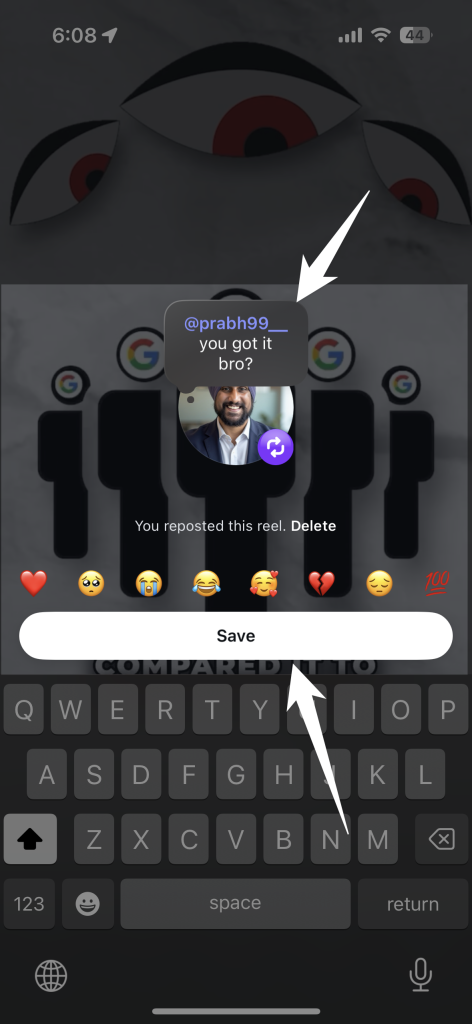
Once your note is complete, press the save button. Your repost will now appear in your followers’ feeds and your profile’s repost tab.
5. Access Your Repost Tab
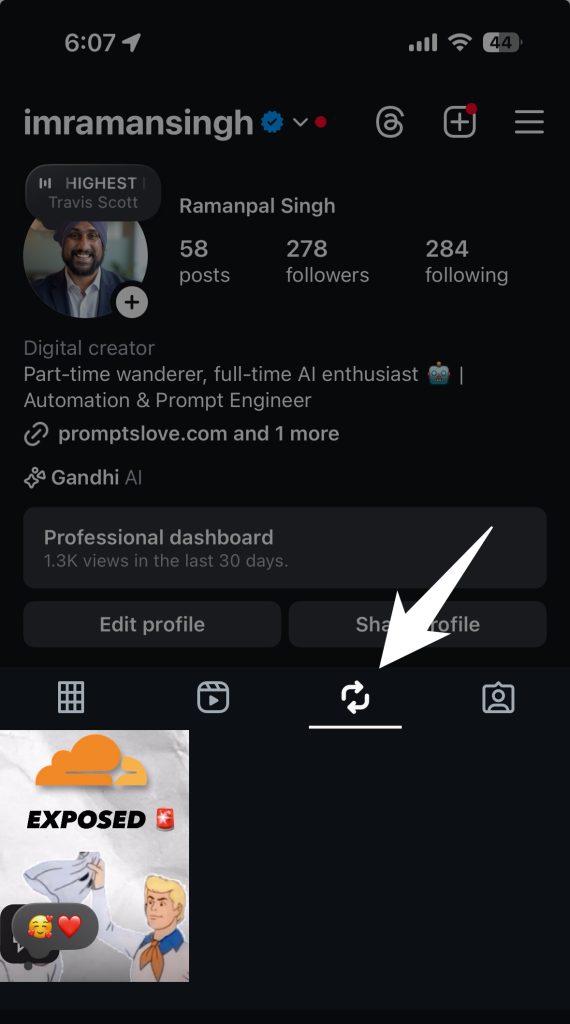
To view all your reposted content, go to your profile and open the dedicated repost tab. This ensures both you and your followers have a centralized location to explore all your shared posts.
Pro Tip
Customize your note to foster engagement. Add questions or thoughts that encourage your followers to comment, share opinions, or start conversations.
Frequently Asked Questions (FAQs)
Can I Repost Private Content?
No, you can only repost content shared by public accounts. Private content remains restricted to the account’s approved followers.
How Do Reposts Appear on My Profile?
Reposts appear in a separate repost tab on your profile. This makes it easy to revisit shared content without mixing it with your original posts.
Can I Turn Off Reposts for My Content?
Yes, Instagram allows users to control whether their content can be reposted. Visit your settings to enable or disable repost permissions for others.
Does Reposting Affect the Quality of the Original Content?
No, reposting maintains the original media quality. The content is shared exactly as it appeared in the creator’s feed.
Can I Edit a Reposted Note After Saving?
Currently, notes added to reposts cannot be edited after posting. Ensure you proofread your note before saving it.
Will Creators Always Get Credit for Their Work?
Yes, the original creator’s name is displayed prominently on all reposts, guaranteeing proper credit for their content.
Final Thoughts!
Instagram’s repost feature is designed to make sharing effortless while respecting creators’ work. By following these steps and understanding its functionalities, you can enhance connections with friends, discover new audiences, and support creators within the Instagram community.
Happy reposting!