To auto scroll Instagram Reels, open a Reel in the Instagram app, tap the three-dot menu, and turn on Auto scroll if the option is available. The next Reel can then play without another swipe.
I’d check that built-in setting before installing a scrolling app. If you can’t find it, there’s no need to start granting extra permissions or deleting Instagram. Below, I’ll walk you through the on/off controls, sensible checks for a missing toggle, and voice-controlled alternatives for iPhone and Android.
Key takeaways
- Start inside a Reel: the native Auto scroll option is in the Reel’s menu, rather than a general phone setting.
- Check your own app: menu layout and availability can differ between accounts and versions.
- You can switch it off: return to the same menu and disable Auto scroll.
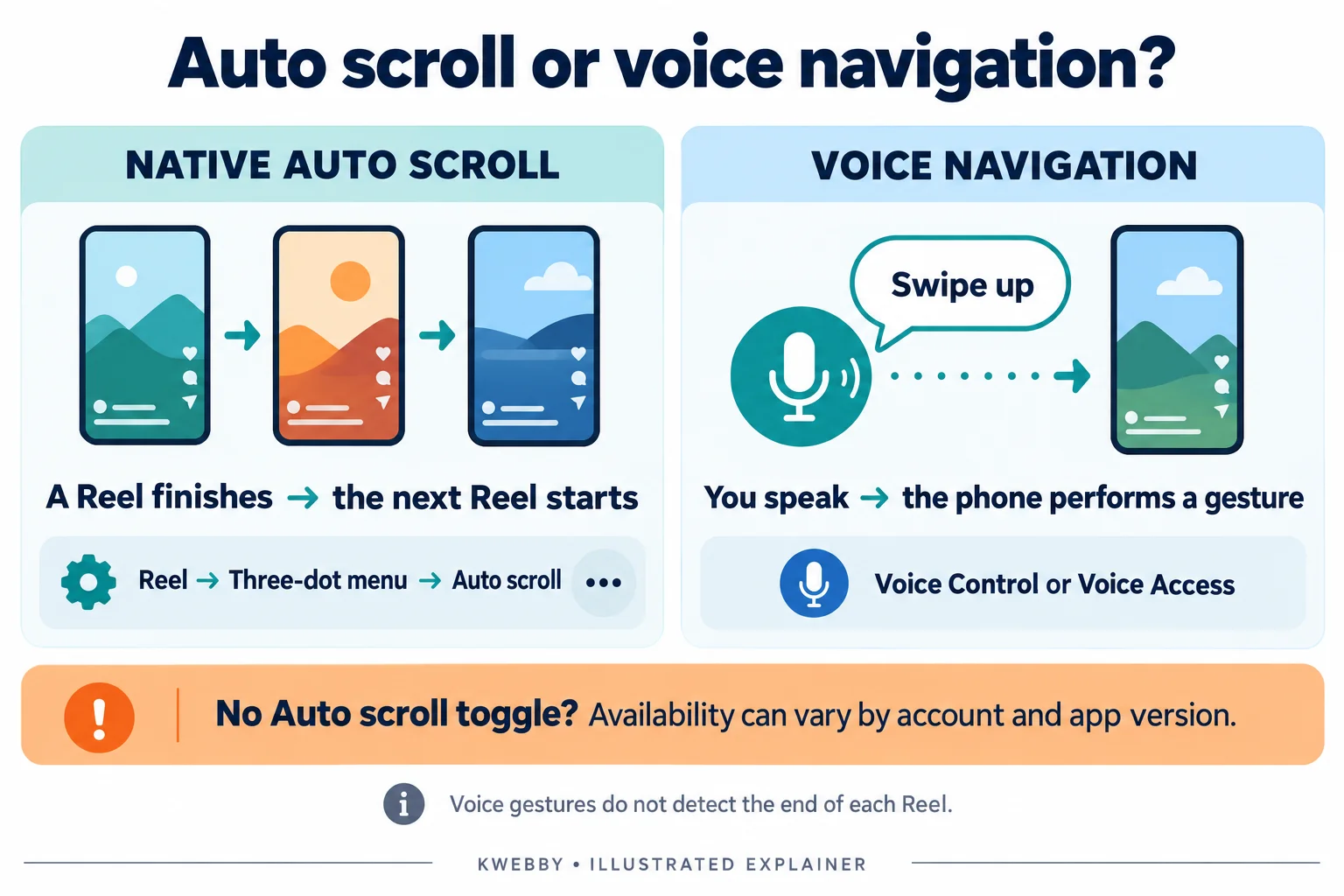
- Voice controls are different: they perform a gesture when you speak, rather than waiting for each Reel to finish.
- Keep permissions in proportion: a missing toggle isn’t a reason to hand an unknown app broad access to your screen.
How to turn on auto scroll on Instagram Reels
Use the official Instagram mobile app on your iPhone or Android phone. Here’s the first place to look:
- Open Instagram and go to the Reels tab.
- Open a Reel so you’re watching it in the full-screen player.
- Tap the three dots alongside the Reel’s controls.
- Look for Auto scroll and turn it on.
- Let the Reel finish, then check whether the next video starts. That confirms the setting is working in your session.
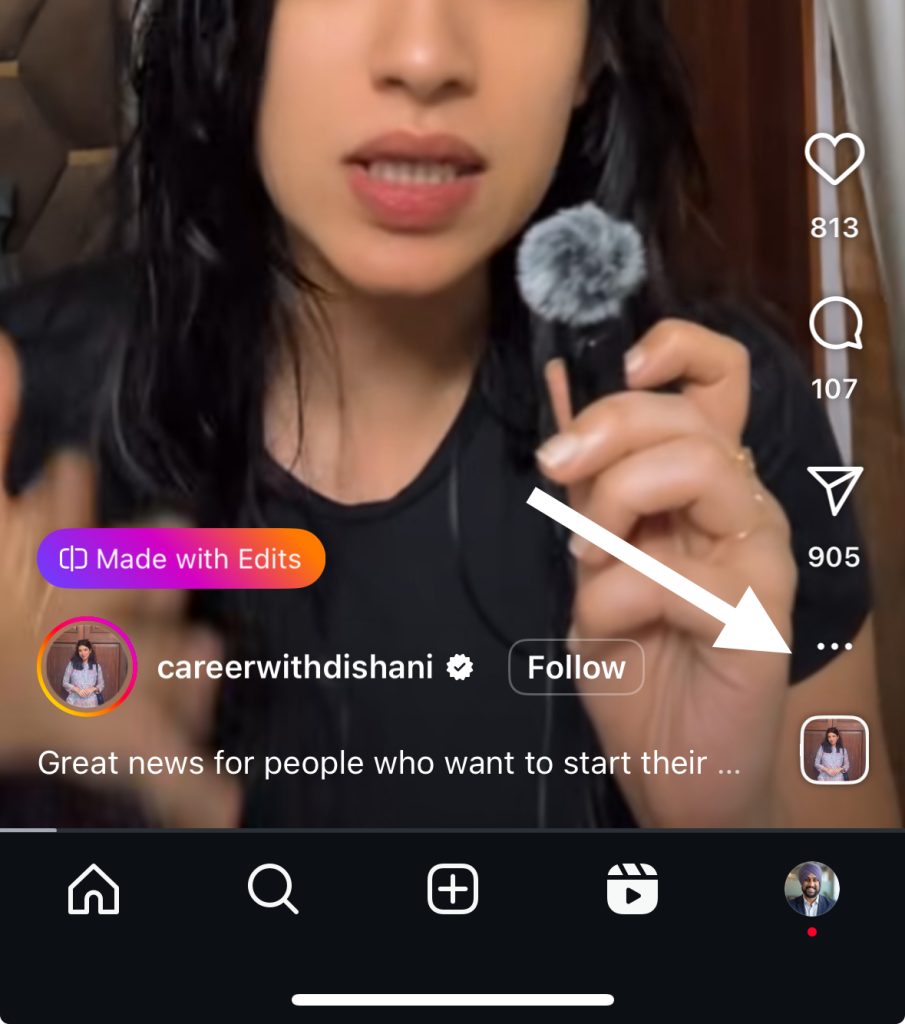
The screenshot below shows the control you’re looking for. Read the label rather than relying on its exact position in an older screenshot.
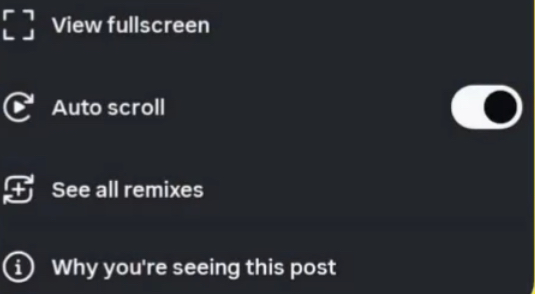
Don’t worry if your menu looks different. Instagram changes its interface, and seeing a feature on someone else’s phone doesn’t establish that it’s available on your account.
How to turn off auto scroll on Instagram
Open a Reel, tap its three-dot menu, and switch Auto scroll off. Then watch the end of a video to check the result.
Pausing a video and disabling auto scroll are separate actions. If you want to keep choosing when to move on, use the setting itself rather than assuming a tap on the video permanently changes it.
If videos still advance after you’ve disabled the native option, check whether a scrolling app, accessibility automation, browser extension, or shortcut is also running. Stop that tool using its own controls, then try again.
Why is auto scroll not showing on Instagram?
A missing option doesn’t tell you the cause on its own. I would work through these checks in this order:
- Check the right screen. Open the full-screen Reels player and its menu. A profile settings screen, Story, or browser page can have different controls.
- Check for an app update. Use Instagram’s listing in the App Store or Google Play. An update may address an outdated interface, but it doesn’t guarantee access to a particular feature.
- Close and reopen Instagram. Recheck the Reel menu after reopening the app.
- Consider account differences. If you already use another account, comparing the menus can help show whether the difference is account-specific. You don’t need to create another account for this.
- Stop there if the app otherwise works. You can continue swiping or use voice navigation. There is no verified app version, account switch, or reinstall trick that I can promise will unlock the toggle.
If a control you previously had disappears, note your phone model, app version, and what changed before reporting the issue through Instagram’s in-app Help options. That is more useful than repeatedly reinstalling.
Before removing the app or clearing its storage: preserve any drafts or other local work you need, and make sure you can sign back in. Those steps can remove local data and are not a guaranteed feature-unlock method.
If you see a warning about how often you can perform an action, that’s a different problem from a missing playback option. See our guide to the Instagram “we limit how often” warning.
Use voice controls to move between Reels
Voice navigation is useful if your goal is to avoid touching the screen. You still choose when to move to the next Reel by speaking a command.
iPhone Voice Control
Apple’s Voice Control instructions explain how to navigate with spoken gestures:
- Open Settings > Accessibility > Voice Control.
- Complete the setup and initial download if you haven’t used it before.
- Return to Instagram and open a Reel.
- Try the spoken gesture “Swipe up.” Check that it moves the intended screen.
- Turn Voice Control off in the same settings when you’re done.
You can say “Show me what to say” to see supported commands. If a custom command would help, review the available commands in Voice Control settings. A custom gesture still responds to your instruction; it doesn’t detect the end of a video.
Android Voice Access
Google’s Voice Access documentation lists spoken navigation commands, including scrolling and swiping.
- Set up Google’s Voice Access app using its official instructions, then enable it under your phone’s Accessibility settings.
- Start Voice Access and open Instagram Reels.
- Use a navigation command such as “Scroll down” and check the result. You may need to target the correct area if more than one area can scroll.
- Say “Stop listening” to pause voice input, or turn Voice Access off in Accessibility settings.
Phone menus and supported languages vary. Follow the setup shown on your device, and review the access the app requests.
Should you use an auto-scroll app, shortcut, or extension?
For this job, my preference is the native Instagram control first, followed by the phone’s supported accessibility tools if you need voice navigation.
Third-party scrollers may simulate taps or swipes, scroll a webpage, or try to detect when a video ends. Those are different approaches, so a claim that a tool “auto scrolls” doesn’t tell you how it will behave in Reels.
There are a few checks I’d make before using one:
- Scope: does it work in the Instagram app, a mobile browser, or a desktop browser?
- Permissions: can it read the screen or act in other apps? Google explains that accessibility access can expose screen content and let an app interact on your behalf.
- Maintenance: is the developer still maintaining it, and does its description fit your device?
- Stopping it: can you easily pause it and remove its access?
- Account safety: don’t give an unknown scrolling tool your Instagram password or disable a security warning just to keep scrolling.
A store listing or a developer’s privacy statement is useful information, but neither proves that a tool has been independently tested. I haven’t installed or tested third-party scrollers for this revision, so I’m not presenting one as a guaranteed solution.
The older Safari shortcut instructions have been removed from this guide. Running a script on a webpage doesn’t establish that it will correctly advance Instagram Reels, and it isn’t the same as controlling the native app.
Frequently asked questions
Does Instagram auto scroll work on iPhone and Android?
The native Reel-menu option has been documented on the mobile app, with the same basic on/off flow. Check the menu on your account rather than assuming that every iPhone or Android user has the same controls.
Can I auto scroll Instagram on a PC?
Don’t assume the mobile toggle is also available on Instagram’s website. Inspect the controls shown in your browser. Extensions that add this behavior are separate third-party tools with their own permissions and compatibility limits.
Is auto scroll the same as autoplay?
They describe different behaviors. Autoplay starts a video; auto scroll advances to another item. A Reel can play automatically while you still need to swipe to reach the next one.
Can I change the auto-scroll speed?
The native control documented here is an on/off toggle. Don’t expect a speed or delay slider unless your app actually shows one. Some third-party tools offer timers, but a fixed timer may move on before a longer Reel ends.
Will reinstalling Instagram add the missing toggle?
It isn’t guaranteed. Reinstallation cannot establish that your account is eligible for a feature. Update and restart first, and protect local drafts and sign-in access before considering app removal.
Final thoughts
Start with Reels > three-dot menu > Auto scroll. If you have the toggle, you can turn it on and off without adding a separate scrolling tool.
If it’s missing, keep the troubleshooting modest. Check the app and the correct menu, then use manual swiping or voice navigation while you wait. A little convenience isn’t worth giving an unfamiliar app more access than you understand.