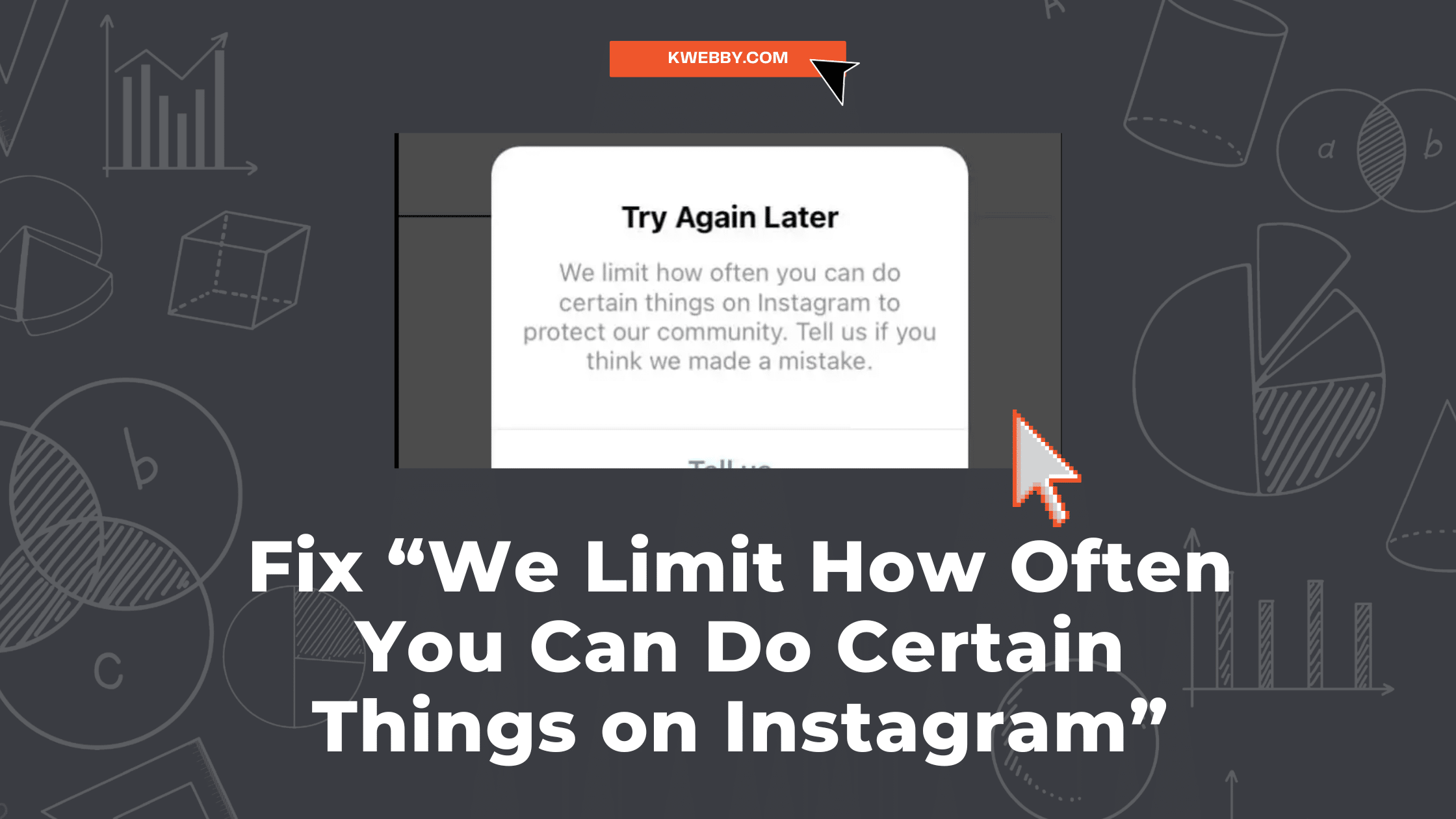
If Instagram says “We limit how often you can do certain things”, stop repeating the action that triggered it. Then check Account Status, review any apps connected to your account, and use Instagram’s review or reporting options if the restriction looks wrong.
There isn’t a reliable instant-unlock trick or one waiting time that applies to every account. I’ll walk you through what to check, what the different messages mean, and which popular “fixes” I’d skip.
Key takeaways
- Pause the affected action. Don’t keep pressing Follow, Like, Comment, or Send to test the warning.
- Read the account-specific notice. An end date or instruction shown by Instagram is more useful than a timer suggested by a blog.
- Check Account Status. Look for removed content, features you can’t use, and any available review option.
- Remove risky access. Stop using follower, auto-like, auto-comment, and mass-follow services. Secure your account if someone else may be using it.
- Separate bugs from restrictions. Updating or restarting the app can help a technical problem, but it isn’t a documented way to reset an account limit.
What does “We limit how often” mean on Instagram?
The warning tells you that Instagram is limiting an action to protect its community. You might see it when following people, liking a post, commenting, or sending a message. The affected feature matters: being unable to follow someone doesn’t, by itself, tell you that your entire account has been disabled.
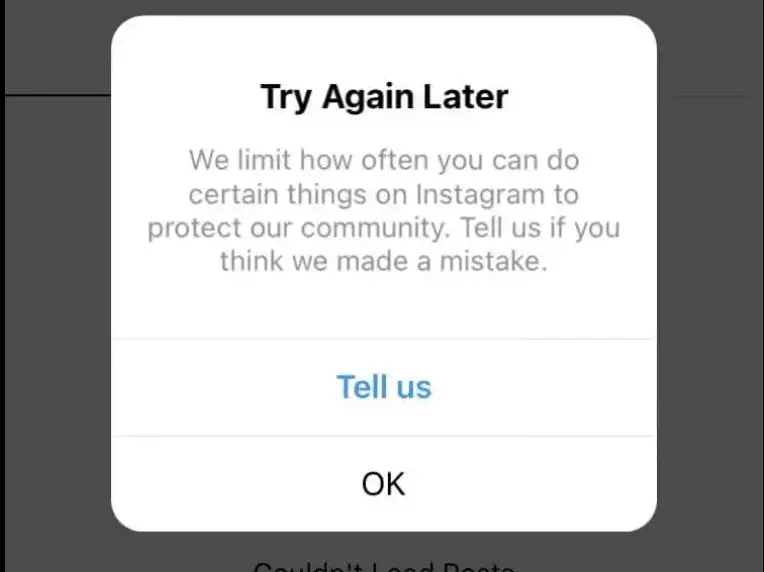
Repetitive activity is one reason to review your recent use. Meta’s spam policy addresses high-frequency activity and artificially increasing engagement. But the warning alone doesn’t tell you exactly what triggered the decision, and it isn’t proof that you intentionally broke a rule.
Before changing anything, take a screenshot and note:
- The complete message, including any expiry date
- The action you were trying to perform
- When it first appeared
- Whether Instagram has shown a separate security or policy notice
How to fix the “We limit how often” Instagram error
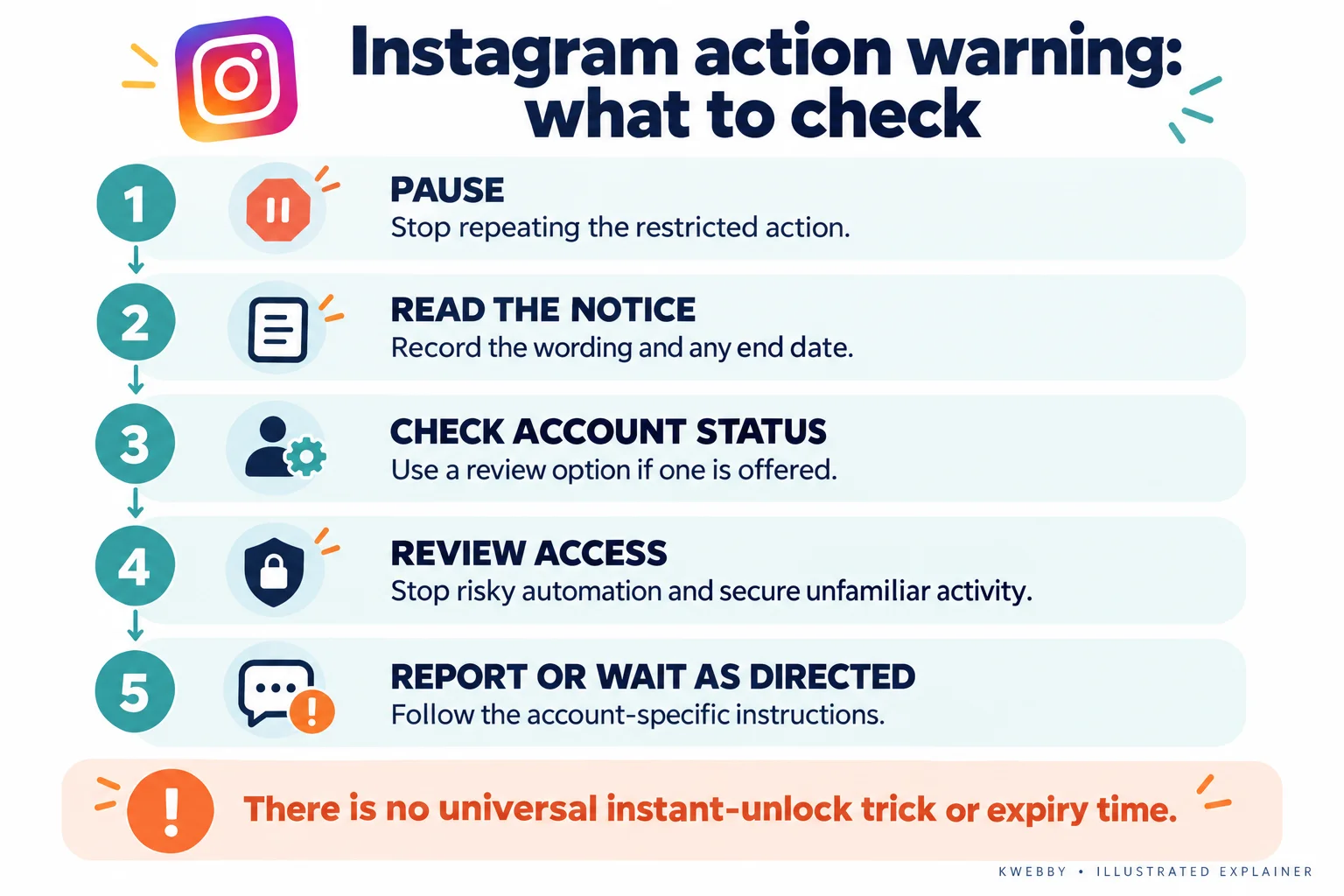
I’d work through these checks in order. You can stop when Instagram gives you a clear instruction for your account, such as waiting until a displayed date or completing an official review.
1. Pause the action Instagram is restricting
Stop the repeated activity. If the warning appeared during a follow/unfollow cleanup, leave the list alone. If you were sending the same comment or message repeatedly, stop that pattern too.
Also pause any service or scheduled workflow performing the affected action for you. On a shared business account, check whether a teammate is doing the same thing from another device.
Don’t try to find the maximum number of actions you can squeeze through. The useful next step is checking the notice and your account, rather than repeatedly hitting the same button.
2. Check Account Status and use any available review option
Instagram’s Account Status guide explains how to see removed content and features you can no longer use.
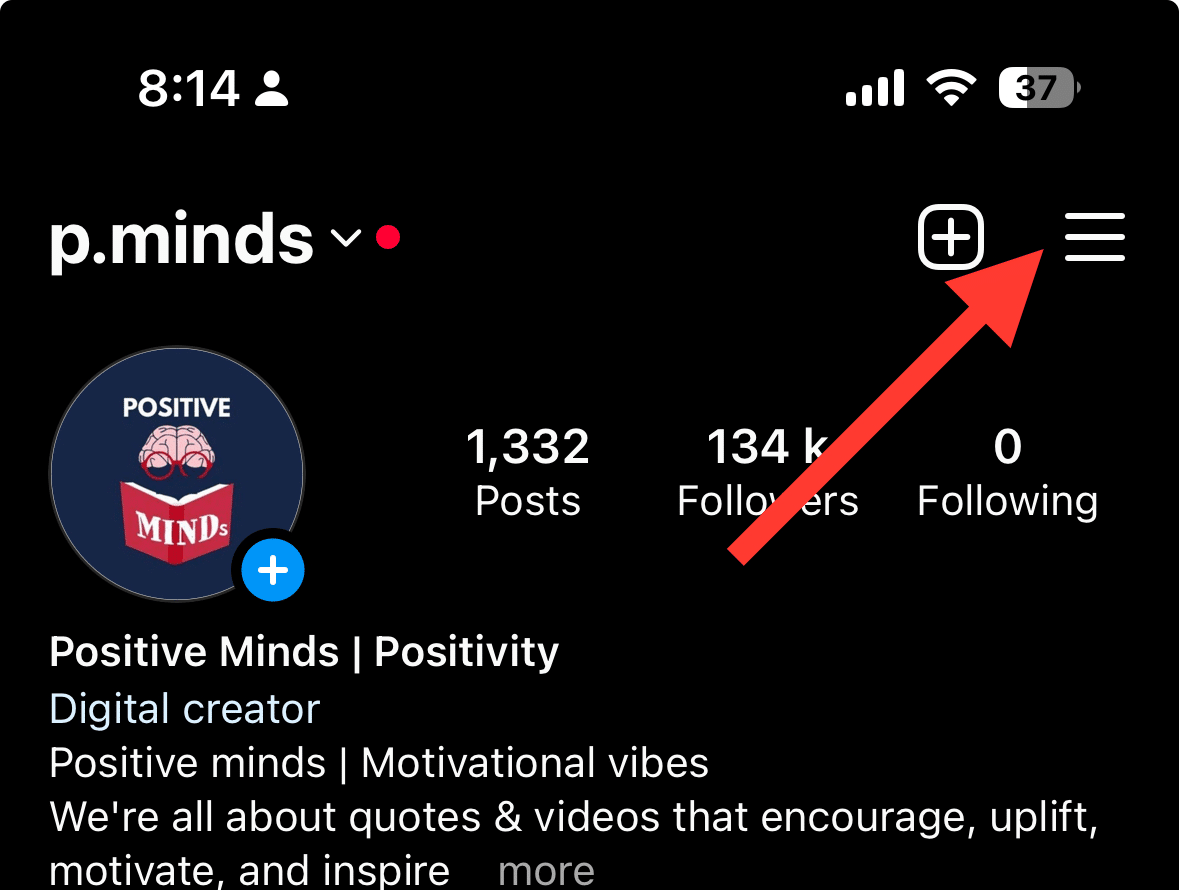
- Open Instagram and go to your profile.
- Tap the menu in the top-right corner.
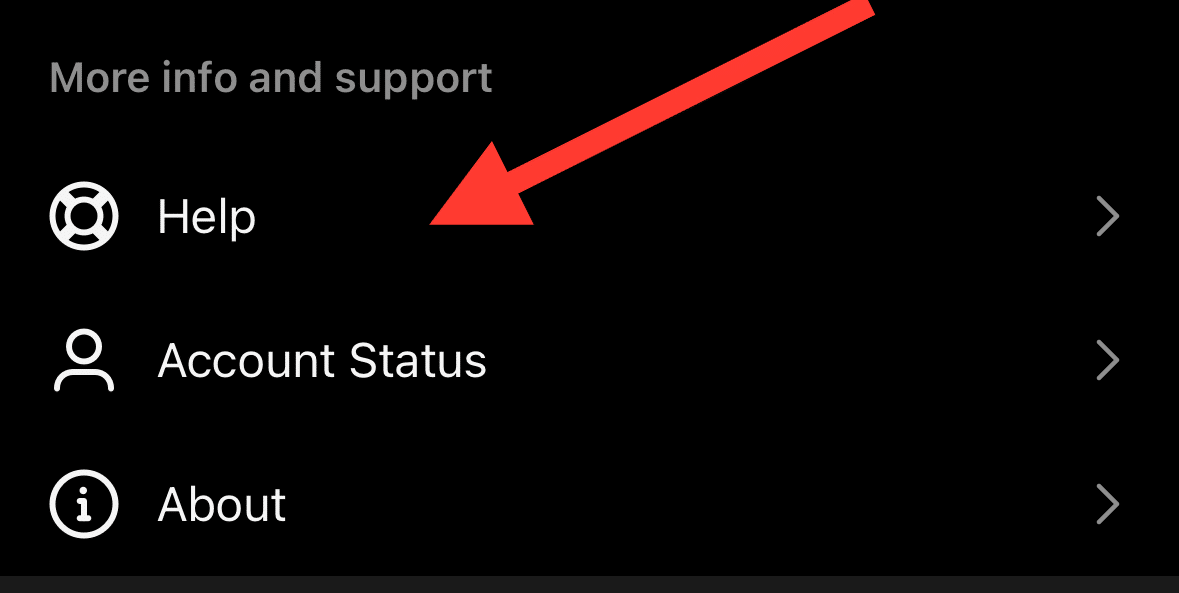
- Under More info and support, open Account Status.
- Check Removed content and Features you can’t use, if those sections are available.
- Open the affected item and follow the instructions. If you disagree with a content-removal decision, use Request a review when Instagram offers it.
On Instagram’s website, the documented route is More → Settings → Account Status. Menu placement can vary between app versions, so look for the feature name if your screen differs.
A review button isn’t available for every warning. If Account Status doesn’t explain the pop-up, keep that detail for your problem report. Don’t assume a clear status screen means you should keep repeating an action that is still blocked.
3. Review connected apps and stop artificial engagement
Have you used a service promising followers, automatic likes, or mass engagement? Instagram specifically warns that apps offering likes and followers can compromise your account and lead to restrictions or account loss.
Review the permissions you’ve granted. Instagram’s connected-app instructions give this website route:
- Open More → Settings.
- Under Your app and media, choose Website permissions.
- Open Apps and Websites → Active.
- Select Remove beside an app you no longer trust or need.
In the mobile app, look for Website permissions or Apps and websites in settings. Removing access won’t erase information an app already stored, but it stops that connected access to your non-public information through Instagram.
A legitimate publishing integration isn’t automatically the same as an auto-like bot. Review what each tool actually does. None should be treated as a way to override an Instagram restriction.
4. Secure your account if the activity wasn’t yours
If you see posts, messages, logins, or account changes you don’t recognize, treat that as a security issue. Instagram’s account-security guidance recommends a strong, unique password and two-factor authentication.
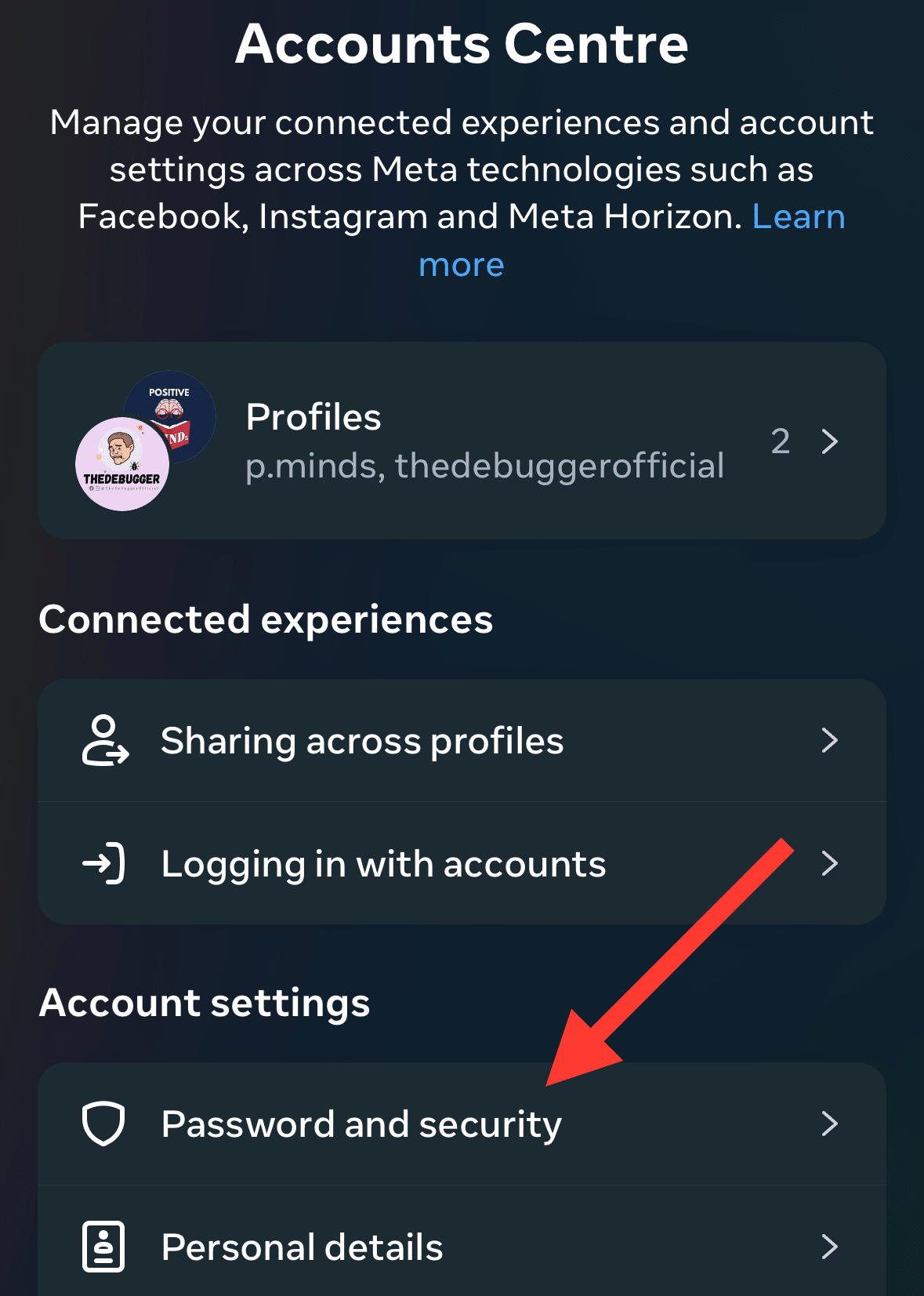
Open Accounts Center → Password and security to review the available security controls. Check where you’re logged in and follow Instagram’s instructions for unfamiliar sessions. If you gave your password to a follower or engagement service, change it through Instagram.
If you can’t access the account, use the recovery route linked in Instagram’s security guidance. Don’t give a recovery service your password, login code, or backup codes.
5. Check for a technical problem without treating it as an unlock trick
If the app is also freezing, failing to load, or showing errors unrelated to one restricted action, there may be a technical problem to investigate.
Start with Instagram’s official troubleshooting steps:
- Update Instagram from the App Store or Google Play
- Make sure your device’s operating system is up to date
- Restart your phone or tablet
- If pages won’t load, check whether the problem is a weak Wi-Fi or mobile-data connection
A connection check is useful for a loading failure. It doesn’t establish that a new network removes an account restriction, so don’t keep changing networks or devices to get around the warning.
Reinstallation is a later troubleshooting option, not the first thing I’d try. Before deleting the app or clearing its stored data, preserve any drafts you need and make sure you can sign back in, including access to your two-factor authentication method.
6. Tell Instagram if you think it made a mistake
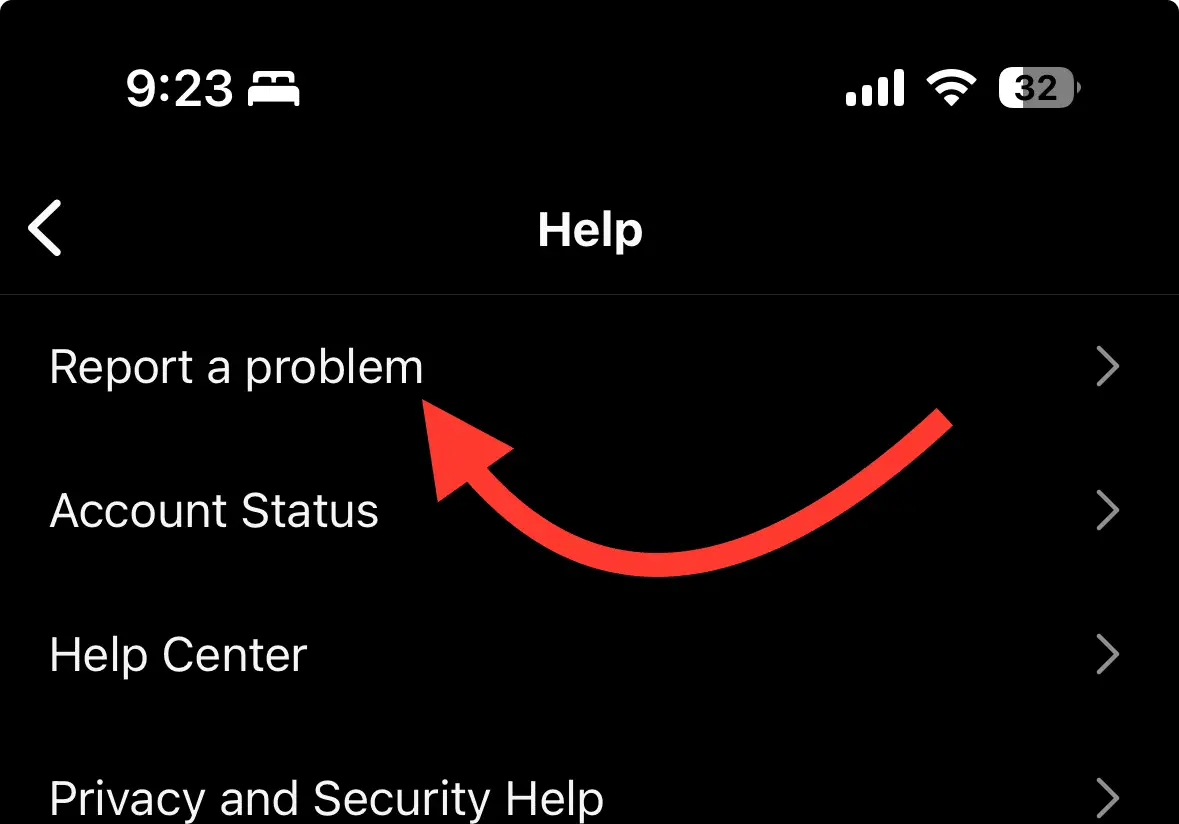
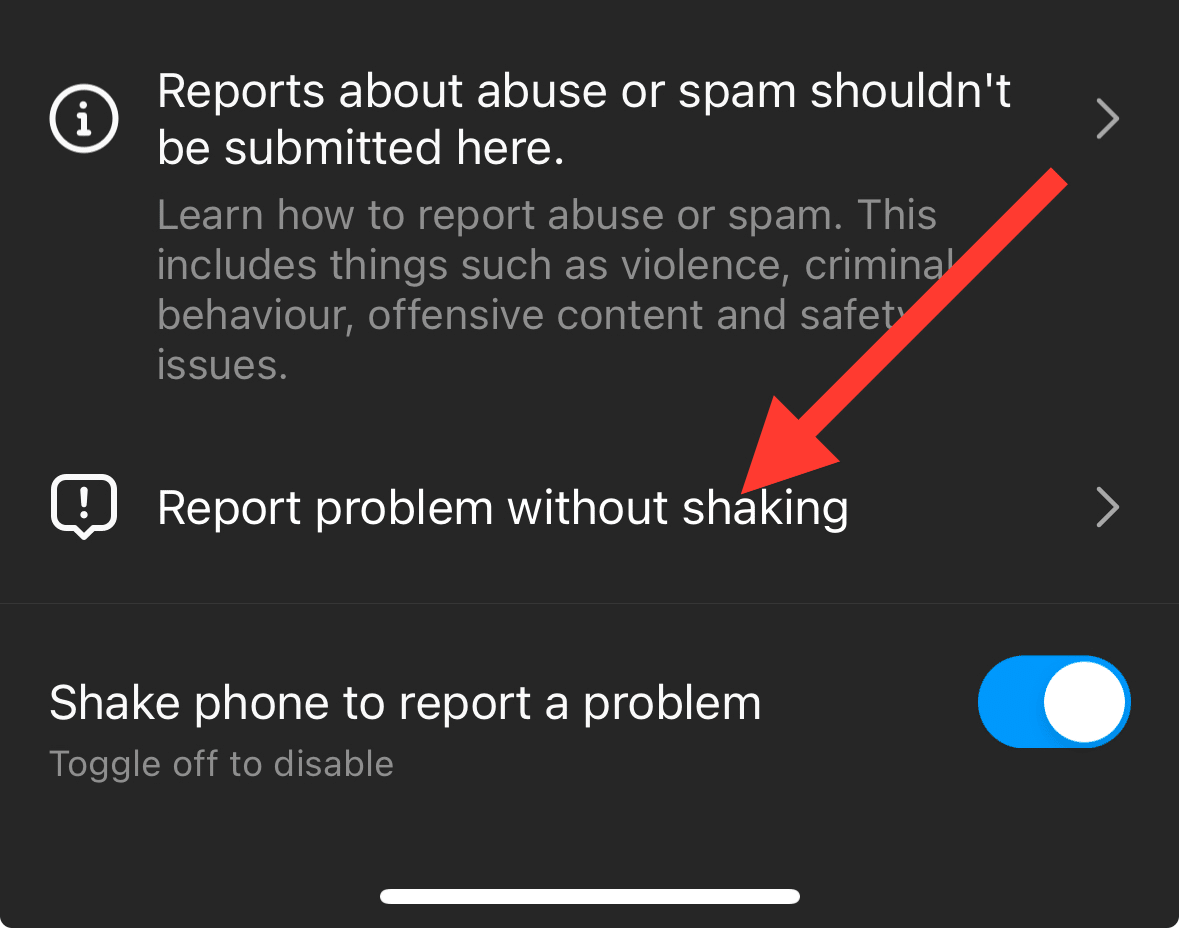
If the warning includes Tell us or another feedback button, use it when you believe the restriction is mistaken. For an unexplained technical issue, Instagram documents a separate Report a Problem route.
- Go to your profile and open the menu.
- Under More info and support, select Help.
- Tap Report a Problem.
- Choose Report problem without shaking, if shown, and follow the prompts.
- Describe what failed and attach a relevant screenshot.
Keep the report specific. You could adapt this template:
“When I try to [affected action], Instagram shows [exact warning]. It started on [date and time]. I’m using [device and app version]. Account Status shows [what you see]. I’ve already tried [steps taken]. Please check whether this restriction or error was applied incorrectly.”
Be accurate about your activity and any connected tools. Don’t include passwords or login codes. Crop unrelated private messages out of screenshots.
Instagram includes some device and account information with a technical report and may offer additional logs and diagnostics. Read that choice before sending. Submitting a report doesn’t guarantee an immediate reply or removal of the restriction.
7. Follow the notice and check again later
If Instagram provides an end date, wait until it has passed before trying the affected action again. If it asks you to complete a security check, follow the prompt inside the official app or website.
If there’s no end date, the warning doesn’t give you enough information to calculate one. After a break, make a single normal attempt rather than starting another batch of activity. If the warning remains, stop and use the applicable review or reporting route above.
When access returns, avoid restarting the same mass-follow, repetitive-comment, or automated-engagement pattern. If you need to review what happened, our guide to finding your liked posts on Instagram can help you locate recent likes. There’s no need to bulk-delete them as a supposed reset.
How long does the Instagram limit last?
There’s no single duration I can promise for this warning. An account-specific date in Instagram is the best information to follow.
You’ll see claims that it always clears in an hour, 24 hours, 48 hours, or a week. The official help pages referenced here don’t establish a universal expiry time for the “We limit how often” action warning. Another person’s experience doesn’t tell you when your restriction will end.
Also check that you’re reading advice about the same issue. Instagram documents a temporary security-settings limitation after a login from an unfamiliar device. That page describes a hold of a few days on particular settings. It doesn’t set the duration of a like, follow, or comment restriction.
If the displayed end date has passed and the same action still fails, include that date and a screenshot in your report. If the app says the account is suspended or disabled, follow that account’s appeal instructions instead of waiting for an action-limit timer.
Are there reliable daily limits for Instagram likes, follows, and comments?
I wouldn’t plan your activity around a third-party “safe limits” table. The official sources checked for this guide don’t provide a universal daily or hourly allowance that guarantees you won’t see this warning.
Here are the claims I’d avoid relying on:
- “Changing your password resets the counter.” Change it for security when needed. Instagram’s security guidance doesn’t present it as a universal restriction reset.
- “A new IP address removes the block.” Troubleshoot a weak connection when pages won’t load. Don’t use network changes to work around enforcement.
- “Automation keeps you under the limit.” Artificial engagement can create the problem and put your account at risk.
- “A backup account fixes it.” It doesn’t resolve the restriction on your original account. Don’t use another account to continue blocked behavior.
- “Delete your posts or recent activity to unlock everything.” Review the specific notice first. Don’t remove legitimate content just because you’re guessing what triggered the warning.
What if the warning appears when viewing someone’s followers?
Read the exact message. A notice saying Instagram limits what you can see, such as someone’s followers, may concern access to that information rather than permission to like or comment.
Don’t assume the person blocked you, and don’t use a scraper or another account to get around the restriction. Stop repeatedly opening the list, check for an account-specific notice, and report the unexpected error if appropriate.
Your own account’s privacy settings are a separate matter. Changing who can see your profile won’t remove an Instagram-imposed action restriction.
Frequently asked questions
Why am I seeing the warning if I wasn’t spamming?
The message doesn’t identify the exact cause. Check recent account activity, connected tools, and security notices before drawing a conclusion. If you believe the restriction is mistaken, use the feedback option on the warning or report the unexplained problem.
Why is Account Status clear while the warning still appears?
Account Status is a useful place to check, but a clear screen doesn’t explain every pop-up. Record what both screens show and include that difference in your report. Treat the affected action as unavailable while Instagram continues to block it.
Will changing my Instagram password remove the limit?
There’s no guaranteed reset. A password change is appropriate if your account may be compromised or you shared the password with an unsafe service. It shouldn’t be presented as an automatic fix for every activity warning.
Can I still use other Instagram features?
That depends on what Instagram restricted. Read the notice and check which features are available. Don’t use another feature, account, or tool to continue the same behavior Instagram has blocked.
Should I delete the post that appeared before the error?
Check whether Instagram actually identified that post. If a removal decision is wrong, use the available review option. Deleting unrelated posts or clearing your activity history isn’t a documented universal fix for this warning.
How can I reduce the chance of the warning returning?
Use Instagram for genuine interactions, avoid repetitive bulk activity and artificial engagement services, protect your login, and follow any account-specific instructions. These are sensible habits, not a guarantee that an automated system will never make a mistake.
Final thoughts
My advice is to start with the evidence Instagram gives you: the exact warning, Account Status, and any security notice. Pause the affected action, remove risky access, and use the right review or reporting option.
You don’t need an invented daily quota or an “instant unban” service. You need a clear account check, a useful report if something is wrong, and time for Instagram to lift or review the restriction.