

The creative possibilities in Canva are endless, and one design trend standing out for its elegance and impact is the text foil effect. A text foil, often used in gold, silver, or rose gold, can make any design feel sleek, luxurious, and visually engaging.
Whether you’re creating social media posts, invitations, or branding materials, mastering this technique can elevate your content to a new level of sophistication. This guide will walk you through everything you need to know about making a text foil in Canva.
Key Takeaways
- Text foil effects add a polished and professional touch to your designs.
- Canva’s simple tools make the process of creating text foil accessible to everyone.
- Experimenting with textures, colors, and backgrounds can help make your design pop.
What Is Text Foil?
Text foil is a design feature where text appears to be crafted from reflective or metallic material, such as gold, silver, or other shiny finishes. This effect mimics the look of real foil stamping often seen on high-quality print designs.
Example of Text Foil

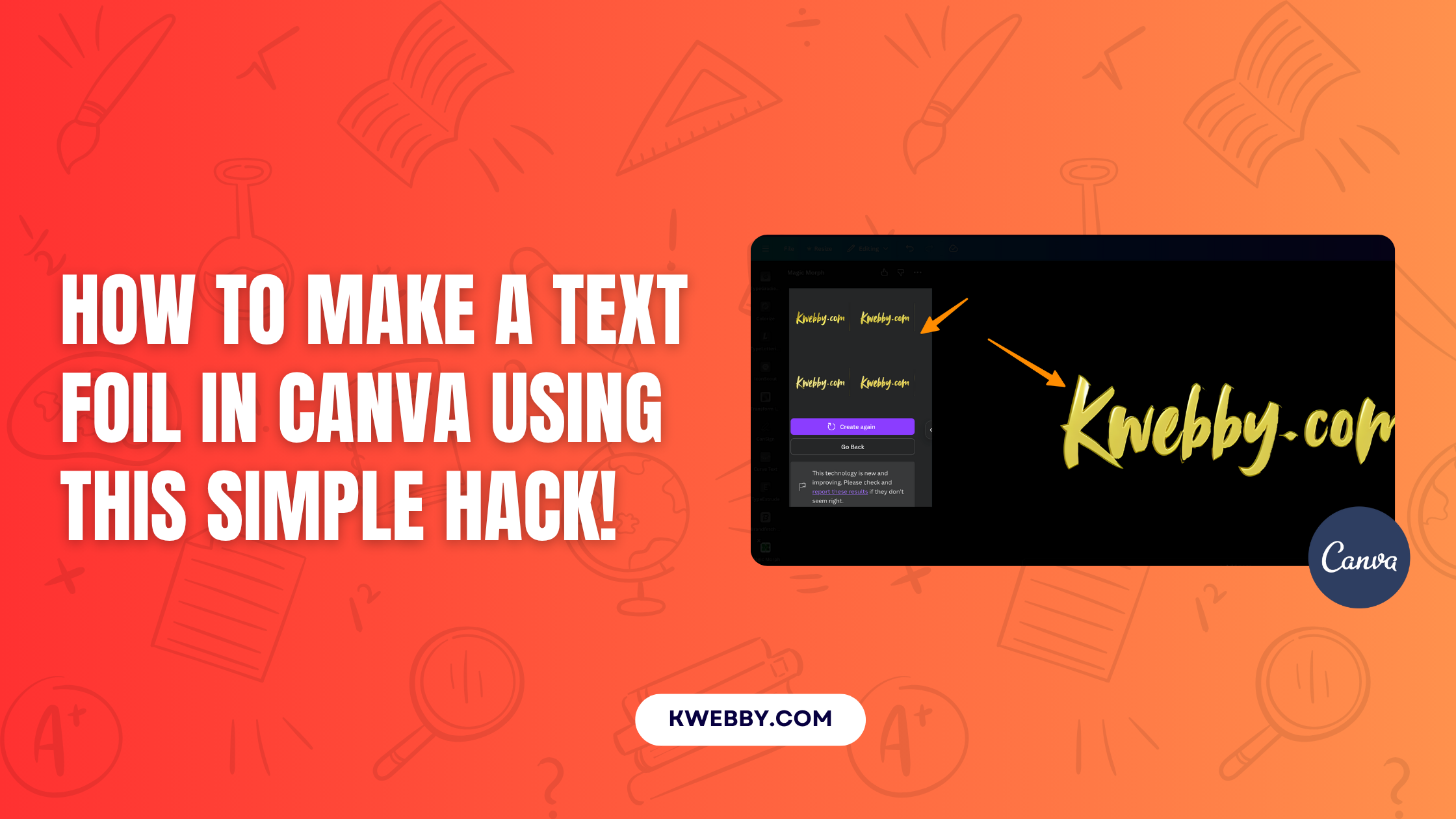
Picture an invitation with the word “Kwebby.com” written in shimmering gold. The metallic effect catches the light, creating an elegant texture that feels premium. Text foil has become a favorite for weddings, events, and professional branding. Fortunately, you don’t need expert tools like Photoshop to achieve this look—you can do it in Canva effortlessly.
How to Create Text Foil in Canva
Follow these simple steps to create your own text foil designs using Canva.
Step 1: Open Your Canva Workspace

- Start a new design by selecting the desired size and template for your project.
- For instance, choose “Instagram Post” or “Custom Size” to fit your specific needs.
Step 2: Add Your Text
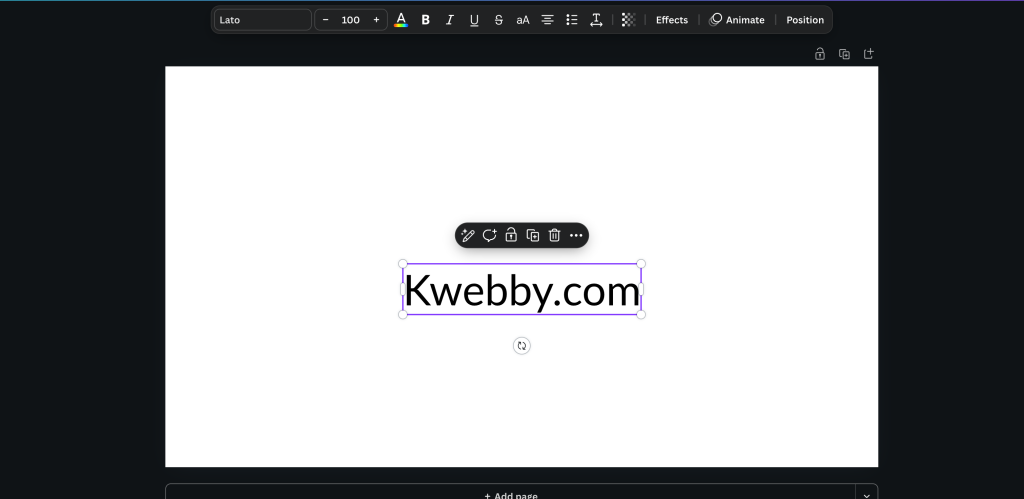
- Insert text into your design by clicking the Text tool in the left-hand menu.
- Type your desired phrase or word. For example, use something fun, like “Shine Bright.”
- Adjust the font size and pick a font that complements the metallic effect (bold or serif fonts work especially well).
Step 3: Make It Your Brand Font (Optional)
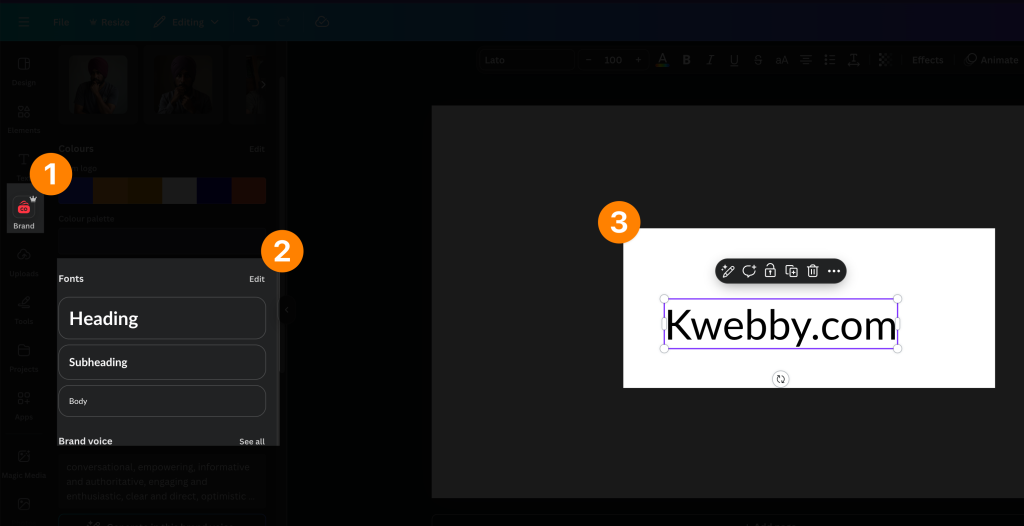
- If you are using brand fonts, select your predefined font from Canva’s font options.
- Otherwise, experiment with fonts to find one that feels polished and impactful.
Step 4: Access the Magic Morph Tool

- Locate the Apps section in Canva’s side menu.
- Search for “Magic Morph” in the search bar.
- Click on the green “M” icon to open the Magic Morph tool.
Step 5: Choose a Prompt for Your Foil Design
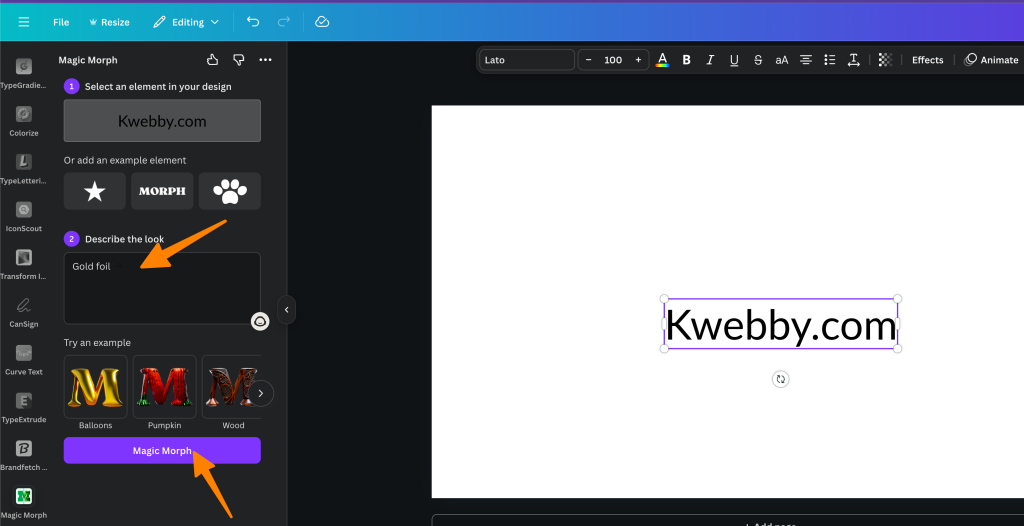
- Inside the Magic Morph tool, describe the desired foil effect. For example:
- “Gold foil”
- “Rose gold metallic”
- “Silver shimmer”
- Canva’s AI will generate multiple foil options based on your prompt.
Step 6: Select Your Preferred Foil Effect

- Browse the generated foil designs.
- Click to apply the effect that matches your aesthetic. Keep in mind, the text will no longer be editable as a text layer—it becomes an image.
Step 7: Adjust and Download Your Design
- Save the foil-text result by right-clicking and selecting Download Selection as a PNG file.
- For extra versatility, check Transparent Background if you have Canva Pro.
Step 8: Fine-Tune Your Design
- Re-upload the downloaded foil-text image into Canva.
- Use the Adjust photo editing tool to tweak brightness, color temperature, or vibrancy.
- Options like rose gold or subtle bronze can be created by altering hue and saturation.
Step 9: Add a Background
- Choose a complementary background, such as:
- Dark solid colors (navy, black, or deep purple)
- Gradient textures for added depth
- Subtle patterns (like fabric or leather textures)
- Combine these elements with your foil text for a complete look.
Best Practices for Text Foil Designs
Make the most of your text foil creations by following these best practices.
Font Choice
Use clean, bold fonts to enhance the metallic effect. Serif fonts often amplify the luxurious feel of gold or silver foil.
Avoid Visual Clutter
Keep designs minimalistic to ensure the foil effect remains the focal point. Too many elements can detract from the impact.
Color Harmony
Match the foil color with your overall design palette. For instance, gold pairs well with navy or white, while rose gold works beautifully against pastel tones.
Experiment with Textures
Add subtle textures behind the foil text, such as crumpled paper, glitter flecks, or fabric weaves, to increase visual interest.
Ensure High Resolution
Save your designs as high-resolution files to maintain the quality of the foil effect, especially for print purposes.
Final Thoughts
Text foil effects are an excellent way to instantly upgrade your designs, making them appear sleek and sophisticated.
Whether you’re creating for personal or professional purposes, mastering this technique in Canva can save time and deliver results that look high-end. We encourage you to experiment with different foil finishes, textures, and layouts to find the ideal look for your next project.
Get creative, and enjoy the process of bringing a touch of shine to your designs!