
Canva is an incredible design platform, popular for its simplicity and flexibility. Whether you’re creating Instagram posts, YouTube thumbnails, presentations, or business cards, Canva has templates for nearly every need. However, one challenge many users face is working with multiple design types within a single project.
If you’ve asked yourself whether it’s possible to manage various dimensions under the same project umbrella, you’re not alone.
This guide will explain how to use this powerful feature and make your Canva experience more seamless.
Key Takeaways
- You can incorporate multiple design dimensions within one Canva project.
- This feature lets you build versatile, multi-use projects without starting from scratch each time.
- Organizing all your designs in one place can save you time and reduce clutter.
Why Are All My Canva Designs in One Type?
Multiple dimensions in one project?
byu/DrPangloss03 incanva
Many Canva users have expressed frustration over being limited to one type of design per project. A vivid discussion on Reddit highlights this issue.
One user noted, “You can see the canvas is twice as wide as the canvas below it. All you do is when adding a new page, choose custom size and enter the dimensions you need.” This is a common workaround discussed by community members when facing this challenge.
While many appreciate Canva’s simplicity, others feel constrained by the lack of immediate guidance for creating multi-dimensional projects. But the good news is, Canva provides a solution—you just need to know how to unlock it.
How to Create Multiple Dimensions in One Project
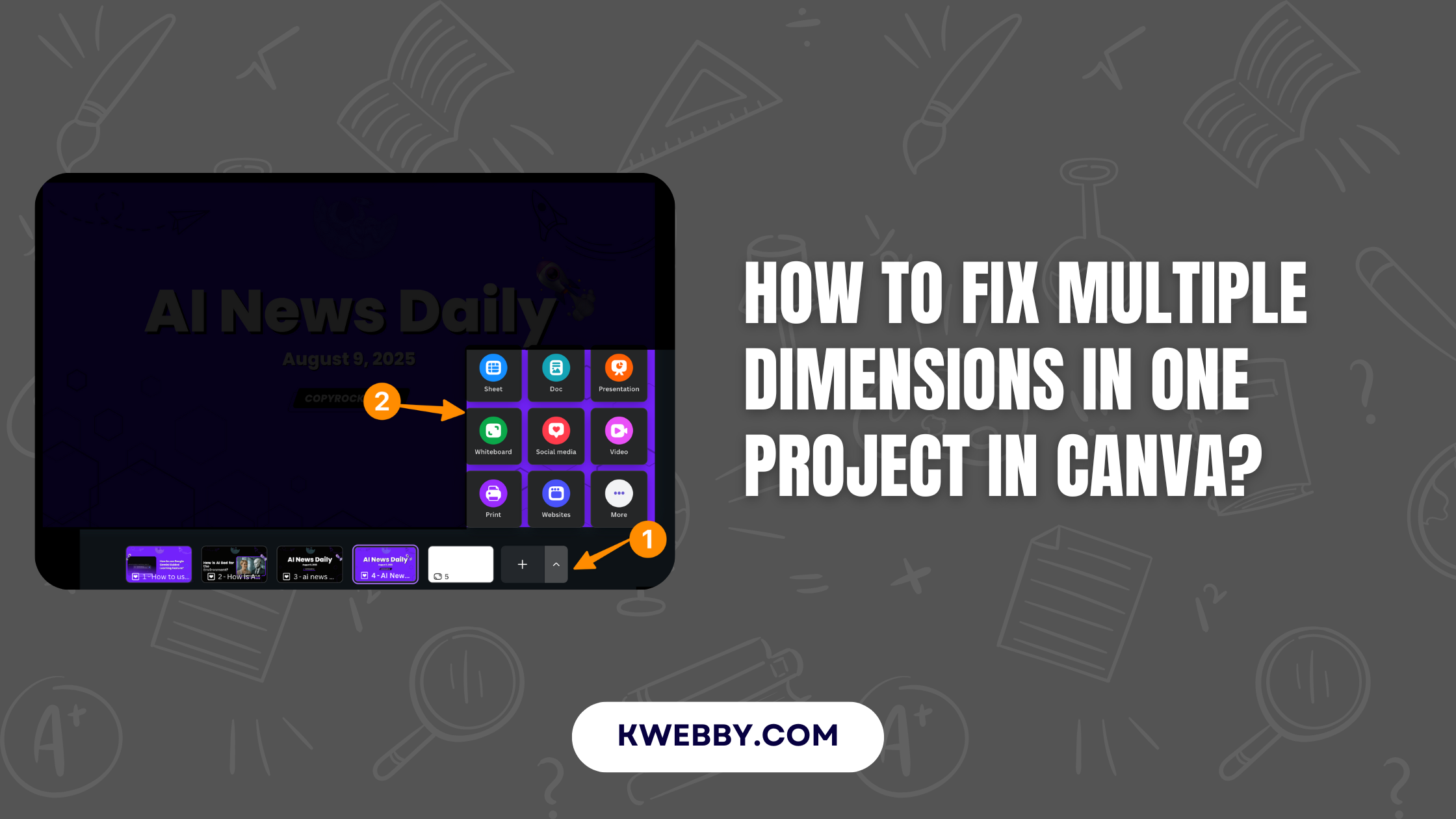
Using multiple design sizes in one Canva project is straightforward. Follow these steps to get started:
- Open Your First Design: Start by creating or opening your initial design in Canva. This can be any project, such as an Instagram post or a flyer.
- Click on Pages: Look at the bottom bar within your Canva editor. Here, you’ll find an option to manage or add pages.
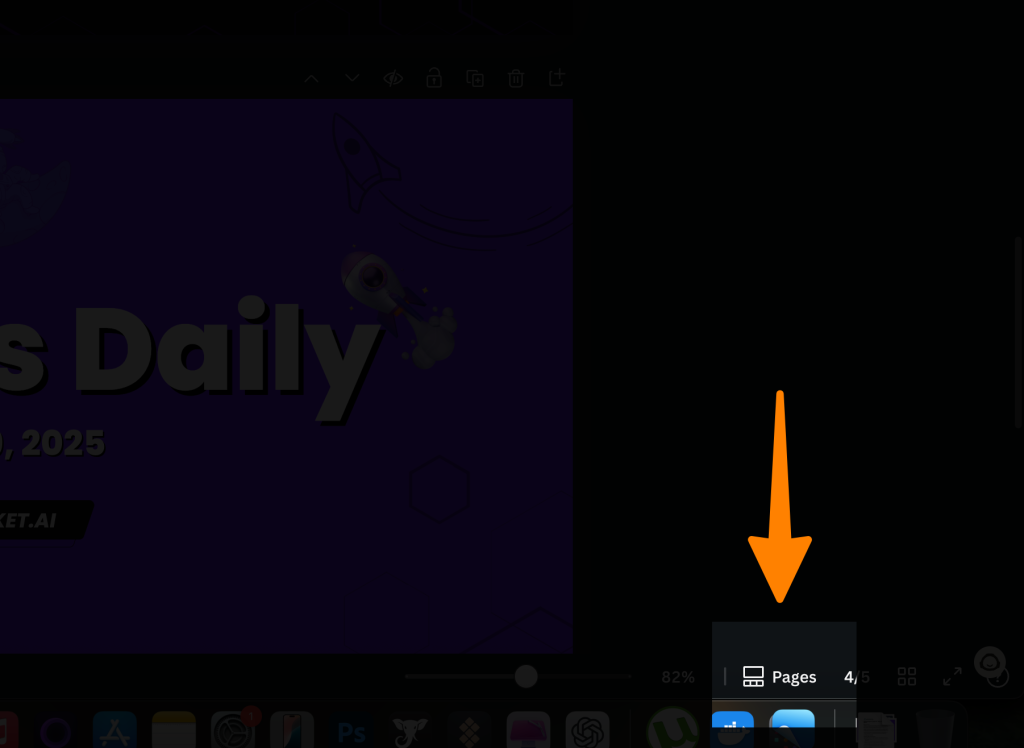
- Add a New Design: Click the “+” icon to add another design page to your project.
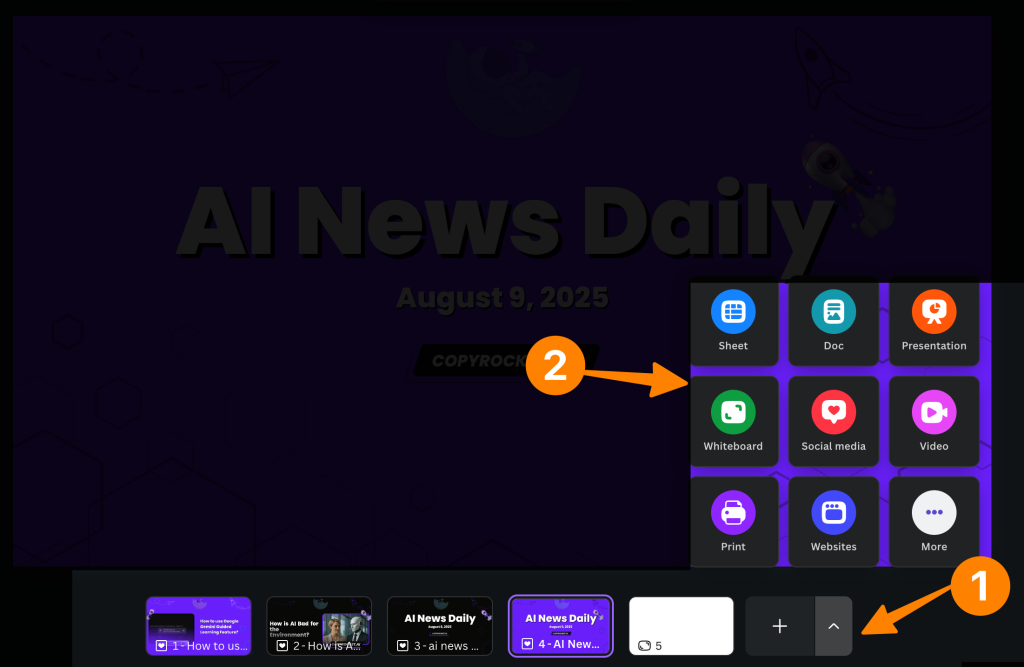
- Choose a Template: After adding the new page, select the type of design you need. For instance, you could choose a YouTube thumbnail, Instagram story, or Facebook cover.
- Repeat as Needed: Continue adding pages and selecting dimensions to create a multi-dimensional project.
This simple approach ensures every design type you need is housed under one project, keeping things organized and accessible.
Benefits of Using Multiple Dimensions in One Canva Project
Integrating different design types into one project has several advantages:
1. Streamlined Workflow
Instead of switching between multiple files, you can keep everything in one place. This makes editing, reviewing, and sharing designs less time-consuming.
2. Consistent Branding
Having all your designs in one project helps maintain consistency in branding. For example, you can ensure that colors, fonts, and layouts match across Instagram posts, stories, and thumbnails.
3. Efficient Collaboration
Collaborating with team members becomes easier when all designs are stored together. Reviewers can provide feedback on various formats without toggling between multiple links or files.
4. No Redundant Work
If adjustments are needed, you don’t have to copy elements between files. All assets remain within a single project, ready for updates or quick duplication.
Practical Tips for Organizing Multi-Dimensional Projects
Maximizing this feature involves some practical organization:
- Label Your Pages: Rename each page to indicate its purpose or dimension. For instance, “Instagram Post” or “YouTube Thumbnail.”
- Use Folders: Group related projects by client, campaign, or purpose in folders for quicker access.
- Set a Default Style: Establish a default color palette and font scheme to ensure a unified appearance across all designs.
- Regularly Save Versions: Canva autosaves your work, but it’s a good habit to create milestone versions, especially if you’re experimenting with designs.
Final Thoughts
Canva’s ability to handle multiple dimensions in one project is a game-changer for designers and businesses. It enhances creativity by offering flexibility and improves efficiency by centralizing all your design needs. While the feature may not be immediately obvious, a little exploration unlocks a world of possibilities.
The next time you’re managing a campaign or project with mixed design outputs, try this method to keep everything organized and cohesive. Happy designing!