


If you want to learn how a site looks the way it does, you often start with its CSS. You might want to inspect layout rules, spacing, fonts, and responsive breakpoints. You might also want to debug a style issue or compare frameworks. This guide explains how to download some one’s css using simple, repeatable steps in Chrome, Firefox, and Safari. It also explains what you can and cannot do with the CSS you collect.
Key Takeaways
- Use browser DevTools to find every CSS file a page loads and save it to your computer.
- Use the Network tab to export CSS exactly as the browser received it, including minified files.
- Use Page Source to copy inline
<style>blocks and linked stylesheet URLs. - Use “Save page” methods only for quick copies, since they can miss cached or injected styles.
- Know the legal and ethical limits before you reuse someone else’s CSS in your own project.
- Validate what you saved by reloading it locally and checking for missing fonts, images, or variables.
Before you download CSS: know what “someone’s CSS” means
Sites can load CSS in several ways. You need to know the source type so you can save it correctly. A page can load one file, many files, or no separate files at all.
Common CSS sources you will see on real sites
- Linked stylesheets:
<link rel="stylesheet" href="...">in the HTML. - Inline styles: rules inside
<style>...</style>. - Element style attributes:
style="color: red"on a tag. - Injected CSS: CSS added by JavaScript at runtime.
- Preprocessed bundles: a single minified CSS file built from many source files.
What you can usually download vs what you cannot
- You can usually download any CSS file your browser can request.
- You cannot always get the original source files (like SCSS) if the site only serves compiled CSS.
- You might not get private assets (like premium fonts) if they require authentication.
How to download some one’s css using Chrome DevTools (best method)
Chrome DevTools shows every stylesheet the page loads. This method works even if the CSS file URL is not easy to spot in the HTML. It also helps you capture CSS that loads after the first page render.

Step-by-step: download CSS from the Network tab
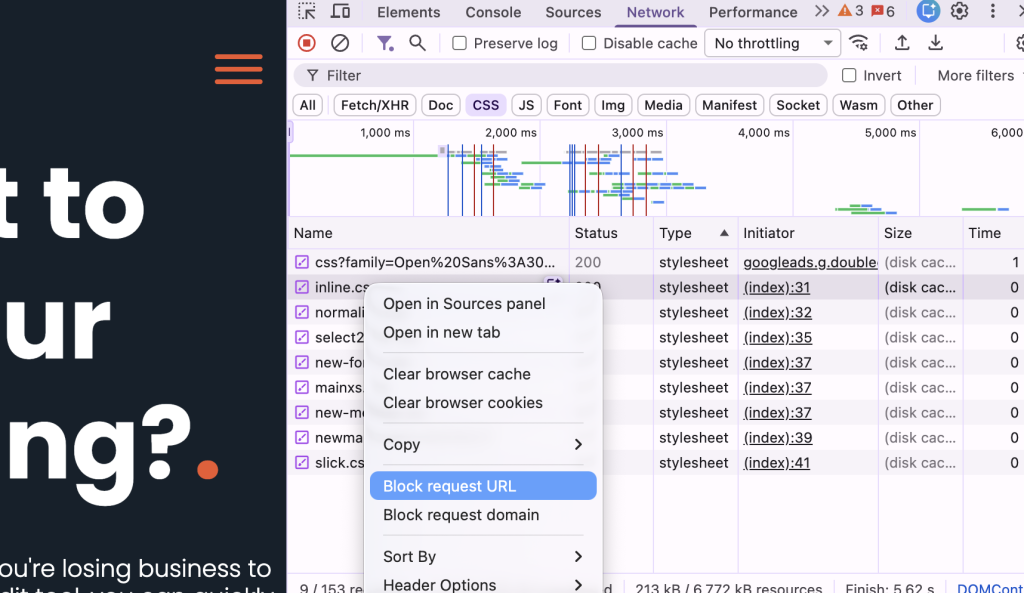
- Open the website in Chrome.
- Right-click the page and select Inspect.
- Click the Network tab.
- Reload the page (press Ctrl+R or Cmd+R).
- In the filter bar, type css or click the CSS filter (if shown).
- Click a CSS request in the list.
- In the right panel, open the Response tab to view the CSS content.
- Right-click the request and select Open in new tab.
- In the new tab, press Ctrl+S (Windows) or Cmd+S (Mac) to save the file.
How to export a CSS file from DevTools (copy and save)
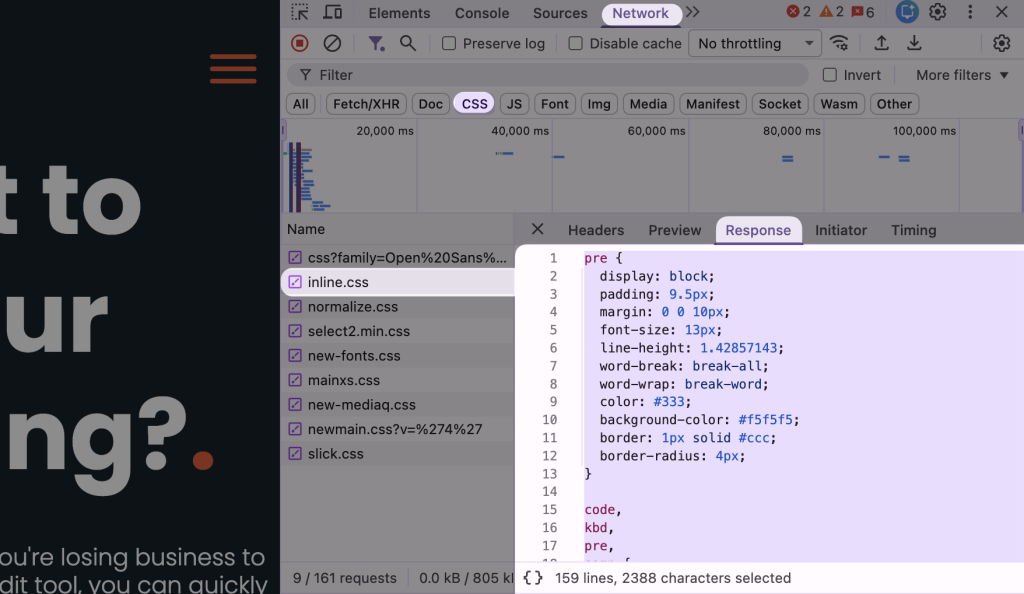
- In the Network request details, open the Response tab.
- Select all text (Ctrl+A or Cmd+A).
- Copy (Ctrl+C or Cmd+C).
- Paste into a code editor like VS Code.
- Save it as
styles.css.
How to find the “main” stylesheet on a site with many CSS files
- Sort by Size in the Network list. The largest CSS file is often the main bundle.
- Look for names like
app.css,main.css,styles.css, or hashed bundles likeapp.8c1f3.css. - Click each file and search inside it for a unique class you see on the page.
Fix: the CSS looks different after you save it
- If the file is minified, it will look compressed. That is normal. Use a formatter in your editor if you need readability.
- If the site uses multiple CSS files, you must download all of them to match the final look.
- If the site uses CSS variables from another file, missing that file will break colors and spacing.
How to get CSS from Page Source (quick and simple)
Page Source is a fast way to collect linked stylesheet URLs and inline <style> blocks. It works well on simple sites. It can miss CSS that loads later through JavaScript.
Step-by-step: locate linked CSS files in the HTML

- Open the website.
- Right-click and choose View page source.
- Press Ctrl+F or Cmd+F.
- Search for
rel="stylesheet". - Copy each
hrefURL from the<link>tags. - Paste each URL into the address bar and open it.
- Save each file with Ctrl+S or Cmd+S.

Step-by-step: copy inline CSS from <style> tags
- In Page Source, search for
<style. - Select the CSS between
<style>and</style>. - Copy and paste into your editor.
- Save as a new file like
inline.css.
Limit: Page Source may not show injected CSS
- If JavaScript inserts styles, Page Source will not include them.
- Use DevTools Network and DevTools Sources for a complete view.
How to save a CSS file from the Sources tab (good for bundles)
The Sources tab shows files the browser has loaded. This can help when a CSS request redirects, uses a CDN, or uses a hashed filename. It also helps when you want to browse the folder structure.
Step-by-step: find CSS in Sources
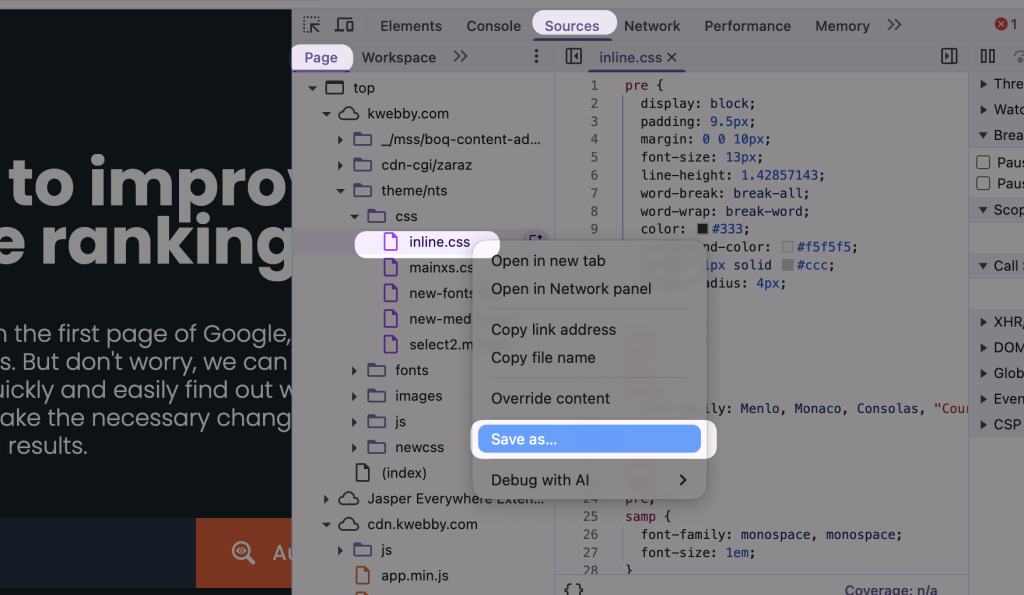
- Open DevTools.
- Click the Sources tab.
- In the left file tree, expand the domain and folders.
- Look for
.cssfiles. - Click a file to open it.
- Right-click inside the file and choose Save as (if available) or copy the content and save it in your editor.
Tip: use the Search tool to find CSS fast
- Press Ctrl+Shift+F (Windows) or Cmd+Option+F (Mac).
- Search for a class name you see on the page.
- Open the matching CSS file from the results.
How to download CSS in Firefox (simple built-in tools)
Firefox Developer Tools offer the same core options as Chrome. Some users prefer Firefox because the Style Editor view is direct and easy to scan.
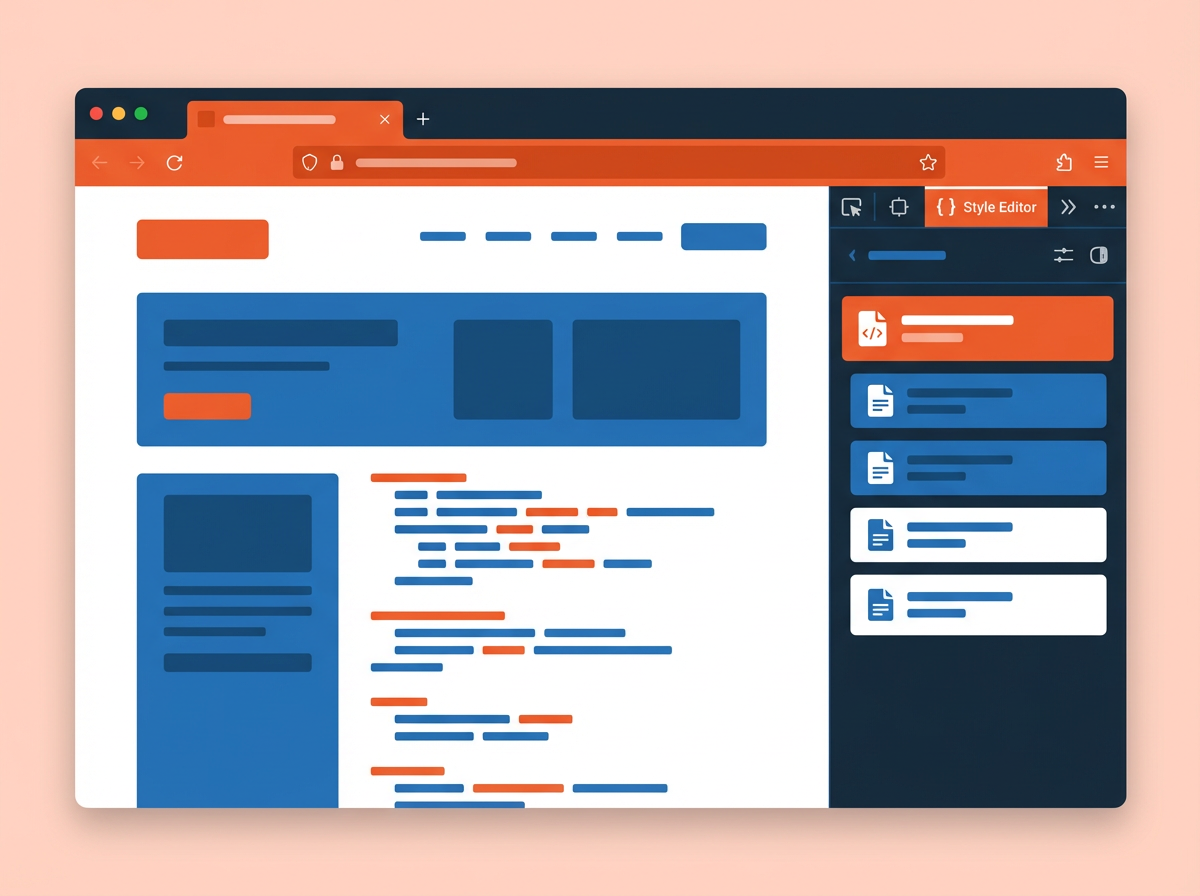
Step-by-step: save CSS from Firefox Style Editor
- Open the site in Firefox.
- Right-click and select Inspect.
- Open the Style Editor tab.
- Select a stylesheet from the list.
- Click the stylesheet’s link to open it in a new tab (if shown).
- Save the file from the new tab.
Step-by-step: download CSS from Firefox Network tab
- Open Developer Tools and click Network.
- Reload the page.
- Filter by CSS.
- Click a request and open the response.
- Open in a new tab and save, or copy the response text and save it in your editor.
How to get CSS on Safari (Mac) using Web Inspector
Safari can download CSS through Web Inspector. You first need to enable the Develop menu.
Enable Web Inspector
- Open Safari.
- Go to Settings (or Preferences).
- Click Advanced.
- Enable Show Develop menu in menu bar.
Step-by-step: find and save CSS in Safari
- Open the site.
- Go to Develop > Show Web Inspector.
- Open the Network tab and reload the page.
- Filter for stylesheets or search for
.cssrequests. - Open a CSS request and view its response.
- Copy the response and save it as a
.cssfile in your editor.
How do I download CSS if the site uses multiple files (and imports)
Many sites split CSS across files. Some sites also use @import inside CSS. You need to collect all dependencies or your local copy will look wrong.
Check for @import rules
- Open the CSS file you downloaded.
- Search for
@import. - Open each imported URL in your browser.
- Save each imported file.
Check for assets referenced by CSS
- Search for
url(in the CSS. - Download referenced images, icons, and fonts if you have permission to use them.
- Keep the same folder structure or update the paths in your local CSS.
Fix relative paths after you save a CSS file
- If the CSS contains
url(../fonts/font.woff2), your local folder must match that path. - If you cannot match the path, change the URL to an absolute URL or to your local asset path.
How to export a CSS file for offline review (clean workflow)
If your goal is learning and review, you want a workflow that keeps files organized and easy to search. This section gives a simple process you can repeat.
Use a folder per site
- Create a folder like
site-css-review. - Create subfolders like
css,fonts, andimages. - Save each CSS file into
csswith the original filename if possible.
Keep a notes file with URLs
- Create a file named
sources.txt. - Paste the page URL and every CSS URL you downloaded.
- Add short notes like “main bundle” or “theme overrides.”
Format and search the CSS
- Run a formatter in your editor to expand minified code.
- Search for key patterns like
@media,:root, and your target class names. - Group findings by layout, typography, color, and components.
How to save CSS using “Save Page As” (works, but has limits)
Browsers can save a full page with assets. This can capture some CSS files automatically. It can also create a messy folder and miss late-loaded CSS.
Step-by-step: Save Page As in Chrome
- Open the page.
- Press Ctrl+S or Cmd+S.
- Select Webpage, Complete.
- Save it to a new folder.
- Open the created asset folder and look for
.cssfiles.
Why this method can miss CSS
- Some CSS loads after interaction or after a script runs.
- Some CSS loads from a different domain with rules that block saving.
- Some sites use inline injected styles that do not save as separate files.
How to download CSS from a specific element (targeted learning)
If you only care about one component, you can collect the rules that affect it. This helps you learn faster and avoid downloading many files.
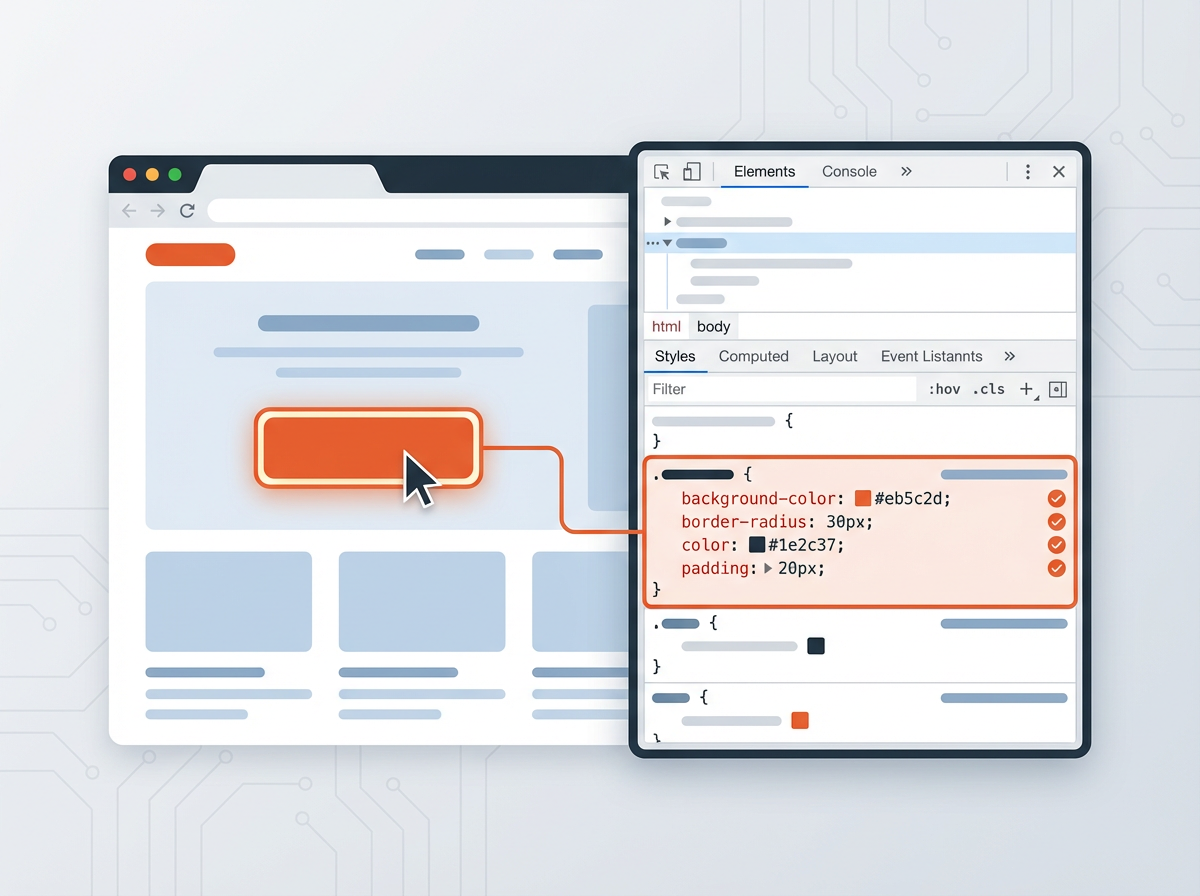
Step-by-step: find the CSS rules that style one element
- Open DevTools and use the element picker.
- Click the element you want to study.
- In the Styles panel, review matched rules.
- Click the filename next to a rule to open the source stylesheet.
- Copy the relevant rules and save them in a new file for study.
Tip: include related states and breakpoints
- Check
:hover,:focus, and:activerules. - Scroll to
@mediablocks that apply to the element. - Check if the element depends on parent styles like flex or grid.
Legal and ethical rules you must follow
You can usually view and download CSS that your browser receives. That does not mean you can reuse it in your product. Copyright and license terms still apply. You should treat downloaded CSS as study material unless you have clear permission to reuse it.
Safe uses for downloaded CSS
- Learning how a layout works.
- Debugging issues on a site you own or manage.
- Auditing performance, such as file size and unused rules.
- Creating your own original CSS inspired by patterns, not copied code.
Risky uses that can cause problems
- Copying a full stylesheet into your commercial site without permission.
- Reusing brand-specific assets like logos, icons, and custom fonts.
- Removing license headers or attribution from open-source CSS.
What to do if you want to reuse CSS
- Check the site’s terms and any license files.
- Look for open-source frameworks used on the site and use those from the official source.
- Ask the owner for permission if you want to reuse their custom work.
Troubleshooting: common issues when you try to get CSS
Some sites make CSS harder to collect due to bundling, caching, or security headers. These fixes solve most problems without special tools.
You cannot find any .css files
- Check for inline
<style>tags in DevTools Elements. - In Network, clear filters and reload to see all requests.
- Search Network for “stylesheet” or “text/css”.
The CSS file opens, but it looks empty
- Reload with DevTools open. Some servers vary responses based on caching.
- Check the Network response body, not only the preview.
- Make sure you opened the correct request, not a source map or redirect.
The site uses source maps and you want readable code
- Look for a
.mapfile in Network. - If a CSS source map is available, DevTools can show original sources.
- If it is not available, format the CSS in your editor.
The CSS depends on fonts and they do not load locally
- Check
@font-facerules and the font file URLs. - Some fonts require a license or block hotlinking.
- Replace with a legal font for local testing.
The page look does not match after download
- Confirm you downloaded all CSS files, including imports.
- Check if JavaScript injects styles after load.
- Check if the page uses different CSS per route or per device width.
Frequently Asked Questions (FAQs)
How do I download CSS?
Open DevTools, go to Network, reload the page, filter by CSS, open a CSS request in a new tab, and save it with Ctrl+S or Cmd+S.
How do I export a CSS file?
Copy the CSS response text from DevTools and paste it into a code editor, then save it as a .css file. This exports the exact content you viewed.
How do I save a CSS file?
Open the stylesheet URL in a new browser tab and use the browser save command. If the file does not open cleanly, copy the response from DevTools and save it in your editor.
How can I get CSS for a specific button or section?
Inspect the element, review matched rules in the Styles panel, click the source file links, and copy only the rules that apply to that element and its states.
Why do I see many CSS files instead of one?
Sites often split CSS by page, component, or vendor code. Some sites also load CSS only after interaction or at certain screen widths.
Is it legal to download someone’s CSS?
You can usually download what your browser receives, but reuse can violate copyright or license terms. Use it for learning or get permission before you copy it into a project.
Final Thoughts
You now have several clear ways to do how to download some one’s css, from quick Page Source checks to full Network exports in DevTools. Start with the Network tab, save every stylesheet the page loads, and confirm imports and assets so your local copy matches the real page. Use what you download for learning and debugging, and get permission before reuse. If you want a faster workflow, open DevTools now, filter by CSS, save the main bundle, and build a small offline folder so you can search and study the rules with ease.