

If you’ve ever tried to move a YouTube video over to Instagram and thought, “Why isn’t there an upload button for this?”, you’re not alone. The key thing to know is this: Instagram doesn’t let you upload a YouTube link and have it automatically become a playable Instagram video. To post it as a Reel, Story, or feed video, you need the actual video file (or you share the link in specific places like Stories or bio).
So when people ask the primary question—how do you upload a YouTube video to Instagram—the most accurate answer is: you either (1) repurpose a clip you own by exporting it from your original footage/editor, or (2) share the YouTube link using Instagram’s link tools. Below, I’ll walk you through both options step-by-step, including how to handle thumbnails, sizing, captions, and the little details that make the post look clean and professional.
Key Takeaways
- Don’t start with the YouTube link if you want an Instagram-native video—start with a real video file and export vertical.
- Post a Reel highlight (15–45 seconds) with captions and a strong hook.
- Use Stories for clicks: thumbnail-style Story + Link sticker to the full YouTube video.
- Control your thumbnail by choosing a clean Reel cover that’s readable on the grid.
- Keep it legal: only repurpose videos you own or have permission to use.
Before you start: choose the right Instagram format (Reel, Story, or Feed)
Instagram gives you a few different ways to publish video, and the best option depends on your goal—views, clicks, saves, or driving people back to YouTube.
Instagram Reels 9:16 (best for reach)
- Great for: discovery, new followers, viral potential
- Length: varies by account/app version; commonly up to 90 seconds, and in many cases longer (some accounts can post longer Reels)
- Best practice: clip your YouTube video into a tight, high-value segment with a strong hook in the first 1–2 seconds
Instagram Stories 9:16 (best for clicks and quick sharing)
- Great for: sending people to the YouTube link fast
- Length: short segments (Instagram auto-splits longer videos)
- Best practice: use the Link sticker and a clear call-to-action like “Watch the full video on YouTube”
Instagram Feed video 4:5 or 1:1 (best for evergreen content on your grid)
- Great for: keeping a polished library of content on your profile
- Length: depends on current Instagram limits; many feed videos are published as Reels now
- Best practice: choose a clean cover image (thumbnail) so your grid looks intentional
Reframe Your Youtube Video into Instagram Friendly Formats
If your video is in landscape format i.e. 16:9 then you must reframe your video to Instagram accepted formats i.e. 9:16 for Reels and stories, 4:5 or 1:1 for Instagram post/feed videos.
There are two most common way to do the same as follows;
Method 1: Use Canva
You can use canva’s stories, reels, post template for Instagram to reframe your video;
- Go to Canva.com and select your desired Instagram format.
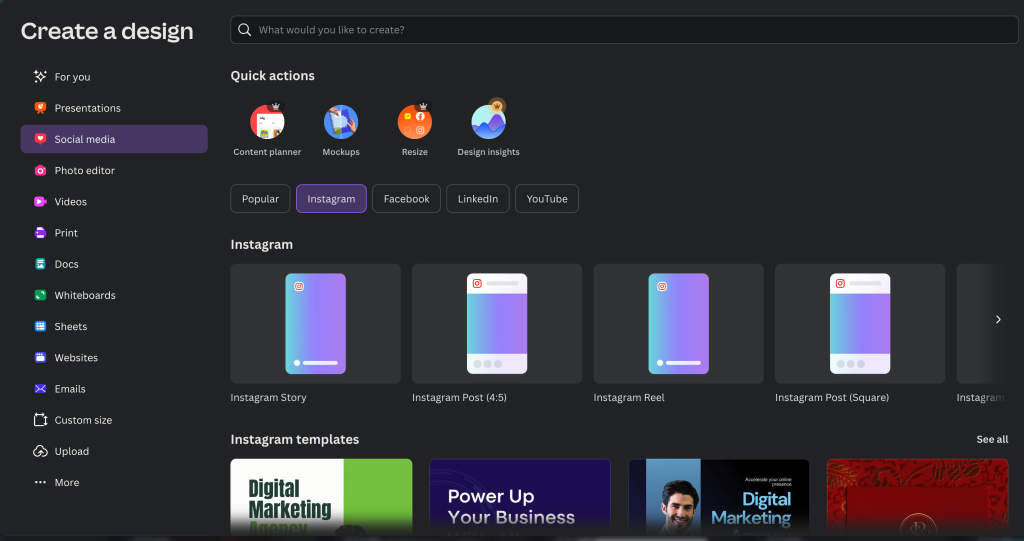
- Choose blank template
- Upload your Youtube video
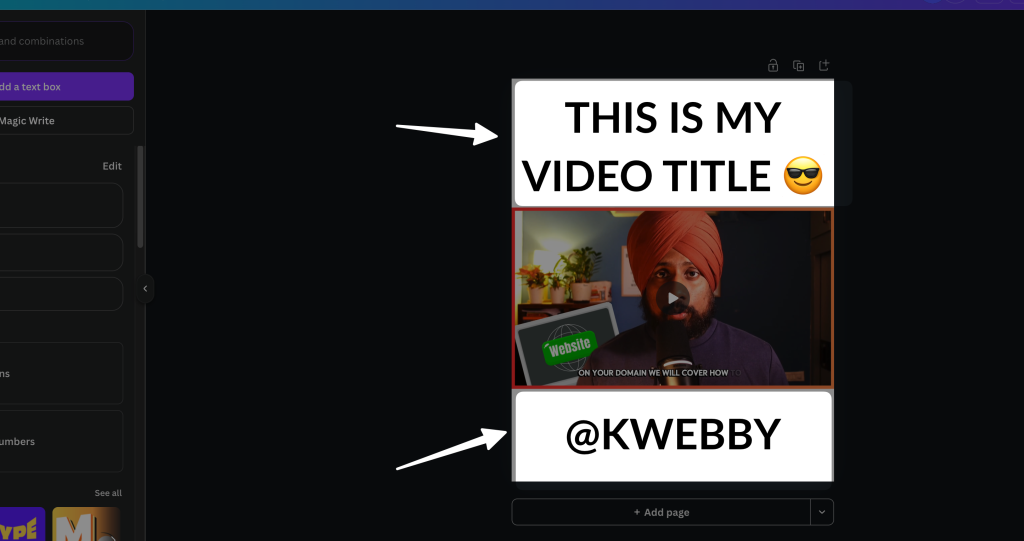
- Add to the canvas and drag from side handles to re-position your video and cut the part which don’t have the content.
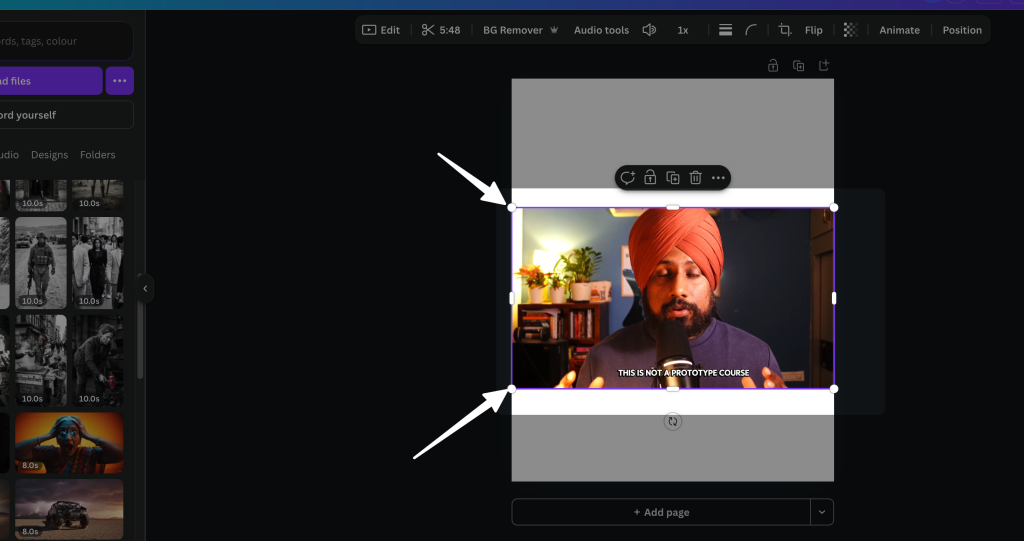
- For left out spaces, add text, your Instagram handle watermark or some content
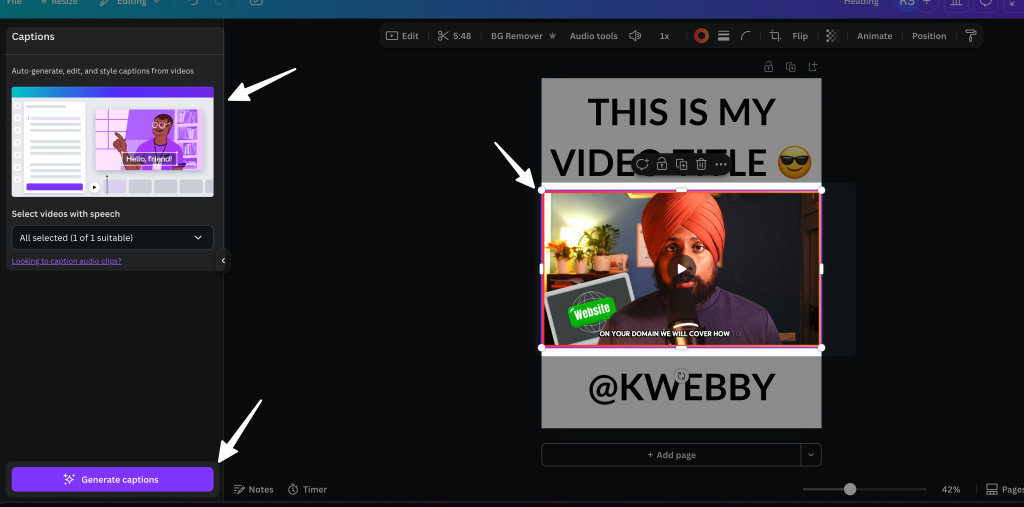
- Optional: You can add captions as well using Canva to your video if you want.
- Download the video and upload to your Instagram.
Method 2: Use CapCut’s Auto Re-frame Feature
- Open CapCut and create new blank project.
- Import the youtube video and drag to the timeline.
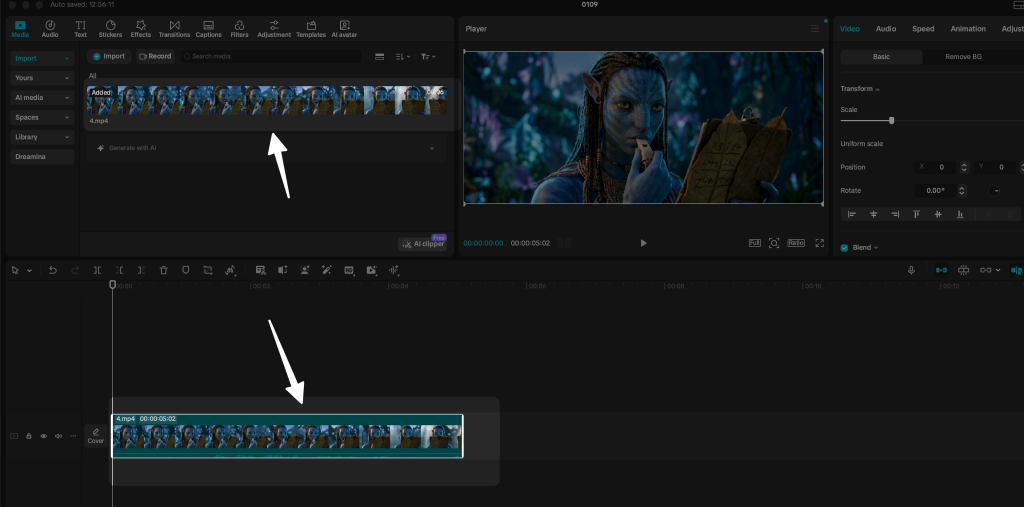
- Select the video on timeline and in the video settings panel, choose Auto re-frame.
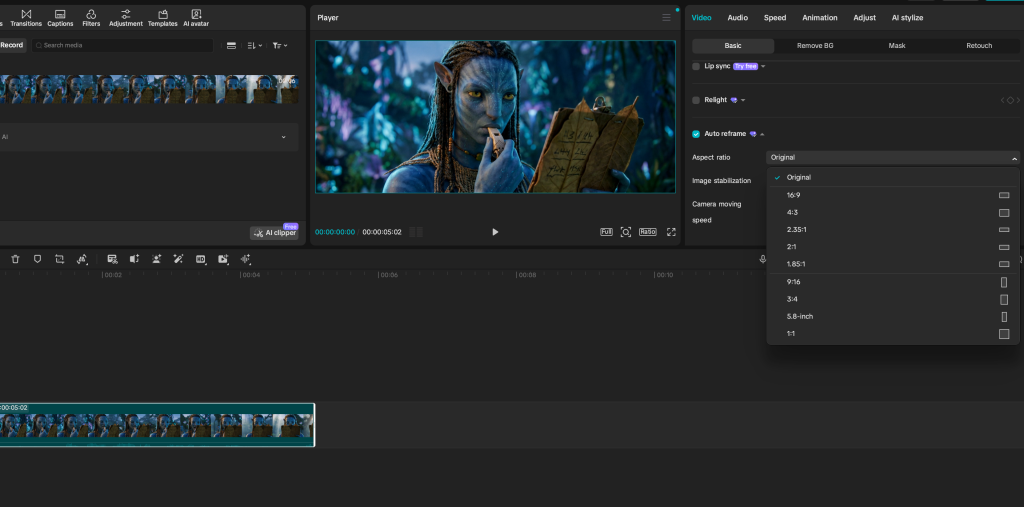
- Select your desired aspect ratio i.e. 9:16 for Stories/Reels or 4:5 or 1:1 for Instagram Post.
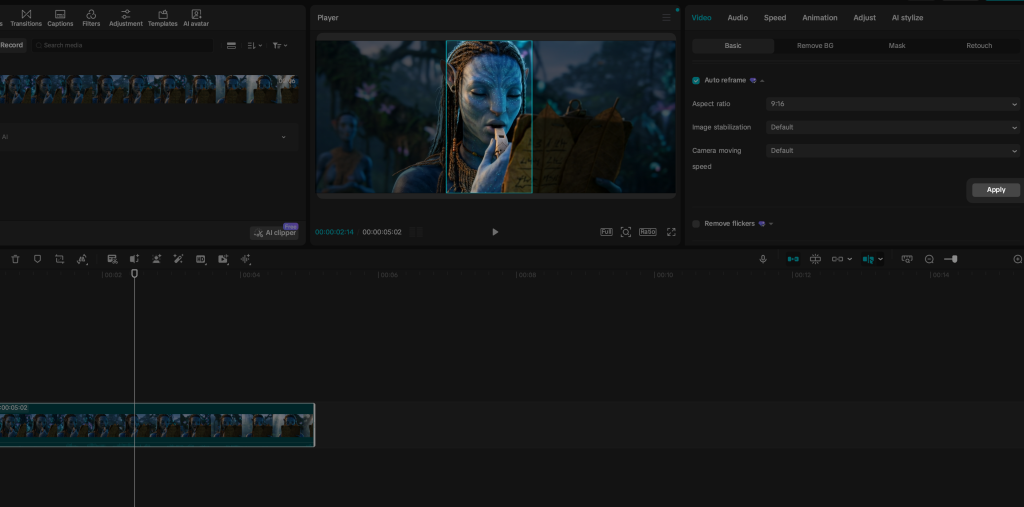
- Click on Apply and export the video.
- Optional: Add captions if you want, go to text > captions to generate captions for your video and then export the video.
These are two ways you can professionally reframe your video to Instagram friendly formats.
How do I post a YouTube video on Instagram? (3 practical methods)
There are three realistic ways to get YouTube content onto Instagram. Which one you choose depends on whether you need the video to play inside Instagram or you just want to share the YouTube link.
Method 1: Upload a clip as a Reel (recommended)
This is the most common “repurposing” workflow: take a highlight from your YouTube video, format it vertically, and upload it as a Reel.
- Start with the video file (ideally your original project or export from your editor).
- Choose a short segment that stands alone (a tip, a transformation, a mini tutorial, a strong opinion).
- Edit for vertical (9:16). Add on-screen text so it works without sound.
- Open Instagram → tap + → Reel.
- Select your clip, trim if needed, add text, stickers, or captions.
- Add a cover (thumbnail) that looks good on your grid.
- Write a caption that tells people what they’ll learn and what to do next (save, share, comment, or click your bio link).
- Post.
Pro tip: If your goal is to grow on Instagram, don’t just repost the first 30 seconds of your YouTube video. Instead, pull the most valuable 15–45 seconds and make it feel “native” to Reels.
Method 2: Share the YouTube link on Instagram Stories (fastest)
If you want people to watch the full video on YouTube, Stories are the quickest route.
- Open the YouTube video → tap Share → Copy link.
- Open Instagram → go to Story.
- Add a background (a photo, a solid color, or a short teaser video clip).
- Tap the sticker icon → choose Link.
- Paste your YouTube link → customize the sticker text (example: “Watch on YouTube”).
- Post your Story.
Pro tip: Stories don’t need to be fancy. A simple “New video is live” + link sticker often outperforms over-designed slides because it’s clear and immediate.
Method 3: Put the YouTube link in your bio (best for ongoing promotion)
If you’re promoting a new upload for several days, add the link to your bio and reference it in your caption and Stories.
- Update your bio link (or link-in-bio tool).
- Post a Reel teaser.
- Use a caption CTA like: “Full video—link in bio.”
Why this works: It keeps your Reel focused on engagement while still giving viewers a clear path to watch the full YouTube video.
How do I save a video from YouTube to post on Instagram? (the safe, legal approach)
This question comes up constantly, so let’s be very direct: downloading someone else’s YouTube video and re-uploading it to Instagram can violate copyright and platform policies—even if you “give credit.” If you don’t own the content or have permission, don’t repost it.
Here are the legitimate ways to get a video file you can upload to Instagram:
Option A: Use your original footage (best option)
If it’s your YouTube video, the cleanest workflow is to go back to your editor (Premiere Pro, Final Cut, CapCut, Descript, etc.), select a segment, and export it in vertical format for Instagram.
- You keep quality high.
- You can reframe for 9:16 properly.
- You avoid watermarks and compression issues.
Option B: Download your own video from YouTube Studio
If you uploaded the video to your own channel, you can usually download it from YouTube Studio.
- Go to YouTube Studio.
- Open Content.
- Select the video.
- Find the Download option (location can vary by interface updates).
Note: This may download the full video in a standard format. You’ll still want to edit and crop it for Instagram.
Option C: Get permission + source file (for collaborations)
If you’re reposting a partner’s content (like a podcast clip or interview), ask them for the original clip or a pre-formatted vertical export. It’s faster, looks better, and keeps everyone protected.
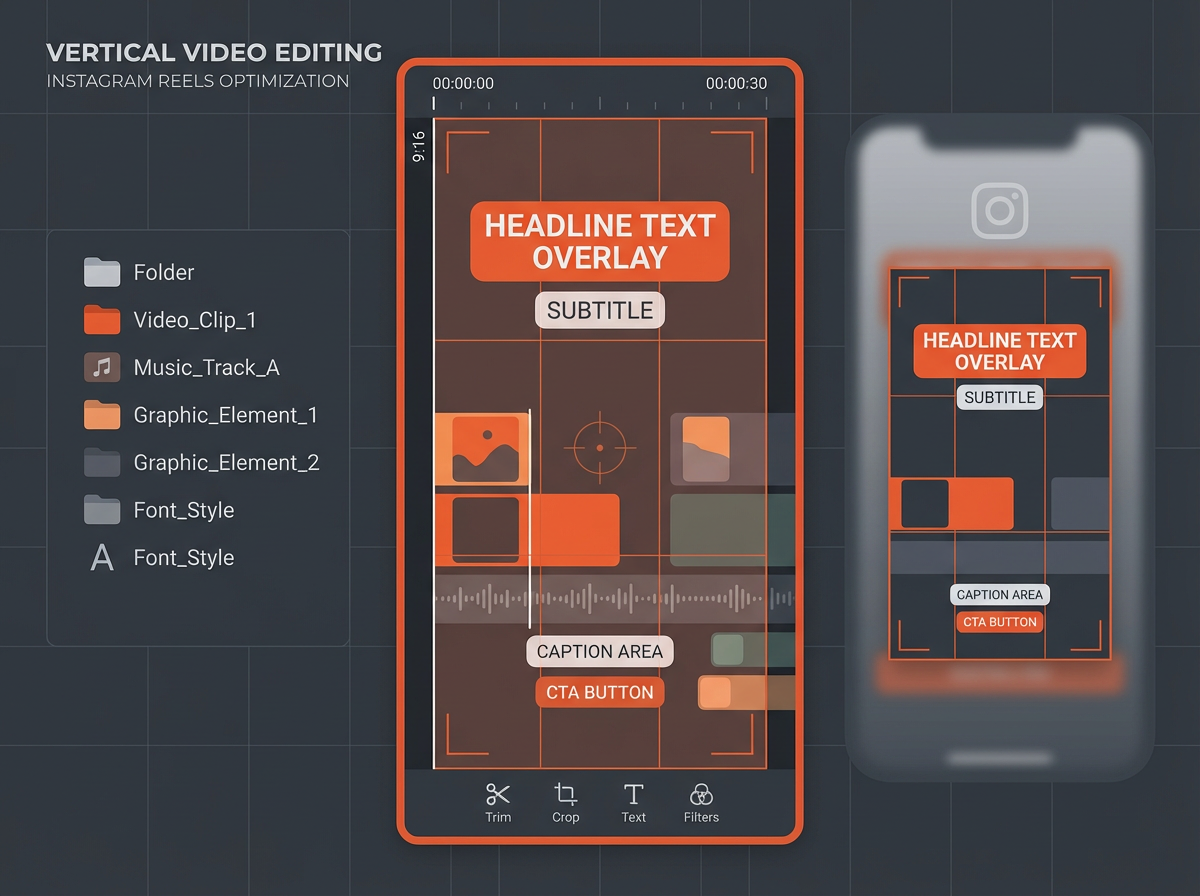
How do I upload a video as a post on Instagram? (step-by-step for Reels and feed)
Instagram’s interface changes often, but the core flow stays the same. Here’s how to upload a video file you already have on your phone.
Upload as a Reel (most common)
- Open Instagram and tap the + button.
- Select Reel.
- Choose your video from your camera roll.
- Trim the clip and tap Next.
- Add on-screen text, captions, and any stickers you want.
- Tap Next to reach the posting screen.
- Choose a cover (this is your thumbnail on your profile grid).
- Write a caption, add hashtags (optional), tag people, and choose your audience settings.
- Tap Share.
Upload as a feed post (if available on your account)
Some accounts still see a clear “Video post” option; others route most video through Reels. If you can post video directly to the feed:
- Tap + → Post.
- Select the video.
- Adjust crop (aim for 4:5 for feed if you want maximum screen space).
- Select a cover frame (thumbnail).
- Add caption and publish.
Best export settings for Instagram (so your clip looks sharp)
- Reels/Stories size: 1080×1920 (9:16)
- Feed video size (common): 1080×1350 (4:5) or 1080×1080 (1:1)
- File type: MP4 (H.264)
- Frame rate: 30fps is a safe default
- Audio: AAC
Quick quality win: Avoid uploading an already heavily compressed file (like one that’s been downloaded, re-uploaded, and re-downloaded). Start from the highest-quality source you can.
How to share a YouTube video on Instagram with a thumbnail (so it looks clickable)
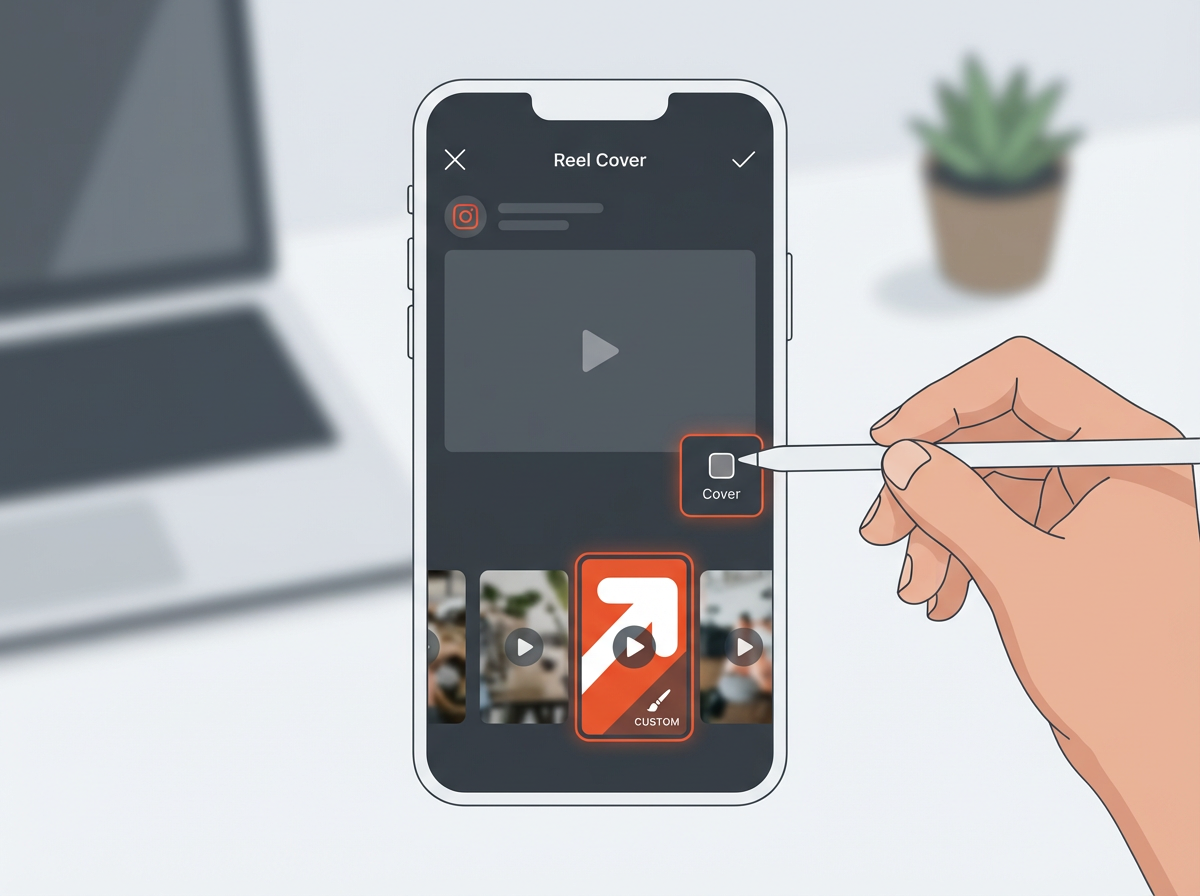
There’s a common misconception here: when you paste a YouTube link into Instagram, Instagram doesn’t always generate a nice clickable preview card like some other platforms do. So “sharing with a thumbnail” usually means one of these approaches:
Option 1: Post a Reel with a custom cover image (best-looking option)
This is the most reliable way to control the thumbnail people see on your profile grid.
- Create your Reel from a YouTube clip.
- On the final posting screen, tap Edit cover.
- Select a frame from the video or upload a cover image (if your app version allows).
- Make sure the cover is readable at small size (grid view).
Cover design tips:
- Use 3–6 words max (big, bold text).
- High contrast (light text on dark background or vice versa).
- One clear focal point (your face or the main visual).
- Match your brand colors so your grid looks consistent.
Option 2: Story link sticker + a thumbnail-style background
If your goal is clicks to YouTube, build a simple “thumbnail slide” in Stories:
- Create a 1080×1920 Story graphic that looks like a YouTube thumbnail (title text + image).
- Upload it to Stories.
- Add the Link sticker with your YouTube URL.
This gives you the “thumbnail effect” even though Instagram isn’t generating a preview card automatically.
Option 3: Feed post carousel with a thumbnail + link in bio
If you want something that stays on your grid and looks like a YouTube promo:
- Slide 1: a thumbnail-style graphic
- Slide 2: key takeaways
- Slide 3: “Watch the full video—link in bio”
This works especially well for coaches, creators, and educators because it turns one YouTube upload into multiple save-worthy slides.
The simplest workflow: turn one YouTube video into 5–10 Instagram posts
If you want a repeatable system (and not a one-off upload), here’s a workflow that makes YouTube and Instagram work together.
Step 1: Pick “clip moments” while you edit YouTube
As you edit your long-form YouTube video, mark timestamps for:
- A strong hook (first 10 seconds)
- One key teaching point
- A common mistake to avoid
- A quick checklist
- A before/after or result
Step 2: Export vertical clips (9:16)
Even if your YouTube video is horizontal, export vertical versions for Instagram. If you just crop without reframing, you’ll often cut off faces, text, or the main action.
Step 3: Add captions and on-screen text
A lot of Instagram viewing happens on mute. Add:
- Burned-in captions (or Instagram auto-captions)
- A headline at the top (“3 mistakes to avoid…”)
- Occasional emphasis text for key phrases
Step 4: Publish strategically
- Post 1–2 Reels across the first 48 hours after your YouTube upload.
- Share the YouTube link in Stories daily for 2–3 days with different angles.
- Pin the best-performing Reel to your profile for a week.
Step 5: Drive viewers to the full video (without being spammy)
Instead of “link in bio” every time, rotate CTAs:
- “Full breakdown is on YouTube (link in bio).”
- “Want the full step-by-step? I posted the full video today.”
- “Comment ‘YT’ and I’ll DM you the link.” (Only if you can actually follow through.)
Common issues (and quick fixes) when uploading YouTube clips to Instagram
If you’ve tried this before and it didn’t look right, it’s usually one of these problems.
Your video looks blurry after upload
- Upload from a strong Wi‑Fi connection.
- Enable higher-quality uploads in Instagram settings (where available).
- Export at 1080×1920 and avoid sending the file through multiple apps that compress it.
The clip is cut off or framed weird
- Re-edit in 9:16 with proper reframing.
- Keep important text away from the top and bottom UI areas.
No one clicks through to YouTube
- Make the Reel valuable on its own, then tease a specific payoff for the full video.
- Use Stories with a link sticker (it’s more direct than hoping people go to your bio).
- Say exactly what they’ll get: “Full tutorial + templates on YouTube.”
Music or audio gets flagged
- If your YouTube video uses licensed music, it may not be safe on Instagram.
- Use royalty-free music you have rights to, or use Instagram’s licensed music library (where available for your account type/region).
Conclusion
When you boil it down, how do you upload a YouTube video to Instagram really means: “How do I repurpose YouTube content so it performs on Instagram?” The winning approach is simple—clip the best moment, format it vertically, upload it as a Reel with a strong cover, and use Stories (with a link sticker) to send people to the full YouTube video.
If you want, share what kind of YouTube content you’re posting (tutorials, vlogs, podcasts, coaching, product reviews) and I’ll suggest the best clip lengths, hooks, and thumbnail text ideas to turn your next upload into a full week of Instagram content.