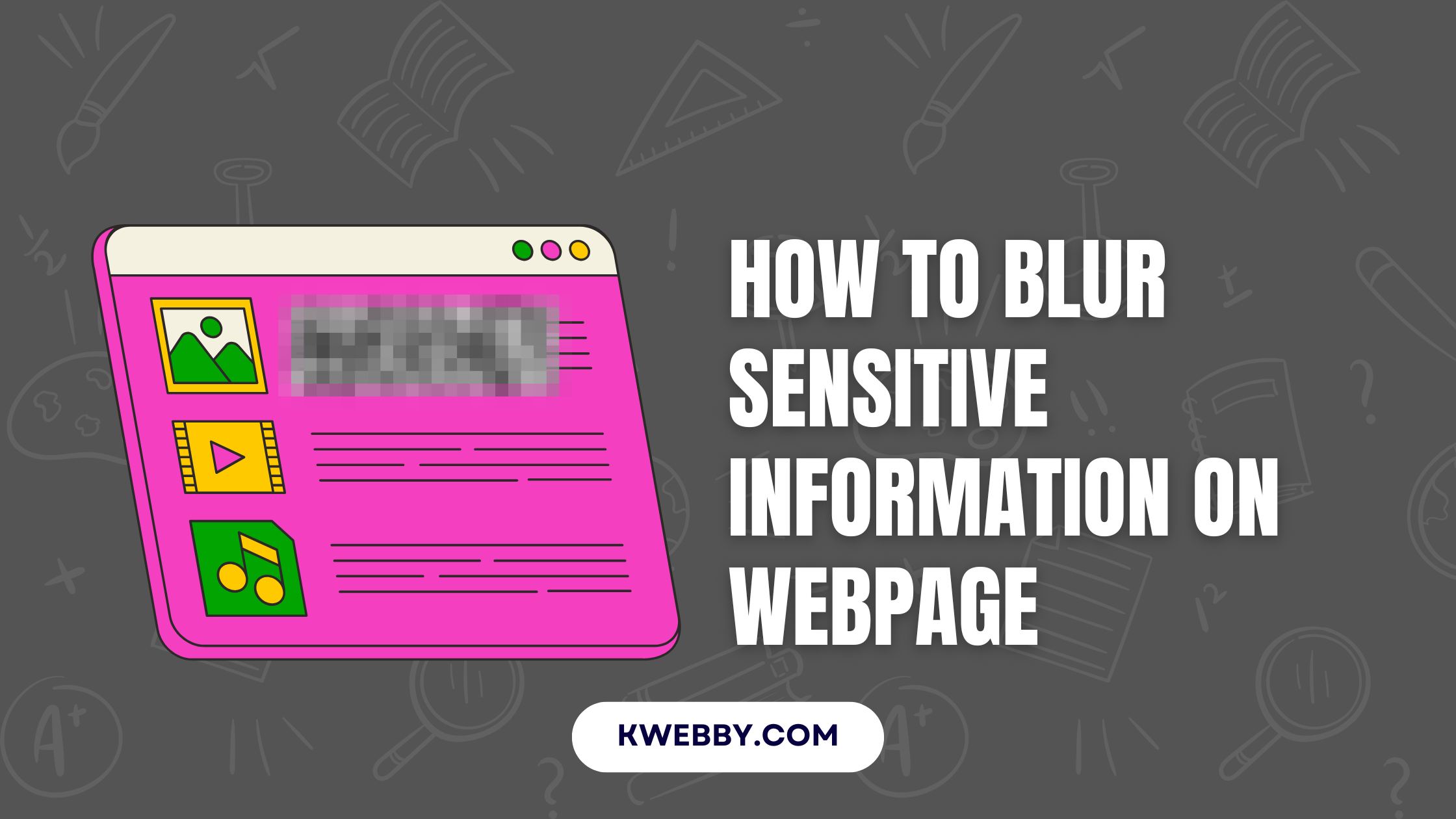
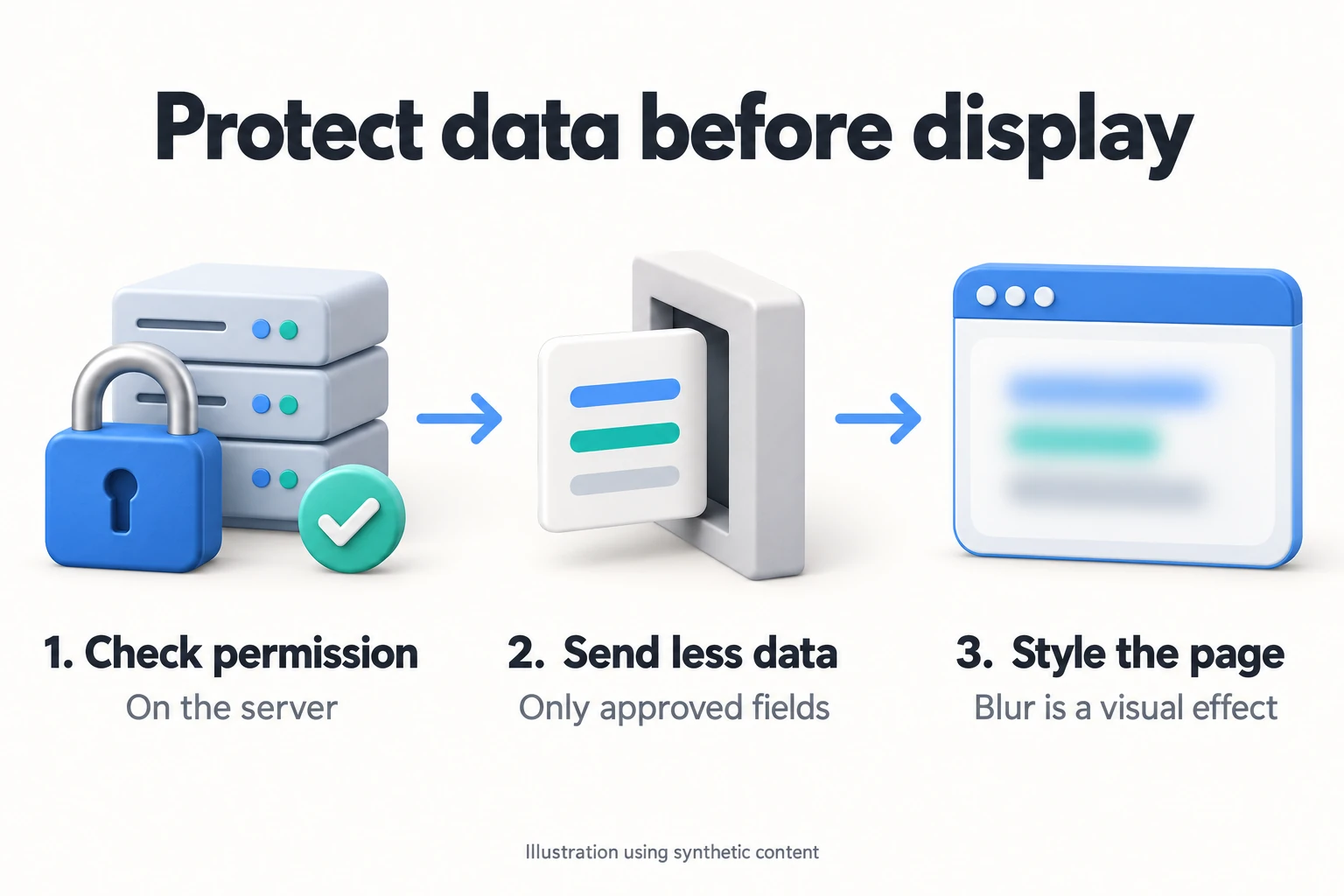
CSS filter: blur(6px) can make text or an image look blurred. It does not remove the underlying content or decide who may receive it. If a visitor is not allowed to see a value, your application needs to withhold that value before it reaches their browser.
That distinction matters when you build a customer dashboard, a subscriber preview or a screen-sharing mode. A page can look carefully masked while its response still contains everything you meant to keep private.
I’ll show you a small blur example, an explicit reveal control and the checks I’d make before using either in an application. Every example below uses made-up content. There are no real passwords, customer records or API credentials to conceal.
Key takeaways
- Use CSS blur for presentation effects, decorative previews and optional visual concealment of already-authorized content
- Keep restricted fields out of unauthorized HTML, JSON responses and client-side state
- Make permission checks on the server for the requested data, including individual fields when necessary
- Use a real button for a reveal interaction, and account for keyboard and assistive-technology users
- For demos and public screenshots, replace real records with synthetic data before you start
Start with who is allowed to receive the information
Before choosing a blur radius, ask who should receive the actual value. I’d separate these three situations:
- A public demonstration: use sample text or a placeholder. The page does not need real records at all
- An authorized person using their own dashboard: a visual privacy mode can make figures less prominent during an ordinary glance, but the person and their browser still have the data
- A visitor without permission: return an appropriate access response or an approved preview. Do not send the complete value and hide it with CSS
For example, a preview card can say “Details unavailable” without carrying the restricted details in an invisible element. You can make that card look finished with spacing, an icon or a neutral skeleton. Its design should work even when there is no confidential value underneath.
OWASP’s authorization guidance calls for server-side enforcement and permission validation on every request. Logging in establishes identity; it does not automatically grant access to every record or operation.
What filter: blur() actually changes
The filter property applies a graphical effect to a rendered element. The blur() function spreads its visual detail using a Gaussian blur. A larger length generally produces a stronger effect; blur(0) leaves it unchanged. See the MDN blur reference for syntax.
Here is the practical consequence: the text remains text in the document. Applying a filter does not rewrite it into a different value, erase it from a response or encrypt it. You are changing how the browser paints it.
Keep the effect on the particular sample or decoration you want to blur. Putting it on a whole card can blur the controls inside that card too, making the interface awkward to operate. The filter property reference explains its rendering behavior.
A basic CSS blur example with synthetic text
Start with something harmless and easy to recognize. Put this HTML in a local test page:
<p class="demo-blur">DEMO TEXT ONLY</p>Then add this CSS:
.demo-blur {
  filter: blur(6px);
}
The value 6px is a visual choice for this example. Adjust it for the size of your text and layout. Percentage values such as blur(50%) are invalid; use a supported length.
To see why this is only a visual effect, inspect your own test element in browser developer tools. The sample words are still in its markup. If you disable that filter declaration, the same words are displayed clearly again. Do this on your own synthetic example, not by trying to uncover someone else’s restricted content.
This is a useful design test, but it is not a test of authorization. A protected endpoint needs separate tests with permitted and non-permitted users.
Add a deliberate reveal control instead of hover
Hover-only reveals are easy to trigger accidentally and do not provide a consistent interaction on touch devices. I’d use an explicit button and keep it outside the blurred element.
For a complete small example, replace the previous markup with the following. The button’s pressed state means the blur effect is on:
<p id="sample-value" class="demo-blur">DEMO TEXT ONLY</p>

<button
  id="blur-toggle"
  type="button"
  aria-controls="sample-value"
  aria-pressed="true">
  Blur sample
</button>

<p>This sample stays in the page even while blurred.</p>
Keep the .demo-blur rule above. Add a clear keyboard-focus style:
#blur-toggle:focus-visible {
  outline: 3px solid #a84e00;
  outline-offset: 4px;
}
Place this script after the markup, or load it using your application’s usual deferred initialization:
const button = document.querySelector('#blur-toggle');
const sample = document.querySelector('#sample-value');

button.addEventListener('click', () => {
  const shouldBlur = button.getAttribute('aria-pressed') !== 'true';
  button.setAttribute('aria-pressed', String(shouldBlur));
  sample.classList.toggle('demo-blur', shouldBlur);
});
A native button supports keyboard activation. The fixed “Blur sample” label and changing pressed state make this a toggle, following the WAI-ARIA button pattern. If you turn it into a different kind of reveal control, keep its label, state and behavior consistent.
This example only toggles a visual filter. It intentionally leaves the synthetic text available to assistive technologies. It contains no login, backend permission check or request for confidential data. Do not treat the button or its JavaScript state as permission to access a record.
Keep unauthorized values out of the response
Consider an API that sends an entire customer object and expects the frontend to hide some fields. Even if the page renders only a placeholder, the unwanted fields have already crossed the boundary. A CSS class cannot change that response after delivery.
Select the response fields deliberately. OWASP’s guidance on object-property authorization recommends checking whether the viewer may access each exposed property and avoiding generic serialization that returns everything.
For a view that should disclose no details, a deliberately minimal public status could look like this:
{
  "status": "Details unavailable"
}
That is an example response shape, not a complete API implementation. Your application still needs its normal authentication, authorization, error handling and response policy. An approved summary may contain a few useful fields; a refused request may need an appropriate error instead.
Check all the places you create browser-delivered content. It is easy to fix the visible HTML but leave the same value in initial application state, a data attribute, an inline script, a background request or an image URL. The practical question is whether the recipient receives the value anywhere, not whether one element appears blurred.
If a permitted user requests additional detail, check permission again when serving that request. Do not trust a browser-supplied flag such as “showDetails” to make the decision.
Understand the limits of other hiding techniques
Several techniques are useful for interface behavior. Their names can sound more protective than their actual job:
display: noneor thehiddenattribute: changes whether content is presented. If you already sent the text in the document, it remains browser-delivered contentopacity: 0or a covering layer: changes the display, without removing the underlying valuesuser-select: none: controls ordinary text selection. It does not control whether a client receives the textaria-hidden="true": changes exposure to accessibility APIs. It is not an access-control mechanism- Replacing text with asterisks in JavaScript: may improve the current view, but does not undo delivery of a full value that was already in a response or script
MDN documents the separate purposes of hidden, user-select and aria-hidden. Use them for the interface problems they solve.
If the viewer needs only an approved partial value, create that limited representation before responding. Keep the original restricted value out of that response. Decide whether even the partial value is appropriate for that viewer; a mask is not automatically suitable for every kind of record.
Use backdrop-filter for backgrounds, with the same data boundary
filter: blur() affects the element you apply it to. backdrop-filter: blur() affects the area behind an element, which is useful for a translucent panel. MDN’s backdrop-filter reference explains that the foreground or its background needs some transparency for the effect to be visible.
.frosted-demo-panel {
  background: rgb(255 255 255 / 75%);
  backdrop-filter: blur(8px);
}
Use that styling over a decorative image or synthetic demonstration. A frosted panel over a real confidential document still leaves you with the same delivery problem. Putting another layer above an element does not authorize or revoke access to its content.
Also make the panel readable if the effect is unavailable. Browser support for filter and backdrop-filter differs, so check their current compatibility references rather than copying one version table for both.
Plan for screen readers, keyboards and failed styling
A blurred paragraph can still be read through accessibility APIs. That is another reason to decide what information belongs in the response before choosing a visual treatment.
For a normal disclosure of already-authorized information, you may need to hide and reveal it consistently across visual and assistive presentations. The HTML hidden attribute can help manage that presentation state. It still does not delete the underlying data or replace authorization.
Do not add aria-hidden="true" to a button or to a container with focusable controls. MDN warns against that combination. If you remove redundant decorative content from the accessibility tree, retain an equivalent useful message for the reader.
I’d test these cases before shipping the interaction:
- Tab to the control and check that focus is visible
- Activate it with Enter and Space, then repeat the action
- Check the button’s announced label and state with the assistive technology you support
- Try the page without the blur rule and with the script unavailable
- Check small screens, enlarged text and the actual display you will present from
These checks help validate the interface. They do not establish that every browser, assistive-technology combination or access-control path has been tested.
Handle screenshots, passwords and API secrets separately
For a demo or screen recording, start with made-up data
My first choice for a tutorial, sales demo or bug-report image is a separate example populated with synthetic records. That avoids needing to conceal the real information while navigating, refreshing or opening another panel.
If you must share an image containing sensitive information, use an appropriate redaction workflow and inspect the exported result before sharing it. Do not assume a blur radius is sufficient. A saved image and a live webpage are different artifacts, so a CSS demonstration does not validate the privacy of either export.
An optional dashboard privacy mode may still be convenient for an authorized user. Describe its purpose honestly as visual concealment, and avoid promises that it makes a screen share or recording safe in every situation.
Use password fields for entry, not CSS password previews
For a password-entry form, use the appropriate password input and a properly designed form. The browser obscures the displayed characters. That display behavior is separate from how your application transports, stores and handles the value.
Do not insert an existing password into a normal paragraph and blur it as a password-protection feature. This tutorial intentionally provides no prefilled password example.
Keep server credentials and sensitive logs out of the page
A server API credential should not be placed in a frontend bundle, a hidden element or a blurred debug panel. OWASP’s frontend security guidance makes the underlying point: a recipient can read or modify content delivered to their client.
Remove unnecessary sensitive values before producing logs or debugging output. OWASP’s logging guidance identifies passwords, access tokens and other primary secrets as values that generally should not be recorded directly. Applying a CSS filter to a log viewer does not repair an unsafe logging decision.
If a real credential has already been exposed, follow your incident process and revoke or rotate the affected secret as appropriate. OWASP’s secrets-management guidance covers that lifecycle. Adding a blur afterward cannot withdraw copies someone already received.
Troubleshoot the effect without weakening the design
- Nothing looks blurred: confirm the class matches, the CSS loads and the value is valid. Check whether another rule overrides the filter
- The reveal button is blurred too: move the button outside the filtered element
- The background will not blur: check whether you intended
backdrop-filter, whether there is content behind the panel and whether the panel lets that effect show through - The content flashes before styling loads: use synthetic data for demonstrations and review your initial rendering state. Never rely on loading order to stop unauthorized disclosure
- The layout feels slow: reduce the area receiving the effect and test on the devices you support. Do not assume a large animated blur is free
Keep security review separate from styling cleanup. For example, minifying your CSS is a delivery optimization. It does not make client-delivered information inaccessible.
Frequently asked questions
Can CSS blur securely hide sensitive information?
It can obscure the visible presentation, but it cannot keep an unauthorized recipient from accessing content already delivered to their browser. Restrict the response itself and use blur only for an appropriate visual effect.
Does increasing the blur radius make it secure?
No. The underlying text or original asset can remain available regardless of how strong the filter looks. Choose a radius for appearance, not as a confidentiality setting.
Can I blur a paid article or restricted customer record?
Use an approved preview or synthetic placeholder for a viewer without access. Withhold the restricted content on the server. Do not send the complete article or record and depend on a filter, overlay or hidden element to limit it.
Is user-select: none enough to prevent copying?
It changes ordinary selection behavior. It does not prevent delivery or inspection of the document’s contents, so it cannot secure a value by itself.
Will a screen reader skip blurred text?
A visual blur alone does not instruct accessibility APIs to omit that text. Design and test the intended reading experience explicitly, while keeping authorization independent of presentation.
What should I show when a visitor cannot access the data?
Show a clear status, an approved summary or a public placeholder that helps the visitor understand what to do next. The page does not need a copy of the restricted value in order to look complete.
Final thoughts
Use blur when the job is visual styling. Before a page renders, decide which records and fields the recipient is allowed to receive, and keep the response limited to those values.
For the examples here, a short synthetic label is enough. In a real application, permission checks, response design and interface testing each need their own review. A polished blurred panel cannot stand in for those checks.