

Adult content can appear on Android through search results, social apps, browsers, and ads. You can reduce or block it with free tools that Google and Android already include. This guide shows how to block adult content on android (5 Free Methods) with clear steps you can apply in minutes. You will also learn how to stop seeing 18+ content, how to block all adult content as much as possible, and how to block adult websites on a Samsung phone in a more permanent way.
Key Takeaways
- You can block most adult content for free using Google Family Link, SafeSearch, and YouTube Restricted Mode.
- You can block adult websites at the network level with a free DNS filter like FamilyShield or CleanBrowsing.
- You can reduce 18+ content in apps by changing Google Play and Google account content settings.
- Samsung users can add stronger control with Secure Wi‑Fi DNS, Private DNS, and Secure Folder limits.
- No single setting blocks everything, so you get the best results by stacking 2 to 4 methods.
- You can lock changes with a parent account, a PIN, and device admin rules so the block stays in place.
Method 1: Use Google Family Link (Best Free Option for Kids)
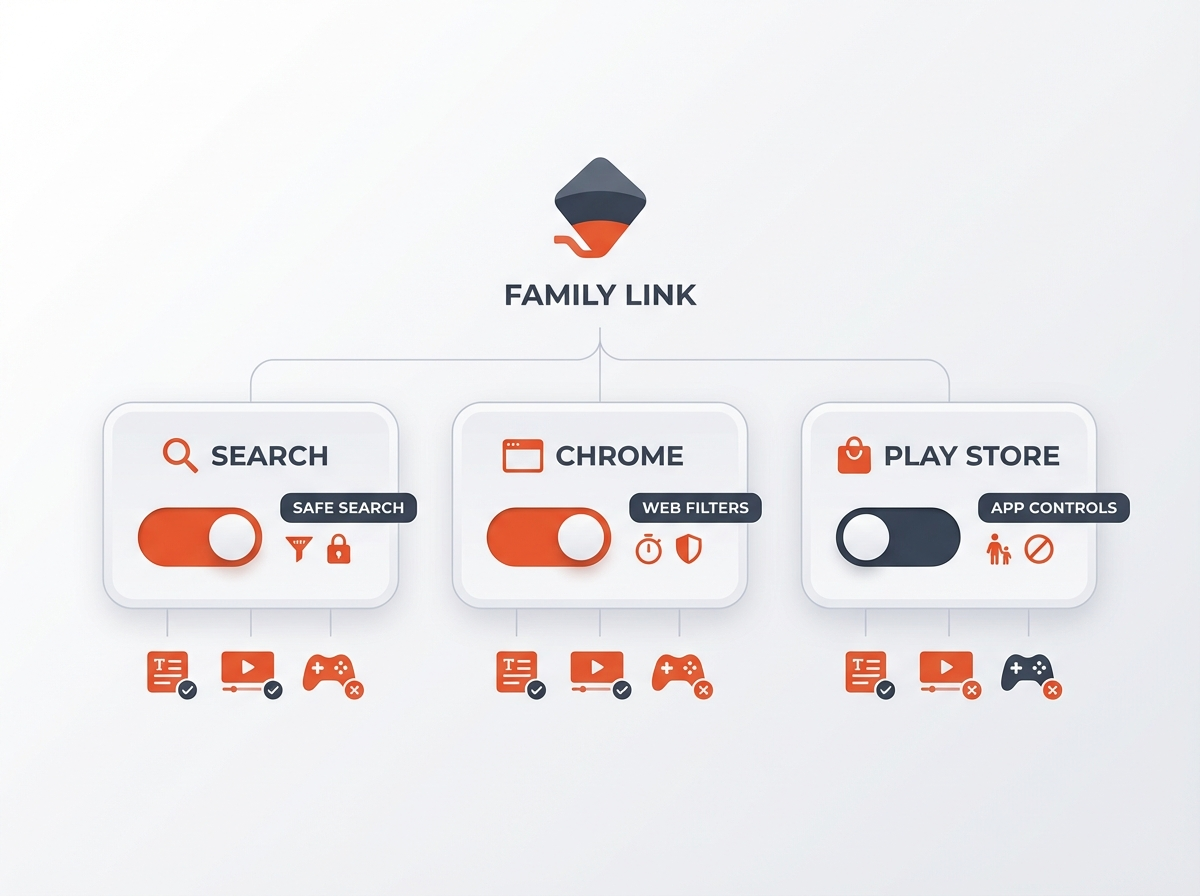
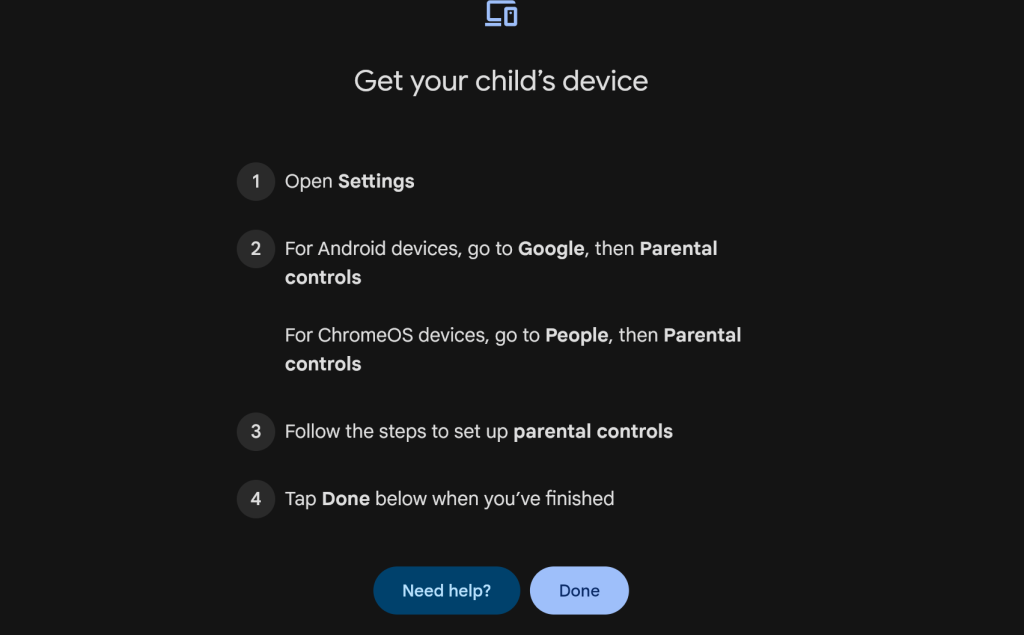
Google Family Link gives you free parental controls for Android. It can filter results in Google Search, limit Chrome browsing, and control app installs. It works best when the child uses a supervised Google account. This method answers “how to block adult content on Android for free” in the most complete way.
What you need before you start
- A parent Google account on your phone
- The child’s Android phone or tablet
- Both devices connected to the internet
Step-by-step: Set up Family Link and enable filters
- Install Google Family Link on the parent phone from Google Play.
- On the child device, install Family Link for children and teens if prompted.
- Open Family Link on the parent phone.
- Tap Add or follow the setup flow to connect the child account.
- Go to the child profile > Controls.
- Set Google Search to filter explicit results.
- Open Chrome settings inside Family Link and choose one:
- Try to block explicit sites (recommended)
- Only allow approved sites (strongest option)
- Go to Google Play controls and set content restrictions by age.
- Turn on approval for new app installs if you want full control.
How to make Family Link harder to bypass
- Set a strong screen lock on the child phone.
- Keep the parent Google password private.
- Disable unknown sources and limit developer options.
- Use “Only allow approved sites” for Chrome if the child keeps testing limits.
Next, you will strengthen search and video filters. This helps even if the child uses other browsers or apps.
Method 2: Turn On SafeSearch and Lock It (Google Search)
SafeSearch filters explicit results in Google Search. It does not block every adult website, but it reduces adult images, videos, and explicit pages in search results. This method helps if you want to “stop seeing 18+ content” while searching.
Step-by-step: Enable SafeSearch on Android
- Open the Google app on Android.
- Tap your profile icon > Settings.
- Tap Hide explicit results (or SafeSearch depending on your version).
- Turn on Filter to hide explicit results.
Enable SafeSearch in a mobile browser
- Go to google.com in Chrome.
- Tap the menu or your profile icon.
- Open Search settings.
- Turn on SafeSearch and save.
How to “lock” SafeSearch as much as possible
- If you use Family Link, SafeSearch stays enforced for supervised accounts.
- If you manage a home network, set a family DNS (Method 4). It can force SafeSearch on some services and reduce bypass options.
- Sign in to the correct Google account on the device and avoid guest mode.
Next, you will filter YouTube and short video content. This is a common source of 18+ content even when search looks clean.
Method 3: Restrict YouTube and Google Play Content (Free and Fast)
YouTube and app stores can surface adult themes through recommendations, comments, and thumbnails. You can reduce this by enabling Restricted Mode and by setting content limits in Google Play. This method helps if you ask, “How do I stop seeing 18+ content?” in feeds and suggestions.
Step-by-step: Turn on YouTube Restricted Mode
- Open the YouTube app.
- Tap your profile icon > Settings.
- Tap General.
- Turn on Restricted Mode.
Reduce mature recommendations on YouTube
- Pause watch history: YouTube > Settings > History & privacy > Pause watch history.
- Clear watch and search history to reset suggestions.
- Use “Not interested” on risky recommendations.
Set Google Play age filters and purchase controls
- Open Google Play Store.
- Tap your profile icon > Settings.
- Open Family > Parental controls.
- Turn on parental controls and set a PIN.
- Set age limits for Apps & games, Movies, and Books.
Important limits to know
- Restricted Mode does not block all explicit content. It reduces exposure.
- Play Store filters do not control content inside every app. Social apps can still show adult posts.
Next, you will block adult sites at the DNS level. This step can block content across many browsers and apps.
Method 4: Use Private DNS to Block Adult Websites (Works on Most Android Phones)
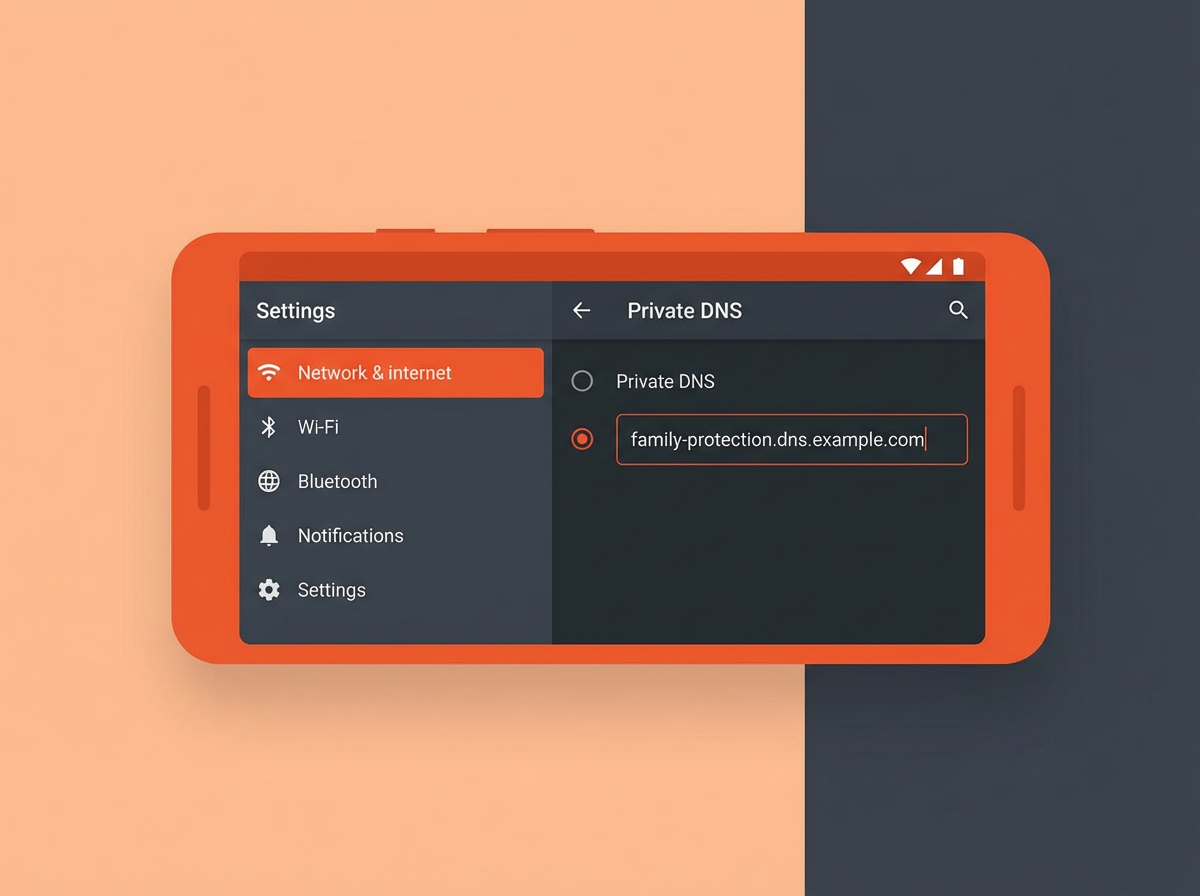
Private DNS lets you route DNS lookups through a filtering service. Many free DNS services block adult domains. This method is one of the closest answers to “How can I block all adult content?” because it blocks many adult websites before they load. It also helps with “How do I block adult websites on my phone permanently on Samsung?” since Samsung supports Private DNS on modern Android versions.
Pick a free DNS filter (adult blocking)
- family-filter-dns.cleanbrowsing.org – Blocks access to all adult, pornographic and explicit sites. It also blocks proxy and VPN domains that are used to bypass the filters.
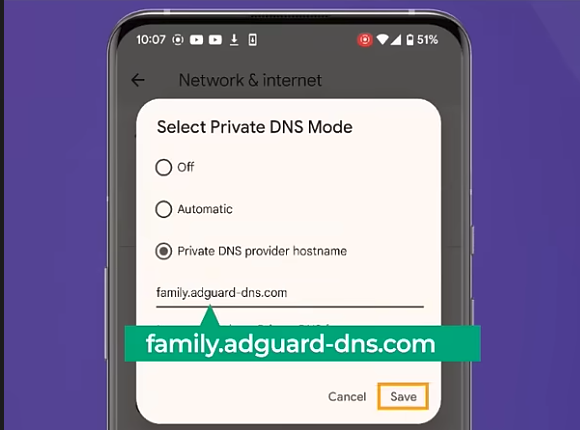
- family.adguard-dns.com – Blocks access to all adult, pornographic and explicit sites. It also blocks proxy and VPN domains that are used to bypass the filters.
- adult-filter-dns.cleanbrowsing.org – Blocks access to all adult, pornographic and explicit sites. It does not block proxy or VPNs, nor mixed-content sites.
Step-by-step: Turn on Private DNS (Android 9 and up)
- Open Settings.
- Tap Network & internet (or Connections on Samsung).
- Tap Private DNS.
- Select Private DNS provider hostname (from above list).
- Enter the hostname from your DNS provider.
- Tap Save.
Samsung path (common menu names)
- Settings > Connections > More connection settings > Private DNS
How to test if DNS blocking works
- Open Chrome and try to load a known adult domain (do not do this around children).
- Confirm you see a block page or a “site can’t be reached” message.
- Test on both Wi‑Fi and mobile data.
How to reduce bypass attempts
- Use Family Link to block VPN apps and block new app installs without approval.
- Remove unused browsers and keep one managed browser.
- Set a screen lock so others cannot change Private DNS.
Next, you will add device-level limits. This helps even if someone changes browser settings.
Method 5: Use Built-In Android and Samsung Controls (Profiles, Permissions, and Secure Settings)
Android and Samsung include device controls that reduce exposure and reduce bypass options. This method works best as a support layer for Family Link and Private DNS.
Create a safer user setup (where available)
- Guest mode: Turn it off if the device allows it, so the user cannot escape supervision.
- Multiple users: Avoid extra user profiles that you do not control.
- Kids mode (Samsung Kids): Use it for younger children to limit apps and browsing.
Lock down app installs and unknown sources
- Open Settings > Security (or Security and privacy).
- Find Install unknown apps.
- Set all apps to Not allowed unless you trust them.
- In Google Play, keep parental controls on and protect the PIN.
Block risky browsers and limit permissions
- Uninstall extra browsers that you do not need.
- Disable browsers you cannot uninstall (if the phone allows it).
- Limit app permissions for social apps that surface adult content:
- Disable notification previews on the lock screen.
- Limit background data if the app pushes risky notifications.
Samsung-specific tips for a more “permanent” block
- Use Private DNS (Method 4) and protect device settings with a strong PIN.
- Use Samsung Kids for younger users and allow only approved apps.
- Use Secure Folder to keep adult-risk apps out of the main profile if you manage your own device and want separation.
What “block permanently” means on Android
- No free method blocks every adult item on every app.
- You can get close by stacking: Family Link + Private DNS + SafeSearch + YouTube Restricted Mode.
- You keep it stable by blocking VPN installs and by locking device settings.
Now you have five free methods. Next, use the FAQs to solve common problems and edge cases.
Frequently Asked Questions (FAQs)
How to block adult content on Android for free?
Use Google Family Link to supervise the account, turn on SafeSearch, enable YouTube Restricted Mode, set Google Play parental controls, and add a free Private DNS family filter.
How do I block adult websites on my phone permanently on Samsung?
Set a family Private DNS in Samsung settings, then protect Settings with a strong PIN. Add Family Link to block VPN apps and prevent new browser installs.
How do I stop seeing 18+ content?
Turn on SafeSearch, enable YouTube Restricted Mode, clear and pause YouTube history, and adjust social app content controls. Add Private DNS to reduce adult sites.
How can I block all adult content?
You cannot block every item with one free setting. You can block most adult websites and reduce explicit results by combining Family Link, Private DNS filtering, SafeSearch, and YouTube restrictions.
Can my child bypass these blocks with a VPN?
Yes, a VPN can bypass DNS filters. Use Family Link to block VPN installs, require approval for new apps, and remove unknown app install permission.
Will these settings block adult content on mobile data and Wi‑Fi?
Family Link, SafeSearch, and YouTube settings work on both. Private DNS also works on both if it stays enabled. Test on Wi‑Fi and mobile data to confirm.
Final Thoughts
You can block adult content on Android for free with five steps that work well together: Google Family Link, SafeSearch, YouTube and Play Store controls, Private DNS filtering, and device-level lock downs. Start with Family Link and Private DNS, then add the other layers for better coverage. Apply the settings today, test on Wi‑Fi and mobile data, and lock changes with a PIN so the protection stays active.