If you’ve ever needed a headshot fast—LinkedIn, a speaking gig, your website, a press kit—you’ve probably wondered if your iPhone can actually pull it off. It can. And not in a “good enough” way… in a genuinely professional way, as long as you set it up like a pro would.
In this post, I’m going to walk you through how I take professional headshot with an iphone step-by-step. I’ll cover the exact setup I use (lighting, background, camera height, lens choice), the iPhone settings that matter, posing that looks confident (not stiff), and the free apps I recommend for a polished finish.
Quick promise: you don’t need a fancy camera, you don’t need a studio, and you don’t need to be “photogenic.” You just need a repeatable process.
Key Takeaways
- Find one good window and turn off overhead lights.
- Set your iPhone slightly above eye level and angle it down.
- Use 2x/3x lens if available; avoid 0.5x.
- Stand a few feet from the background for cleaner separation.
- Tap to focus on your eye and lock exposure if it keeps shifting.
- Use a timer/remote and take more photos than you think you need.
- Edit lightly in Photos, Snapseed, or Lightroom—keep it natural.
What makes a headshot look “professional” (even when it’s shot on a phone)
Before we touch the camera, it helps to know what we’re aiming for. A professional headshot isn’t about having perfect skin or a model jawline. It’s about a few visual cues that signal “this person is credible and put-together.”
Professional headshots usually have these traits
- Clean, flattering light (soft, directional, not overhead)
- A simple background that doesn’t compete with your face
- Sharp focus on the eyes
- Natural color (no weird yellow/green casts)
- Good framing (head and shoulders, with breathing room)
- Confident posture and expression
The iPhone is already excellent at exposure and focus. The “professional” part comes from the choices you make: where you stand, how you light it, and how you compose the shot.
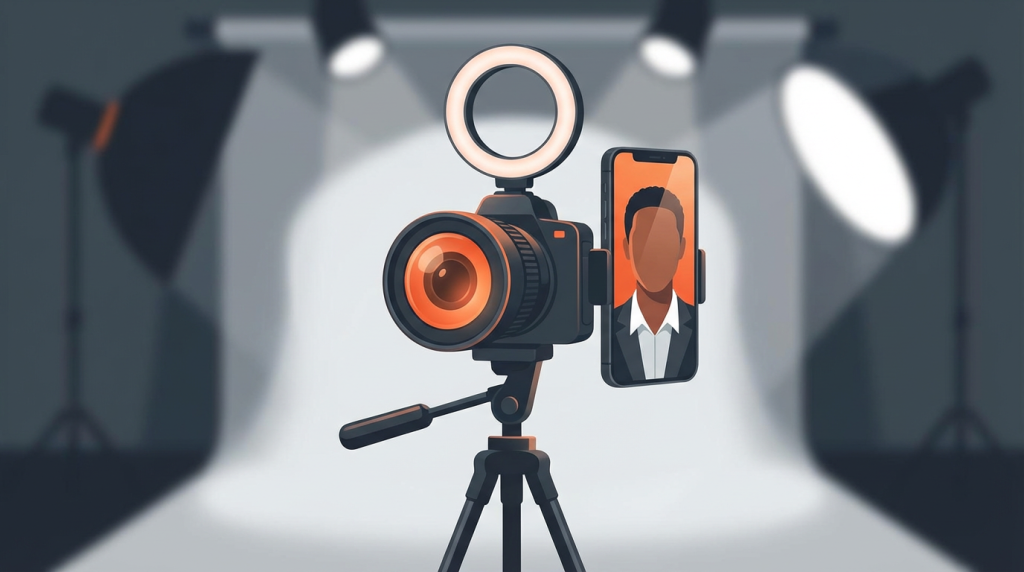
Gear I use (minimal) to take iPhone headshots that look legit
You can do this with just your iPhone and a window, but a couple of small add-ons make it easier and more consistent.
My simple iPhone headshot kit
- iPhone (any recent model)—Portrait mode helps, but isn’t mandatory
- A tripod (even a small one) or a stable surface at the right height
- Phone mount for the tripod
- Bluetooth remote or wired earbuds (for the shutter button)
- A reflector (optional): white foam board, a white poster board, or even a white pillowcase
If you’re doing this for work (and you’ll use the headshot for months), a $20–$40 tripod setup is worth it just for the consistency and the fact that you’re not balancing your phone on a stack of books every time.
Step-by-step: how I take professional headshot with an iphone
This is the exact workflow I follow. If you copy this, you’ll get a clean, professional result without guessing.
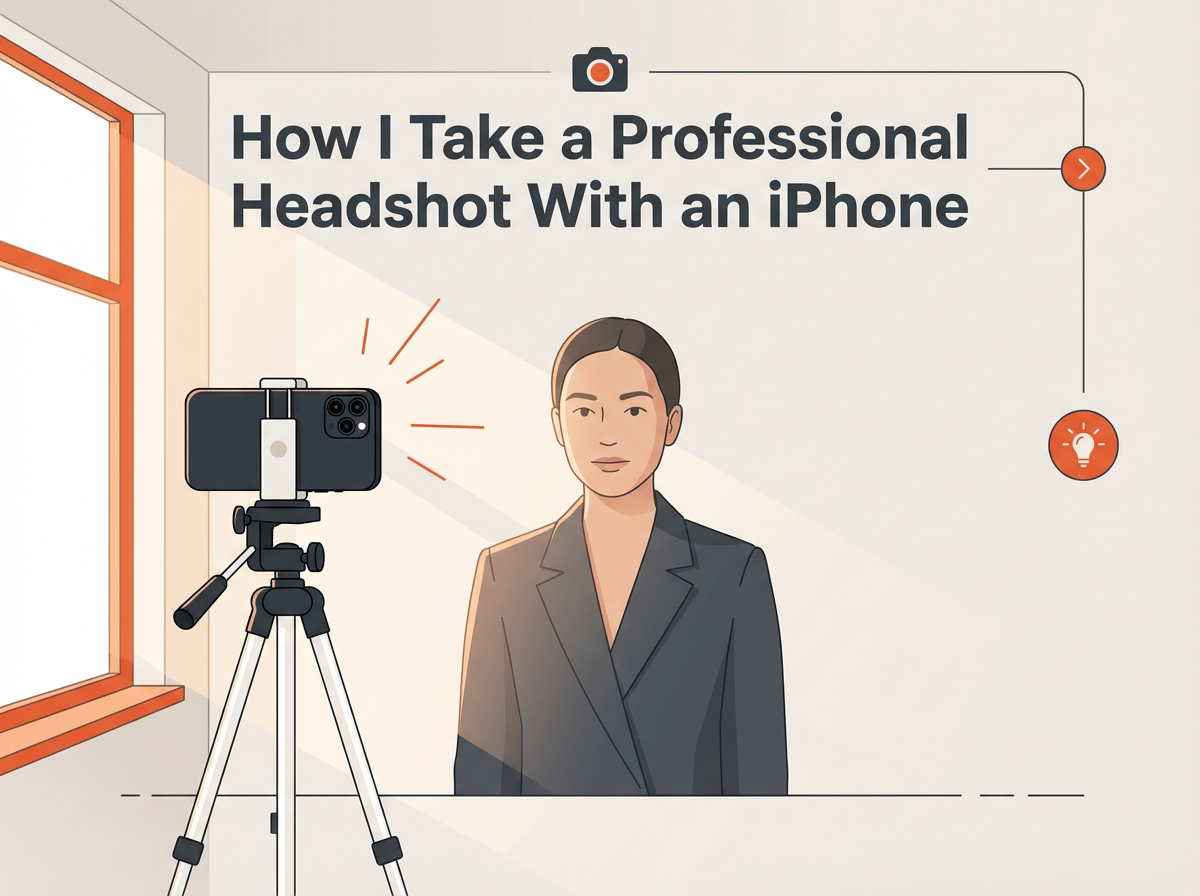
Step 1: Choose the right location (I start with a window)
My favorite “studio” is simple: a large window with indirect light. The goal is soft light on your face.
- Best option: stand facing a window with sheer curtains, or a window that isn’t blasting direct sun
- Avoid: overhead lights, ceiling fans with lights, and mixed lighting (window + warm lamps)
If the sun is hitting your face directly and you’re squinting, move back from the window or diffuse the light with a sheer curtain. Soft light = smoother skin and fewer harsh shadows.
Step 2: Pick a background that looks intentional
A background can make your headshot look instantly professional—or instantly “I took this in my kitchen.” I keep it simple.
Backgrounds that work well
- A plain wall (light gray, white, beige, muted blue)
- A tidy office corner with subtle blur (nothing distracting)
- Outdoor shade with greenery far behind you (great natural bokeh)
Backgrounds I avoid
- Clutter (shelves, laundry piles, busy decor)
- Bright windows behind you (backlighting makes you dark)
- Strong patterns (they steal attention from your face)
One pro tip: step 3–6 feet away from the background. That separation helps Portrait mode look more natural and reduces harsh shadows behind you.
Step 3: Set the iPhone at the most flattering height and angle
This is one of the biggest differences between “phone selfie” and “professional headshot.”
- Position the iPhone slightly higher than eye level
- Angle it slightly downward
This matches what many photographers do and aligns with what’s working on top-ranking guides: it slims the jawline a bit, keeps your eyes prominent, and avoids the “looking up at the camera” distortion.
I also keep the camera far enough back that my face isn’t warped by a wide-angle lens. Which brings us to lens choice.
Step 4: Use the right lens (this matters more than people think)
If your iPhone has multiple lenses, don’t default to the ultra-wide. Ultra-wide is great for landscapes, but it can distort faces.
- Best choice: 2x or 3x (telephoto) if you have it
- Good choice: 1x if you can’t use telephoto (just step back a bit)
- Avoid: 0.5x (ultra-wide) for headshots
My rule: if I’m using 1x, I step back and zoom slightly (not too much) so the perspective looks natural. A little distance makes your face proportions look more like what people see in real life.
Step 5: Dial in iPhone camera settings (quick checklist)
You don’t need to turn your iPhone into a DSLR, but a few settings help you get cleaner files and more consistent results.
My iPhone headshot settings
- Turn on the grid: Settings → Camera → Grid (helps with straight framing)
- Use the rear camera: higher quality than the selfie camera on many models
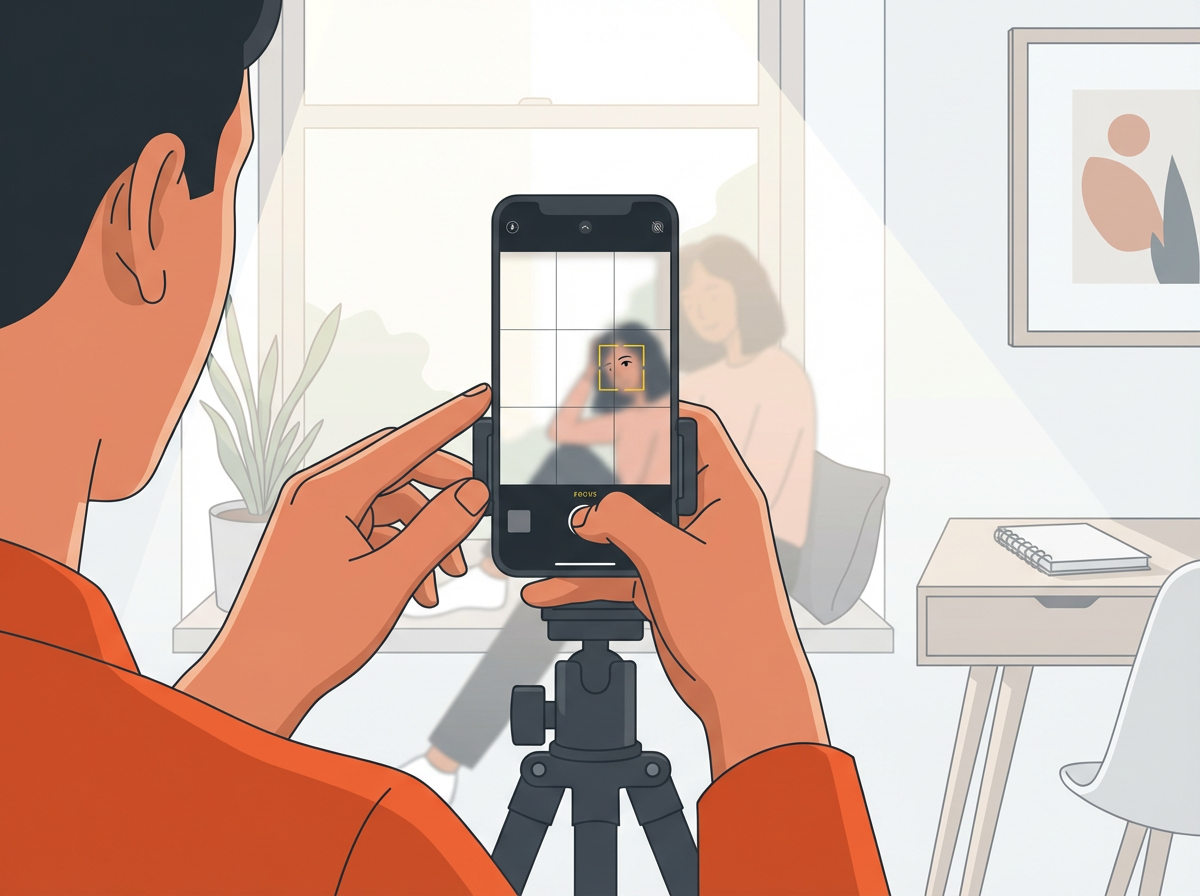
- Tap to focus on the eye and lock exposure if needed (press and hold to AE/AF Lock)
- Turn off flash: iPhone flash is harsh for headshots
- Enable Apple ProRAW (if available): Settings → Camera → Formats → Apple ProRAW (great for editing, optional)
- Use “Most Compatible” or “High Efficiency”? For many people, High Efficiency is fine; if you share with clients or upload to older systems, “Most Compatible” can reduce hiccups. (Settings → Camera → Formats)
About Portrait mode: I use it when it looks natural. If it’s cutting into hair or ears, I switch back to Photo mode and rely on background distance instead.
Step 6: Get the lighting right (this is the real secret)
If you do only one thing from this whole post, make it this: prioritize light.
My go-to lighting setup (easy and flattering)
- Stand facing the window at about a 30–45° angle (not perfectly straight-on)
- Turn your face slightly back toward the window until both eyes have light
- Use a white foam board opposite the window to lift shadows (optional but amazing)
This creates shape in your face without harsh shadows. If one side of your face looks too dark, bring in that white board (or even a white wall) to bounce light back.
What I do if the light is too harsh
- Move farther from the window
- Use sheer curtains
- Turn slightly so the light is more “side” than “front”
What I do if the room is too dark
- Move closer to the window
- Turn off warm indoor lamps (mixed color looks messy)
- If needed, add one soft light source (a ring light on low, diffused)
Step 7: Compose the shot like a professional headshot
Composition is where your headshot starts looking “intentional.”
My framing rules
- Crop around mid-chest to just above the head (classic head-and-shoulders)
- Leave a little space above your head (don’t crowd the top)
- Keep your eyes around the upper third of the frame (use the grid)
- Keep the camera level (no tilted horizons)
If you’re shooting for LinkedIn, I also make sure the framing works in a circle crop (your face stays centered, shoulders visible, nothing important gets cut off).
Step 8: Pose in a way that looks confident (not stiff)
Most people tense up because they think a headshot has to be super formal. It doesn’t. It just needs to look like you on a good day.
The pose I use most often
- Stand at a slight angle (about 30°), not square to camera
- Shoulders relaxed, chest open
- Chin slightly forward and down (tiny movement—don’t overdo it)
- Eyes to the lens (not the screen)
Hands: should they be in the shot?
Usually no for a classic headshot. But if you’re doing a more casual brand portrait, hands can work if they’re natural (e.g., one hand lightly holding a jacket lapel). For strict corporate headshots, I keep it simple.
Step 9: Nail your expression (my “micro-routine”)
Expression is everything. The goal is approachable confidence.
What I do right before I take the photo
- Take a breath and drop my shoulders
- Relax my jaw (tongue gently to the roof of the mouth helps)
- Think of something that makes me naturally smile (not a forced grin)
- Do a “soft smile” first, then a bigger one
And yes—take a lot of shots. Pros do. The difference is they don’t tell you how many.
Step 10: Use a timer or remote so your body stays relaxed
Trying to tap the shutter while posing usually creates tension in the shoulders and face. I use:
- 3s or 10s timer in the Camera app, or
- Bluetooth shutter remote, or
- Wired earbuds (volume button triggers the shutter on many iPhones)
I’ll take 30–80 photos in a session and then choose the best 3–5.
How to take professional headshots with your iPhone? (Quick checklist)
If you want the fast version, here’s the checklist I follow every time:
- Use a window with soft light; avoid overhead lighting
- Stand 3–6 feet from a clean background
- Put the iPhone on a tripod slightly above eye level, angled down
- Use 2x/3x lens if possible; avoid 0.5x
- Tap to focus on the eye; lock exposure if needed
- Frame mid-chest to above head; eyes near upper third
- Relax shoulders, chin slightly forward/down, look at the lens
- Use timer/remote; take lots of shots
- Edit lightly for color, brightness, and a natural finish
Can you do professional photography with an iPhone?
Yes—within the right conditions. Modern iPhones have excellent sensors, smart HDR, strong sharpness, and surprisingly good portrait separation when used carefully.
When iPhone photography looks truly professional
- Good light (window light, shade outdoors, soft continuous light)
- Simple compositions (headshots, product photos, lifestyle portraits)
- Correct lens choice (avoiding ultra-wide distortion)
- Clean editing (natural skin tone, balanced contrast)
Where iPhone photography can struggle
- Low light (noise and smearing can happen)
- Fast movement (motion blur)
- Complex hair edges in Portrait mode (sometimes imperfect cutouts)
- Extreme background blur needs (phones simulate blur; it’s not always perfect)
For professional headshots specifically, iPhone is absolutely capable—because headshots are controlled: you can control light, background, and distance. That’s why this works so well.
How to take professional looking portraits with iPhone (beyond headshots)
If you want portraits that feel like they belong on a personal brand site (not just LinkedIn), these tweaks help a lot.
Use “open shade” outdoors for premium-looking light
Outdoor portraits can look incredible on iPhone if you avoid direct sun. Stand in open shade (like under an overhang or next to a building) with the bright sky in front of you. That sky becomes a giant softbox.
- Face the bright open sky
- Keep the background farther away for natural separation
- Watch for green color casts if you’re surrounded by trees (adjust warmth in editing)
Turn on Portrait mode—but don’t over-blur
Portrait mode is great, but the default blur can sometimes scream “phone.” I often reduce the blur after the fact:
- Open photo → Edit → adjust Depth slider (if available)
- Aim for subtle separation, not a fake studio haze
Use burst-like shooting for better expressions
Expressions change in milliseconds. I’ll shoot in short runs (timer + multiple takes) so I can pick the frame where the eyes look alive and the smile looks natural.
Keep skin texture natural in editing
Over-smoothing is the fastest way to make a portrait look artificial. I’d rather keep a little texture and look real than look like a plastic version of myself.
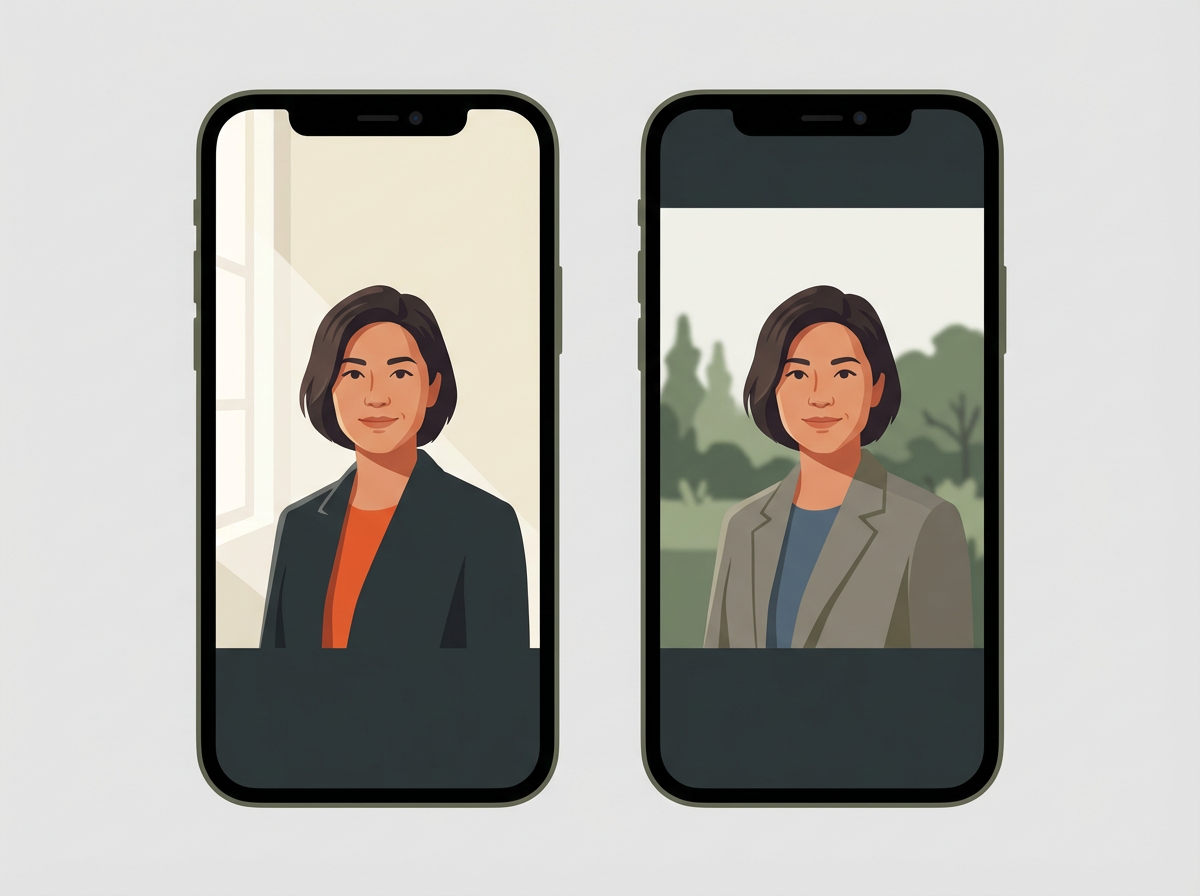
My editing workflow on iPhone (natural, professional, not overdone)
Editing is where you polish the image. The goal is to look like you on your best day—well-lit, well-rested, and confident.
Step 1: Start in the Photos app (it’s underrated)
I usually edit the best 3–5 selects directly in the iPhone Photos app first.
My typical adjustments
- Exposure: small tweaks only
- Brilliance: adds a clean pop without going too contrasty
- Highlights: down slightly if the forehead/cheeks are too bright
- Shadows: up slightly if one side of the face is too dark
- Black Point: tiny increase for depth (careful—too much looks harsh)
- Warmth: adjust until skin tone looks accurate
- Definition/Sharpness: very lightly (too much looks crunchy)
If the white balance looks off, I fix that before anything else. Natural skin tone is a huge part of “professional.”
Step 2: Retouch lightly (only if needed)
If I have a temporary blemish or under-eye darkness that’s distracting, I’ll retouch—but gently.
- Remove temporary blemishes, lint, stray hairs if they’re pulling focus
- Avoid changing face shape or over-smoothing skin
The best headshots still look like a real person. That’s what builds trust.
Step 3: Crop for the platform (LinkedIn vs website vs speaker bio)
- LinkedIn: tighter crop, face centered, enough shoulder visible for the circle crop
- Website: leave more negative space if you’ll place text beside it
- Press/speaker bio: clean, classic crop, neutral background
What is the free professional headshot app for iPhone?
There isn’t one single “best” free app for everyone, but there are a few strong options depending on what you mean by “professional headshot.” Some apps focus on editing a real photo, and others generate AI headshots (which can be hit-or-miss and may not be appropriate for all professional uses).
Best free (or free-to-start) apps I recommend
- Snapseed (free): Great for clean, professional edits—white balance, selective adjustments, subtle retouching.(check here)
- Lightroom Mobile (free tier): Excellent color and tone control; great for consistent “brand look.” Some features require a subscription, but the free tools are strong. (Check here)
- Photos app (built-in, free): Surprisingly capable for exposure, color, and cropping.
About “AI professional headshot” apps
Some apps offer free trials or limited free generations, but many charge for final outputs. If you go the AI route, I’d still recommend taking a strong original iPhone photo first—good light and clean framing improve results. Also, consider whether your industry expects authenticity; in many contexts, a real headshot is the safer choice.
Common mistakes that make iPhone headshots look amateur (and how I fix them)
If your headshot isn’t looking right, it’s usually one of these issues.
Mistake 1: Using the selfie camera too close
Fix: Use the rear camera and step back. If you must use selfie mode, increase distance and avoid ultra-wide.
Mistake 2: Overhead lighting (raccoon eyes)
Fix: Turn off ceiling lights and use window light or a soft light placed slightly above eye level.
Mistake 3: Busy background
Fix: Simplify. Move furniture, change angles, or use a plain wall. Distance from background helps a lot.
Mistake 4: Portrait mode edge errors
Fix: Reduce blur depth, increase distance from background, or shoot in regular Photo mode.
Mistake 5: Over-editing (too smooth, too orange, too sharp)
Fix: Pull back. Aim for natural skin tone and subtle contrast. If you can “see the filter,” it’s too much.
Final Thoughts
That’s the truth behind how I take professional headshot with an iphone: the iPhone is already powerful. The difference-maker is how you use it—soft light, clean background, the right lens, camera slightly above eye level, and a relaxed, confident expression.
If you want, tell me what you’re using the headshot for (LinkedIn, acting, corporate bio, website branding, etc.) and what iPhone model you have. I can recommend the best lens choice, framing, and a simple editing recipe tailored to your goal.
Call to action: Try this setup today—window light + tripod + 2x lens—and take 50 shots. Pick your top 3, do a light edit, and update your profile photo this week. Your future self (and your first impressions) will thank you.