To recover deleted iPhone messages, start in Messages > Filters > Recently Deleted. On some versions, including iOS 18, look under Edit. Select the conversation, tap Recover, then confirm.
If the conversation is missing there, pause before resetting your phone. An older backup might help, but only if it actually contains the messages. Restoring it can put newer data at risk.
I’ll walk you through the least disruptive option first, then the checks I’d make before considering a backup restore. These instructions cover Apple’s Messages app. Other messaging apps have their own recovery systems.
Key takeaways
- Try Recently Deleted first. It doesn’t require a backup or a full-device reset.
- Act promptly. Apple’s iPhone User Guide describes a 30-day recovery window; its support article says 30 to 40 days. Don’t count on the extra days.
- Messages in iCloud syncs changes, including deletions. Synced messages aren’t included in your device’s iCloud or computer backup.
- A restore is a whole-device decision. Check the backup’s date, likely contents, and the risk to newer data before proceeding.
- Recovery isn’t guaranteed. A paid app or a recent backup doesn’t prove that a deleted conversation still exists.
1. Recover messages from Recently Deleted
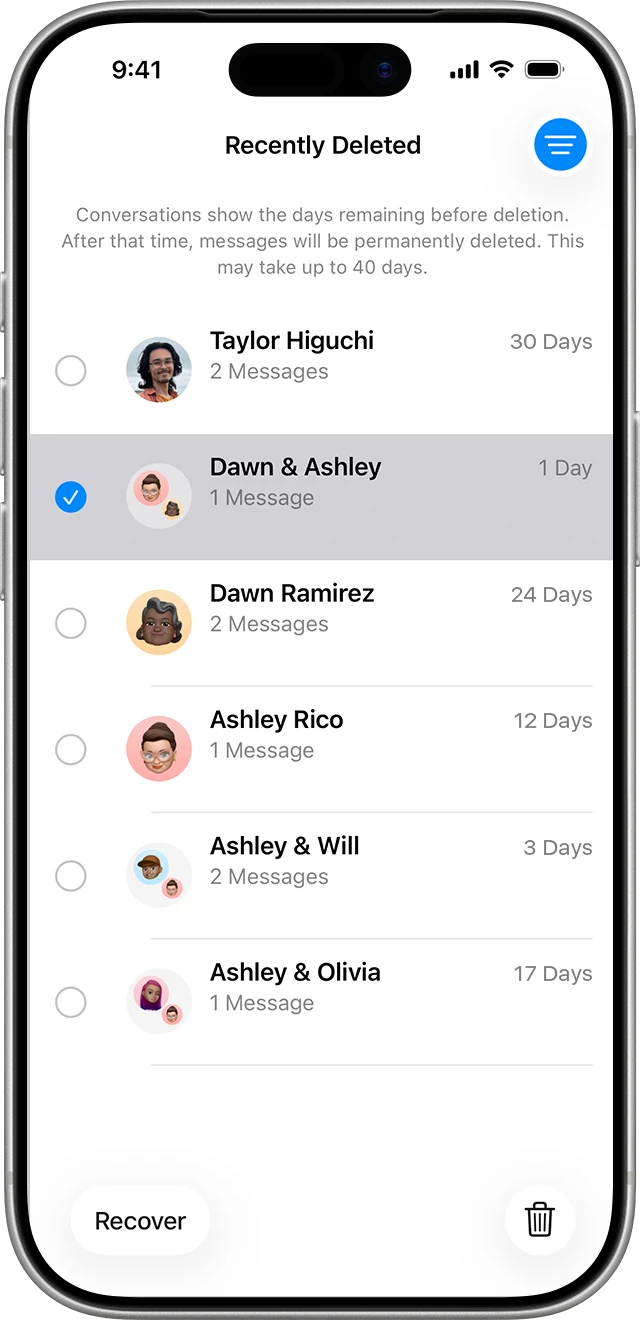
This is the first place I’d look. Apple supports this feature on iPhones running iOS 16 or later.
- Open Messages and return to the conversation list.
- Tap the Filters button. If your version shows Edit, open that menu instead.
- Choose Recently Deleted or Show Recently Deleted.
- Select the conversations you want, then tap Recover.
- Confirm with Recover Message or Recover [Number] Messages.
Choose Recover carefully. The delete control in this same area can permanently remove the selected messages. See Apple’s current recovery instructions for the interface on your version.
How long do deleted messages stay there?
There’s a small wording difference in Apple’s documentation: the iPhone User Guide says up to 30 days, while the support article says messages deleted within the last 30 to 40 days may be recovered.
My advice is to check immediately and use the remaining-days indicator in Recently Deleted. Don’t wait until day 40. Messages that you permanently removed from that folder aren’t available through this method.
If you use Messages in iCloud, recovering a conversation also updates your other devices with that feature enabled. That’s useful, but it doesn’t make this an unlimited message archive.
What if Recently Deleted is missing or empty?
Check both Filters and Edit from the main conversation list, rather than inside an individual chat. On an iPhone running a version older than iOS 16, this feature isn’t available.
Updating now won’t make messages deleted before the feature was supported suddenly recoverable. An empty folder also isn’t evidence that a recovery app can retrieve what’s gone. Move on to checking whether another copy actually exists.
2. Check whether your messages were synced or backed up
Messages in iCloud and iCloud Backup do different jobs. This distinction determines whether an older backup is even a sensible recovery option.
- Messages in iCloud: keeps your conversation history up to date across your devices. A deletion can sync to the other devices too.
- iCloud Backup: saves eligible device information that isn’t already syncing to iCloud. Messages are included when you aren’t using Messages in iCloud.
- Computer backup: also excludes data already synced and stored in iCloud, including those messages.
Apple confirms these exclusions in what iCloud backs up and its comparison of backup methods.
Check the setting without changing it
Open Settings > [your name] > iCloud. Look under See All or Show All for Messages in iCloud or Messages. The switch may say Use on this iPhone or Sync this iPhone, depending on your version.
Apple’s setup guide shows the version-specific names. You’re checking the status here, not being asked to toggle it.
The current switch position doesn’t tell you what it was when an old backup was created. If you don’t know the earlier setting, treat the backup’s message contents as uncertain.
Why turning sync on won’t undo a deletion
Apple explains that Messages in iCloud distributes message changes across devices. It isn’t a historical snapshot you can roll back to yesterday.
For example, suppose a conversation was deleted on Tuesday while sync was enabled. Restoring a Monday device backup doesn’t, by itself, establish that the conversation will return. The synced messages weren’t stored in that backup.
I wouldn’t turn sync off and on as a deleted-message recovery experiment. Downloading the current cloud library and recovering an earlier deleted conversation are different outcomes.
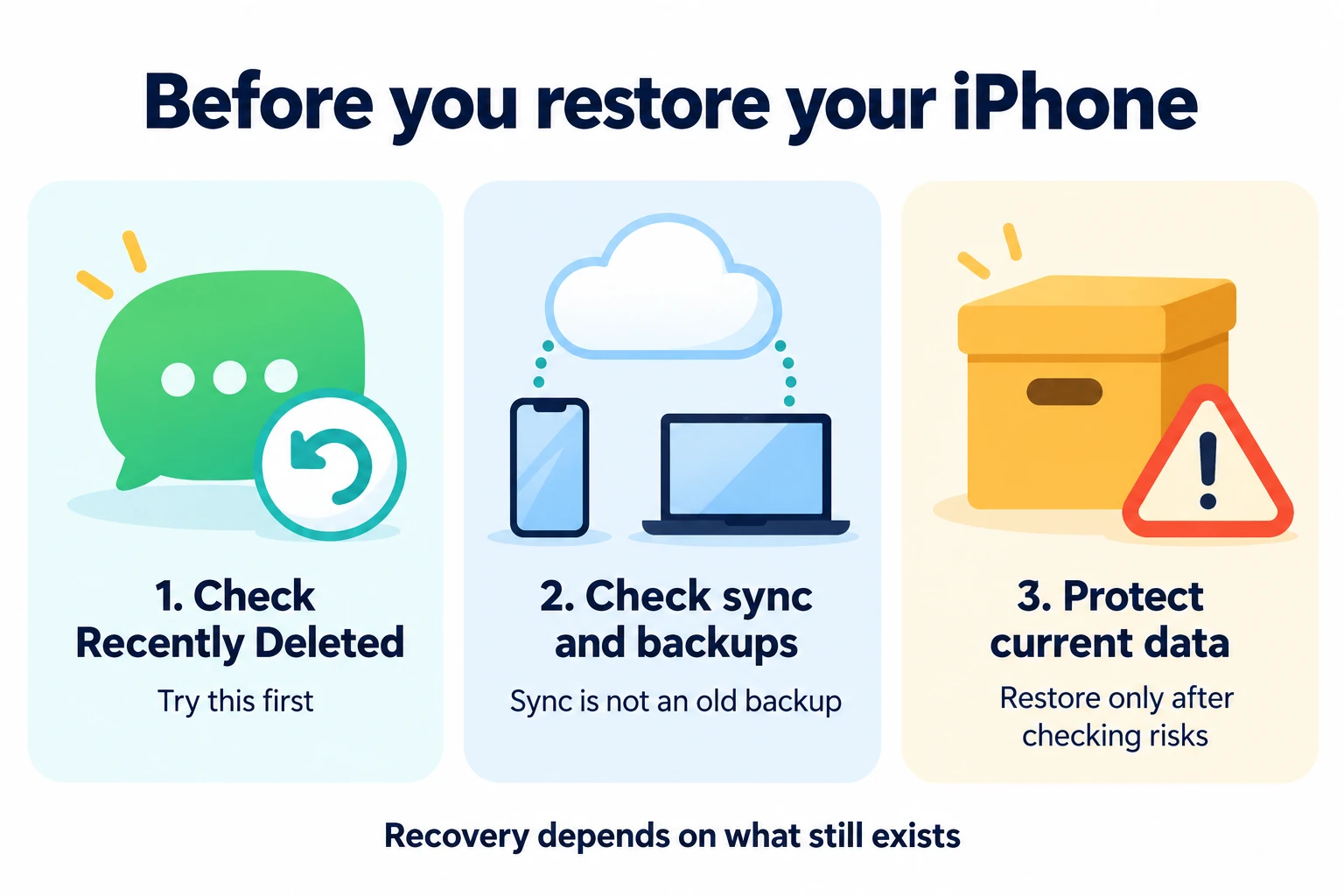
Before any restore: protect both your old backup and your current data
Stop here if you can’t identify a suitable backup or aren’t comfortable risking newer data. A full-device restore can replace current on-device information with an older state. Data stored separately in cloud services may sync back afterward, so the result isn’t simply every app returning to one date.
Use this checklist before either restore method below:
- Match the timing. The candidate backup must have been created after the messages arrived and before they were deleted. A backup made afterward doesn’t rewind the deletion.
- Check what could be included. Think about whether Messages in iCloud was enabled at that time. A backup date alone isn’t proof that the conversation is inside.
- Preserve the older backup first. Don’t overwrite your only useful copy by immediately making a fresh backup, changing backup encryption, or starting an automatic backup.
- Then protect current data separately. Save important newer files and create an appropriate current backup without replacing the older candidate.
- Check access. Make sure you can sign in to your Apple Account and, for an encrypted computer backup, that you know its backup password.
In Finder or Apple Devices, Apple documents General > Manage Backups, where you can right-click a backup and choose Archive. Follow its backup-management instructions. If you can’t find or preserve the older copy, get help before creating another one.
There’s an extra trap with encryption: Apple says enabling backup encryption starts a backup and overwrites previous backups. Preserve your candidate first. Changing the password also won’t unlock an older encrypted backup you can no longer access. See Apple’s encrypted-backup guidance.
For the separate current backup, use Apple’s instructions for Mac or Windows and verify the completed backup date. A current backup protects eligible current data; it isn’t a new copy of already-deleted messages.
3. Consider an iCloud backup restore only if it could contain the messages
I’d consider this only after the checklist above. Restoring an iCloud backup to an already-set-up iPhone requires erasing that iPhone first. It isn’t a way to import just one conversation.
First open Settings > [your name] > iCloud > iCloud Backup and inspect the last successful backup time. Apple shows that timestamp below Back Up Now in its iCloud backup guide. You don’t need to tap Back Up Now just to check it.
The backup list can help identify backed-up devices. Don’t delete any candidate backup while investigating, and don’t assume a backup exists for every date you want.
Only if you’ve protected current data and identified a plausible earlier backup:
- Review Apple’s current restore instructions. For an already-set-up device, follow its linked erase instructions and read the warnings before confirming.
- During setup, choose From iCloud Backup on Transfer Your Apps & Data.
- Sign in and select the relevant backup by its date and size. Follow any required software-update prompts.
- Keep the iPhone connected to Wi-Fi and power as restoration finishes, then check Messages.
If the texts were included, they can download in the background. If they were using Messages in iCloud, that library downloads separately. Apple’s missing-information after restore guide explains the difference.
Don’t repeatedly erase the phone hoping a different outcome will appear. Recheck the backup’s eligibility before considering another restore.
4. Restore a suitable Finder, Apple Devices, or iTunes backup
The same risks and message-inclusion rules apply to a computer backup. Restore Backup changes the device’s data; it isn’t a message-only recovery button. Preserve the older backup and your newer data first.
Choose the software that matches your computer:
- macOS Catalina 10.15 or later: Finder
- Windows: Apple Devices, or iTunes if the PC doesn’t have Apple Devices
- macOS Mojave 10.14 or earlier: iTunes
After you’ve completed the safety checks:
- Connect the iPhone by USB and select it in the appropriate app. Follow the device’s trust prompts only on your own trusted computer.
- Select Restore Backup and choose the eligible backup by date.
- Confirm the restore. Enter the encrypted-backup password if requested.
- Leave the iPhone connected through the restart and subsequent sync, then check for the conversation.
Follow Apple’s computer-restore instructions if the screens differ. Messages that weren’t included in the backup won’t be supplied by that restore.
What if there’s no usable backup?
If Recently Deleted is empty and no eligible backup exists, I’d look for an independent copy before spending money or making more changes.
Ask the other person whether they still have the conversation and can send the information you need. Apple notes that an ordinary deletion on your devices doesn’t delete the recipient’s copy. Undo Send is a separate feature.
You might also already have a screenshot, an exported conversation, or the same details in an email. This can recover the information you need without reconstructing the original Messages thread.
Don’t assume an iPad or Mac is an independent backup: if it uses Messages in iCloud, deletions sync there too.
Should you pay for a recovery app?
I wouldn’t buy one based on a promise to recover every permanently deleted text. This guide doesn’t endorse a recovery product or claim that any app was tested successfully.
Before considering a tool, ask exactly what it reads: an existing backup, current device data, or an online account. Also check whether its output is a readable export or something it can actually restore to Messages.
A useful preview should show the specific missing conversation, not just conversations still on your phone. Check the price, refund terms, compatibility, and privacy policy before paying or granting access.
Your conversations and backups can contain private information. Avoid uploading them to an unfamiliar recovery service. A sales claim isn’t evidence that a recoverable copy exists.
Keep an extra copy of messages you can’t afford to lose
For important details, save a separate readable copy while you still have the conversation. Keep it somewhere you control and can find again.
If you’re keeping screenshots, our guide to converting images to a PDF on iPhone includes an on-device Files method. For private conversations, use an on-device option rather than uploading screenshots to an online converter. A PDF is a reference copy, not a Messages backup you can restore.
Also review Settings > Apps > Messages > Keep Messages. If you want to retain conversations, check whether automatic deletion after 30 days or a year is enabled. Apple explains these options in its message-deletion guide linked above.
Keep regular backups appropriate to your setup, and remember which data syncs separately. That makes your recovery choices much clearer if something goes missing.
Frequently asked questions
Can I recover deleted iPhone messages without a backup?
Yes, if the conversation is still recoverable in Recently Deleted. If it’s no longer there, another person’s copy or an earlier export may help you recover the information. There’s no guaranteed way to recreate messages when no usable copy remains.
Can I recover messages after deleting them from Recently Deleted?
Apple warns that permanent deletion there can’t be undone. An independently preserved copy is a different possibility, but don’t assume one exists or reset the phone without verifying your options.
Can I recover texts from several months ago?
The age of a conversation and the date you deleted it are different. A years-old conversation deleted yesterday may still be in Recently Deleted. A conversation deleted months ago would need another usable copy, such as an eligible older backup.
Will a backup made today recover a message I deleted yesterday?
Not just because the backup is recent. You need the message to have been present in the data that was backed up. Making a new backup doesn’t recreate a missing message.
Why are messages still using iCloud storage if my deleted chat is gone?
The storage total can reflect your remaining synced conversations and attachments. It doesn’t prove that your deleted chat is available in an older device backup. Apple directs you to the Messages app to view your synced messages.
Can I restore only messages using Apple’s Restore Backup option?
Apple’s documented process restores device content and settings. Treat it as a full-device operation, and protect newer data before starting. If you only need a phone number, address, or attachment from one chat, asking the sender again may be the simpler choice.
Final thoughts
I’d start with Recently Deleted, then work out whether a genuine earlier copy exists. Only consider a backup restore after checking its likely contents and protecting the data you have now.
The key is to avoid turning one missing conversation into a bigger data-loss problem. If the backup’s contents or the restore risks are unclear, pause and use Apple’s recovery guidance and support options before erasing anything.