


To view clipboard history, open the Clipboard panel in your Android keyboard, press Windows + V on a Windows PC, or open Spotlight and press Command + 4 on a Mac running macOS Tahoe 26 or macOS 27. On iPhone and iPad, ordinary Paste shows the current copied item; to keep a collection, save snippets in a note or clipboard app as you go.
If you copied an important link and then copied something else, I’d check the history that was already running before installing anything. A new clipboard manager can help with future copies, but it cannot recreate an older item it never recorded.
Here’s where to look on each device, how to keep useful snippets, and what to try when your clipboard looks empty.
Key takeaways
- Android: open a text field, then look for Clipboard in Gboard, Samsung Keyboard, or SwiftKey. The keyboard determines the available history.
- Windows: Windows + V opens saved clips. You may need to enable history first.
- Mac: macOS Tahoe 26 introduced clipboard history in Spotlight. Older instructions saying every Mac needs a separate app are out of date.
- iPhone and iPad: pasting into Notes reveals the current item. It does not reveal an archive of everything you’ve copied.
- Keep important work elsewhere: history can expire or be cleared. Pin reusable, non-sensitive text and save anything important in a document.
What does clipboard history actually save?
The clipboard holds content so you can move it between apps. Clipboard history adds a collection of previously captured items that you can choose from later.
For example, you might copy a product name, then a description, then a link. Ordinary Paste usually inserts the latest copy. An enabled history feature may let you select the earlier name without going back to its source.
The important word is captured. A phone keyboard, Windows history, and a dedicated Mac app can each keep their own collection. Opening one does not guarantee it contains items recorded by another.
I find it useful to separate three questions: What can I paste right now? What did my history feature save earlier? What have I deliberately stored for next week? Those questions lead to different places.
How to view clipboard history on Android
Start with the keyboard you actually use. A Samsung phone can be using Gboard, and another Android phone can be using SwiftKey. The phone brand alone doesn’t tell you which clipboard menu you’ll see.
Open a blank note and tap its text area. This brings up your keyboard without the risk of accidentally sending a pasted item to someone.
Open clipboard history in Gboard
- Tap a text field to display Gboard.
- Look along the toolbar above the letter keys for the Clipboard icon. If it’s hidden, open the toolbar’s tools menu and look for Clipboard there.
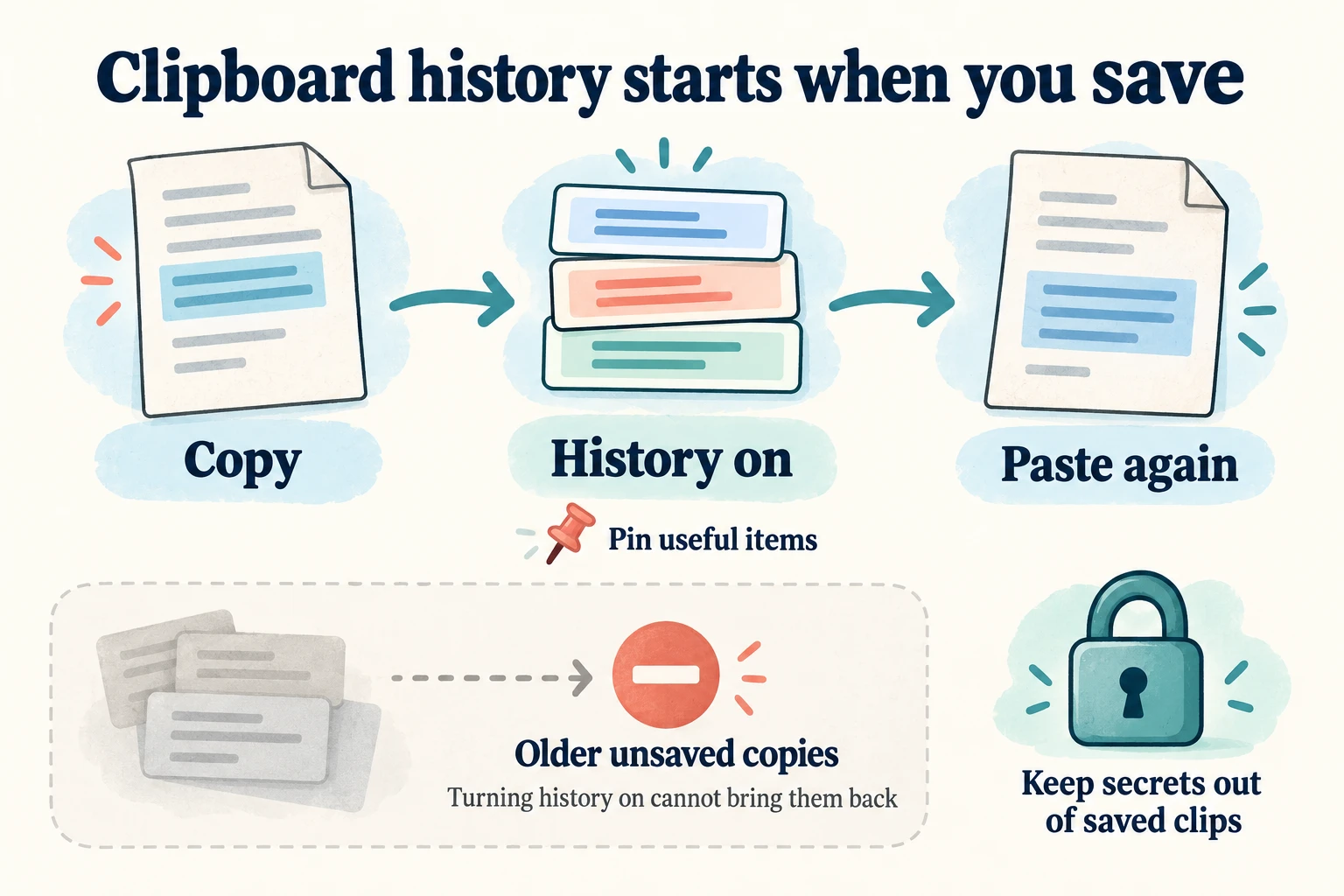
- If Gboard asks you to enable its clipboard, turn it on if you want it to retain subsequent copies.
- Tap a saved snippet to insert it at the cursor.
- To keep reusable text, touch and hold its clip, then choose Pin.
Google’s Gboard instructions confirm the Clipboard toolbar and pinning method. They also warn that unpinned history is temporary. Follow the expiry notice shown by your version rather than treating it as permanent storage.
If you’ve just enabled history, copy a harmless test phrase and open the panel again. Don’t use a password for this check. Save any currently available item you need before replacing it.
Find the clipboard on Samsung Keyboard
With Samsung Keyboard visible, look in its toolbar for Clipboard. If the icon isn’t on the main row, check the additional toolbar tools. Choose the item you want to paste into your note.
Samsung’s keyboard guide lists Clipboard among those tools. It also lists a setting for saving screenshots to the clipboard on supported devices, so text and screenshot behavior may be configured separately.
Menu placement and available controls vary with the keyboard and One UI version. If your panel offers pinning, use it for snippets you need repeatedly. Check that they appear in the pinned area before relying on them.
If your Galaxy phone shows Gboard instead, use the Gboard instructions above. Switching keyboards just to find a missing item can send you to a different history, which makes troubleshooting more confusing.
Open saved clips in Microsoft SwiftKey
- Tap a text field, then expand SwiftKey’s toolbar if needed.
- Choose Clipboard to see saved clips.
- Tap an entry to paste it.
- Use the pin control beside a clip if you want to keep it.
Microsoft’s SwiftKey guide says copied clips expire after one hour unless pinned. It also documents adding a clip manually through Clipboard settings and assigning a text shortcut to a saved phrase.
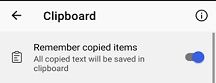
If copies aren’t being retained, check the clipboard’s remembering setting. The focused example below identifies that control; it is Microsoft’s published interface example, so your current layout may look different.
Why Android’s copy preview and clipboard apps can be confusing
The small preview that appears after copying on newer Android versions is feedback about your recent copy. Don’t assume it is a button for a complete historical archive.
Android’s own clipboard and your keyboard’s saved clips have different jobs. Android 13 and later automatically clear the system clipboard after a period of time, while keyboard history follows that keyboard’s rules. Google explains the system behavior in its clipboard security guidance.
Be cautious with a standalone app that promises to silently record every copy. Android restricts clipboard reading: the ClipboardManager documentation describes access for the default keyboard or an app with input focus. A background manager may therefore require a specific capture workflow.
Before paying for one, check its instructions for your Android version. Look for a clear explanation of how items are saved, whether cloud storage is involved, and how to erase the collection.
How to view clipboard history on Windows
Press Windows + V. If the panel says history is off, select Turn on. You can also find the switch under Settings → System → Clipboard.
Once enabled, copy some non-sensitive text. Click the place where you want to insert it, open Windows + V again, and select the saved entry. Ctrl + V pastes the current item directly; it doesn’t open this history panel.
Pin, delete, and clear Windows clips
Use an item’s pin control, or its more-options menu, to retain frequently used content. To remove one entry, open its … menu and choose Delete.
Clear all leaves pinned items behind. Review those separately if you’re clearing sensitive content. The Clipboard settings page also has a control for clearing clipboard data. Microsoft’s clipboard overview explains these clearing and pinning options.
Before clearing anything, paste the snippets you want to keep into a saved note. A tidy history is helpful, but an accidental deletion is a poor way to discover which entries you still needed.
Understand Windows history limits
Microsoft documents a limit of 25 copied entries and 4 MB per item, with text, HTML, and bitmap formats supported. Older unpinned entries can make way for newer ones, and restarting clears unpinned history.
That makes history useful for moving several snippets during a task. It is a poor place to store the only copy of a long document or an important screenshot.
If small text copies appear but a particular image doesn’t, its size or format may explain the difference. Save the image as a file instead. For a screenshot you want to retain or share as a document, see our guide to saving a screenshot as a PDF.
Check syncing and work-computer restrictions
Cross-device syncing is optional. In Clipboard settings, review the cross-device history or sync control and the account used on each PC. Local history working on one machine doesn’t mean syncing is enabled.
Choose automatic or manual text syncing according to what you want sent through the cloud. I’d leave it off on a shared device unless there’s a clear reason to use it.
If the history control is greyed out on a work or school PC, ask its administrator. Microsoft documents an AllowClipboardHistory policy that can prevent history storage. Don’t try registry workarounds to override a managed-device restriction.
How to view clipboard history on Mac
Check your macOS version first. macOS Tahoe 26 and macOS 27 have a Clipboard history view in Spotlight. A guide written for an older release may miss this completely.
Use Spotlight’s Clipboard view
- Press Command + Space to open Spotlight.
- Press Command + 4, or choose the Clipboard button beside the search field.
- If prompted, review the permission to show clipboard results and enable it if you want that history available.
- Search for the text you need, or select an existing item.
- Copy the selected entry with Command + C, click your destination, and paste with Command + V.
Apple’s current Mac instructions describe these steps and the Clear History command in the Clipboard view’s more-options menu. The initial permission wording can vary by macOS version.
For a missing Clipboard category, review the relevant options in System Settings → Spotlight. Apple’s Tahoe 26 Spotlight settings guide describes the Clipboard Search control for including clipboard results. Settings differ between versions, so match the guide’s version selector to your Mac.
You can find related copy, paste, app-switching, and Spotlight combinations in our Mac keyboard shortcuts reference.
What if your Mac runs an older version?
If your release doesn’t include Spotlight’s history view, check any clipboard manager you already had running. Otherwise, try pasting the current item into a blank document before copying anything else.
A dedicated manager can make sense if you need a longer collection, search, or reusable snippets. Compare retention settings, excluded apps, and synchronization before deciding. You shouldn’t need to expose every copied item simply to keep a few standard replies.
For example, Paste’s app-exclusion documentation explains how its Mac version can skip specified apps. Those exclusions apply to new copies; previously saved entries still need separate removal. This is a useful behavior to check in whichever manager you choose.
I’d keep a reusable paragraph in a normal document as well. That gives you a named, editable original rather than a snippet whose meaning may be unclear months later.
How to check the clipboard on iPhone and iPad
The Notes method below lets you inspect the current copied item on iPhone and iPad. Repeating Paste does not step backward through earlier copies.
See your current copied item in Notes
- Open Notes and create a blank note.
- Tap in the note to place the cursor.
- Tap or touch and hold at the insertion point to show editing options, then choose Paste when available.
- Review what appears and keep the note if you need that content later.
Apple documents text-selection and paste controls in its iOS 27 editing guide and current iPad guide. A supported image can also be pasted into an app that accepts it; a plain text field may not accept the same content.
If this pastes the wrong thing, you’ve checked the current copy successfully. Repeating Paste won’t move backward through earlier copies.
Save a history deliberately on iPhone
For several snippets, use a note you update as you work or a clipboard app with a capture method you understand. Save each important item before copying the next.
Paste’s support documentation, for example, says iPhone captures occur when you open Paste after copying, use its share-sheet extensions, or use Paste Keyboard. It says iOS does not let it quietly read the clipboard in the background.
That distinction matters if you copy three things in another app and only then open your manager. Don’t assume all three were collected. Check its saved entries while the source content is still available.
Some third-party keyboards have their own saved-clip feature. Read the iOS-specific instructions rather than following the Android version of the same app. Clipboard access, permission prompts, and saving behavior may differ.
Does Universal Clipboard give you a history?
Universal Clipboard lets you copy on one compatible Apple device and paste on another nearby device using the same Apple Account. Wi-Fi, Bluetooth, and Handoff need to be enabled.
Apple says the shared content remains available briefly or until another copy replaces it. Use this for handing content between devices; don’t treat it as a permanent archive of past copies.
If you want to move a whole document between devices, save or share the document itself. That preserves a clear original and avoids wondering which device supplied the current clipboard item.
Can you recover deleted or missing clipboard history?
There is no universal clipboard recycle bin. Recovery depends on whether an app or history feature saved the item and still retains it. Turning history on after the loss doesn’t reconstruct the past.
Here’s the order I’d use to look for missing content:
- Preserve what’s still available. Paste the current item into an appropriate blank document before copying something new.
- Check the original history feature. Look in the keyboard or manager used when you copied the item, including its pinned collection.
- Return to the source. Reopen the webpage, message, document, or photo containing the original material.
- Check saved destinations. Search your notes, drafts, or files where you might already have pasted it.
- Use the app’s own recovery options. If you cut text from a document, check Undo or document version history where available.
For a missing screenshot, check whether the capture tool also saved a file. A copied screenshot and a saved screenshot aren’t necessarily the same thing.
Avoid installing an unfamiliar recovery app that promises your entire clipboard history without explaining where that data was stored. Don’t paste private content into an online “clipboard recovery” form to see whether it works.
What to check when clipboard history isn’t working
The Clipboard button is missing: on Android, bring up the keyboard in an ordinary text field and inspect its toolbar tools. Confirm which keyboard is active. On Mac, check that your operating-system version supports the Spotlight view.
The panel opens but looks empty: confirm history was enabled when the item was copied. Check whether an expiry limit, restart, cleanup, or manual deletion explains the missing entry. Avoid clearing app data while you’re still trying to retrieve clips.
One app won’t accept a clip: try a harmless text snippet in a blank note. If that works, the original destination may reject the content type or formatting. Don’t conclude the whole clipboard is broken from one failed paste.
The wrong text appears: review the selected history entry and the destination cursor. Similar snippets are easy to confuse. Paste into a draft first if an incorrect entry would cause trouble.
Only one device has the item: check the relevant service’s synchronization settings and account. Each ecosystem has its own requirements. A working local clipboard doesn’t establish that cross-device sharing is configured.
Once you’ve saved anything important, a small test with two clearly different phrases can help: copy “first sample,” then “second sample,” and see whether the history shows both. That tests future capture without risking real information.
Keep your clipboard useful and private
Before enabling a long history, think about what you copy during an ordinary day: private messages, account details, customer information, or login codes. You may not want all of it sitting in a searchable list.
My practical rule is to pin only the non-sensitive snippets you reuse. Keep passwords in a password manager, save important writing as a document, and clear unwanted clips after checking for pinned exceptions.
Before screen sharing, close the history panel and check what a demonstration paste would reveal. For a work device, follow your organization’s rules before enabling cloud sync or installing a manager.
A manager with an exclusion option can help, but check what it actually excludes. Don’t assume a privacy setting has retroactively removed items that were already collected.
Frequently asked questions
Where does “copied to clipboard” go?
It becomes available for pasting into a compatible app. That message alone doesn’t mean a file was saved or that a history entry will remain available. Use your keyboard’s Clipboard panel or your computer’s history shortcut to check recorded copies.
Can I see everything I’ve ever copied?
Usually no. You can see items that a history feature captured and still retains. Copies made before it was enabled, expired items, and deleted entries may be unavailable.
Where is clipboard history in Android Settings?
Start inside your active keyboard. Open a text field, then its Clipboard tool. Keyboard settings may contain history preferences, but Android doesn’t provide one identical history screen across every phone and keyboard.
What shortcut opens clipboard history on Windows?
Windows + V. Ctrl + V pastes the current item directly. If history hasn’t been enabled, Windows + V may show the control for turning it on.
Does Mac have built-in clipboard history?
Yes, on macOS Tahoe 26 and macOS 27 through Spotlight. Open Spotlight, then press Command + 4. On an older release, check an existing clipboard manager or paste the current item into a document.
Can Notes recover older copied text on iPhone?
Notes can preserve content you paste into it. Pasting now retrieves the current clipboard item; it doesn’t recover an overwritten item that you never saved.
Does clearing history delete pinned items?
That depends on the feature. Windows Clear all keeps pinned entries, so review them separately. Read the confirmation in your keyboard or manager before assuming its clear command removes everything.
Final thoughts
Start with the history feature your device already has, and check what it actually retained. Android usually means the keyboard panel, Windows means Windows + V, and newer Macs have Spotlight’s Clipboard view. On iPhone and iPad, save the pieces you want to keep as you go.
For me, the useful habit is simple: use history to make the current task easier, then move anything important into a saved note or file. That gives you the convenience of quick pasting without making a temporary clipboard your only copy.