

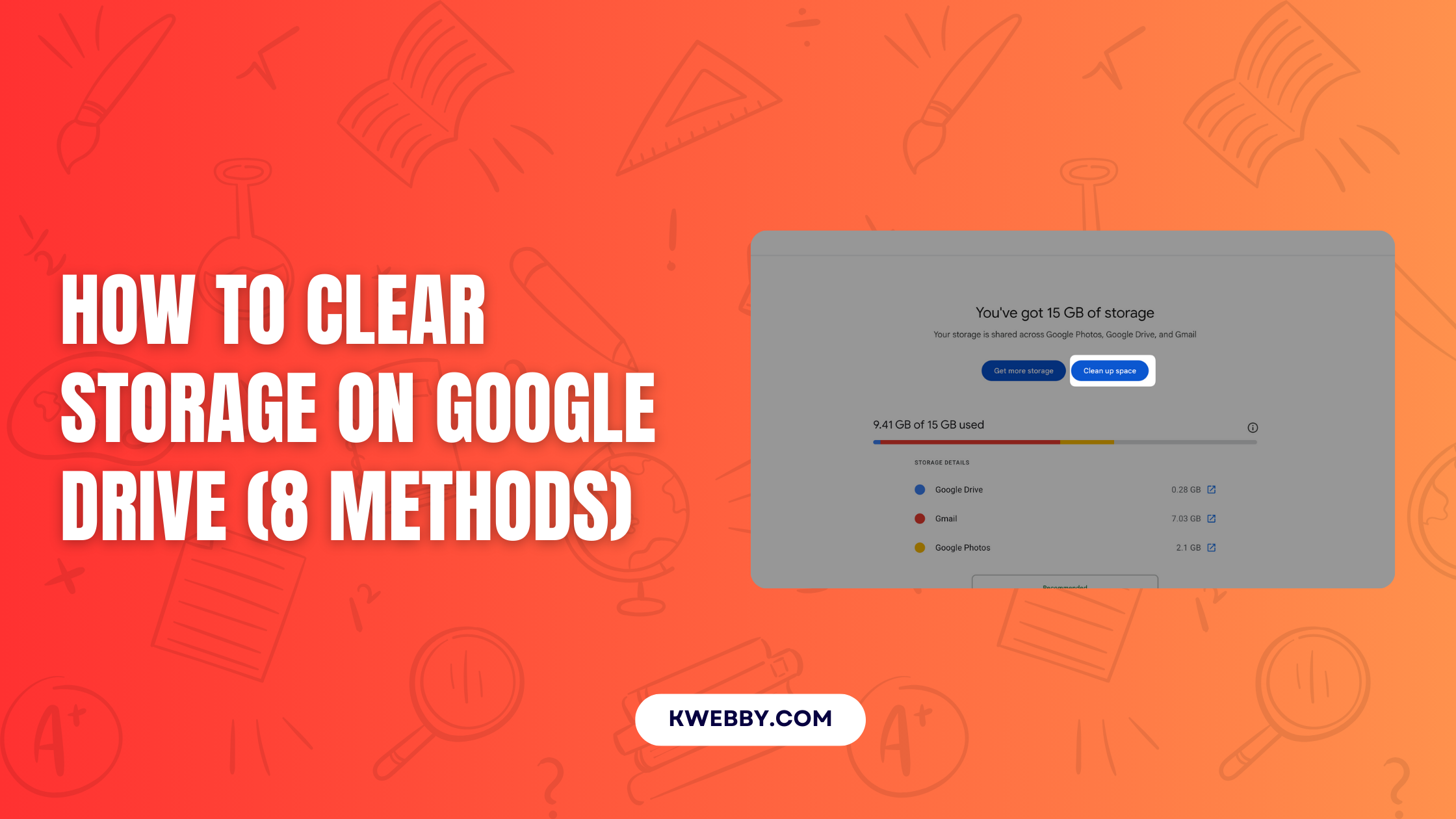

Running out of space on Google Drive can disrupt your workflow. Your Google account‘s storage is shared across Google Drive, Gmail, and Google Photos.
When it fills up, you can no longer upload files, send or receive emails, or save new photos. Clearing your storage is essential for maintaining an efficient digital space.
This guide provides several methods to help you reclaim your storage and keep your Google account running smoothly.
Key Takeaways: How to Clear Google Drive Storage
| Method | Description | Best For |
|---|---|---|
| CleanMyMac (Mac Users) | Use the Cloud Cleanup feature to scan and remove large or old files from Google Drive directly from your desktop. | Mac users seeking an organized, visual way to manage cloud storage. |
| Google Drive Web Interface | Manually identify and delete large files by sorting them by size in the “Storage” or “Quota” view. | Quick, manual cleanups directly within the Google Drive environment. |
| Google One Storage Manager | Use a central dashboard to see storage usage across Drive, Gmail, and Photos and get recommendations for files to delete. | A comprehensive overview and guided cleanup across all Google services. |
| Gmail Cleanup | Use search filters to find and delete large emails with attachments, as well as old promotional and social messages. | Freeing up space consumed by unnecessary emails and attachments. |
| Google Photos Cleanup | Review and delete large videos, blurry photos, duplicates, and screenshots using the storage management tool. | Reclaiming space taken up by unwanted media in Google Photos. |
| Remove Hidden App Data | Delete hidden data stored by third-party apps connected to your Google Drive. | Finding and removing space consumed by connected applications. |
| Delete Duplicate Files | Use third-party tools or add-ons to automatically find and remove duplicate files. | Cleaning up redundant files that accumulate over time. |
| Advanced Search & Organization | Use search operators to find files by date or type, and compress large files to reduce their size. | Targeted cleanups for specific file types or old, unused files. |
Clear Storage on Desktop (Mac)

Mac users can use specialized software to streamline the process of cleaning up Google Drive. CleanMyMac offers a feature designed for this purpose, providing a clear interface to manage your cloud files.
Use CleanMyMac Cloud Cleanup
- First, download and install the CleanMyMac application on your computer.
- Open the app and find the “Cloud Cleanup” feature in the menu on the bottom left side.
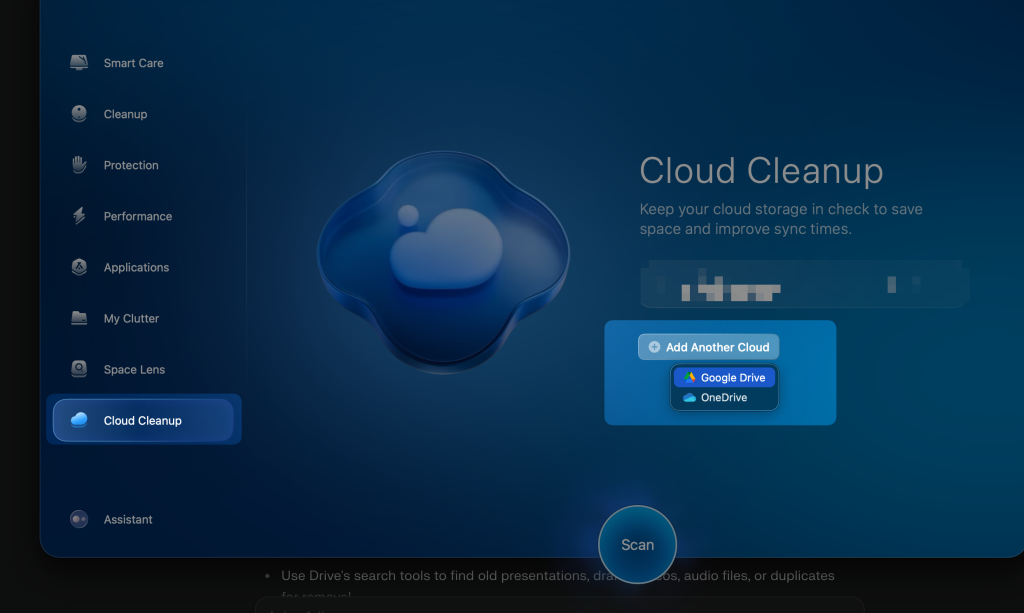
- Click to add a new cloud service and select Google Drive from the options. You can also connect iCloud and OneDrive.
- The application will ask if your Google Drive is synced with your Mac. If it is not, you will be prompted to log in to your Google account.
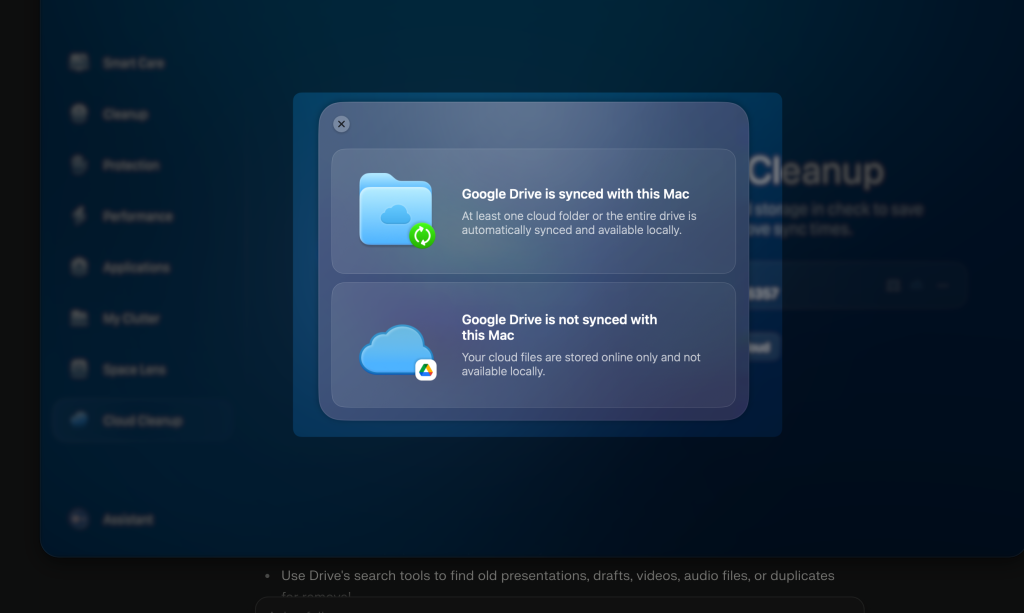
- Once connected, click the “Scan” button. CleanMyMac will begin to analyze all the files in your Google Drive.
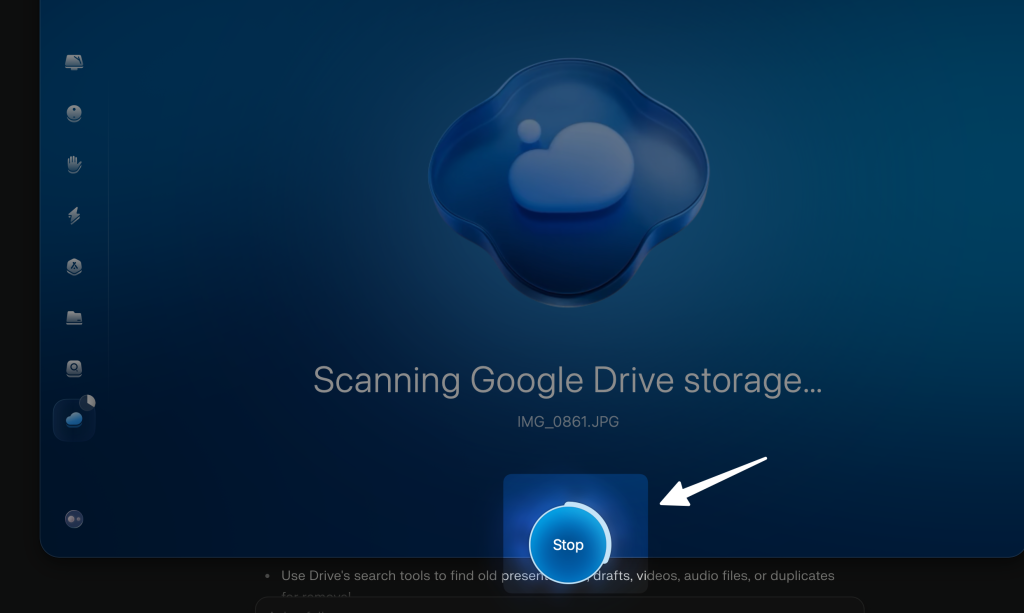
- After the scan completes, it will present the files grouped by size in an easy-to-understand interface.
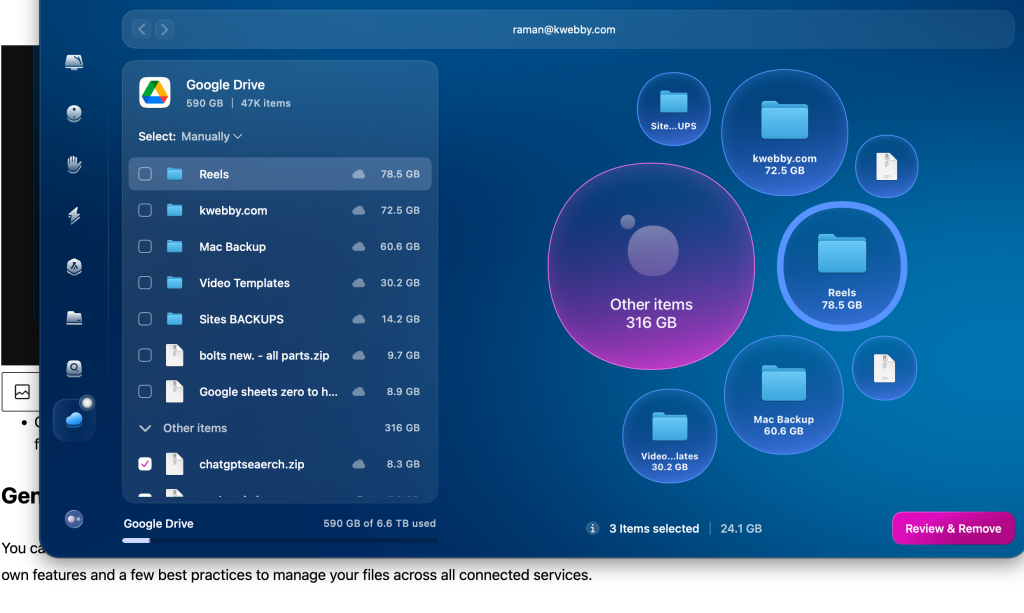
- Click “Review Files” to see all the items. You can then manually review your files and select the ones you no longer need for deletion.
General Methods to Clear Google Drive Storage
You can also clear storage using tools available on any computer or mobile device. These methods involve using Google’s own features and a few best practices to manage your files across all connected services.
Identify and Delete Large Files in Drive
- Navigate to drive.google.com/drive/quota in your web browser. This page lists all your files, sorted from largest to smallest.
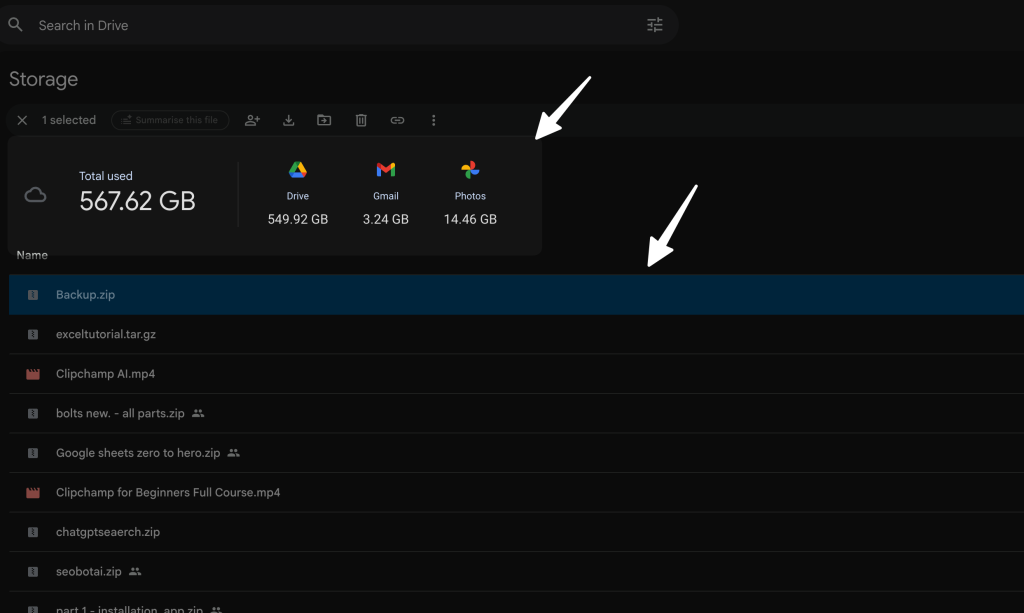
- Review the list to identify large files, old presentations, videos, or drafts that you no longer need.
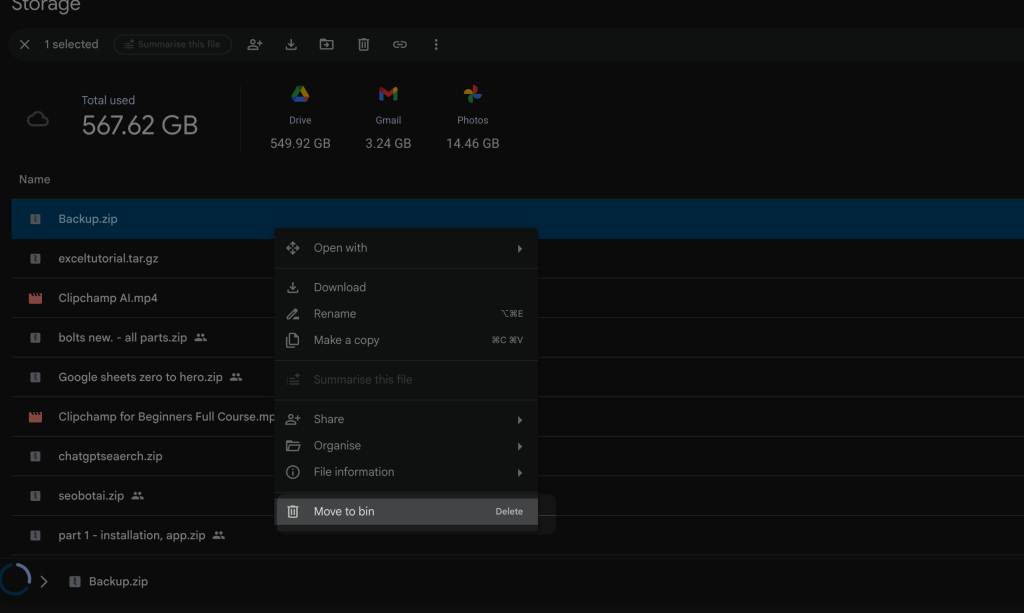
- Right-click on any unnecessary file and select “Move to Bin.”
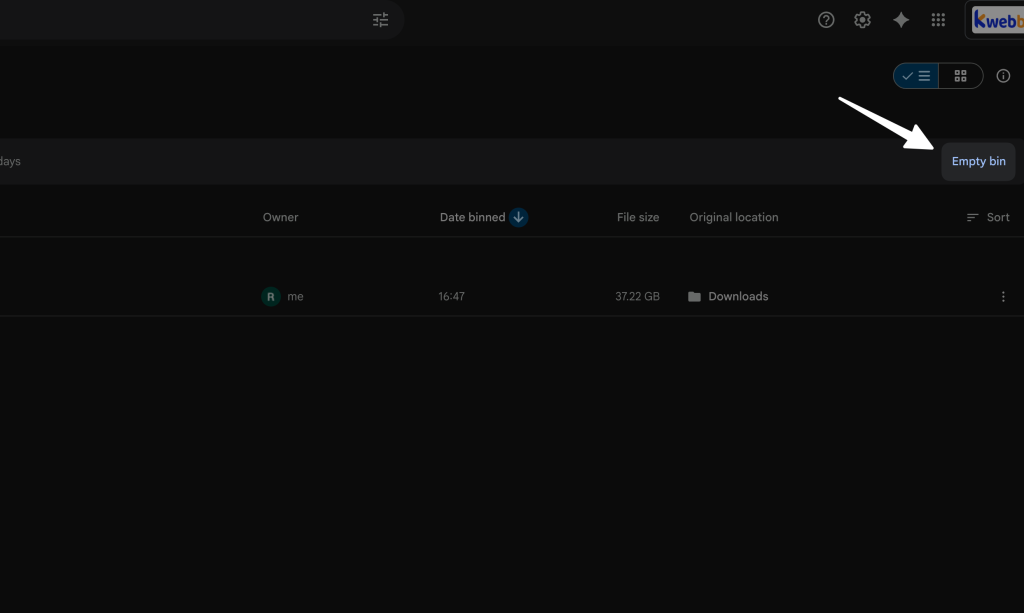
- To permanently delete the files and free up space, go to the “Bin” folder in the left-side menu and click “Empty Bin.” Items in the trash still count toward your storage limit until they are permanently deleted.
Use the Google One Storage Manager
- Go to one.google.com/storage to access the Storage Manager tool.
- This dashboard gives you a complete overview of how your storage is used across Google Drive, Gmail, and Google Photos.
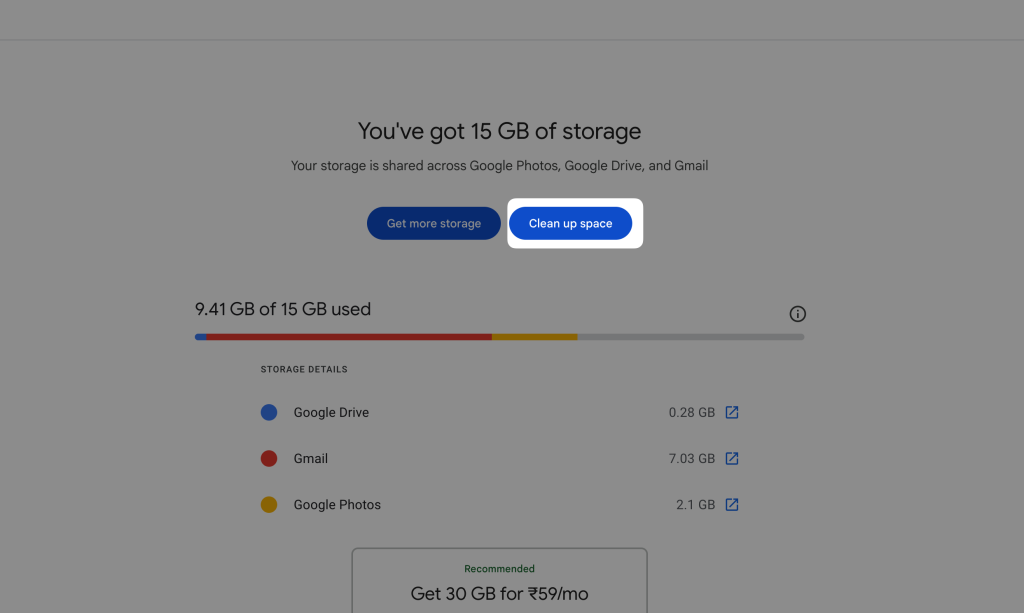
- The tool provides suggestions for cleanup, such as identifying large files, junk emails, and big attachments.
- You can review these suggestions and delete items directly from this interface, making it a simple way to manage all your storage in one place.
Clear Storage in Gmail
- Open Gmail and use the search bar to find emails with large attachments. Use a search query like
has:attachment larger:10M.
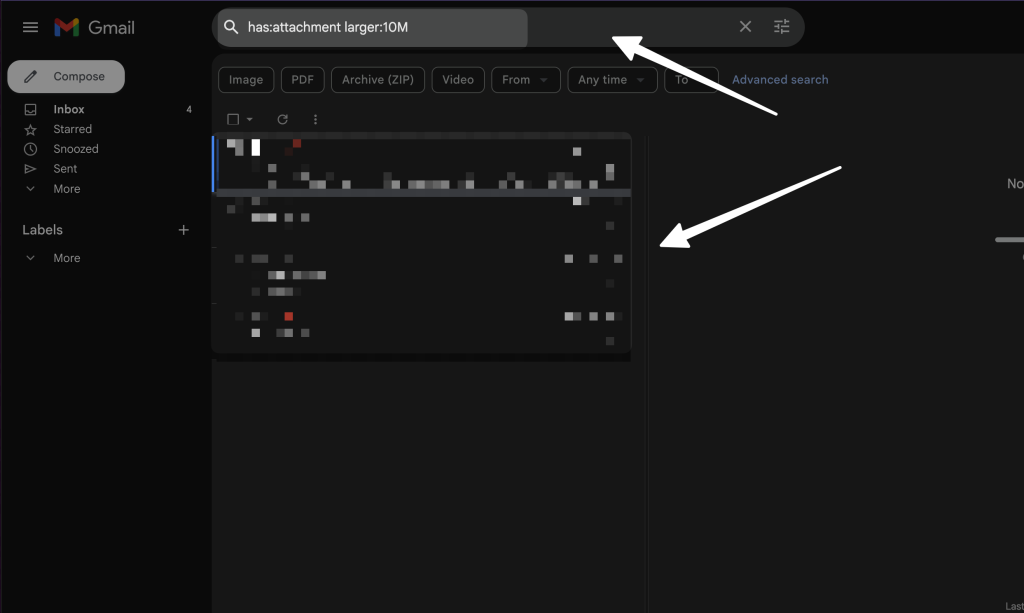
- Review the results and delete any emails with attachments you do not need.
- Delete old promotional emails or messages from social media, as these can accumulate over time.
- Go to your Spam and Trash folders and empty them to ensure the deleted items are no longer consuming space.
Free Up Space in Google Photos
- Open Google Photos and use its storage manager to review large photos and videos.
- Browse through your library and delete duplicates, blurry images, old screenshots, and videos you no longer want to keep.
- Remember to empty the Trash folder in Google Photos. Deleted items are held there for a period before being permanently removed, and they continue to use storage during that time.
Remove Hidden Data from Connected Apps
- In Google Drive on the web, go to “Settings” (the gear icon) and select “Manage Apps.”
- Here, you will see a list of third-party apps connected to your Drive. Some may have “hidden app data.”
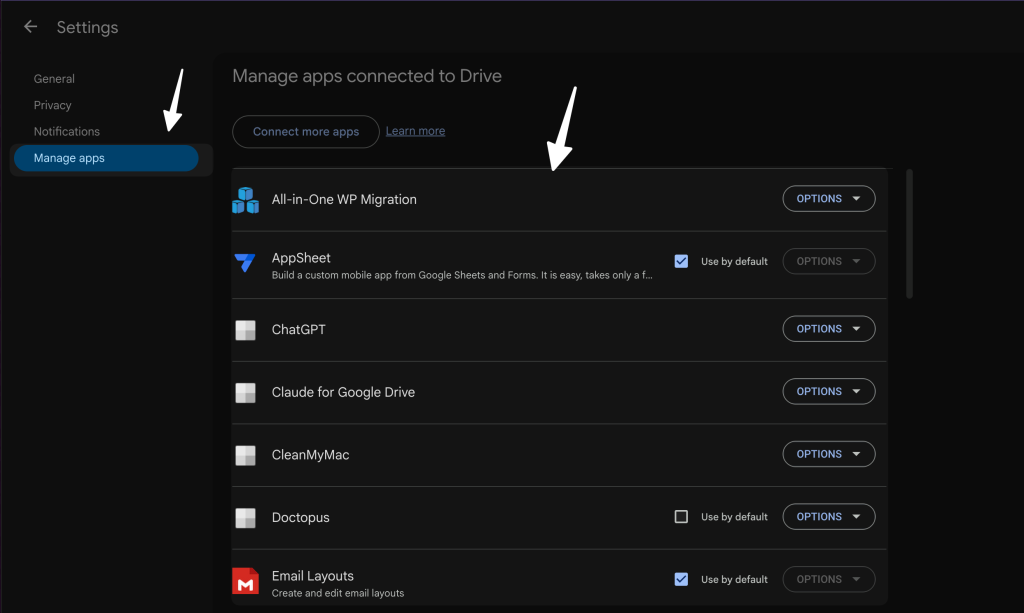
- For any app with hidden data, click the “Options” menu beside it and choose “Delete hidden app data” to remove it.
Organize, Compress, and Archive Files
- Use Drive’s search operators to find files you have not used recently. For example, search for
before:YYYY-MM-DDto locate files not updated since a specific date.
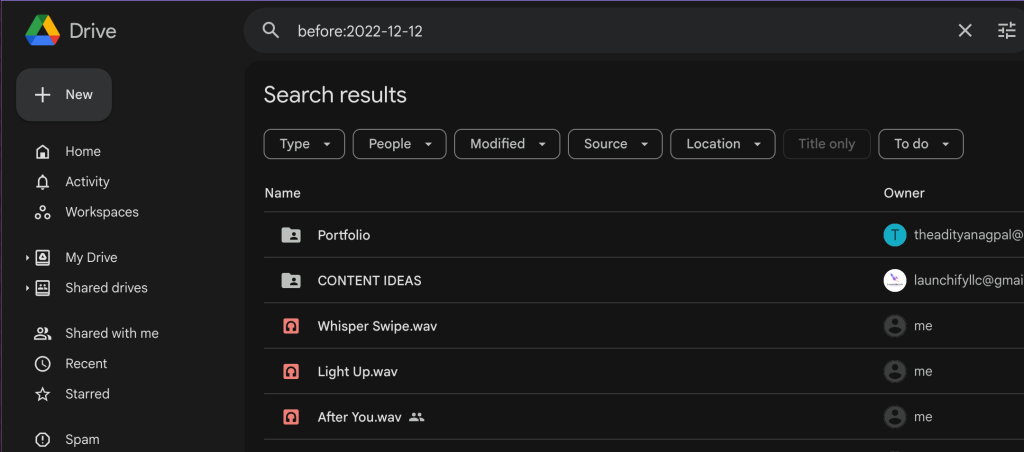
- Search for specific file types, such as
type:video, to find and review large media files for deletion.
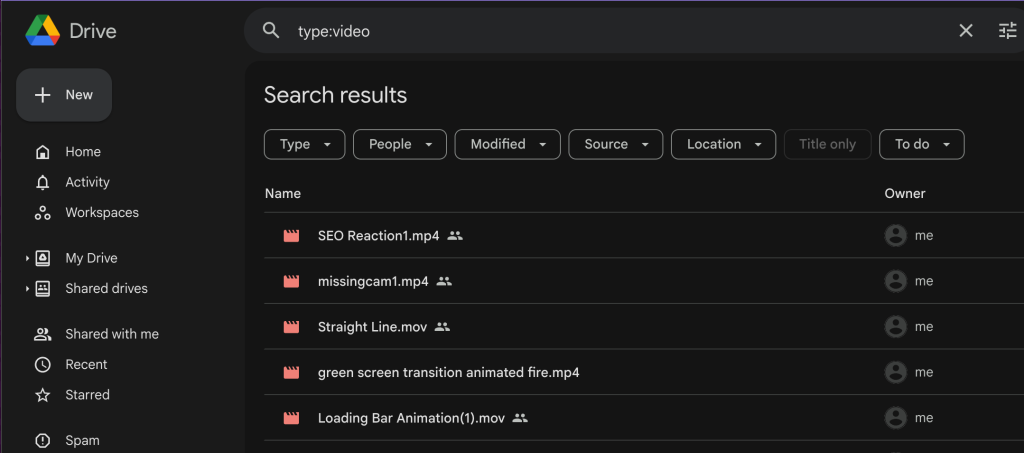
- Compress large files into ZIP archives before uploading them to Drive. You can also compress existing files and replace them with the smaller archived versions.
- For files you want to keep but do not need to access regularly, download them to a local hard drive for offline archiving. After confirming the download, you can delete them from your Drive.
Frequently Asked Questions (FAQs)
How do I check what is taking up space in Google Drive?
To identify what consumes your storage, use the built-in tools provided by Google. The Google Drive Storage View is a straightforward way to sort your files by size, allowing you to quickly pinpoint large files. Visit drive.google.com/drive/quota to access this view. For a more comprehensive breakdown, the Google One Storage Manager presents an overview of storage across Google Drive, Gmail, and Google Photos. Check it out at one.google.com/storage/management where you can review and delete suggested items to free up space effectively.
Can I free up Google Drive storage without deleting files?
Yes, you can reduce space usage without permanently deleting your files. Compressing files into ZIP archives decreases their size while keeping them accessible. Additionally, you can download less frequently used files to an external storage device, such as a USB stick or hard drive, for long-term offline archiving. Afterward, the original files can be safely removed from Google Drive.
How do I clear Google Drive storage on mobile devices?
The Google Drive mobile app enables you to manage and free up space on the go. Locate files to delete by tapping the “Files” icon, then remove them using the three-dot menu. To permanently delete these files, empty the trash from the app’s menu. This straightforward process ensures efficient storage management directly from your phone or tablet.
What happens when Google Drive storage is full?
When storage is full, essential functions of Google services become restricted. You won’t be able to upload or sync files in Drive, send or receive emails in Gmail, or back up new photos and videos in Google Photos. To avoid these limitations, regularly review your storage usage and clean up unnecessary files. If more space is consistently needed, upgrading your plan via Google One may be a practical solution.
How can I delete hidden app data in Google Drive?
Third-party apps linked to Google Drive may store hidden data, such as backups or configuration files, which consume space. To remove this data, open Google Drive on your computer and access “Settings” by clicking the gear icon. Navigate to “Manage Apps” and review the connected apps list. If hidden data is stored, it will be indicated. Use the “Delete hidden app data” option for the corresponding app to reclaim storage space.