
To clear OneDrive cloud storage, review what is taking up space, keep a verified copy of anything you need, then remove the unwanted cloud files and review the OneDrive Recycle bin. If you want to keep the files on your computer, save and open a separate copy outside every synced folder before deleting anything.
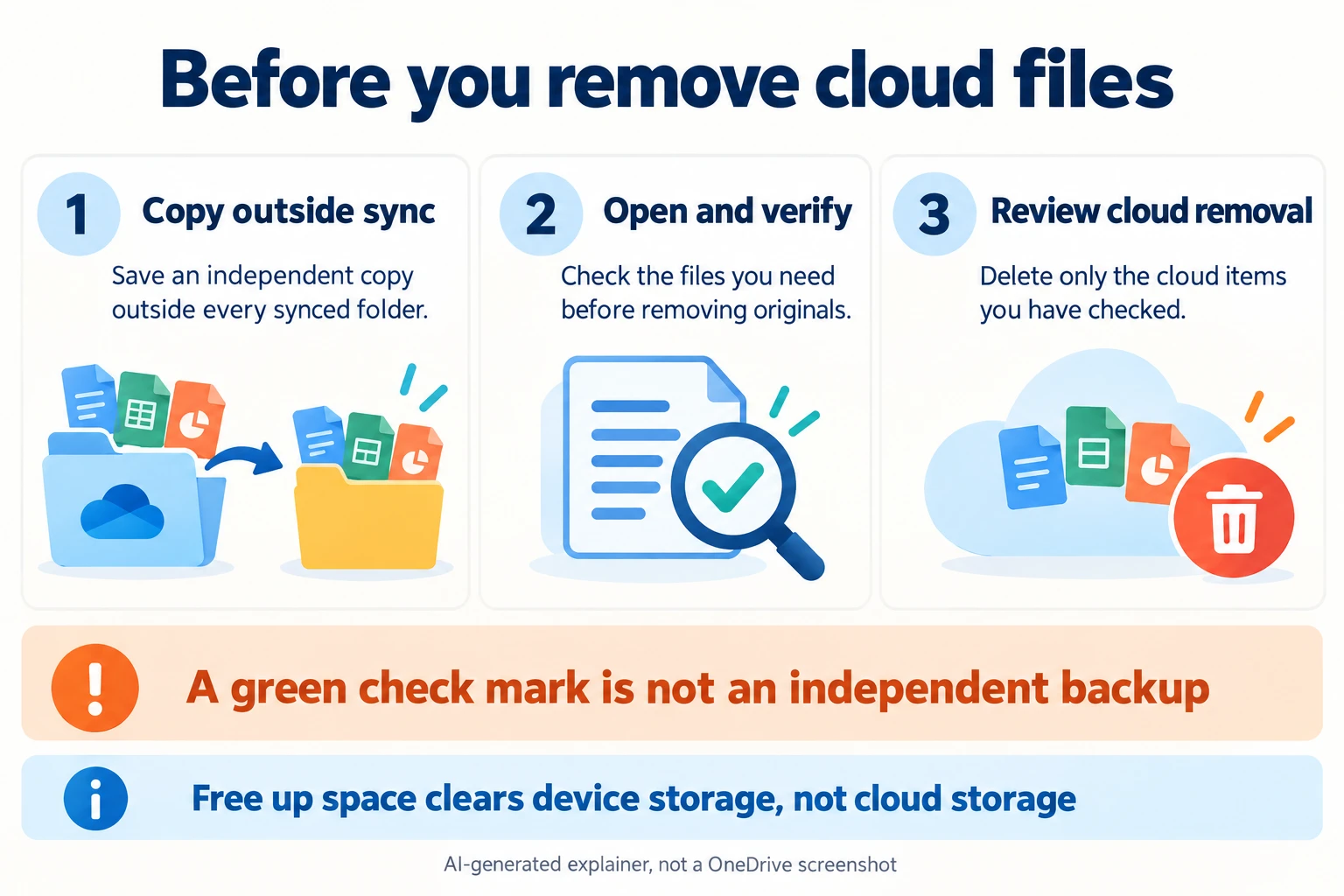
There is one easy trap here: OneDrive’s Free up space command frees storage on your computer. It leaves the cloud copy in place, so it will not fix a full OneDrive account.
I’ll walk you through nine options below, with the cloud-cleanup methods first and the device-only options clearly marked. You do not need a paid cleanup app to follow them.
Key takeaways
- Protect your retained files first: copy them outside every synced folder and open the saved copies before removing anything from OneDrive.
- For a full cloud account: review large files, Outlook.com attachments and the online OneDrive Recycle bin.
- For a full device: Free up space, Choose folders and Storage Sense reduce local storage, not your OneDrive quota.
- Read backup prompts carefully: Windows and Mac can handle existing files differently when you stop folder backup.
- Leave permanent deletion until last: verify your archive and review each selected item before clearing it from the Recycle bin.
Before you delete: protect the files you want to keep
A file visible in File Explorer or Finder might be an online-only placeholder. Even a fully downloaded file inside a syncing OneDrive folder can be affected by cloud deletion. A green check mark tells you about availability; it does not make that folder an independent backup.
On Windows, a blue cloud means the file is online-only, while a solid green circle with a white check means it is marked to stay on the device. Microsoft explains these OneDrive status icons. On Mac, icons can differ, so verify the actual saved files rather than relying on an icon alone.
My safety rule: if a file matters, copy it to an independent location, check that the copy works, and only then decide whether to remove its OneDrive version. Pausing sync, unchecking a folder, or switching off folder backup does not replace that check.
Which storage are you trying to clear?
- OneDrive or Microsoft cloud storage is full: use methods 1–4. Method 5 helps control folder backup after your copies are safe.
- Your PC or Mac disk is full: use methods 6–8. These keep the OneDrive cloud files and do not lower cloud usage.
- Your phone is full: method 9 explains device cleanup. Deleting inside the OneDrive app is a separate cloud-file action.
For personal accounts, Microsoft cloud storage includes more than the files in your OneDrive folders. Outlook.com attachments and content from other Microsoft apps can contribute too. Check the account’s storage breakdown before choosing what to clean. Microsoft’s storage quota guide explains the difference between cloud storage and mailbox storage.
If this is a work or school account, follow your organization’s retention and backup rules. Do not move work files to a personal drive or another cloud service without permission.
1. Review large files and remove the ones you do not need
Helps with: cloud storage.
Start with a small, easy-to-review batch. One old video can matter more than hundreds of tiny documents, but size alone is not a reason to delete it.
- Sign in to OneDrive on the web and check that you are in the correct account.
- Open the storage usage area to review the largest files. For work or school accounts, Microsoft documents clicking the usage value in the left navigation to reach this list.
- Look for old exports, unnecessary installers, duplicate downloads and videos you no longer need. Open anything you are unsure about.
- Make and verify independent copies of anything you may want later using method 2. Leave uncertain files alone.
- Select only the reviewed items, then choose Delete. Check the list again before confirming.
For apparent duplicates, compare their contents and dates. Files named “final,” “final-2” and “final-new” may contain different work. Keep the version you actually need and verify it before removing the extra copy.
If a PDF’s name doesn’t tell you what it contains, use our guide to searching within a PDF before deciding which version to keep.
Deleting your own shared files can remove other people’s access too. Microsoft’s deletion guidance explains that consequence. Its work or school storage walkthrough covers the largest-files view.
2. Download or copy files out of OneDrive, then verify them
Helps with: cloud storage while keeping an independent copy.
This is the route I recommend when you want the files, but no longer need them stored in OneDrive. Use a folder you have checked is outside OneDrive and other cloud-sync locations, or an external drive that is not itself being synced.
Do not assume Desktop, Documents or Pictures are local-only. Folder backup may have placed them inside OneDrive. Check the full destination path and the backup settings. Call the new folder something recognizable, such as “OneDrive archive,” and note where you created it.
Download through the website
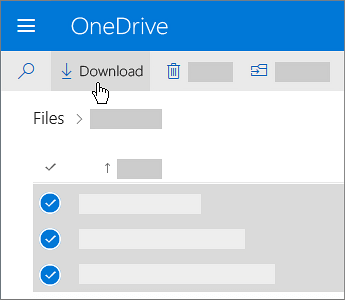
- Select the files or folder on the OneDrive website and choose Download.
- Save the download to your independent destination. Multiple items may arrive in a ZIP file.
- Wait for the download to finish. Extract ZIP files and read any error text included in them.
- Compare the downloaded contents with your selection. Check filenames, folder contents and file sizes, and open the important documents, photos and videos from the destination.
Copy through File Explorer or Finder
For cloud-only items, choose Always keep on this device and allow the download to finish first. Then use Copy and Paste to put them in your independent destination. Starting with a copy gives you a chance to check the result before changing the source.
Open the saved copies directly from that destination, rather than an app’s Recent list. For ordinary local documents, photos and videos, also test that they open with the computer temporarily offline. Check every irreplaceable file; a few successful samples cannot prove a whole archive is complete.
If you see download failures, missing items, zero-byte files or shortcuts instead of the expected content, stop. Do not remove the cloud originals until those gaps are resolved. Keep a second independent backup of anything you cannot replace.
OneNote needs special care. A normal folder download can contain an error file instead of a notebook. Follow Microsoft’s OneNote export instructions for your account and verify the notebook’s sections and pages before considering removal.
Microsoft’s download guidance also lists batch limits and exclusions for some protected files. Break a failed large download into smaller batches instead of assuming it completed.
Only after verification: return to the correct OneDrive account, select the corresponding cloud originals and delete that reviewed batch. Reopen your retained copies before proceeding to permanent deletion in method 4. Keep the archive outside synced folders if you do not want it uploaded again.
3. Review large Outlook.com attachments
Helps with: personal Microsoft cloud storage and mailbox storage.
If the storage breakdown points to Outlook.com, cleaning OneDrive folders alone may not solve the warning.
- Open Outlook.com, then go to Settings > Account > Storage.
- Review large messages and attachments, including Sent Items.
- Save and verify any attachment you need outside OneDrive. Preserve the message too if its conversation or receipt details matter.
- Delete only messages you have reviewed and no longer need. Review those messages in Deleted Items before permanently removing them.
Moving an attachment into OneDrive still leaves it in Microsoft’s cloud storage. For the shared cloud quota, choose an independent destination if your aim is to remove that data from the account. Microsoft’s Outlook.com storage guide explains the separate mailbox and cloud limits.
4. Review the OneDrive Recycle bin
Helps with: cloud storage after reviewed deletions.
Deleted OneDrive items can still count toward storage while they are in the online Recycle bin. Emptying Windows Recycle Bin or Mac Trash is a different action.
- Open Recycle bin on the OneDrive website.
- Restore anything you deleted by mistake.
- Check your independent copies again for anything you intend to retain.
- Select only the items you are ready to permanently remove, then choose Delete. Use Empty recycle bin only when you have reviewed everything it contains.
This removes your recovery option from that bin. Do not rush through it to make the storage meter change. Microsoft’s recovery guidance says permanently deleted OneDrive recycle-bin items cannot be restored.
The meter may take up to 24 hours to update after unwanted files are deleted, according to Microsoft’s cloud storage guidance. Record the amount before and after cleanup, then allow time for the change.
5. Review folder backup so unwanted files do not keep returning
Helps with: controlling folder backup. The effect on existing files depends on your choice and platform.
Complete method 2 first. Switching off backup alone is not a guarantee that your original files will remain safely on your computer.
On Windows
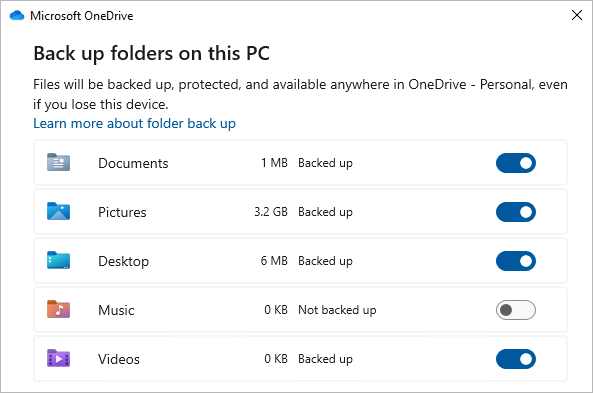
Open OneDrive settings, then Sync and backup > Manage backup. Turn off the relevant folder’s toggle and read the prompt.
Microsoft currently documents two choices: keep files only in OneDrive, removing them from the computer, or keep them only on the PC, removing them from OneDrive. Cloud-only files may need downloading first. Do not choose a removal option until your independent copies are verified.
On Mac
Microsoft’s Mac instructions say existing backed-up files remain in the OneDrive folder after backup stops. A “Where are my files” shortcut may point there. Locate the actual files and check your independent copies before doing anything destructive.
Follow the platform-specific backup instructions, then verify the final file locations. If your prompt differs, pause rather than assuming a toggle has made a safe local archive.
6. Use Free up space for PC or Mac disk storage
Helps with: local disk space only. Cloud usage stays the same.
First check the file has finished uploading and opens from OneDrive on the web. Then right-click it in the OneDrive folder in File Explorer or Finder and choose Free up space.
That makes the file online-only. You can download it again when needed, but you will need an internet connection. Keep travel documents or other files you need offline marked to stay on the device.
Do not press Delete to achieve this. Microsoft’s Windows Files On-Demand guide warns that deleting an online-only file deletes it from OneDrive across devices and online. The Mac guide explains its equivalent local-storage options.
Files On-Demand is already enabled by default in modern OneDrive for Windows. On macOS 12.1 or later it is part of the system experience and cannot be turned off. There is no need to hunt for an old “Save space” checkbox.
7. Choose which folders appear on this computer
Helps with: local storage and folder visibility only.
In OneDrive’s settings or preferences, open Account > Choose folders. Uncheck the folders you do not want synced to that computer, then select OK.
The unchecked folders are removed from that computer’s OneDrive folder but remain online. This does not reduce your OneDrive quota. Microsoft also restricts unchecking certain important folders, including backed-up Desktop, Documents and Pictures.
Use Microsoft’s Choose folders instructions for your platform. This is a different control from stopping folder backup in method 5.
8. Use Windows Storage Sense for local cleanup
Helps with: Windows disk space only.
- Open Settings > System > Storage.
- Select Storage Sense and review its settings.
- Under the cloud-content settings, choose when unused local cloud files should become online-only.
The cloud-content option keeps the files in OneDrive. Files marked Always keep on this device are excluded. Storage Sense works on the system drive.
Read the separate Downloads and Recycle Bin settings carefully: those can delete local files. Do not enable automatic deletion for the folder holding your only archive. Microsoft’s Storage Sense guide explains these separate controls.
9. Clear phone storage without confusing it with OneDrive storage
Helps with: device storage. Cloud deletion requires a separate decision.
On Android, OneDrive has Profile > Settings > Clean up space on your device. It removes local photo copies to free phone storage. Verify the uploads and open the photos online before using it, and retain an independent backup of irreplaceable pictures.
Microsoft says the manual Clean Up Space feature is not currently available on iOS. Do not follow Android menu instructions on an iPhone.
To reduce OneDrive cloud usage from a phone, use the OneDrive website or app to review the cloud files, following the same copy-and-verify checks above. The app’s Delete command removes a cloud file; it is not a substitute for removing an offline download. See Microsoft’s mobile OneDrive guide.
Why is OneDrive still full after deleting files?
Before deleting more, work through these checks:
- Correct account: compare the signed-in account on the website with the account showing the warning.
- Correct storage: confirm you used cloud cleanup rather than Free up space, Choose folders or Storage Sense.
- Online Recycle bin: review whether the removed files are still there. Do not permanently remove uncertain items.
- Other Microsoft storage: review Outlook.com attachments and the other categories in the account breakdown.
- Reporting delay: allow the documented update time rather than repeatedly deleting more files.
- Work or school policies: ask your administrator to check retention, permissions and storage reporting before removing business records.
If you need every remaining file, extra storage may be more appropriate than further deletion. A cleanup tool cannot decide which family photos or business documents you will need later.
Frequently asked questions
Can I clear OneDrive without losing files on my computer?
Yes, if you first make complete, working copies outside all synced folders. Open those copies and verify what you retained before removing the corresponding cloud files. Do not rely on stopping folder backup or seeing the same filename on your desktop.
Does unlinking OneDrive free cloud storage?
No. Unlinking disconnects that computer. Microsoft says downloaded files remain locally, while online-only files remain accessible on the web. It does not turn placeholders into an offline archive. See what remains after unlinking.
If you intend to remove cloud files afterward, complete the independent-copy checks first. Be careful about reconnecting an old sync folder: Microsoft notes that changes made while unlinked sync after relinking.
Does Always keep on this device protect files from cloud deletion?
It makes files available offline. If they are still inside a syncing OneDrive folder, it does not isolate them from synchronized changes. Keep your retained archive in a separate, verified location.
Can I empty all of OneDrive at once?
Bulk deletion is possible, but I would not start there. First inventory what you have, verify independent copies, and identify anything shared with others. Use small batches so that you can match each removal to the files you retained. Review the Recycle bin last.
Can I restore something I deleted accidentally?
Open OneDrive on the web, select Recycle bin, choose the item and select Restore. Microsoft lists 30 days for personal accounts and 93 days for work or school accounts, unless the administrator changes retention. Those windows do not restore items already permanently removed from the OneDrive Recycle bin. For a work or school account, contact your administrator if you cannot find the item. Check Microsoft’s recovery options.
Do I need CleanMyMac or a duplicate-cleaning service?
No. OneDrive’s website and the built-in controls above are enough for manual cleanup. If you choose an extra tool, review its permissions and every proposed deletion. A duplicate label is not proof that the file is safe to remove.
Final thoughts: check what you kept
When you are done, reopen your important retained files from their independent location and check OneDrive’s storage meter again after it updates. Write down where your archive lives and keep it backed up.
The extra verification takes a little time. It is worth doing before a cleanup removes the only copy you can use.