Enabling the automatic update feature means that your apps will update automatically without your intervention, so you might not even be aware that a lot of data is downloading. To prevent potentially expensive data transfer costs, you can turn off the automatic update feature. In order to prevent apps from updating automatically follow the following steps.
How to Disable Automatic app updates On Google play store
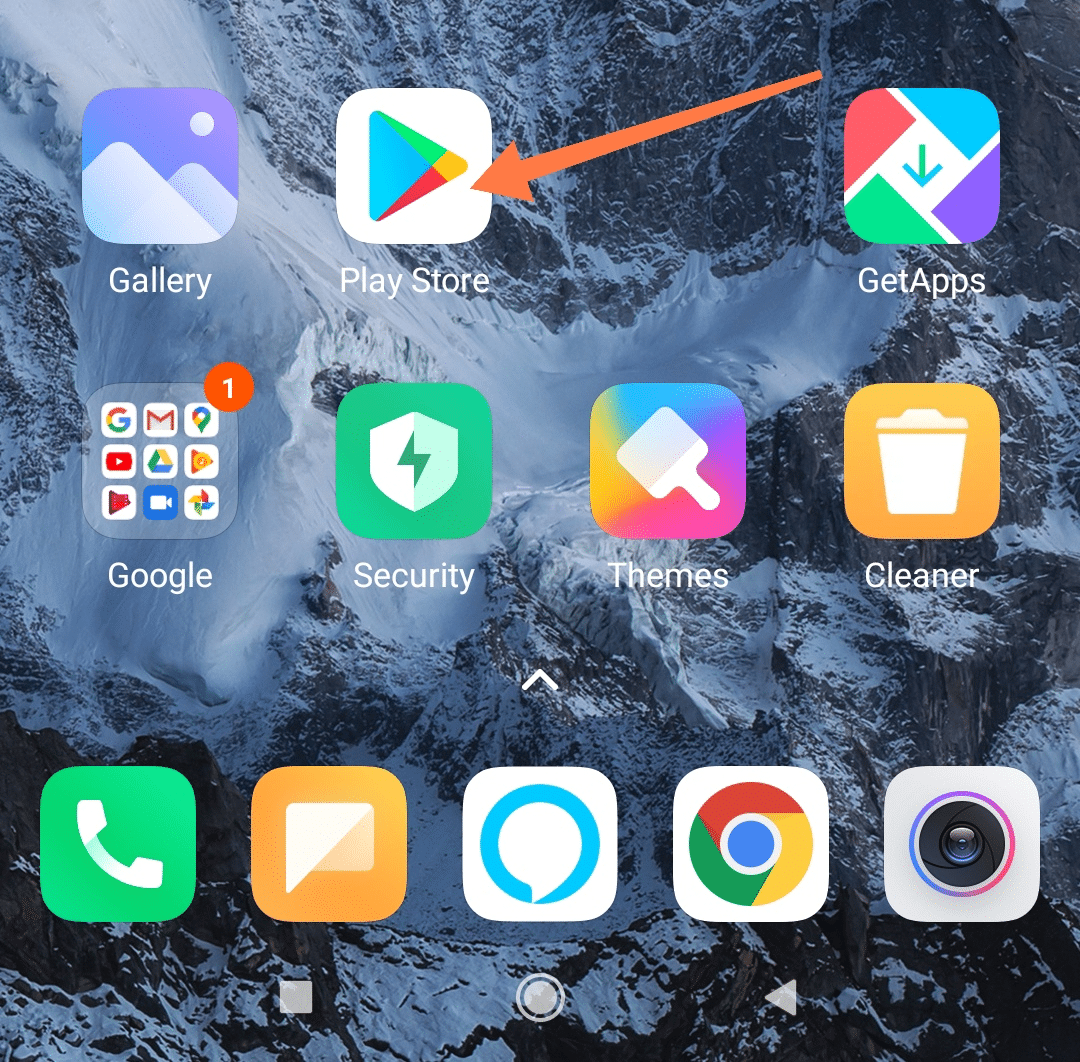
To manage the automatic app updates feature across all apps on your Android device via the Google Play Store, begin by navigating to your home screen and selecting the application screen icon.
Once there, open the Play Store.
To access more options, tap on your profile on the top right corner and then choose “Settings”.
Within settings, tap on “Network preferences”.
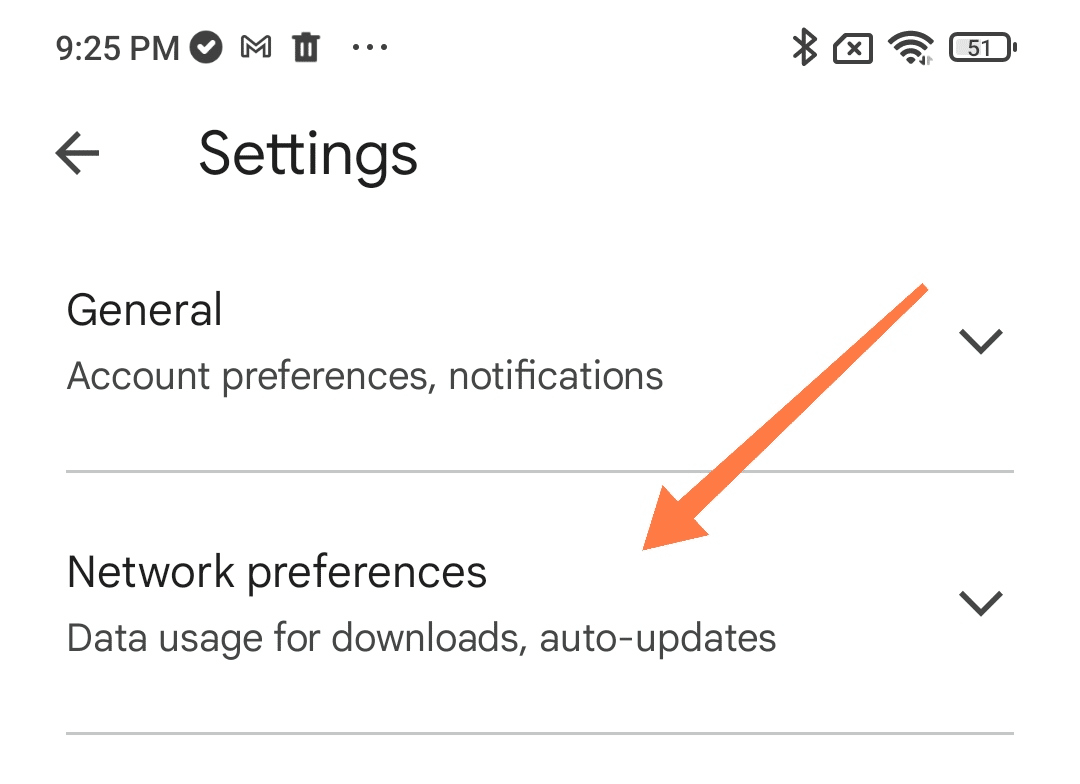
Then tap “Auto-update apps”, and then select your desired option to either enable or disable automatic updates for your apps. You’ll get the following four options:
update all apps over wi-fi or mobile data
update with limited amount of mobile data
update over wi-fi only
don’t auto update apps
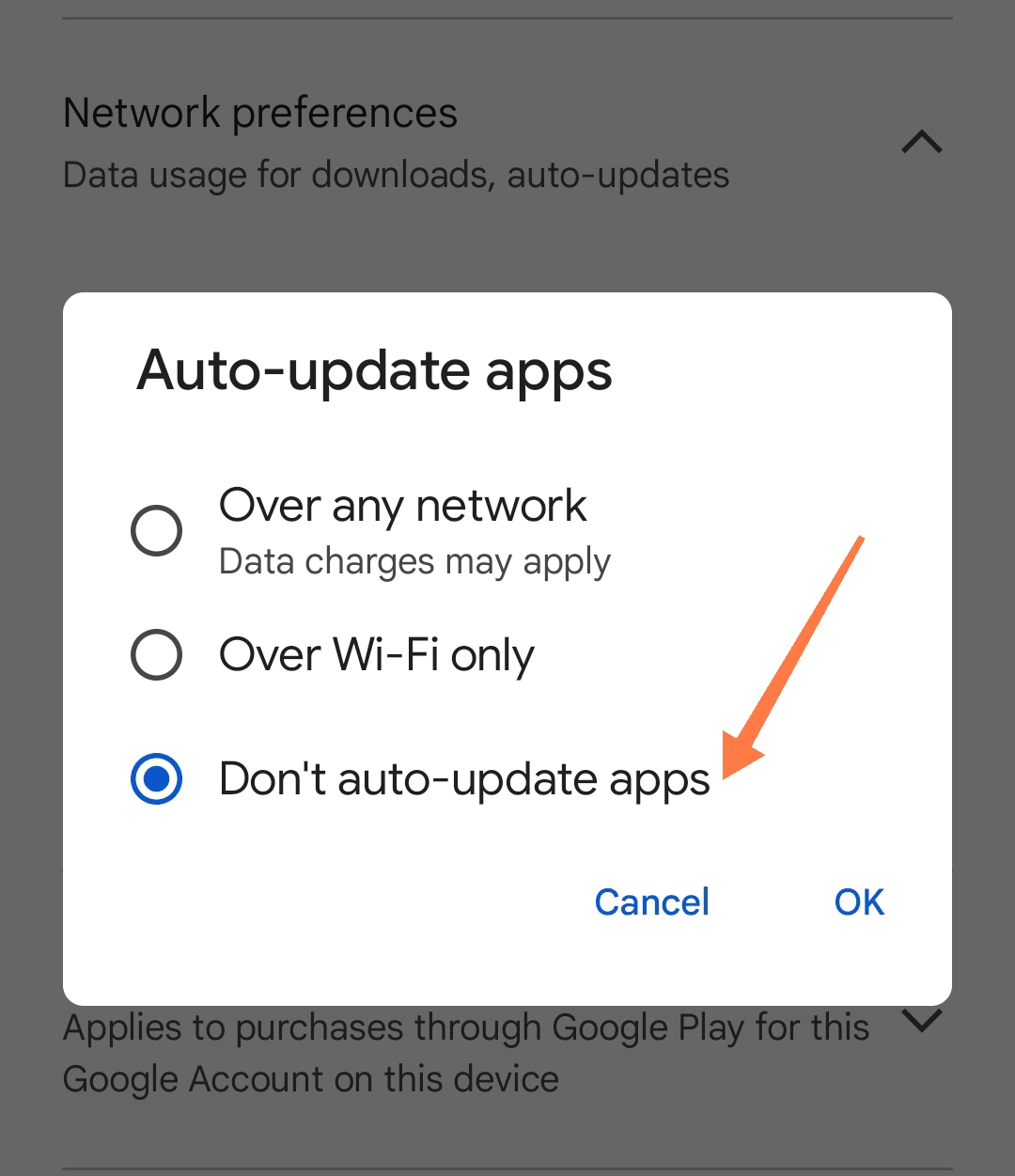
If you’re concerned about mobile data charges, consider selecting “Auto-update apps over Wi-Fi only” to update apps wi
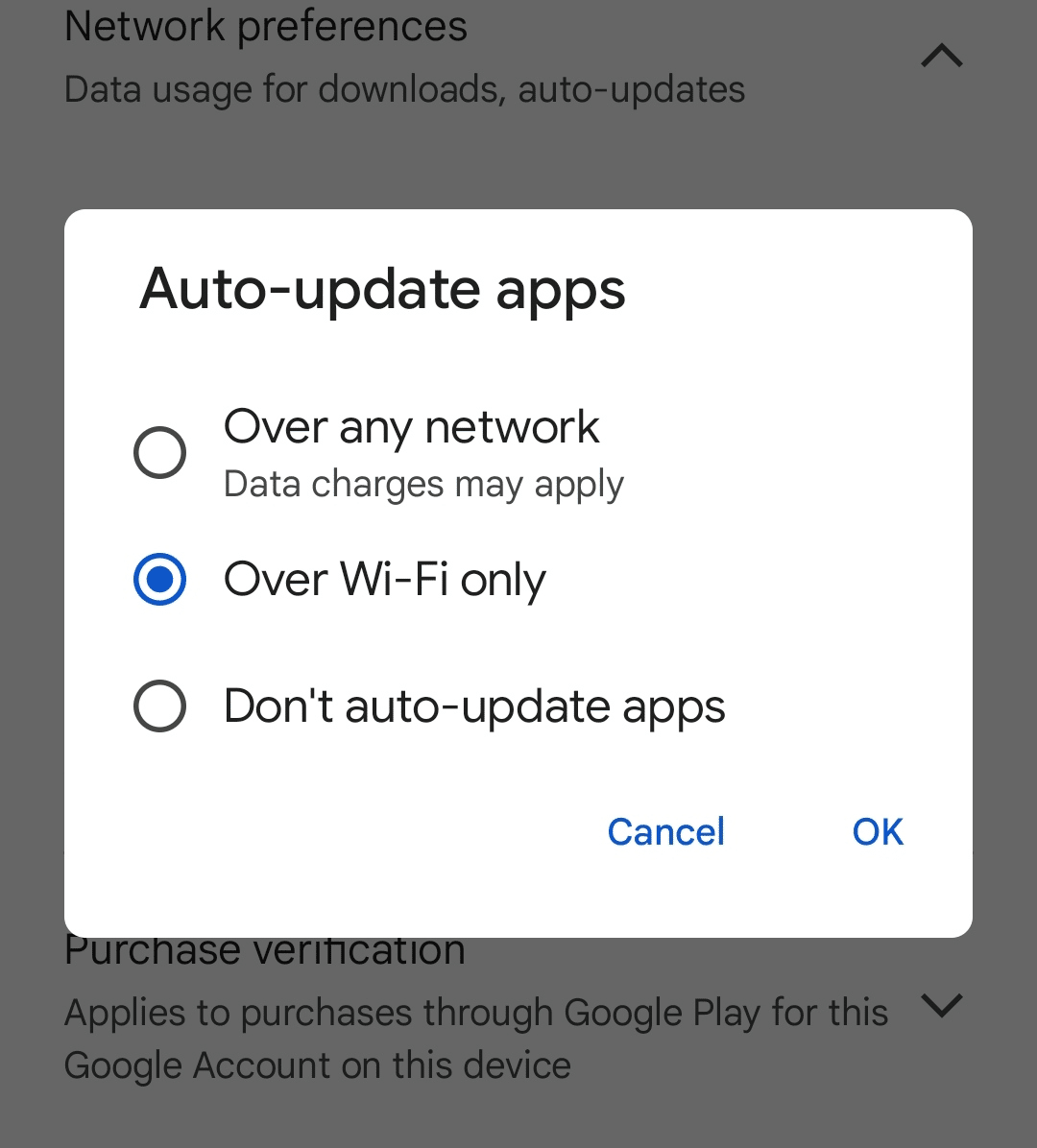
thout incurring additional data costs.
If you want to do this for a particular app, follow the below steps.
tap on the magnifying glass icon and type in the app that you want to stop auto-updating.
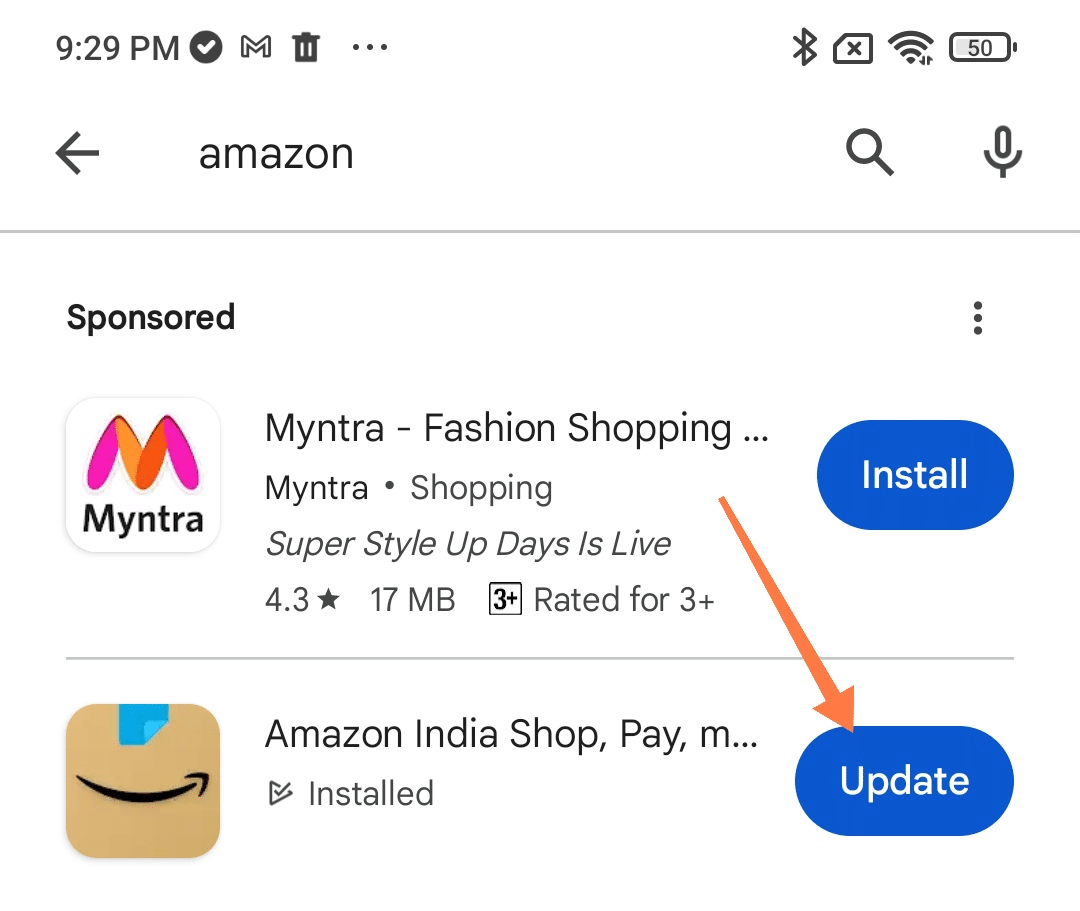
Select the app. and tap on three dots on the top right corner.
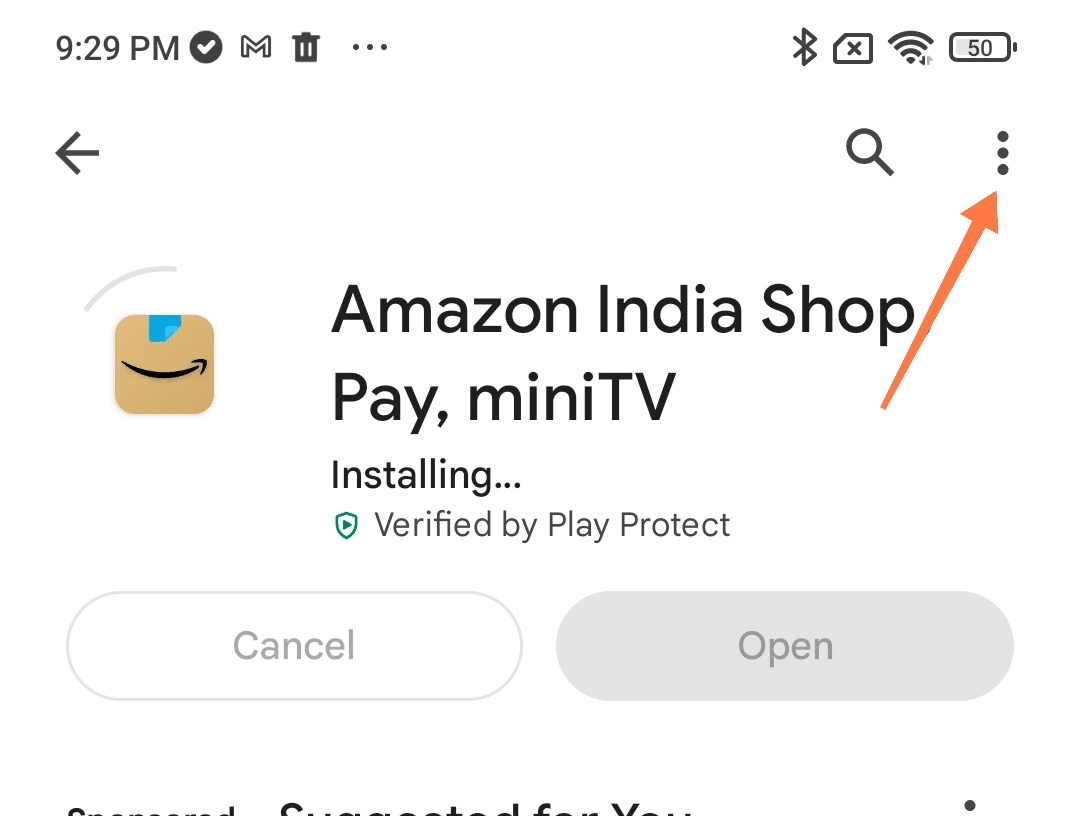
There you will find a checkbox stating enable auto update. Uncheck that box if you want to disable auto-update for this particular app.
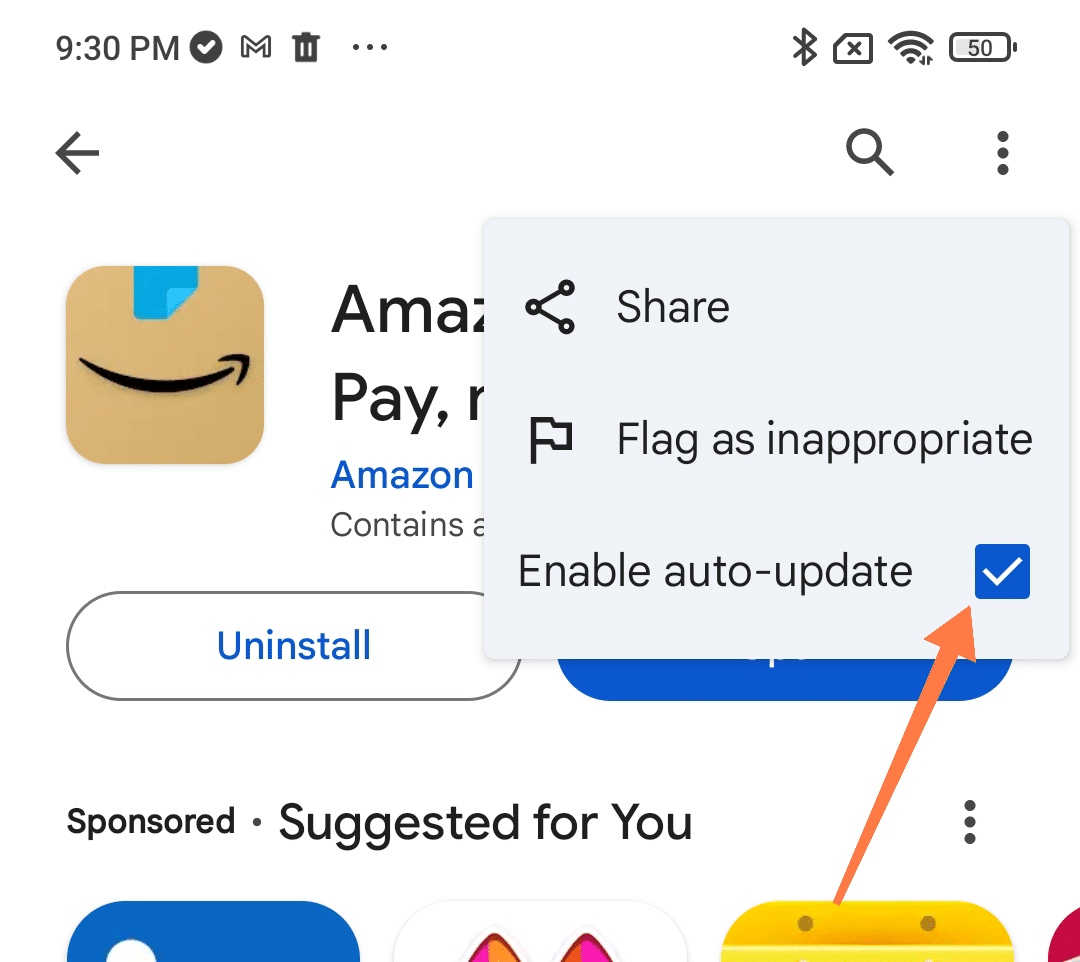
This process will disable updates of Apps automatically in just few taps and you can also enable automatic updates using the same method above.
Conclusion
In conclusion, managing the automatic updates of your apps on your Android device is crucial for controlling data usage and ensuring that updates happen on your terms.
Whether you aim to disable auto updates entirely, or prefer updates to occur only over Wi-Fi to avoid mobile data charges, the steps provided will help you take charge of when and how your apps update.
This guide has walked you through the process, from selecting settings in the Google Play Store app to choosing the appropriate options under network preferences.
Remember, by taking a few moments to adjust your auto-update settings, you can save on data charges, keep apps from updating at inconvenient times, and have more control over your Android smartphone’s software update feature.