
To black out confidential text in a PDF, use a dedicated redaction tool, finish its removal process, and save a separate copy. Drawing a black rectangle over a name or number can leave the original information underneath.
That distinction matters when you share a bank statement, contract, application, or screenshot inside a PDF. You want the recipient to receive only the information you meant to share.
I’ll walk you through Acrobat, Mac Preview, and online options, then show you what to check before sending the final file.
Correction: An earlier version of this guide presented drawing shapes and whiteout as secure redaction methods. Those steps do not, by themselves, establish that the underlying information has been removed. The guidance below replaces those methods.
Key takeaways
- Use a tool that explicitly removes PDF content. A dark shape, highlighter, or white box can simply cover it.
- In Acrobat, marking content is only the first stage. Apply the redactions and save the resulting file.
- On a Mac, use Preview’s Redaction Selection tool rather than its Shapes tool.
- Review hidden information as well as the visible page. Comments, attachments, and document properties can need attention too.
- Reopen the exact copy you plan to share. Search and copy checks help catch mistakes, but they are not a forensic guarantee.
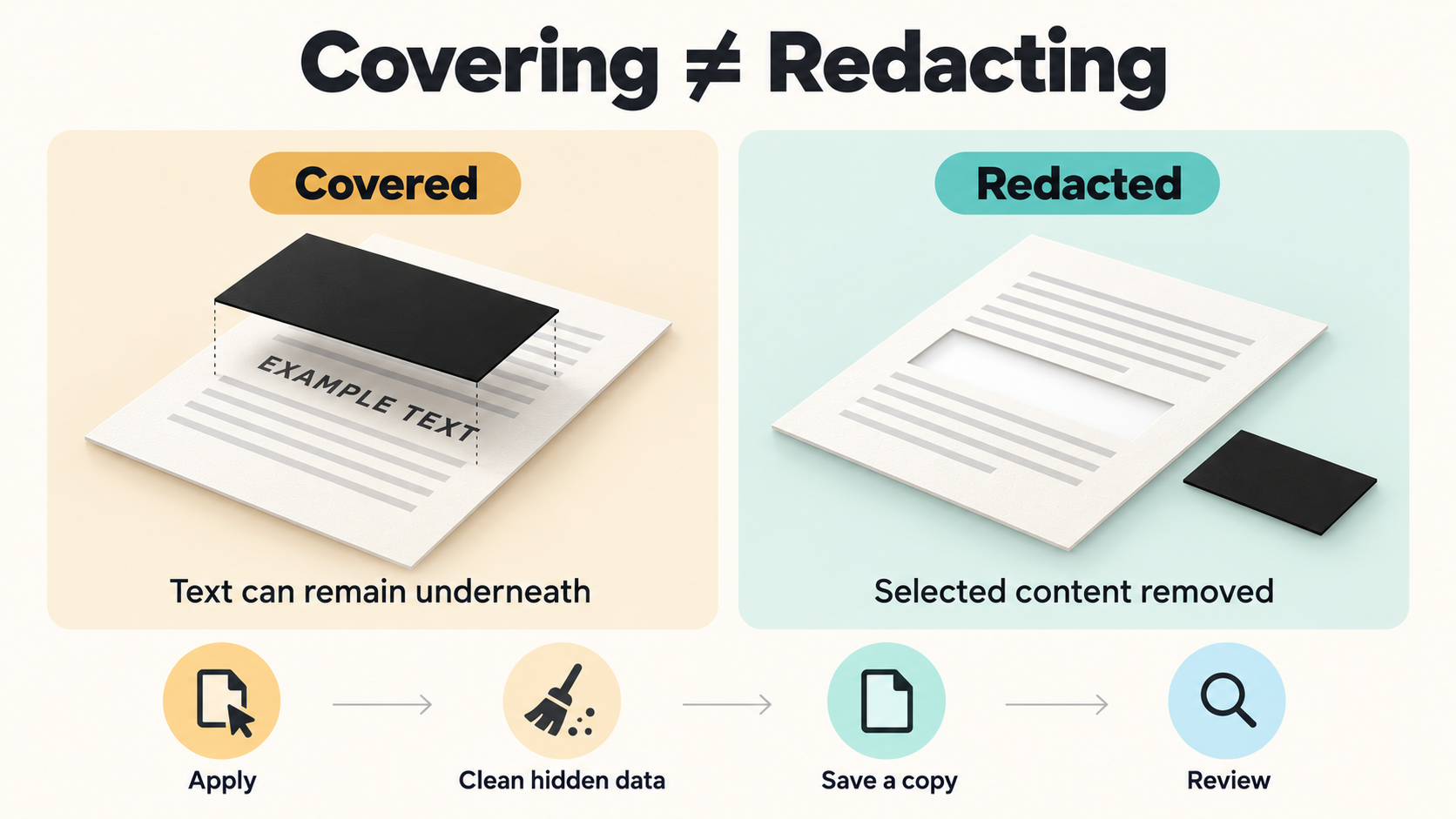
Why a black box can leave your PDF text exposed
A PDF can hold multiple kinds of content on the same page. If you place a rectangle over text, the rectangle may be a separate object or annotation. The document can look blacked out while retaining information you meant to remove.
Adobe distinguishes actual redaction from visually covering content: redaction removes the selected underlying text or image. The color of the replacement area is just its appearance.
This is why I recommend checking the tool’s function before worrying about whether the box is black or white. Look for an explicit redaction workflow with a final removal or application step.
If you’re only adding feedback, arrows, or a visible correction, our guide to drawing on a PDF covers annotation. Keep those tasks separate from preparing a confidential file for disclosure.
Choose a method before opening the document
- Windows or Mac with Acrobat: Use its desktop redaction workflow when you need selection, search, and hidden-information removal in one place.
- Mac with selectable text: Preview provides a built-in redaction selection tool. Keep its scope and the rest of your document’s contents in mind.
- Browser or phone: A dedicated web redactor may be convenient, but first check whether its processing and privacy terms suit the document.
- Work, client, or regulated material: Use the tool and review process your organization approves. Convenience alone is not enough to choose where to send the original file.
Start with a working copy. Give your original and your intended sharing copy clearly different names, and keep the unredacted original somewhere appropriate for its sensitivity.
How to black out text in a PDF using Adobe Acrobat
Adobe’s current desktop tutorial lists redaction for Acrobat Pro, Premium, or Studio. Don’t assume that opening a PDF in free Reader gives you the same tools.
The following sequence follows Adobe’s redaction instructions. Labels may differ in older interfaces.
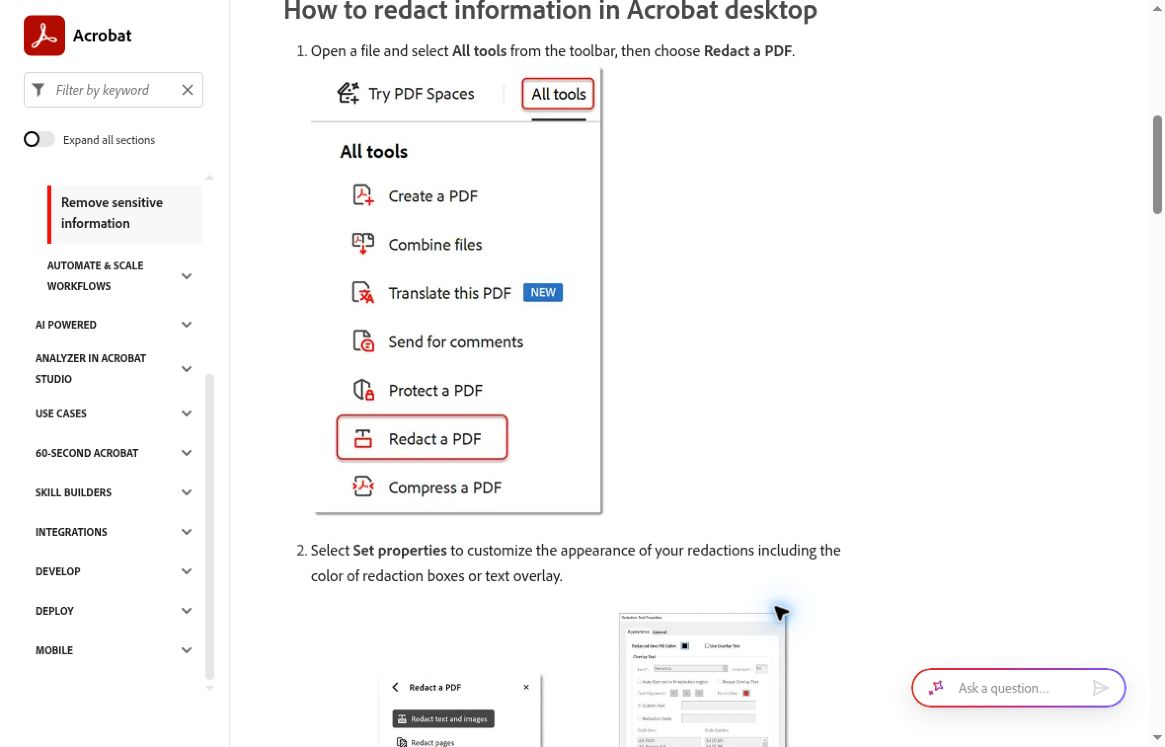
- Open your working copy. Select All tools > Redact a PDF.
- Choose Redact text and images. Drag over the material you want removed. Inspect each selection before continuing.
- Check the rest of the document. Don’t stop after the first occurrence of the information.
- Select Apply. This moves beyond marking the page for removal.
- Review the sanitization choice. Enable removal of hidden information when appropriate for the copy you’re sharing.
- Choose Continue and save. Use a separate filename and location as needed.
- Close and reopen that saved copy. Complete the review checklist below before attaching it to a message or uploading it elsewhere.
Find repeated names, numbers, and phrases
Acrobat also offers Find text and redact. Adobe’s tutorial describes searching for specific text or supported patterns, reviewing matches, and marking checked results before applying the redactions.
Use that as a starting point for your review. A name might appear with initials, an address might wrap across lines, and a scanned page might not have searchable text. Search terms cannot decide everything that should be withheld.
How to black out text in a PDF on Mac with Preview
Apple’s Preview guide identifies Redaction Selection separately from Shapes and Rectangular Selection. Choose the tool by its name rather than assuming any rectangle icon will do.
- Make a separate copy of your PDF and open it in Preview.
- Show the Markup toolbar if it isn’t visible.
- Choose Redaction Selection.
- Select the text you want removed and review your selections.
- Save the sharing copy and close the document.
- Reopen the saved file and inspect it before sharing.
Apple says you can adjust redactions while editing, but closing the document makes them permanent. Keep your original separate before you begin.
These steps concern Preview’s text-redaction feature. If your PDF contains scanned pages, overlapping images, or hidden information you need to remove, use a workflow that explicitly handles those elements. Don’t assume this selection tool also sanitizes every part of the file.
How to black out PDF text online
Choose a dedicated Redact PDF tool rather than a generic editor’s pen or shape controls. Read what the service says it removes and how you finalize the result.
For example, Smallpdf’s Redact PDF page describes selecting the redaction icon, marking text or areas, choosing Finish, and downloading the result. That is its documented workflow, not a claim that I tested a confidential file there.
- Check the service’s current privacy information and your permission to use it with this document.
- Open the dedicated redaction tool and choose a working copy.
- Mark the content you want removed, including repeated occurrences.
- Use the tool’s final application step, then download the result.
- Reopen the downloaded PDF and review it independently of the web preview.
Check privacy before you upload
I would ask three questions first: does the document leave my device, who can access it during processing, and what happens to stored copies afterward?
Don’t treat a deletion timer, a padlock icon, or the word “secure” as permission to upload someone else’s records. If you cannot establish that the service is appropriate for the information, use an approved local workflow instead.
Some services use a different removal process. PDF24 describes rasterizing pages when its dedicated redaction tool saves them. That is a specific processing step; it does not mean drawing a rectangle in any PDF app has the same result. Check output quality and accessibility when choosing an image-based workflow.
What about iPhone Markup, Word shapes, and whiteout?
Don’t rely on these visual changes alone to protect confidential PDF content. This is the most important correction to the earlier version of this article.
iPhone and iPad drawing tools
Apple’s iPhone Preview instructions describe adding shapes, text, and other annotations. Drawing over information with those tools does not establish that the original content was deleted.
If you’re working on a phone, use a tool with documented PDF redaction, or move the task to a suitable desktop app. Check the instructions for that exact app and platform.
Microsoft Word rectangles
Putting a shape over text in Word and exporting to PDF is not a dependable content-removal workflow.
If you control the Word source, prepare a separate version with unwanted content actually removed, review tracked changes and comments, and inspect it before exporting. Microsoft’s Document Inspector guidance explains how to find several types of hidden information. It also warns that the inspector cannot detect every hiding technique, including objects covered by other objects.
Inspect the exported PDF too. Cleaning up a source document and checking the final deliverable are different stages.
Whiteout, blur, cropping, and printing
Changing appearance is not enough evidence of removal. A feature’s name, or the fact that an annotation no longer moves, does not establish what remains inside the PDF.
Don’t assume Print to PDF or flattening automatically sanitizes the file. Use a documented removal process and review its output.
Handle scanned pages and hidden information
A scanned document needs special attention because the visible words may be part of an image. Some scanned PDFs also contain a searchable text layer.
iLovePDF’s redaction tool tells users to run OCR when a PDF has no selectable text. OCR can help locate words, but it does not remove information by itself.
Make sure your selected tool handles the relevant image area as well as any associated text. Nitro’s manual-redaction documentation, for example, describes different results for overlapping images and text, and notes that metadata removal is separate. Tool-specific behavior matters.
The page itself is only part of the review. Adobe lists attachments, comments, form data, bookmarks, hidden layers, and metadata among content that may require attention.
In Acrobat, Sanitize document offers removal of hidden information. Review the available choices, save the cleaned copy, and check that the document still contains the material you intend to share.
Review the final saved PDF before sharing
I recommend making this a separate pass after editing. Open the actual file you intend to send, not the original or an unsaved preview.
- Look at every page. Check small text, page headers, footers, tables, screenshots, and repeated details.
- Search for the information you removed. Try useful variations and partial strings. Our guide to searching for a word in a PDF explains the basic Find controls.
- Try selecting and copying around each redacted area. Paste into a local blank document or text editor. Don’t put confidential test output into an online tool.
- Check other content. Review comments, attachments, form fields, properties, and any hidden-information report your tool provides.
- Check usability. Ensure you haven’t removed necessary context, made pages unreadable, or overlooked accessibility requirements.
- Confirm the attachment. Check its filename, folder, and contents again at the point of sharing.
These checks can reveal a mistake; passing them does not prove that no recoverable data remains. A failed search can also mean the text was never searchable. For a high-consequence disclosure, follow your organization’s review process and have an appropriately qualified person inspect the output.
If you’re preparing an email record first, our guide to saving an email as a PDF covers that separate step. Review the complete resulting document before deciding what to redact.
Frequently asked questions
Can I black out text in a PDF for free?
Mac Preview includes a text-redaction selection tool. Online redactors may also offer free use with limits. Choose based on the document’s sensitivity and the tool’s actual removal process, then review the saved result.
Can I redact a PDF without Adobe Acrobat?
Yes. Preview on Mac and other dedicated redaction tools offer alternatives. Check support for your document’s text, images, and hidden information before relying on one.
Can someone remove the black box and read the text?
If the box is just a covering object, the underlying content may remain accessible. Proper redaction is designed to remove selected content. The visual presence of a black box cannot tell you which process was used.
Can I undo a redaction?
You may be able to adjust marks before finalizing them. Treat applied, saved redaction as permanent in the sharing copy. Keep the original separately if you need a recoverable version.
Does a password replace redaction?
No. A password controls access to a document. Redaction removes information that the recipient should not receive, even after opening it. These solve different problems.
Is searching and copying enough to verify the result?
No. Both are useful checks for obvious failures, but neither examines every possible form of PDF content. Review the file’s other contents and use a review process proportionate to the risk.
Final thoughts
The safe starting point is straightforward: choose a real redaction function, complete its application step, and review the saved sharing copy.
Give hidden information the same attention as the visible words. A PDF that looks correct is a starting point for your checks, not the end of them.