To change the wording of a signed PDF, keep the signed original and start with an unsigned source or an agreed new version. Make the correction, have the revised content reviewed, and use the appropriate signing process again. A certified PDF may allow particular later actions, such as filling designated fields, but that permission does not extend to arbitrary edits.
If you are the only signer, Acrobat may let you clear your own eligible signature before revising a working copy. A locked file or a document signed by someone else needs a different route. The first question is what you are allowed to change, not which editor can make the page look editable.
Important correction: An earlier version of this guide suggested that ordinary Acrobat or Preview edits could preserve existing digital signatures. That was too broad. This guide separates permitted follow-up actions from changes that need a new reviewed version.
Key takeaways
- Keep the signed original unchanged and name your working version clearly
- Check signature information and recorded permissions before making a change
- Use Clear Signature only for your own eligible signature, with the document’s restrictions respected
- For changed wording or completed agreements, coordinate a new version with the document owner and relevant signers
- A signature image, an editable page and a valid certificate signature are different things
- Validate the actual resulting file instead of judging it by how the signature looks
Choose the route that matches your change
I’d sort the task into one of these cases before opening an editing tool:
- You need to complete an allowed form field: check the document’s permissions and use that field through the intended workflow
- You need to add a comment: confirm that comments are permitted; otherwise send feedback separately
- You need to revise wording, amounts, dates or pages: request the unsigned source and prepare a new reviewed version
- You signed your own draft too early: use the unsigned original if you have it; if not, check whether Acrobat permits clearing your own signature
- Someone else or several people have signed: ask the document owner to manage the revision
A small correction can still matter. For example, changing a delivery date in an approved document is a change to its content, even if it takes only a few keystrokes. Treat it as a revision that the responsible people can review.
Identify what kind of signature the PDF contains
A visible mark can be part of several signing workflows
A typed name, drawn signature or uploaded signature image describes an appearance. It does not, by itself, tell you whether the PDF also contains a certificate-based signature or belongs to a completed signing process.
Adobe’s e-signatures overview explains that its tools can place typed, drawn or image signatures and embed them when saving. A signature may stop being an independently editable object after that stage.
If you are still placing your own mark on an unfinished form, you may be able to correct its position. If you have downloaded a completed agreement, establish the approved revision process before changing it.
A certificate signature has verification information
Certificate-based digital signatures use a digital ID and let a compatible reader inspect the signer and document changes. They may be visible or invisible. Acrobat also distinguishes approval signatures from certification signatures, which can define permitted later actions. See Adobe’s digital-signature overview.
Do not assume a handwritten-looking image is the entire signature. Open the reader’s signature information. If the signature type or document status is unclear, ask the sender before you begin.
Keep the original and obtain the right working copy
Save the received signed file without overwriting it. Keep any accompanying completion record supplied through the signing process as well. Then locate the unsigned PDF, word-processing document or source template that the document owner used.
I’d use filenames that make the status obvious, for example:
document-signed-original.pdffor the unchanged received recorddocument-revision-for-review.pdffor the proposed new contentdocument-revised-signed.pdfonly after the revised version has completed its signing process
These are example names, not a document-retention policy. Use your organization’s own versioning and storage rules where they apply. The important part is that nobody has to guess which file contains the earlier approval.
A duplicate of a signed PDF is still a signed PDF. Using Save As to preserve a copy does not automatically remove its signature or make it an unsigned source. If you need an unsigned version, ask for one explicitly.
Check signature status in Adobe Acrobat
Before editing, inspect the file in Acrobat rather than relying on a browser preview or the visible signature graphic:
- Open the PDF and select Signatures in the right panel
- Open the panel’s Options menu and choose Validate Signatures
- Read the validation details for the relevant signature
- Open Signature Properties and Show Signer’s certificate if you need certificate details
- Check the document’s permitted actions and whether the particular field or action is available
For a form’s general restrictions, open Menu > Document Properties on Windows or File > Document properties on macOS, select Security, and read Document Restrictions Summary. Adobe documents that route in its form-security guide. Review this alongside signature information, not as a replacement for it.
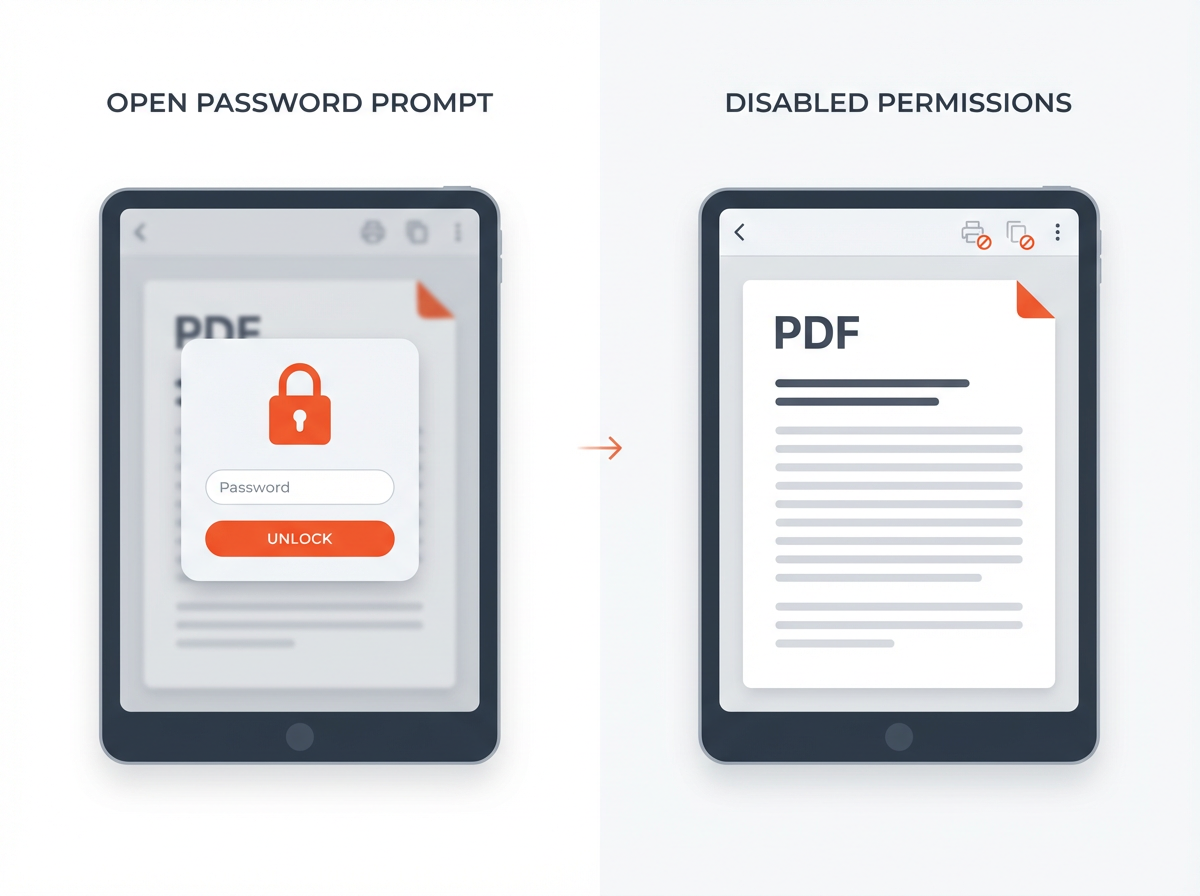
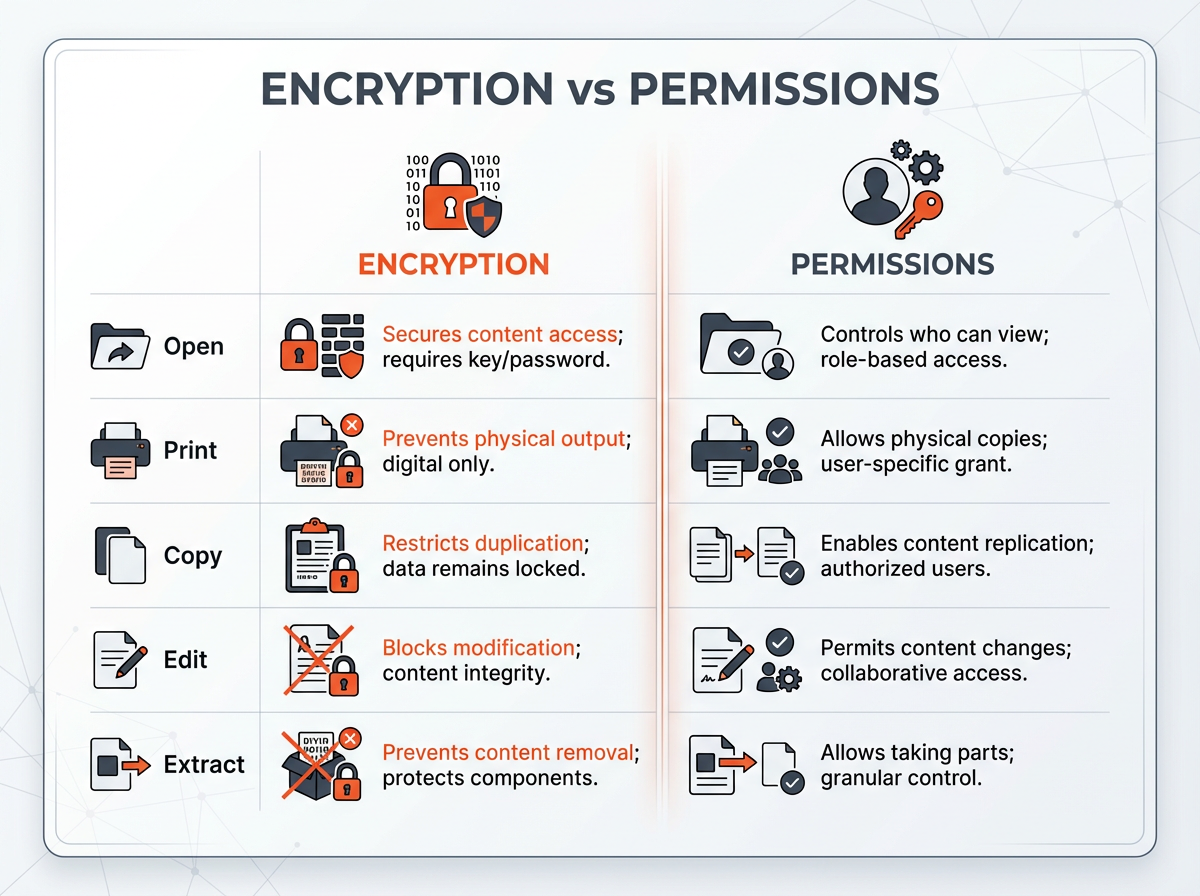
A password-based editing restriction and a certificate signature are separate controls. Having permission to open a file, or knowing its password, does not by itself establish approval to alter someone else’s signed content.
Adobe’s validation instructions cover the signature, certificate and timestamp information. A warning can involve trust or timestamp verification as well as changed content. Do not dismiss it or change trust settings just to make the status look better; involve the sender or your administrator when necessary.
For documents containing multiple signed versions, Acrobat also provides Compare Signed Version to Current Version in the selected signature’s Options menu. Adobe’s signed-version comparison guide describes that review. Comparing versions helps you investigate a change; it does not approve the change on a signer’s behalf.
Understand what a certified PDF may permit
A certification signature can specify which later actions are allowed. The person certifying the document makes that choice as part of certification. You do not gain permission to rewrite a signed document merely by finding an editing tool that opens it.
Adobe’s official example shows a setting for filling forms and adding digital signatures. Its certification guide explains where those permitted actions are selected.

That example is a useful boundary: filling an allowed field is different from replacing the text around the field. Comments are another action whose permission you need to check. Do not assume all certified documents allow the same operations.
Example: An organization supplies a certified registration form with a field you are supposed to complete. If the recorded permissions and field settings allow that entry, complete it through the intended form workflow, save the result and check its signature status again. Do not switch to editing the page’s labels or terms.
If Acrobat blocks the field or the next signing step, pause and ask the sender for the appropriate version. Some documents are deliberately locked after signing. A permitted type of action does not mean every field or later modification is available.
Clear your own eligible signature only when appropriate
An unsigned original is usually the simplest starting point. If you do not have one, you are the sole signer, and the file permits it, Adobe documents a way to clear your own signature:
- Keep the original signed file separately and open a working copy
- Right-click your own digital signature in Acrobat
- Choose Clear Signature if the command is available
- Confirm the working file’s status before making your authorized changes
- Review and sign the new version through the appropriate process after the changes are complete
Adobe’s signed-PDF limitations guide also explains the restrictions: a document explicitly locked after signing may block even the signer, and multiple signatures call for coordination or an unsigned source from the initiator.
Clearing the signature removes it from that working file. It does not preserve that signature as verification of the revised content. If the command is unavailable, do not assume a password remover, conversion or different app is the appropriate next step.
Our guide to removing your own eligible PDF signature explains this distinction alongside editable marks and saved signature presets. Deleting a reusable signature from an app’s menu does not undo signatures in completed documents.
Edit the unsigned revision in Acrobat
Once you have an authorized unsigned working version, you can use ordinary PDF editing. If the original source document is available, I’d make substantial wording or layout changes there and export a fresh PDF for review.
For an editable PDF in Acrobat, the current text-editing workflow is:
- Open the unsigned working file
- Select Edit from the global bar
- Choose Text under Add Content in the Edit pane
- Select the existing text and enter the replacement wording, or add the required text in the intended location
- Click outside the text box to apply the edit
- Check page layout and save under a name that identifies the revision
These controls come from Adobe’s current text-editing instructions. Tool availability and the file’s fonts can limit what you can change. These are ordinary editing steps after establishing the right working copy, not a way to override signing restrictions.
Review more than the changed sentence. A replacement can affect line breaks, page numbers, table alignment or references elsewhere. Search for repeated values if the same item appears on several pages, then inspect the page visually too.
Example: You need to correct a company address that appears on the cover and in a later schedule. Make both changes in the unsigned revision, check the full document, and ask the relevant people to review that version before it is signed again.
When someone else has signed, ask for a new version
The document owner or person managing the signing process is usually the right starting point. Explain the specific correction and ask which source file or revision process to use.
For example: “The delivery date on page 2 needs correcting. Could you provide an unsigned revision for review and arrange any required signatures?”
That request makes the work clear without implying that you can transfer the earlier approval to new wording. If several parties have signed, coordinate the review with the responsible people rather than editing a copy independently and presenting it as the completed agreement.
Example: A supplier has countersigned a form, but a quantity is wrong. Keep the received file, tell the document owner what needs changing and follow the approved correction process. Reusing the supplier’s signature graphic would not establish their agreement to the new quantity.
A technical validation result and the legal effect of an agreement are separate questions. If you need to know whether a contract should be amended, replaced or cancelled, ask the responsible parties and a qualified adviser familiar with that situation. This guide explains the document workflow, not a universal legal outcome.
What you can do on Mac, Windows or online
Preview on Mac is useful for markup, with limits
Apple’s Preview annotation guide explicitly says Preview cannot edit the underlying text of a PDF. Its Markup tools can add notes, shapes and text annotations for review. That is different from replacing the document’s existing wording.
Adding a text box over old wording does not establish that the signed content has been validly revised. Use markup only when appropriate for the document’s permissions and review workflow. A separate feedback message may be simpler when the signed file should remain untouched.
The earlier advice to use Preview while keeping digital signatures intact was too broad. Do not treat a successful save, or a signature that is still visible, as validation.
A browser or online editor does not change the signing rules
An online tool may let you add an annotation or produce a new file. That result alone does not tell you what happened to the original signature verification data. Start with an authorized unsigned copy and an approved service for the document’s sensitivity.
Before uploading a client record, contract or identity document, check whether you are allowed to share it with that service. Follow your workplace’s approved-tool requirements. This article does not test or endorse a third-party editor for preserving digital signatures.
If you are still placing your own signature through Acrobat on the web, its temporary placement controls may let you resize or delete the mark. Adobe warns that once the signed form is saved, that signature cannot be edited again through the same workflow. See its web Fill & Sign instructions. Go back to the unsigned version when needed.
Why conversion and print-to-PDF do not preserve approval
You may find advice to print a signed file to another PDF, convert it to Word or turn its pages into images. Those processes can produce a different document whose appearance resembles the original. They are not evidence that the earlier signature validates the changed output.
Flattening or conversion may also change interactive fields, annotations or the way the document can be reviewed. Do not use these techniques to get around restrictions or to make an edited file appear to retain someone else’s approval.
If the source is missing and an authorized rebuild is necessary, agree on that process with the owner. Treat the output as a new document, review it in full, and use the required signing process. Keep the original available for comparison.
Check the final file before sending it
- Content: confirm the intended corrections and check for unintended layout or page changes
- Version: make the revised status clear in the filename and accompanying message
- Permissions: ensure any form filling, commenting or additional signing followed the allowed workflow
- Signatures: inspect validation details in a suitable reader after the final save
- Approval: make sure the relevant people reviewed and signed the actual revision where required
- Records: retain the original and any revision or completion records under your normal policy
Do not copy an old “valid” result or a screenshot of a signature panel into a message as if it described a different file. If validation is unclear, stop and resolve it before presenting the output as signature-verified.
Frequently asked questions
Can I edit a signed PDF without invalidating the signature?
Some documents permit specific later actions, such as filling form fields or adding another signature. Check the recorded permissions and validate the result. For changes to the signed wording, use a new reviewed version instead of assuming the original signature continues to cover it.
Why does Acrobat say the signed PDF cannot be edited?
The signature or document settings can restrict changes. You may be able to clear your own eligible signature if you are the sole signer, but explicit locking can prevent that. Ask for an unsigned source when the permitted route is unavailable.
Can I add comments to every signed PDF?
No. Check whether comments are permitted for that document. If they are not, send your comments separately or ask the sender to provide a review version. A comment is not automatically harmless to every signature workflow.
Does saving a copy make a signed PDF unsigned?
No. Saving a duplicate preserves a separate file; it does not automatically remove signatures or restrictions. An unsigned source or an explicitly managed revision is different from a renamed signed copy.
Can I paste the old signature onto the edited document?
A pasted image does not carry forward certificate validation or demonstrate approval of revised content. Use the intended signing process after review, and do not apply another person’s signature for them.
Can I edit a signed PDF for free?
Reading a file, checking its available status information or requesting an unsigned source may not require buying an editor. The available editing features depend on the app and file. Paying for software does not grant permission to change a signed agreement or guarantee preserved signature validity.
Final thoughts
Keep the signed original, identify the signature and permissions, and choose the right revision route. Complete only the follow-up actions that the document allows. When the agreed content needs to change, make the new version clear and arrange the appropriate review and signing.
The useful outcome is a document whose contents and approval history are understandable. A file that merely opens in an editor, or still looks signed, is not enough.