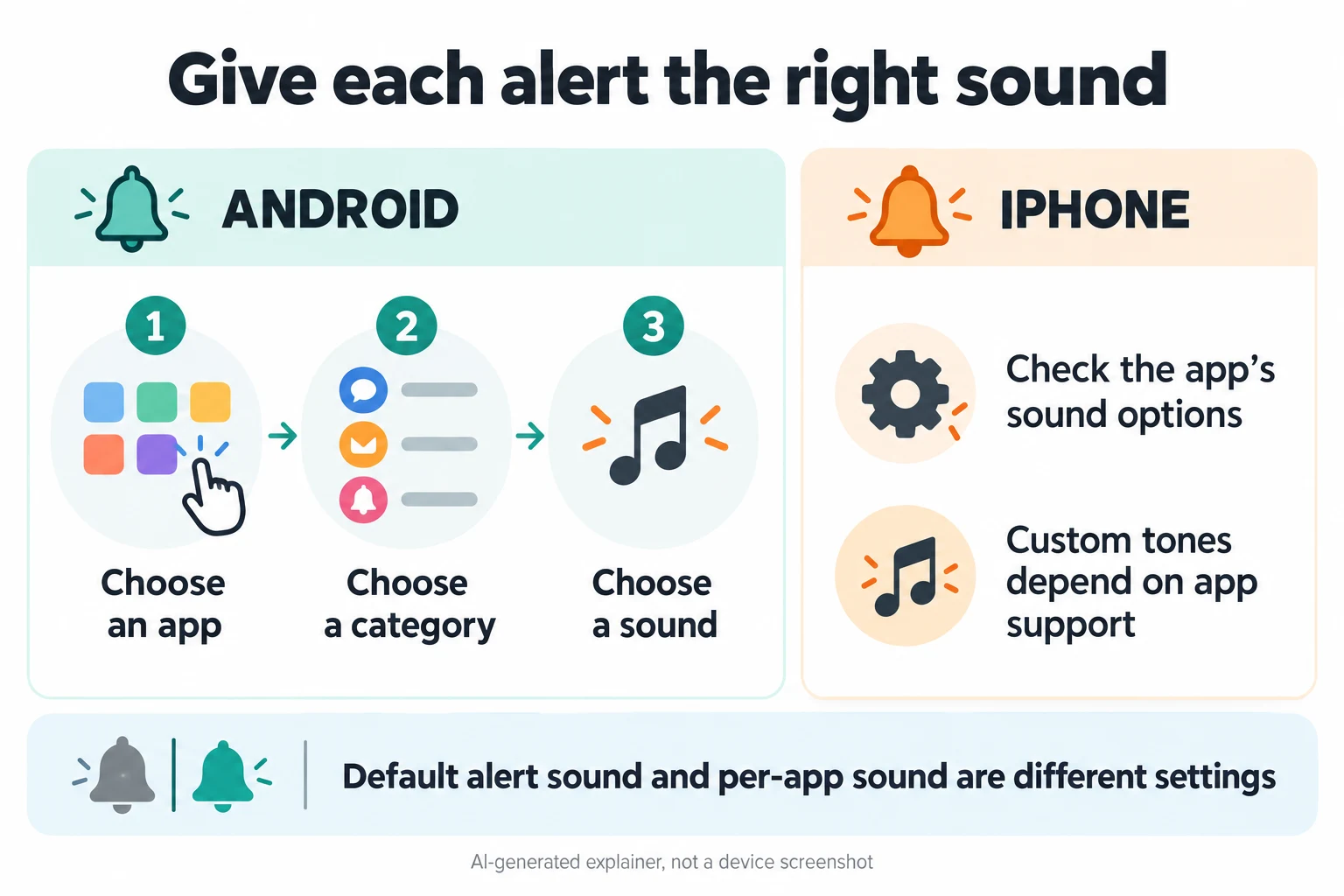
Want your messages to sound different from your email? On Android, you can usually choose a sound for an app’s notification category. On iPhone, the options depend on the app: some offer a tone picker, while others only let you turn sound on or off.
I’ll walk you through the difference, the extra setting Samsung sometimes needs, and what to check when the sound you picked doesn’t play. Menu names can vary with your phone and software version, so follow the route that matches your screen.
Key takeaways
- Android: open the app’s notification settings, select the relevant category, then look for Sound.
- Samsung Galaxy: if categories are missing, check Manage notification categories for each app in Advanced settings.
- iPhone: a Sounds switch isn’t always a sound picker. Custom tones depend on what the app supports.
- Check the right alert: an app can have separate settings for messages, groups or other notification types.
- Check sound delivery: choosing a tone won’t override a muted category, low alert volume or a Focus setting.
Start with the app, not the default sound
There are two different jobs here. Changing the phone’s default notification sound changes its general alert choice. Changing an app or category sound targets a particular kind of notification.
If you want one sound for incoming email and another for chat messages, start with the app settings. Don’t keep changing the default and expect it to assign a unique tone to every app.
Google’s Pixel sound guide separates the default notification sound from a sound set for one app. That distinction is the quickest way to avoid changing the wrong thing.
I find it easiest to think of the controls in three layers: the phone, the app, and the type of alert inside that app. A messaging app might separate direct messages, group messages and calls. Changing one layer won’t necessarily change the others.
If you actually want to replace the general Pixel alert, Google lists Settings > Sound & vibration > Notification, followed by your sound and Save. For different sounds across apps, use the category steps below instead.
Change an app’s notification sound on Android
For a Pixel, Google’s current instructions use this route:
- Open Settings, then Notifications.
- Choose App notifications and select the app.
- Open Notification categories.
- Select the category you want to change.
- Tap Sound, pick a tone, then tap Save.
Source: Google Pixel Help. Other Android phones may put the same controls under Settings > Apps > your app > Notifications or use a different category label.
Choose the category that actually sends the alert you’re trying to change. For example, changing a group-message category won’t necessarily affect individual-message notifications. Repeat the process only for the categories you want to sound different.
If the app’s settings don’t show a sound control, open its own settings menu. Google notes that some notification options are controlled inside the app itself.
Open the settings from a notification
Can’t tell which app or category made the noise? When the alert next appears, swipe down, touch and hold that notification, then tap its Settings control. Google documents this shortcut in its Android notification guide.
Use the settings it opens to identify the alert you want to change. This is more useful than guessing among several similarly named categories. If your screen offers Alerting and Silent, the category needs an audible setting before a selected sound can play.
Find missing notification categories on Samsung Galaxy
On supported Galaxy software, category controls may be hidden until you enable them. Check this first:
- Go to Settings > Notifications > Advanced settings.
- Turn on Manage notification categories for each app, if the option is present.
- Return to Notifications > App notifications and select your app.
- Open Notification categories, then tap the category’s name to open its detailed settings.
- If the category is silent, choose Alert when shown. Open Sound and choose a tone.
Tap the category label rather than only its on/off switch. The switch controls whether that category can notify you; the label opens the settings where its sound can be changed.
Samsung documents this category-management route in its Galaxy notifications guide. The manufacturer also warns that layouts vary by device, region and software version.
Don’t confuse this with Separate app sound. That Samsung feature sends selected apps’ media audio to a different audio device. It isn’t the setting for assigning a notification tone. See Samsung’s sound settings explanation.
Use your own audio file as a Samsung notification sound
A different built-in tone may be enough. If you want to use your own audio file on a Galaxy phone, make that file available in the notification picker first:
- Open My Files > Audio and find your saved audio file.
- Touch and hold the file, then choose Copy.
- Return to the My Files home screen and open Internal storage.
- Open the Notifications folder. If the folder list is filtered, change Essentials to All where available.
- Tap Copy here, then return to the app’s category-level Sound picker and select the file.
This follows Samsung’s custom notification sound instructions. The exact file-manager labels can vary. Copying the file makes it available to select; you still need to assign it to the app or category.
I’d choose a short, recognizable clip and start with one app. Use an audio file you’re allowed to use. This file-copying route is for Samsung, so don’t expect it to add a sound picker to an iPhone app that doesn’t offer one.
Change notification sounds on iPhone
The honest answer is it depends on the app. Apple’s current instructions say to open Settings > Notifications, select an app, then choose a sound if the app supports that option.
- Open Settings > Notifications.
- Select the app you want to change.
- Check its Sounds control. If it opens a list of tones, choose one.
- If you see only an on/off switch, check for an app-settings link or open that app’s own notification settings.
Some apps don’t offer a custom tone picker. Turning on a Sounds switch allows that app to make sound; it doesn’t create a choice of tones. Apple’s notification settings guide explains these app-dependent options.
If neither place offers a tone choice, stick with the app’s available sound or vibration controls. There isn’t a universal setting that adds custom tones to every iPhone app.

Set a different Messages tone on iPhone
Messages is a useful example of an app with sound controls. Go to Settings > Notifications > Messages > Sounds, then choose Text Tone if shown and select a sound.
You can also assign a text tone to a particular contact. Open Contacts, select the person, choose Edit, then choose Text Tone and a sound. That lets you distinguish a person rather than an entire app. Apple documents this route in its sounds and vibrations guide.
Apple’s Messages notification guide covers the app and contact options. These controls don’t mean that every third-party app has the same menu.
For other built-in alert types, look in Settings > Sounds & Haptics. Apple lists choices such as Text Tone and Calendar Alerts. Pick the alert type you mean to change, rather than assuming every third-party app follows that selection.
Use an app’s own sound settings
Gmail on Android is one example where an in-app route can be easier to follow:
- Open Gmail and its menu, then tap Settings.
- Select the email account.
- Open Notification sounds.
- Under Email or Chat and spaces, choose Notification sound > Sound.
- Select the tone you want.
If you use several accounts, check the settings for each one. Google’s Gmail notification instructions also explain label-specific alerts. A sound choice and the decision about which messages trigger a notification are separate settings.
Check incoming messages rather than outgoing sounds
For Google Messages, open your profile picture or icon, then Messages settings > Notifications. Look for Incoming messages and use the Android category controls described above when they are available.
The separate Hear outgoing message sounds option controls the sound made when you send a message. It won’t choose the tone for a message you receive. Google explains these controls in its Messages settings guide.
Why is the new notification sound not working?
Before changing more settings, identify what failed. Did the notification arrive without a sound, arrive with the old sound, or not arrive at all?
- The old sound plays: check that you changed the correct app, account and notification category.
- The alert is silent: check whether that category is set to Silent, whether its sound is None, and whether the phone’s alert volume is audible.
- No alert arrives: check that notifications are allowed for the app and the relevant category.
- Alerts stop only at certain times: review your Focus or Do Not Disturb schedule and its allowed apps.
- You can’t find a tone picker: check the app’s own settings and support information. The app may not offer that choice.
Check alert volume and timed quiet modes
On a Galaxy phone, check Settings > Sounds and vibration > Volume > Notifications. Music playing loudly doesn’t tell you what the notification-volume slider is set to. Samsung’s sound troubleshooting guide treats these volumes separately.
On iPhone, check Silent mode and the alert controls in Sounds & Haptics. If an alert is missing only during work or overnight, review the relevant Focus and its schedule. Keep the quiet settings you want, and check which apps you’ve allowed through.
If one chat behaves differently from the rest, check that conversation’s settings too. Apple Messages can mute individual conversations with Hide Alerts, and Google Messages can set a conversation to Silent. A different tone won’t undo either choice.
Make one change, then ask someone to send a normal test message or wait for the next expected notification. A preview in the sound picker only confirms that the tone can play; checking the real alert helps you confirm you edited the right category.
Frequently asked questions
Can I set a different notification sound for every app?
Not universally. Android commonly offers category-level sound controls, but the available options still depend on the app and phone. On iPhone, individual apps must support a tone picker or offer their own sound settings.
Why does my iPhone only show a Sounds switch?
That control turns the app’s notification audio on or off. Check the app’s own settings for a tone choice. If neither place has one, there may be no supported custom-tone setting for that app.
Why are Samsung notification categories missing?
Check Settings > Notifications > Advanced settings for Manage notification categories for each app. Turn it on if available, then revisit the app’s notification settings. Older or different Galaxy software may already show categories without this extra switch.
Will changing the default sound change every app?
Don’t rely on that. Apps and notification categories can use their own sound choices. Set the tone where the particular alert is controlled if you want a predictable result.
Can I use the same custom sound for every category in one app?
Where an Android app exposes separate category-level pickers, select the same tone in each category you want to match. Don’t assume changing the first category applies the sound to the entire app. Leave unrelated categories alone if you want them to stay quiet.
Why did the sound change for messages but not one conversation?
That conversation may have its own sound or silent setting. Check its notification options and, on iPhone, any Text Tone assigned to the contact. Test the specific chat after changing it, rather than using a different person’s message as the test.
Do I need a notification sound app?
Start with your phone’s built-in tones and the app’s own controls. Installing another app isn’t necessary just to use those settings, and it doesn’t guarantee you can change a tone that the original app doesn’t let you customize.
Final thoughts
I would start with your two most important apps rather than change every alert at once. Give each a recognizable tone, check a real notification, then work through the rest if you need to.
The useful distinction is simple: on Android, find the right category; on iPhone, check what that app actually supports. Once you know which setting controls the alert, the process is much less confusing.