
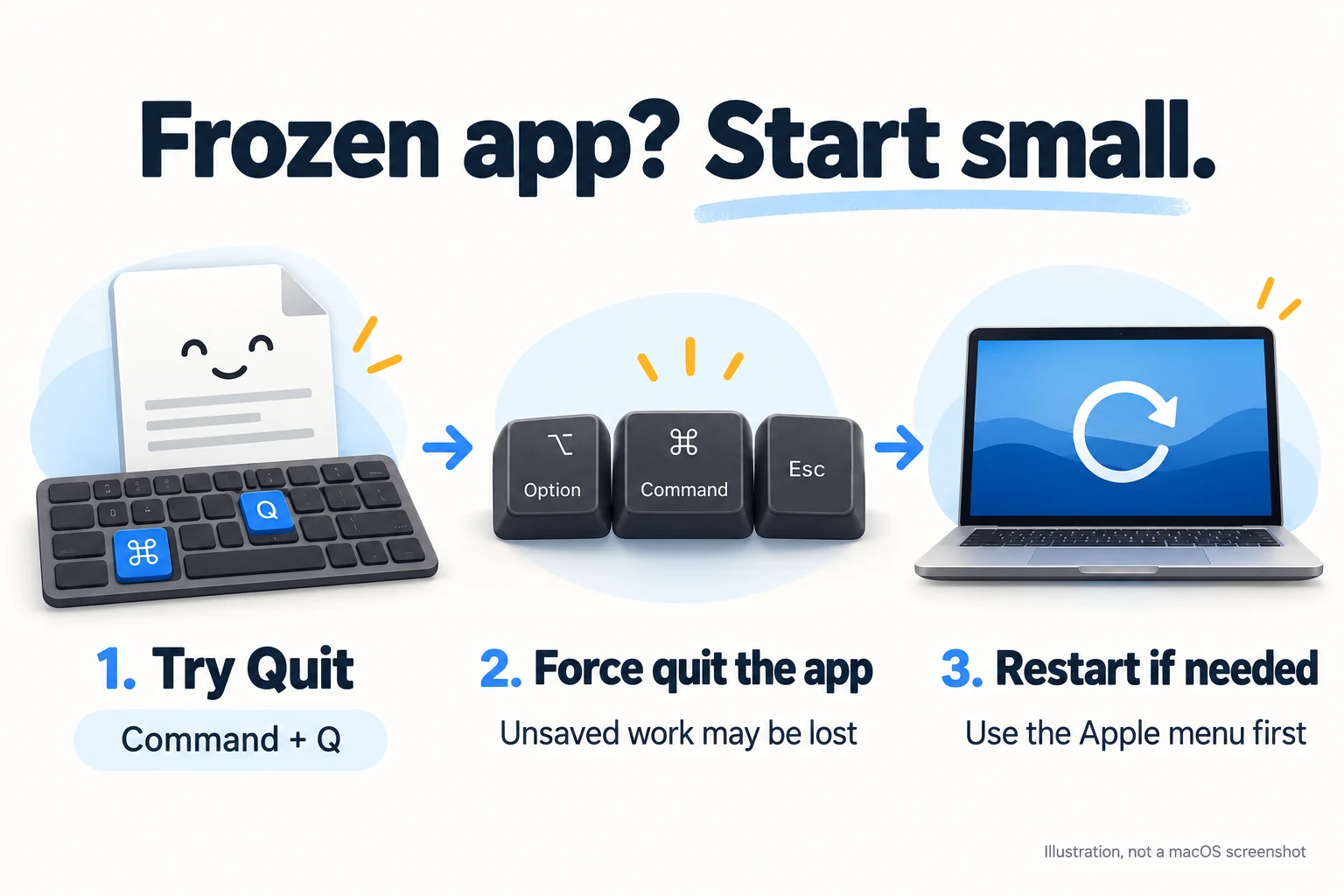
To force quit on Mac, press Option + Command + Esc, select the app that isn’t responding, then click Force Quit. If you can still use the app, try Command + Q first. Force quitting can discard unsaved work, so I recommend it when a normal quit won’t work.
A frozen app doesn’t always mean you need to restart your whole Mac. I’ll show you how to close the problem app, what to do if the usual shortcut fails, and when a restart makes sense.
Key takeaways
- Command + Q asks the current app to quit normally
- Option + Command + Esc opens the Force Quit Applications window
- The Apple menu, Dock, and Activity Monitor give you other ways to close an unresponsive app
- Force quitting may lose unsaved changes; forcing the whole Mac off puts work in other open apps at risk too
Before you force quit, check whether the app can still save
First, click the app you’re having trouble with. If its menus still respond, save your document and press Command + Q. You can also choose the app’s name in the menu bar, then its Quit option. For Preview, for example, choose Preview > Quit Preview.
The red button in a window’s top-left corner closes that window. The app can remain open afterward, which is why clicking it doesn’t necessarily solve the problem. Apple explains this distinction in its guide to quitting Mac apps.
If you’ve just opened a large file or started an export, I would give the app a moment before interrupting it. A busy pointer alone doesn’t tell you whether your work has stopped permanently. If the app won’t respond or quit, use one of the options below.
1. Use the Mac force quit shortcut
This is the quickest route I recommend when you know which app has frozen.
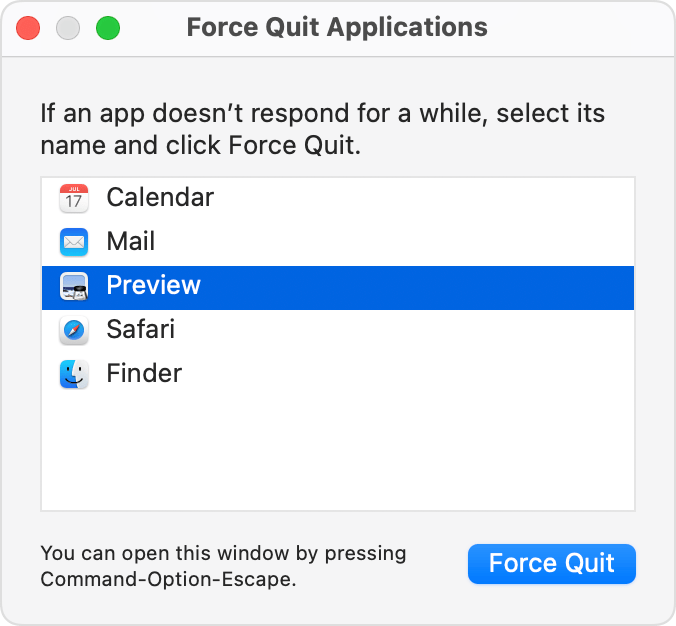
- Press Option + Command + Esc together, then release them.
- In the Force Quit Applications window, select the affected app.
- Click Force Quit. If a confirmation appears, read it and confirm that you want to close the app.
Option may be labeled Alt, and Command uses the ⌘ symbol. The shortcut opens a chooser; it doesn’t immediately close every app. Check the selected name before continuing. These key names and shortcuts are listed in Apple’s Mac keyboard shortcut reference.
After the app closes, reopen it normally. If it offers a recovered document, check the contents before you keep working. I wouldn’t assume an autosave or recovery feature has preserved your latest edits.
2. Open Force Quit from the Apple menu
If the keyboard shortcut is awkward or unavailable, use the menu at the top of the screen:
- Click the Apple menu in the top-left corner.
- Choose Force Quit.
- Select the unresponsive app, then choose Force Quit.
This opens the same window as the keyboard shortcut. You don’t need to find a force-quit setting inside the frozen app. Apple documents both routes in its force-quit instructions.
3. Close an unresponsive app from the Dock
If you can reach the app’s Dock icon, try its shortcut menu:
- Hold Control and click the app’s icon in the Dock.
- If the menu offers Force Quit, choose it.
Look carefully at the label. Quit is a normal quit request. Force Quit is the option for ending an unresponsive app, and unsaved changes may be lost. Apple’s Dock guide describes this route.
If you only see Quit and the app still won’t close, I’d use the Force Quit Applications window instead. That gives you an explicit app selection and avoids guessing which Dock command you’re choosing.
4. Use Activity Monitor when you need to find the process
Activity Monitor is useful when the app isn’t obvious in the Force Quit window or you need to inspect what is running. It shows apps and background processes, so I recommend choosing only a process you can identify.
Open Activity Monitor and find the app
Press Command + Space, type Activity Monitor, then open the matching result. If that shortcut has been changed on your Mac, open Spotlight from the menu bar. Apple describes opening search results in its Spotlight guide.
In Activity Monitor, use the search field to find the app by name. If the list seems incomplete, choose View > All Processes. The CPU tab is a useful place to start because it includes the process list. Apple’s process-viewing instructions explain these controls.
Choose Quit or Force Quit
- Select the app or process. An unresponsive process may appear in red with Not Responding beside its name.
- Click the Stop button near the top of the Activity Monitor window.
- Choose Quit to let it finish safely, or Force Quit if it remains stuck and you’re ready to stop it immediately.
The distinction matters. Quit can leave a process running if stopping it would cause problems. Force Quit stops it immediately and can affect files or other processes that depend on it. Apple details this behavior in its Activity Monitor quit guide.
I wouldn’t stop unfamiliar system processes just because they appear near the top of a list. If you can’t confidently match a process to the frozen app, return to the app chooser or restart normally.
Check whether the app has stopped
After quitting, search for the app again in Activity Monitor. If its main process disappears from the list, that process has stopped. A similarly named helper may still be running, so check what you’ve selected before ending anything else. Apple’s process-viewing guide explains how to inspect and search the list.
What if Finder is the app that won’t respond?
Finder has a different button: Relaunch.
Open the Force Quit Applications window, select Finder, then click Relaunch. Finder closes and opens again. Apple’s force-quit guidance specifically includes this option.
Before doing that, consider whether Finder is copying or moving files. I would avoid interrupting file work unless Finder is genuinely stuck. Afterward, check the source and destination rather than assuming a transfer finished.
What to do if force quit doesn’t work
If you can still use the menu bar, choose Apple menu > Restart. Save work in other responsive apps first. In the restart dialog, you can deselect Reopen windows when logging back in if you don’t want the same windows restored. See Apple’s restart instructions.
If the entire Mac is unresponsive and won’t restart, Apple’s next step is to hold the power button for up to 10 seconds, until the Mac turns off. On a Mac laptop with Touch ID, hold the Touch ID button. Then press and release the power button to start it again.
Use a forced shutdown as a last resort. It can lose unsaved changes across open documents. The power-button procedure comes from Apple’s force-quit support page; the broader data-loss warning is also in its shutdown guide.
You may see Control + Command + Power suggested elsewhere. Apple lists that forced-restart shortcut for built-in keyboards without Touch ID, and it doesn’t ask you to save documents. I wouldn’t treat it as a universal shortcut for every MacBook. Use the menu or the power-button steps above.
If the same app keeps freezing, check the cause
Closing the app gets you past the immediate problem. If it happens again, I recommend noting what you were doing just before the freeze.
- Try another file. If only one document causes the problem, focus on that file rather than assuming the whole app is broken.
- Check compatibility. Confirm the app supports your macOS version, especially after an upgrade.
- Review recent changes. A newly connected accessory or an incompatible third-party plug-in may be involved.
- Check for updates. Look in the App Store for App Store apps, or use the developer’s update instructions for other apps.
These are part of Apple’s app-freezing troubleshooting advice. For macOS updates, open System Settings > General > Software Update; Apple’s update guide explains the options.
If the problem keeps returning after a restart, safe mode can help investigate software loaded during startup. Follow the instructions for your Mac type because Apple silicon and Intel startup steps differ.
If you need to show the developer a repeatable problem, you can record your Mac screen while reproducing it, provided the Mac is responsive enough. Hide private tabs, messages, and documents before recording or sharing the result.
Frequently asked questions
Does Command + Q force quit an app?
No. It requests a normal quit from the active app. For a stuck app, use the Force Quit Applications shortcut, Option + Command + Esc, and select the app you want to close.
Is it bad to force quit apps on Mac frequently?
I would use a normal quit for apps that still respond. Force Quit can interrupt unsaved work, so it isn’t a useful routine for closing everything at the end of the day. If the same app repeatedly needs it, investigate the recurring freeze rather than accepting it as normal.
Can I force quit without losing my work?
You can’t count on that. If the app still responds, save and quit normally first. After a forced quit, any recovery depends on the app and what it saved before the problem. Check a recovered file rather than assuming your latest changes survived.
How do I force quit Preview on Mac?
Select Preview in the Force Quit Applications window. Before confirming, remember that unsaved PDF annotations or image edits could be lost. If Preview repeatedly freezes with a particular PDF, try a different file first. If you decide to use another reader, here’s how to change your default PDF viewer.
Why is the app missing from Activity Monitor?
Clear the search field and check View > All Processes. Activity Monitor can show filtered process lists. Don’t assume that an unfamiliar process with a similar name is the right one to stop.
Do I need Terminal or a cleanup app?
For the steps in this guide, no. macOS includes Force Quit Applications and Activity Monitor. I’d start with these tools because you can see which app you’re selecting.
Final thoughts
My recommendation is to start with the smallest interruption: save and quit normally if you can, then force quit the specific app if you need to. Keep a full restart for the cases where the app won’t close or the rest of the Mac is affected.
If you’re repeatedly reaching for Force Quit, note the app, file, and action that trigger it. That gives you a useful starting point for fixing the cause.