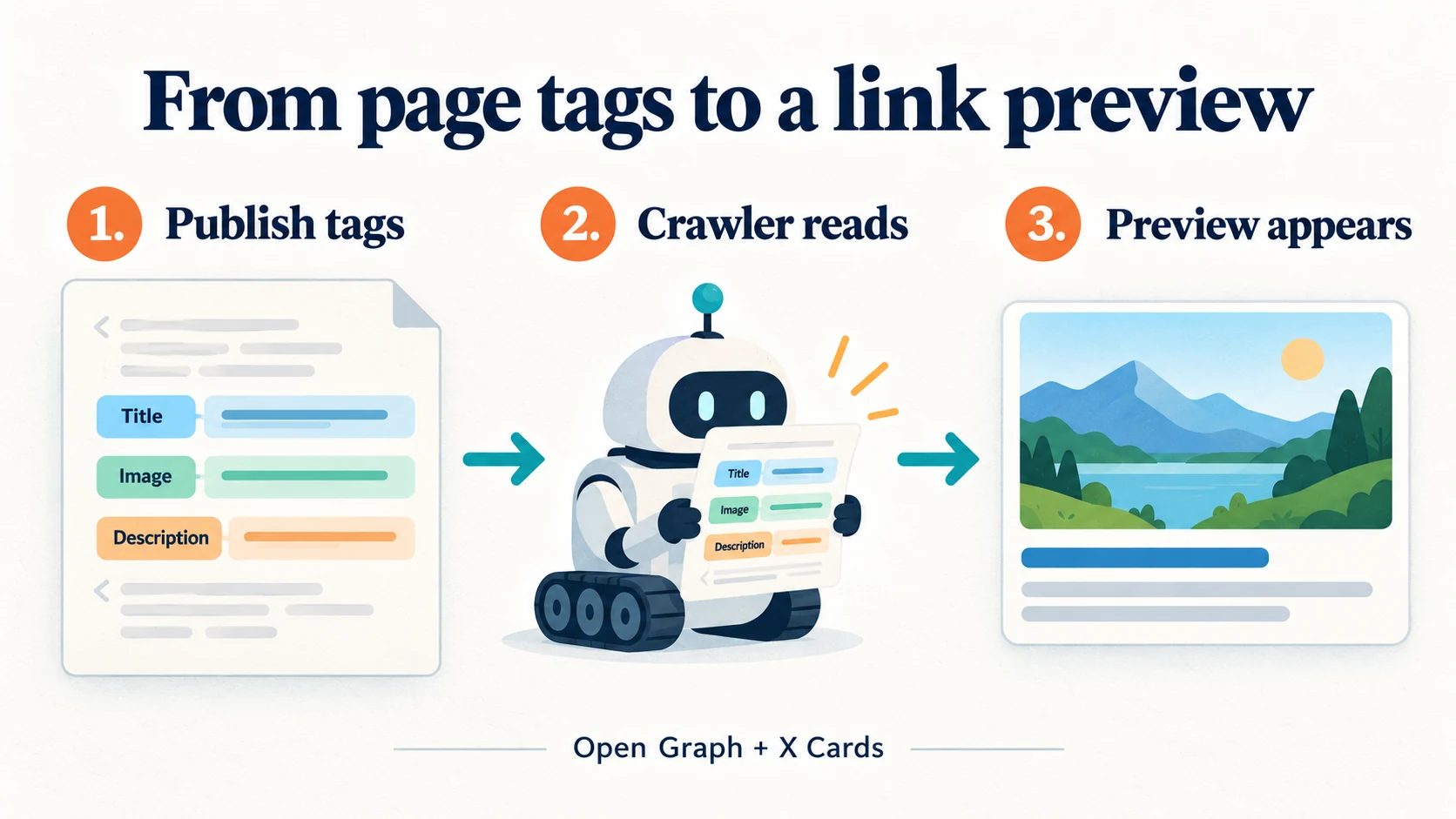
Social media meta tags tell sharing platforms which title, description, image and URL to use when someone shares your page. Add Open Graph tags and X Card tags to the page’s <head>, or enter the same details in your WordPress SEO plugin.
If your link shows an old image or the wrong headline, I’d check those tags before changing the post itself. The problem can also be a cached preview, an inaccessible image or two plugins publishing conflicting metadata.
I’ll walk you through the tags, a complete HTML example, the WordPress setup and the checks that help you find what’s actually wrong.
Key takeaways
- Use
og:title,og:type,og:imageandog:urlas your Open Graph foundation. Add a useful description and image alt text. - X still uses the
twitter:prefix. Settwitter:cardexplicitly and use separate X fields when you want different text or artwork. - A 1200 × 630 pixel JPEG or PNG is a practical starting image. Check how each destination crops it.
- Publish one consistent set of tags per page. A generator creates code; it doesn’t install that code on your website.
- Inspect the public page, then use the platform’s own sharing tools. Fixing your website and refreshing a platform’s cached preview are separate steps.
What are social media meta tags, and where do they go?
Social metadata lives in the HTML behind your page. When a platform fetches a shared link, it can use that metadata to build a preview card.
Open Graph uses names such as og:title. X Cards use names such as twitter:card. You put them inside <head>, alongside your page title and other metadata.
These tags describe the page you’re linking to. They don’t add hashtags to a caption, change your Instagram bio font or create a social media post for you.
Your normal <title> and meta name="description" still have their own jobs. Keep them accurate even when you write a different social headline. If you’re working on those fields too, Kwebby’s Meta Tag Generator covers the general page metadata.
How social meta tags help sharing, and what they mean for SEO
A clear preview helps people decide whether your page is relevant before they open it. A missing picture, vague title or unrelated description can make that decision harder.
I treat social metadata as presentation work. Adding tags doesn’t establish that your rankings will improve, and there’s no guaranteed traffic lift from a prettier card.
There is a useful search nuance: Google lists og:title among the sources it may use to create a search result’s title link. That’s why I keep the social headline consistent with the page’s actual subject. See Google’s title link guidance.
For measurement, compare social referral visits and the actions those visitors take. Track search performance separately so you don’t mistake a social campaign’s traffic for an organic ranking improvement.
Open Graph tags for Facebook and other link previews
The Open Graph protocol defines four required properties: og:title, og:type, og:image and og:url. A description is optional in the protocol, but it’s a useful addition for a page you plan to share.
The basic Open Graph tags to include
| Tag | What to put in it | What to check |
|---|---|---|
og:title |
A specific headline for this page | Does the opening phrase tell readers what they’ll get? |
og:type |
article for a blog post; website for a general page |
Use the appropriate defined type, not blog. |
og:url |
The page’s preferred canonical address | Check HTTPS, hostname, path and trailing slash. |
og:image |
The full URL of a representative image | It should open as an image without requiring a login. |
og:description |
A short summary of the page’s value | Explain the content without repeating the title. |
Meta’s sharing documentation shows article for a blog post and recommends a clean canonical URL without session or user-identifying parameters.
For example, the social URL for this article is https://kwebby.com/blog/social-media-meta-tags/. If you share a campaign link with tracking parameters, keep the page’s underlying identity pointed at its preferred canonical address.
Useful optional tags for images, language and article details
I’d add image width, height and alt text before experimenting with more specialized metadata. Use the file’s actual pixel dimensions and describe what the image shows.
og:site_name: your website or publication nameog:locale: the content’s language and territory, such asen_GBog:locale:alternate: another available language versionog:image:widthandog:image:height: the image dimensionsog:image:alt: a description of the imagearticle:published_timeandarticle:modified_time: accurate original publication and update dates for an article
Keep each image’s extra properties directly after its og:image tag. The protocol permits multiple images, with the first given preference in a conflict. For a straightforward article, one intentional lead image is easier to maintain.
og:video and og:audio belong in a media-specific implementation. They don’t guarantee an inline player. Likewise, add fb:app_id only when you have a relevant Meta app integration; don’t paste a made-up app ID into a basic sharing template.
X Card meta tags: which twitter fields should you use?
The platform is called X, but the HTML names still use twitter:. Use the name attribute for these tags, as shown in the current Next.js metadata reference.
| Tag | Purpose |
|---|---|
twitter:card |
Selects a card style, commonly summary or summary_large_image |
twitter:title |
Provides the page headline for the card |
twitter:description |
Provides a short page summary |
twitter:image |
Points to the full image URL |
twitter:image:alt |
Describes the image |
twitter:site |
Identifies the site’s X username, when applicable |
twitter:creator |
Identifies the content creator’s X username, when applicable |
For a normal article, I’d start with summary_large_image. A player or app card has additional requirements, so changing that one value won’t turn an ordinary page into a working video player or app promotion.
Write a concise headline and put the distinguishing words first. Around 60 to 70 characters is a useful drafting target, and I’d keep the summary under 200 characters. Treat those as writing targets here, not a promise that every character will appear in every X layout.
twitter:creator is a username such as @yourauthor, not an email address and not the identity of whoever happens to share the link. Rank Math’s social metadata documentation explains the separate site and author fields.
A complete social media meta tag example you can adapt
This example is for a fictional article. Replace every example.com address, title, description, site name and image detail before you use it.
Add it inside the page’s existing <head>. If a CMS already outputs any of these fields, update that implementation instead of adding a second copy.
<!-- General page metadata -->
<title>How to Build a Balcony Herb Garden | Example Garden</title>
<meta name="description" content="Choose herbs, plan containers and set up a small balcony garden.">
<link rel="canonical" href="https://example.com/balcony-herb-garden/">

<!-- Open Graph -->
<meta property="og:type" content="article">
<meta property="og:url" content="https://example.com/balcony-herb-garden/">
<meta property="og:title" content="Build a Herb Garden on Your Balcony">
<meta property="og:description" content="A practical guide to choosing herbs, containers and a watering routine for a small balcony.">
<meta property="og:site_name" content="Example Garden">
<meta property="og:locale" content="en_GB">
<meta property="og:image" content="https://example.com/images/balcony-herbs.jpg">
<meta property="og:image:type" content="image/jpeg">
<meta property="og:image:width" content="1200">
<meta property="og:image:height" content="630">
<meta property="og:image:alt" content="Basil, mint and parsley growing in pots on a sunny balcony">

<!-- X Cards -->
<meta name="twitter:card" content="summary_large_image">
<meta name="twitter:title" content="Build a Herb Garden on Your Balcony">
<meta name="twitter:description" content="Choose herbs and containers, then set up a watering routine for your balcony garden.">
<meta name="twitter:image" content="https://example.com/images/balcony-herbs.jpg">
<meta name="twitter:image:alt" content="Basil, mint and parsley growing in pots on a sunny balcony">
The example deliberately leaves out account handles. Add twitter:site or twitter:creator only with the correct account details.
If you generate tags from a database, escape values for HTML attributes. A quotation mark inside a title should become ", and an ampersand should become &. Use your framework’s escaping rather than concatenating raw user input into HTML.
Can Open Graph and X Cards share the same metadata?
Yes. You can use the same title, description and image for both. A shared set is often a sensible starting point when the audience and message are similar.
Rank Math documents reusing Open Graph data for X, but explicit X fields make your intended values easier to inspect. Keep twitter:card so you’ve chosen a layout, then customize the X title or image when there’s a reason to do so.
Different names for the same piece of content are normal: og:title and twitter:title can coexist. Two conflicting og:title tags are the kind of duplication you should investigate.
Choose an image that survives cropping and loads for crawlers
For a general share image, I’d start with a 1200 × 630 pixel JPEG or PNG. Keep the subject and any essential text away from the edges, because the same artwork can appear in different card shapes.
Meta’s image guidance recommends at least 1200 × 630 for high-resolution displays and an aspect ratio close to 1.91:1. It lists 200 × 200 as the minimum allowed size and 8 MB as the maximum file size. Those minimum and maximum limits aren’t good design targets.
I’d compress an ordinary share image to a few hundred kilobytes when the quality allows it. That’s a practical performance goal, not a universal platform requirement. A huge upload gives a crawler more work without necessarily making a tiny preview clearer.
Use a full HTTPS image URL. Check that it returns the image itself, rather than an attachment page, login screen, expired download link or blocked response. A page that opens for you while signed in may still fail for a social crawler.
Supply real width and height values. Don’t declare 1200 × 630 if the file is actually square, and don’t expect a metadata field to resize an image.
Tools to generate tags, inspect them and preview a link
I separate three jobs: writing the metadata, checking what the published page contains, and seeing how a destination uses it. One tool’s preview doesn’t prove that all three are working.
Method 1: Generate tags with Kwebby, then check the published page
- Open the Open Graph Generator.
- Enter the page’s title, description, canonical URL and image URL. Add your site name and X handle if relevant.
- Choose article for a blog post, then select the language and card type.
- Review the generated HTML. Add image dimensions and alt text if your final output doesn’t include them.
- Copy the tags into the page’s head or use the equivalent fields in your CMS. Publish the page.
- Use the Open Graph Checker to inspect the live URL, then test it with the platform’s own tools.
The current generator includes separate page URL and image URL fields, content-type and locale selectors, a card-type selector and a copyable HTML output. Its on-page card is a preview of your inputs. It isn’t evidence that Facebook has fetched your page.
Method 2: Use Meta Tags to compare preview layouts
Meta Tags offers editable image, title and description fields, previews for several destinations and a Get Code control.
Use it to compare wording and image choices. After copying the code, you still need to add it to your website and publish. Treat any simulator as a design aid because the destination app can render its own layout.
How to add social media meta tags in WordPress
Start with the SEO plugin you already use. Installing another plugin just for social metadata can leave you with duplicate output from the theme, the first plugin and the new plugin.
Set the post’s social image, title and description
For Rank Math, open the post in the WordPress editor, open the Rank Math panel and select its Social tab. Set the Facebook image, title and description, then review the Twitter tab.
If you want separate X values, disable the option that reuses Facebook’s data. Choose the card type, set the desired fields and update the post. Rank Math’s current WordPress card setup guide documents this workflow.
A default social image is useful for pages that don’t have their own artwork. Still give important articles a page-specific image, so every share doesn’t look like a link to your homepage.
If you add tags without a plugin, make them page-specific
A developer can generate metadata through a theme hook or the site’s existing template. Each page needs its own URL, title, summary and image. A hard-coded block in a global header can accidentally describe every article as the same page.
Use a child theme or another maintainable integration, back up first and check for existing output. Kwebby has walkthroughs for adding Open Graph tags in WordPress and adding X Card metadata without a plugin.
For a JavaScript app, include metadata in the HTML response served to sharing crawlers. A tag that appears only after browser-side JavaScript runs may never reach the crawler. Frameworks can handle this for you; Next.js documents its metadata and OG image options.
How to test social media meta tags after publishing
- Open the exact public URL. Follow any redirect and confirm you’re checking the final page.
- View the page source. Search for
og:title,og:imageandtwitter:card. Check values and duplicates, not just whether the names exist. - Open the image URL separately. Verify it works without your signed-in session.
- Use Facebook’s Sharing Debugger. Inspect what its crawler fetched and request another scrape after correcting the page. You may need to sign in.
- Use LinkedIn’s Post Inspector. Enter the public page URL to check its metadata and refresh LinkedIn’s stored information.
- Check X’s current compose preview. Add the link to a draft and inspect the available preview before posting. Don’t assume an old Card Validator tutorial still describes its current interface.

I’d check both a phone and a desktop preview for a launch that matters. Keep a short record of the URL, image filename, last edit and what each platform showed. It’s much easier to diagnose a change when you know which version you’re looking at.
Fix a wrong title, missing image or outdated social preview
| What you see | What I’d check first | Next step |
|---|---|---|
| Every article shows the same title | Sitewide hard-coded tags or a global fallback | Generate the values from each page’s own content. |
| The preview shows an old title | Whether the public page source has the new value | Clear the relevant site/CDN cache, then request a platform re-scrape. |
| The image is missing | Image URL, access restrictions, format and dimensions | Serve a public JPEG or PNG at a stable HTTPS address. |
| The new title appears with the old image | Whether the image URL stayed the same | Publish the new image at a new URL and update the image tag. |
| The wrong version of the page appears | Redirects, og:url and the canonical link |
Make the intended page identity consistent. |
| The checker finds multiple conflicting tags | Theme code, SEO plugins and header-injection plugins | Choose one owner for the metadata and remove the conflicting output. |
| The page works in your browser but the crawler fails | Login requirements, bot protection and server responses | Ask your host or developer to diagnose the specific crawler request. |
Don’t treat all caching as one thing. Your WordPress cache can serve old HTML. Your CDN can serve an old file. A social platform can separately retain the metadata and image it fetched earlier.
Meta explicitly caches images by URL. If the artwork changes, use a new image URL and update your tags. Keep the old image available because existing shares may reference it. Meta also says that changing the image for a URL doesn’t automatically update every old share.
If WordPress output looks correct but the preview still fails, Rank Math’s image troubleshooting guide covers practical checks for social images and conflicting output. Work through the actual failure rather than adding more tags at random.
Frequently asked questions about social media meta tags
Why do you need social media markup?
It gives a sharing platform an explicit title, summary and image for your page. Without it, the platform may infer those details. Set useful values so the preview has a better starting point, then check the result where you’ll share it.
What is the difference between Open Graph and an X Card?
Open Graph describes a page with og: properties. X Cards add twitter: properties, including a card style. Both can describe the same content, and they can coexist in the page’s head.
Can I use the same social media meta tags for all platforms?
You can reuse the core Open Graph data across platforms that support it and use the same values in X fields. Add twitter:card for the X layout you want. A shared image and headline are convenient, but identical rendering across every app isn’t guaranteed.
Can I add social markup without a generator or plugin?
Yes. Add valid HTML inside the page’s head, or generate it through your site template. The example above gives you the structure. Check that your values are page-specific, escaped correctly and visible in the published response.
Are Instagram meta tags the same as hashtags?
No. Website metadata describes a linked webpage. Hashtags belong in social content. Adding og:title to your site won’t add hashtags to Instagram posts or let you edit Instagram’s own HTML. If your issue is a link preview, check the exact surface where that link is being shared.
Can I paste meta tags into a WordPress paragraph or Custom HTML block?
Use your SEO plugin’s social fields or a proper head integration. A content block sits in the article body and isn’t a reliable place to publish sharing metadata. Code examples shown to readers should stay escaped, like the example in this guide.
How long does a social preview take to refresh?
There isn’t one reliable delay for every platform. First confirm the new metadata is public, then use the destination’s inspection tool where available. A new image URL may also be needed, and old posts can retain their previous preview.
Final thoughts: publish accurate tags, then check the real preview
I’d start with one important page. Give it a clear headline, a useful summary, a deliberate image and the correct canonical URL. Add the Open Graph and X fields through one maintained implementation.
Then inspect the published source and the destination’s preview. If something looks wrong, check the HTML, image access and caches in that order. That turns a vague “my link looks broken” problem into a set of checks you can actually work through.