You can save many online videos, but there isn’t a reliable way to download every video from every website. The right method depends on who owns the video, what the website allows and whether you need a separate file or simply want to watch offline.
I’d start with the website’s own Download button or your account’s export options. That keeps the process simpler and avoids sending you through a string of unfamiliar downloader sites.
This guide covers videos you own, videos you have permission to save and downloads officially offered by the service. I’ll help you choose a method, find the resulting file and work out what to do when the download option is missing.
Key takeaways
- Look for an official download first. Use the creator’s file link, your own account export or the platform’s built-in option.
- Decide what you need to keep. A downloadable file and an app’s offline copy can have very different uses and limits.
- Respect the owner’s settings. A public video or a working playback link doesn’t automatically give you permission to copy or repost it.
- Check the file before relying on it. Confirm the video plays, includes the expected sound and is stored where you can find it.
- Stop at private access or protection barriers. Ask for an authorized copy instead of trying to bypass disabled downloads, access controls or DRM.
Choose a video download method
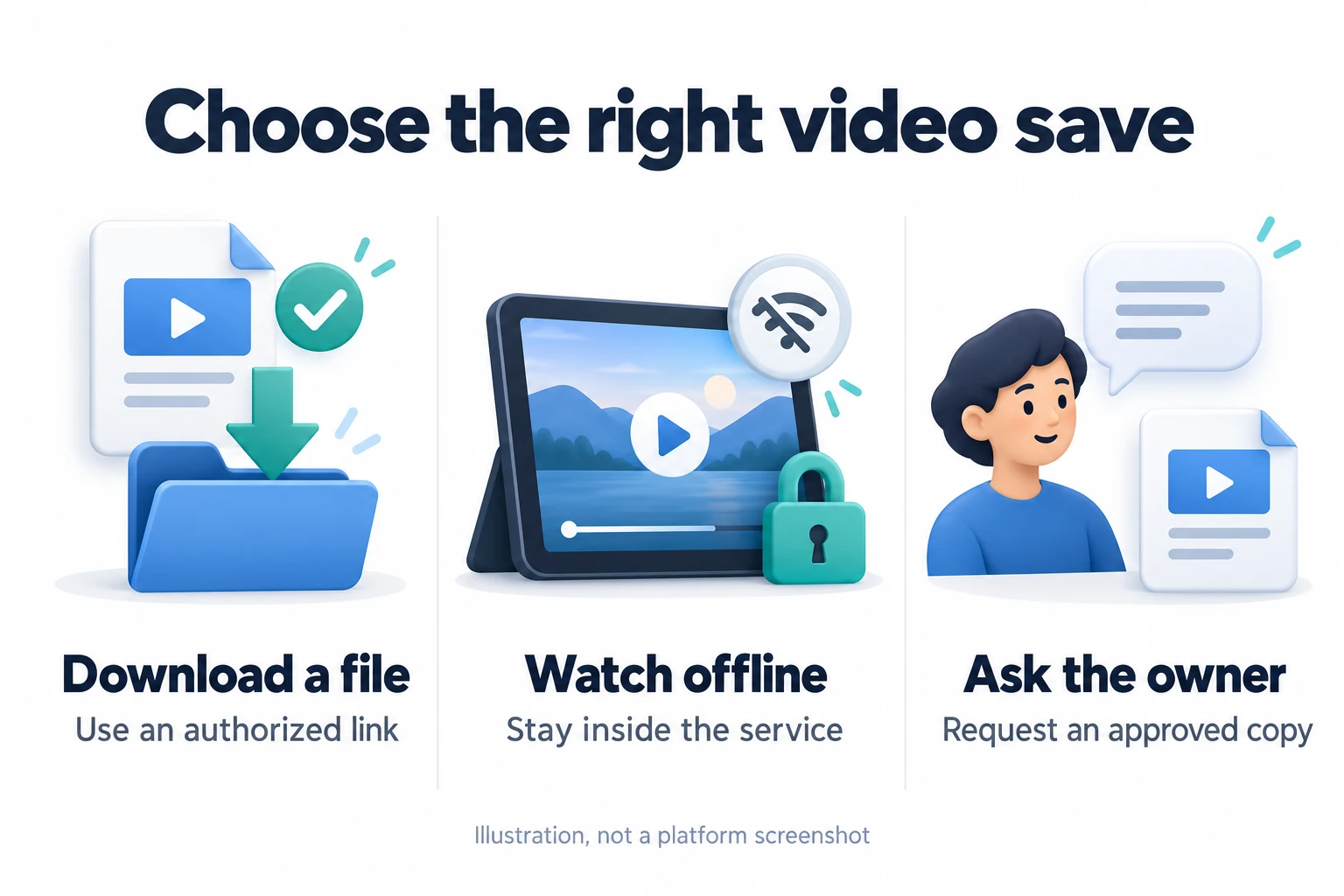
Use this quick guide to go straight to the method that fits your video. The linked sections explain the steps and the limits.
- A file from a website or collaborator: use the offered download link and check the saved file
- Your own YouTube upload: use YouTube Studio or Google Takeout to export it
- YouTube for a trip: use YouTube’s offline feature if available for your account and video
- A Vimeo video with downloads enabled: choose a version from the Download menu on its Vimeo page
- A TikTok video with saving enabled: use Share, then Save video in the app
- A video with no permitted download: ask the owner for a copy or an approved offline option
Can an “any video downloader” really save every video?
No tool can sensibly promise that every video link will produce a downloadable file. Some websites offer a regular file. Others provide playback through an account or an app, and some protect the video from copying.
A downloader can also stop working when a supported website changes. A long list of platform logos doesn’t tell you whether your particular video is supported or whether saving it is allowed.
Even well-known tools have specific limits. For example, the Video DownloadHelper Chrome listing explicitly excludes YouTube support. Read the current source and browser restrictions before installing anything. A search result or a large supported-site count isn’t a compatibility test.
For me, the useful question is: what is the simplest permitted route for this video? Start with one of these situations:
- You made the video: look for your original export or use the platform’s creator download option
- The creator offers a file: follow that download link and keep any licence or usage instructions
- The app offers offline viewing: use its download feature and check where playback is available
- You can watch, but cannot download: ask the owner to enable downloads or send an approved copy
That last option is especially useful for a client video, a training recording or a collaborator’s clip. The owner may be able to give you a better-quality file than the version you see in the player.
Check permission and choose between a file and offline viewing
Before you start, separate permission to view a video from permission to download, edit or publish it elsewhere. Those can be different permissions.
If the creator gives you a download link, check what the accompanying licence allows. For example, Creative Commons Attribution 4.0 permits sharing and adaptation subject to conditions including credit, a licence link and noting changes. Other licences have different conditions, and additional privacy or publicity rights can still matter.
When permission is unclear, ask the owner. The U.S. Copyright Office’s guidance explains that fair use depends on the circumstances. A label such as “personal use” doesn’t settle every copyright question, and laws differ by country.
If you need a file for editing or a backup
Look for an actual file download or export. You should be able to locate the saved item in a folder and open it in an appropriate player or editor, subject to any licence restrictions.
I’d keep the original file unchanged and make a second copy for trimming or compression. Save the creator’s permission or licence alongside it when you’re working with someone else’s material.
If you only need to watch without internet
An offline feature may be enough. The service controls where you can watch, how long the copy remains available and whether you need to reconnect.
YouTube, for example, says its mobile offline copies are encrypted and are played inside the YouTube app. You won’t find a normal video export in your phone’s gallery. That distinction is explained in YouTube’s offline-video FAQ.
Download a video file that a website or creator offers
This is the first route I’d try for an authorized tutorial, a client’s finished video or a clip offered under a suitable licence.
- Open the original source. Use the creator’s website, their verified file-sharing link or the platform page they provided.
- Read the download and usage information. Check whether you’re receiving the full video, a preview or an app-only offline option.
- Select the offered file. Choose a quality and file size that suit your purpose. Don’t assume the largest option is available for every video.
- Use the site’s Download control. If the authorized file opens in a browser player, use its download menu or the browser’s save option when available.
- Wait for the download to finish. Open your browser’s Downloads list to check its status and locate the file.
- Play a short section. Check the beginning, a point in the middle and the end before you close the source page.
A webpage’s address may point to the page containing the player rather than to a video file. Saving that page can leave you with an HTML document instead of a playable video. Renaming it with an MP4 extension won’t turn it into one.
If the website doesn’t offer a file or save control, go back to the owner rather than hunting for hidden stream links.
In Firefox, the download entry includes a way to reveal the saved file in its folder or in Finder. Mozilla’s download-management guide explains the controls and download warnings.
Download your own YouTube uploads
If you uploaded the video to your channel, YouTube Studio provides an official download route. This is useful when you need a working copy and no longer have your original export handy.
- Sign in to YouTube Studio with the account that owns the channel
- Open Content in the left-hand navigation
- Find the video, open its menu and choose Download
- Locate the completed download and check it before using it
YouTube documents these downloads as MP4 files at 720p or 360p, depending on the video’s size. Don’t assume this gives you your original upload at its original quality.
Google Takeout is the official alternative for exporting your uploaded videos together. There are also restrictions on individual downloads, including removed videos, certain strikes or audio tracks, and a five-download limit per video in 24 hours. See YouTube’s instructions for downloading your uploads.
If you’re repurposing your own work, I’d use the original editing-project export whenever possible. Our guide to moving your own YouTube video to Instagram covers the next step, including choosing a suitable format for the destination.
Use YouTube’s official offline-viewing option
If your goal is to watch a video on a journey, check whether YouTube offers Download for your account and that video.
YouTube Premium supports offline viewing where available. Some mobile offline options also depend on country or region, so availability can differ between accounts and locations.
- Open the eligible video while signed in to the appropriate YouTube account
- Choose Download when it is offered and wait for it to finish
- Find it in YouTube’s Downloads area
- Before travelling, confirm that playback works and check the service’s reconnection requirements
The Premium offline-viewing instructions explain supported access and reconnection limits. A downloaded video can become unavailable if the service’s availability checks change.
If you need a clip to edit, ask the creator for an authorized source file. An offline viewing copy won’t give you that editing workflow.
Download a Vimeo video when the owner allows it
Vimeo offers file downloads when the owner has enabled them. Open the video’s page on Vimeo itself and look below the player for Download.
- Select Download on the video page
- Review the available versions and file sizes
- Choose the download icon beside the version you need
- Save the file and check that it plays correctly
Downloading a source file from a public video requires sign-in. Vimeo also marks download features as plan-dependent. Check Vimeo’s current download instructions for the relevant account requirements. Those instructions say bulk downloading isn’t supported.
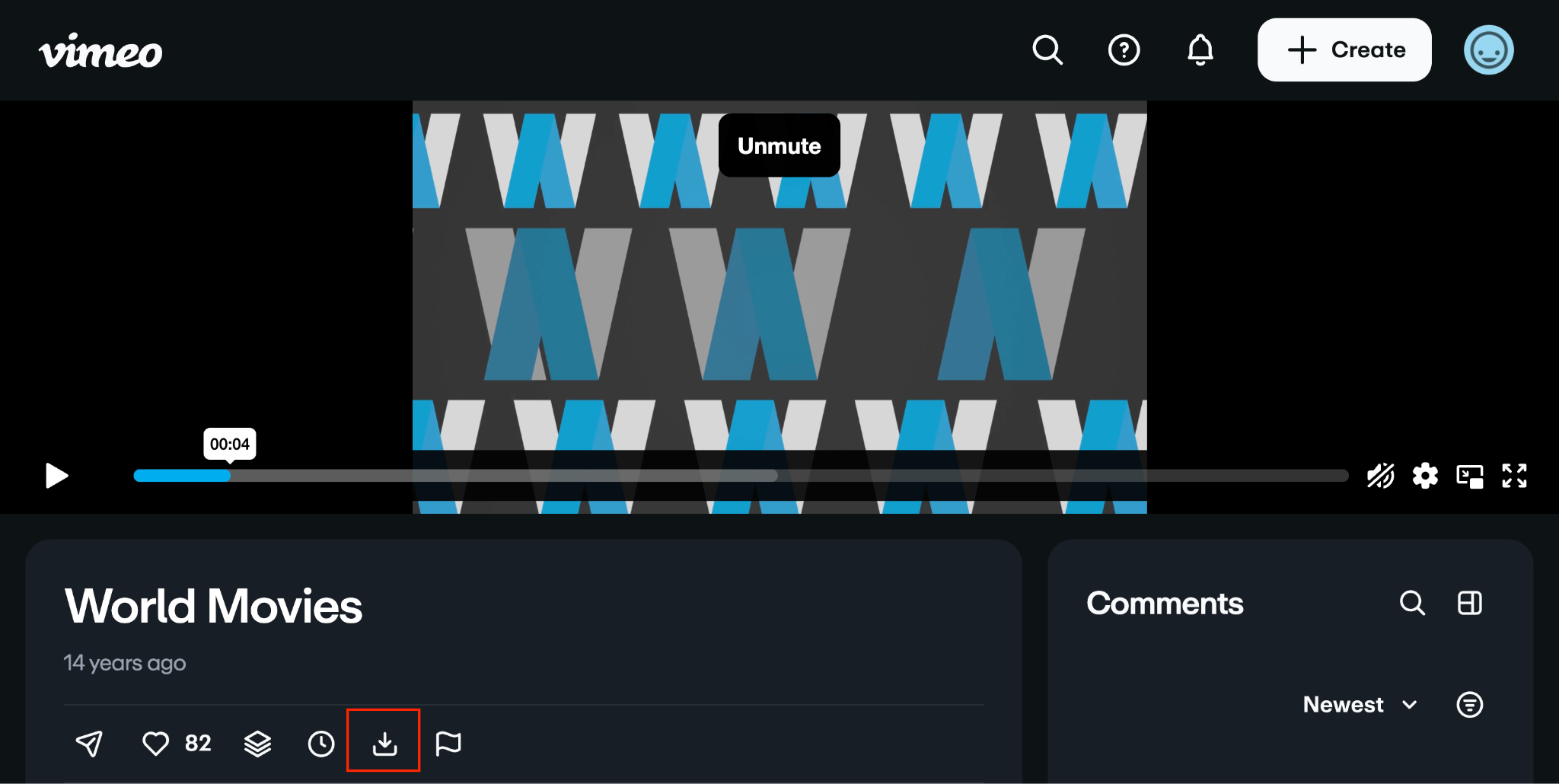
If you’re watching an embedded Vimeo video on another website, visit its Vimeo page. Vimeo’s missing-download-button guide says viewers cannot download through the embedded player. If the owner has disabled downloads, request a copy or ask them to enable the option.
Save a TikTok video using the app’s download option
TikTok provides a built-in way to save videos when the creator allows downloads.
- Open the video in the TikTok app
- Tap Share
- Choose Save video if it appears
According to TikTok’s download guidance, a missing Save video option means the creator hasn’t allowed the download. Ask them for a copy rather than using a different website to get around that choice.
For your own posts, TikTok recommends keeping a copy before publishing. On the Post screen, open More options and enable Save to device. Keeping your source video also makes future edits easier.
Check the permission separately before reusing someone else’s downloaded clip. A built-in save option doesn’t tell you that every possible edit or repost is authorized.
What about Instagram, Facebook and other video websites?
Use the same decision process: check your own creator tools, look for an officially offered file download, or ask the owner for the original.
A control called Save can mean a bookmark inside an account. After using it, check whether you received a file or simply added the post to a saved collection.
I wouldn’t assume that a third-party downloader supports every Reel, Story, private post or embedded player. Interfaces, account permissions and supported content types differ. Follow the specific service’s current help instructions instead of treating all video links alike.
For private recordings, ask the owner to share the file through an approved channel. Don’t paste private URLs, passwords, session cookies or account tokens into a downloader.
Find your downloaded video on a phone or computer
Once a website has supplied a normal video file, the next challenge is often finding it. Check the download status before starting the same transfer again.
- iPhone or iPad: open Files, then Browse and look for Downloads. Apple’s download-location guide also shows how to open Safari’s Downloads control next to the search field. Check iCloud Drive if the folder isn’t immediately visible.
- Android with Chrome: open Chrome’s More menu, then Downloads. If the address bar is at the bottom, the route can involve swiping up on it. Google’s Android download guide also points to the Files app for saved files.
- A desktop browser: open its Downloads list and use the entry’s show-in-folder option. The destination may differ if you previously changed the browser’s save location.
For an app-only offline copy, return to that service’s Downloads area instead. A successful offline save may never create an ordinary file in Files, Finder or your photo library.
When a video download fails, check these things first
The download button is missing
Confirm that you’re on the original video page, signed in to the right account and looking at a video for which downloads are available. If the owner has disabled them, stop there and request an authorized copy.
For a paid course or training library, check how long your viewing access lasts. Ask the provider about an approved download, offline option or access extension before it expires.
You downloaded a page instead of a video
Look at the file type. An HTML file is generally a saved webpage. Return to the actual download control rather than changing the extension or repeatedly saving the player page.
The file is missing or incomplete
Open the browser’s Downloads list. Check for a failed or paused transfer, insufficient storage or a different destination folder. If the service offers a normal Retry control, use it only after checking the reason for failure.
If the original link has expired, ask the sender for a fresh one. Keep private or time-limited sharing links out of public support posts.
The video plays without sound or looks wrong
Check another section of the video, your device volume and whether you chose the intended version. Ask the owner for a complete compatible export if the file still fails. Don’t accept a random “codec pack” or browser extension as the automatic fix.
You cannot find an offline video in your files
Open the service’s own Downloads area. If the feature provides app-only offline viewing, searching your gallery for an editable MP4 will lead you in the wrong direction.
The download triggers a security warning
Stop and check the source. Mozilla documents warnings for malicious, potentially unwanted and uncommon downloads. Don’t disable your browser’s protections just because a downloader tells you to.
Do you need a downloader app, VLC or a screen recorder?
For the official methods above, you don’t need an unrelated installer. I’d exhaust the site’s own download or export options before adding software.
If you evaluate a separate tool, check its actual operating-system support, supported sources, developer identity and permissions. Get it through the developer’s verified site or an official app store. An installer, extension or mobile app package is software, not the video file you came to save.
On an Apple Silicon Mac, our free Mac Video Downloader app is one option to evaluate: it shows the formats a permitted source actually offers and saves video or audio to folders you choose. It doesn’t bypass DRM or sign-in protection.
Also check what “free” includes. An app may have ads, in-app purchases or separate features that cost money. Read the current listing and permissions before deciding whether it suits your needs.
VLC support depends on the media source. A method that works with one permitted source is no guarantee that another website’s watch-page URL will work.
A screen recorder has a different job: it records what you capture. OBS’s official quick-start guide covers sources, audio and recording settings. Use recording for your own material or content you’re explicitly allowed to record, and run a short test before an important session.
Keep private notifications and unrelated windows out of the recording. If a protected player blocks capture, don’t treat that as an invitation to bypass its protection. Ask the provider for a permitted copy or use its official offline feature.
Choose the file quality and keep a usable copy
Start with your purpose. A small offline reference clip has different needs from a file you plan to edit or present on a large screen.
- For editing: ask for the original or a high-quality export that your editor supports
- For a presentation: test the file, sound and playback software on the actual device before the event
- For a smaller working copy: preserve the original, then reduce the duplicate’s size
- For accessibility: check whether captions or subtitles need a separate authorized download
Choosing a higher resolution cannot restore detail that wasn’t present in the source. Check the actual picture rather than trusting a quality label alone.
For a file you already own or are allowed to process, Kwebby’s Video Compressor is a relevant next step for making a smaller copy. Keep your source file until you’ve checked the result.
Frequently asked questions
Can I download any video just by pasting its URL?
No. A URL may lead to an ordinary file, a webpage, an account-restricted player or protected content. Use a download offered by the site or owner, and don’t assume a paste-a-link tool can handle every case.
Is downloading a video always illegal?
No. Official downloads, your own exports and appropriately licensed or authorized copies are different from copying material without permission. The relevant rights, platform terms and local law matter. Get permission or specific legal advice if your intended use is unclear.
Can I download videos without installing an app?
Often, yes. A creator’s direct file link or a supported website’s Download button may work through your existing browser. Whether that option exists depends on the service and the particular video.
Can I download a video embedded on another website?
Sometimes. Look for an offered download control or open the video’s original platform page. Vimeo, for example, directs viewers to the Vimeo page for owner-enabled downloads. If neither the host nor the creator offers a file, request a copy rather than assuming the embedded player can export one.
Which browser is best for downloading videos?
Start with a current browser supported by the website’s official download feature. The video’s permissions and available file matter more than choosing a browser with an “any video” promise. Check an extension’s browser-specific limitations separately before you install it.
Does YouTube Premium give me an MP4 for an editor?
Its offline-viewing feature is for watching through YouTube. Use your own creator download or request an authorized source file when you need a separate file for editing.
What should I do if downloading is disabled?
Ask the owner to enable downloads, send a file or explain the approved offline-viewing option. For protected or account-restricted content, follow the provider’s permitted access and download options.
Can I remove the watermark and repost a downloaded video?
A download doesn’t establish permission for those uses. Ask the creator for an authorized clean source file and confirm the editing and publication rights you need. Keep any required attribution.
Final thoughts
The easiest way to save an online video starts with knowing what you need: a file you can keep and work with, or an offline copy you can watch inside a service.
I’d use an original export or an official download first, check the permission and verify the result before relying on it. When the download isn’t offered, asking the owner for a copy is usually a better next step than trying another unfamiliar downloader.