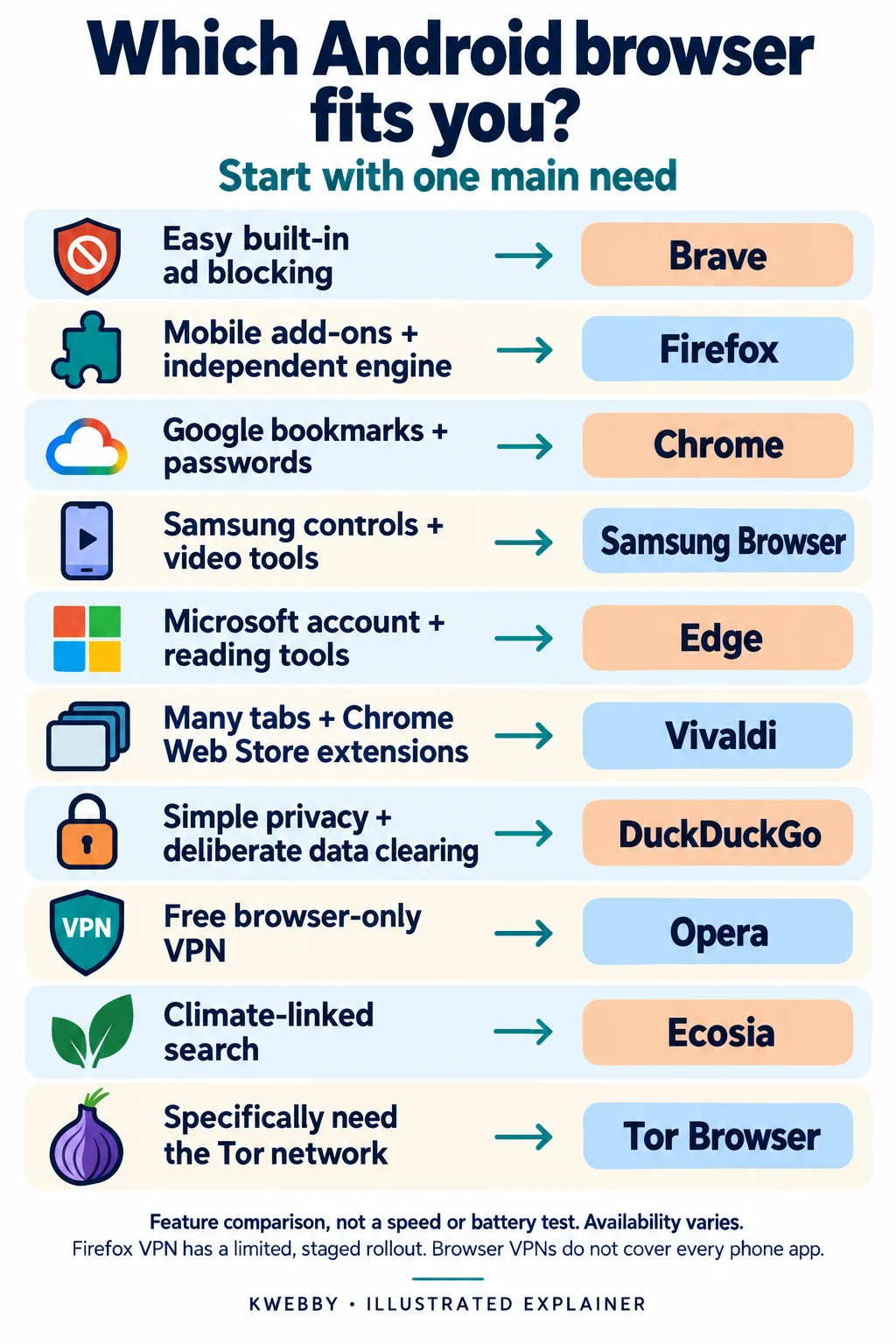
The best browser for Android depends on what you want to change about the one you use now. If ads and trackers are the problem, my starting pick is Brave. If you want extensions, look at Firefox or Vivaldi. And if your bookmarks and passwords already live in Google, Chrome is still a practical choice.
Below, I’ve compared ten free Android browsers by their useful features and the compromises that matter. I’ve used current product documentation and app listings for this comparison. I have not run a controlled speed or battery test, so the recommendations focus on features and fit.
Key takeaways
- Brave: a straightforward choice for built-in ad and tracker blocking
- Firefox: a good fit for Android-compatible add-ons and an alternative to Chromium
- Vivaldi: useful for tab organization, customization and Chrome Web Store extensions on Android
- Chrome or Edge: choose the one that fits the browser data you already use on your computer
- DuckDuckGo: simple privacy controls, a Fire Button and encrypted Sync & Backup
- Keep updates on: Kiwi is no longer maintained, so it should not be your everyday browser
Best Android browsers compared
All ten browsers below are free to install. Optional VPNs, subscriptions and third-party add-ons can cost extra. Availability and individual features can vary by device, region and app version.
| Browser | Best fit | Main thing to check |
|---|---|---|
| Brave | Ad blocking with little setup | The VPN is a paid extra; Android extensions are not supported |
| Firefox | Mobile add-ons and tracking controls | Only compatible Android add-ons work |
| Chrome | Google account convenience | No desktop Chrome extensions on your phone |
| Samsung Browser | Galaxy-friendly controls and video tools | Ad blocking uses separate supported blocker apps |
| Microsoft Edge | Microsoft users and reading tools | Check its mobile extension selection before switching |
| Vivaldi | Tabs, customization and extensions | Desktop extensions may behave differently on a phone |
| DuckDuckGo | Simple privacy and data-clearing controls | App Tracking Protection is not a VPN |
| Opera | Built-in browser VPN and data-saving options | The free VPN does not protect every app on your phone |
| Ecosia | Searches that help fund climate projects | An Ecosia account does not currently sync browser data |
| Tor Browser | Browsing through the Tor network | Expect a different, often slower experience |
Brave Browser for built in ad blocking
I’d start with Brave if you want fewer intrusive ads without first choosing an extension. Its Shields protection blocks ads and trackers by default and gives you controls for individual websites.
Brave uses Chromium, so its underlying browser technology is related to Chrome. That does not mean the two have identical privacy settings. It also does not mean Chrome extensions work on Brave for Android: Android extension support remains an open development request.
- Useful for: built-in blocking, private tabs and syncing browser data
- Cost: the browser is free; Brave Firewall + VPN is an optional paid subscription
- Watch out for: some sites break with stricter blocking. Review that site’s Shields settings rather than switching off protection everywhere
Brave’s normal private tabs do not make you anonymous. For Tor-network browsing on Android, use the official Tor Browser discussed below.
Firefox for Android extensions
Firefox is my pick if you want mobile add-ons plus an engine that is independent of Chromium. Mozilla’s Android browser uses Gecko through GeckoView.
You get tracking protection, Reader View, password management and cross-device sync. You can also install compatible add-ons, including content blockers, through Firefox’s Extensions menu or Mozilla’s Android add-ons catalog.
The important word is compatible. Mozilla’s Android extension guide explains that some add-ons will not work on the mobile browser. Check your must-have extension before moving everything over.
- Useful for: add-ons, reading articles and syncing with desktop Firefox
- Cost: free; individual extensions or separate services can have paid plans
- Watch out for: extra add-ons need permissions and can affect how websites work
Firefox also has an experimental built-in VPN rollout on Android. Eligible users get 50 GB of browser traffic per month with a Mozilla account. It is not available to everyone, and it does not cover other apps. This is separate from the paid Mozilla VPN app.
Google Chrome for Google account convenience
Chrome makes sense if you already rely on Google Password Manager, bookmarks and tabs across your phone and computer. Its Android app includes translation, Google Lens, tab groups and security tools such as Safety Check.
There are two old claims worth clearing up. Chrome on Android does not run desktop Chrome extensions. Google’s extension instructions use “Add to Desktop” to send an extension to your computer. That does not install it on your phone.
Chrome’s old Lite Mode, previously called Data Saver, was also removed with Chrome 100. It should not be a reason to choose Chrome today.
- Useful for: a familiar interface, Google services and cross-device access
- Cost: free
- Watch out for: pop-up protection and dangerous-site warnings are different from blocking all ads and trackers
For me, the reason to keep Chrome is convenience. If your main goal is stronger default ad blocking, compare it with Brave instead.
Samsung Browser for Galaxy friendly controls
Samsung Browser, formerly widely known as Samsung Internet, is worth considering if you like Samsung’s phone and tablet controls. Its current Android listing includes Video Assistant, Dark Mode, a customizable menu, Secret mode and Smart Anti-Tracking.
Ad blocking needs a little explanation. Samsung supports separate content-blocker apps. Open the browser’s menu and look for Ad blockers to see the supported choices. Some blockers cost money, even though Samsung Browser itself is free.
Samsung’s official pop-up and ad-blocking guide distinguishes the built-in pop-up setting from installing an ad blocker. That distinction matters if you expect one switch to remove every advertisement.
- Useful for: Galaxy users, video controls and adjustable browser menus
- Cost: free; supported third-party blockers may charge
- Watch out for: Samsung add-ons are not the same as unrestricted Chrome Web Store support
Check the Play Store on your particular phone for compatibility. Do not assume every Samsung-only feature is available on another manufacturer’s device.
View Samsung Browser on Google Play
Microsoft Edge for Microsoft users
Edge is a sensible choice if you use it on your computer and want your browsing to stay connected. Its Android app offers Read Aloud, page translation, tab groups, tracking prevention, Microsoft Defender SmartScreen and AdBlock Plus.
Microsoft now lists extensions as an Android feature. You do not need to treat extension support as a Canary-only experiment, but you should still check whether the specific extension you need is offered and works on mobile.
- Useful for: Microsoft account users, reading tools and mobile extensions
- Cost: free to install; the listing includes optional in-app purchases
- Watch out for: Copilot, Rewards and other extras can make the experience busier than a minimal browser
Microsoft publishes separate mobile release notes. That is a useful reminder to check Android-specific features instead of assuming a desktop Edge feature is on your phone.
View Microsoft Edge on Google Play
Vivaldi for tabs customization and extensions
Vivaldi is the option I’d shortlist for someone who keeps lots of tabs open. Its Android app offers tab stacks, a desktop-style tab bar, notes, a reading list, page capture and encrypted sync.
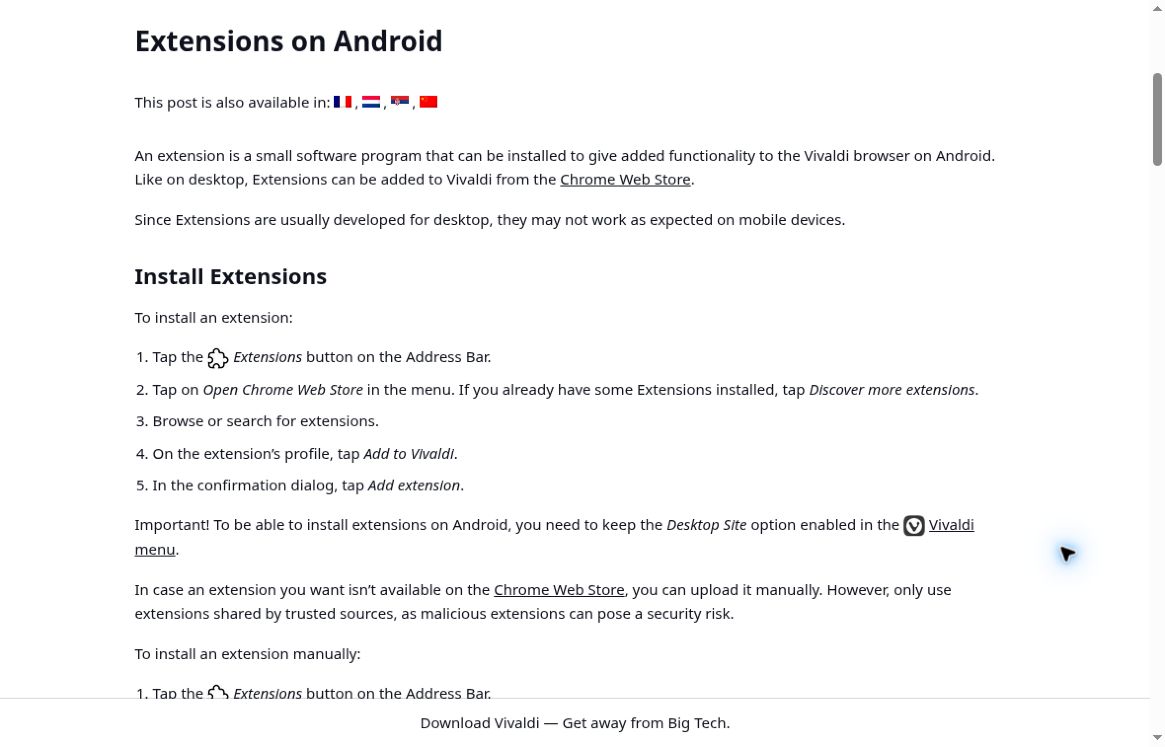
It now also supports Chrome Web Store extensions on Android. The current Vivaldi extension guide says to keep Desktop Site enabled while using the store. Because many extensions were designed for a computer, some will not work as expected on a phone.
Vivaldi’s own wording is useful here: “they may not work as expected on mobile devices.” Check the extension you actually need rather than assuming the whole store works perfectly.
- Useful for: tab organization, larger screens and customizing your browser
- Cost: free; third-party extensions may have their own pricing
- Watch out for: the extra controls take more time to configure than a simpler browser
Its built-in ad and tracker blocker also means you can start with blocking without installing an add-on.
DuckDuckGo for simple privacy controls
DuckDuckGo is a good fit if you want privacy controls without managing a collection of extensions. The Android browser includes tracker blocking, private search and the Fire Button for clearing browsing data.
Closing an ordinary tab is not the same as erasing everything. The Fire Button, Fire Tabs and Fireproofing settings control what is removed and what stays. Downloads and bookmarks are not automatically wiped by the Fire Button.
DuckDuckGo also supports free Sync & Backup. You can sync supported data such as bookmarks and passwords with end-to-end encryption, without creating a conventional account.
- Useful for: straightforward tracking protection and deliberate data clearing
- Cost: free browser; the optional DuckDuckGo subscription includes a paid VPN
- Watch out for: Android App Tracking Protection uses a local VPN interface, but is not itself a VPN that hides your IP address
App Tracking Protection is compatible with DuckDuckGo’s VPN, but not other VPN apps using Android’s single active VPN connection.
View DuckDuckGo on Google Play
Opera for a browser VPN and data saving
Opera puts several extras in one Android app: ad blocking, night mode, offline pages, syncing and a free built-in VPN feature. Its Android help page also documents a Data savings setting that compresses eligible browsing traffic through Opera’s servers.
The free VPN covers browsing through Opera, rather than every app on your phone. According to Opera’s VPN FAQ, the built-in news feed is not proxied. The VPN and Data savings also cannot run together.
- Useful for: people who want built-in extras and browser-level VPN access
- Cost: free browser and basic browser VPN; optional paid services are separate
- Watch out for: VPN availability and controls can vary by country and version, and your speed depends partly on the VPN server load
Opera may show ads in its start-page news feed. If you prefer a quieter start page, its Android settings let you turn the news feed off.
Ecosia for climate focused search
Ecosia is worth a look if supporting climate projects is central to your choice. Its free Android app combines browsing with Ecosia Search. The company says it uses 100% of its profits to fund climate action, including tree planting, and publishes financial reports.
That is Ecosia’s funding model, not a Brave browser feature. It also does not mean each individual search plants one tree.
- Useful for: a browser built around Ecosia’s search service and climate mission
- Cost: free; searches can include ads
- Watch out for: the current Ecosia account guide says accounts do not sync bookmarks, history, passwords or open tabs
You can also use Ecosia Search inside another browser. If you like Firefox or Chrome already, changing your search engine may be enough.
Tor Browser for Tor network browsing
Tor Browser serves a more specific purpose than the other choices. It routes its web traffic through the Tor network and is designed to resist fingerprinting and hide your real IP address from the sites you visit.
Use the app published by The Tor Project. It is based on Firefox and is free. The extra network hops can make browsing slower, and some sites present more checks or refuse Tor connections.
- Useful for: people who specifically need Tor-network privacy
- Cost: free
- Watch out for: signing in or sharing personal details can identify you to a website, and other phone apps are not automatically routed through Tor
The Tor Project discourages extra add-ons because they can weaken privacy or make your browser fingerprint more distinctive. Its safe-use guidance also explains why no browser can promise perfect anonymity.
View Tor Browser on Google Play
How I would choose an Android browser
Start with your main frustration, then narrow the choice to two apps. A long feature list is not much help if the browser makes your daily tasks harder.
- Check your everyday sites. Try the pages you use for work, shopping, video and reading. Check forms and downloads as well as the home page.
- Check your must-have data. Verify bookmark, password and tab syncing before removing your old browser. Sync features and import options differ.
- Decide how much setup you want. Brave’s built-in blocking is convenient; Firefox, Edge and Vivaldi give you extension choices with extra permissions to review.
- Keep the app maintained. Use the official store listing or the developer’s own download page, and keep browser updates enabled.
Most options here use Chromium-related technology. Firefox uses Gecko, Tor is based on Firefox, and DuckDuckGo’s Android browser uses Android WebView. Sharing an engine does not make browsers identical, or prove that they receive the same fixes at the same time.
Google explains how to update Android apps and enable automatic updates. Check for updates to both your browser and Android System WebView when your device offers them. An old, unmaintained browser is a poor trade for one convenient feature.
Why Kiwi is no longer on this list
Kiwi used to be a popular way to run extensions on Android. Its developer now states: “It will no longer be maintained after January 2025.” The project’s official archived repository confirms the change.
I would not recommend an unmaintained browser for everyday browsing. If you used Kiwi for extensions, check Firefox, Vivaldi or Edge, and verify that your specific extension works before switching. Do not assume another app with “Kiwi” in its name is the same project.
Frequently asked questions
What is the best browser for Android overall?
My general starting pick is Brave for built-in ad and tracker blocking. Chrome is a practical choice for Google account convenience, Firefox for mobile add-ons, and Vivaldi for extensive customization. The best choice is the one that handles your everyday sites and essential features well.
Which Android browser is the fastest?
There is no universal winner established by this comparison. Your phone, network, websites, open tabs and blocking settings all affect performance. I have not run a controlled speed or battery test, so I would not promise that one browser is always fastest or uses the least battery.
Which Android browsers support extensions?
Firefox supports compatible Android add-ons. Microsoft Edge offers mobile extensions. Vivaldi now supports Chrome Web Store extensions on Android, though desktop-designed extensions may not work properly on mobile. Chrome and Brave for Android do not offer the same desktop extension support. Samsung has its own supported add-ons and content blockers.
Which free Android browser has a VPN?
Opera offers a free browser-level VPN, with availability varying by country and version. Firefox is also rolling out a free built-in Android VPN to eligible users, with a Mozilla account and a 50 GB monthly limit. Neither feature protects all your phone’s apps. Brave and DuckDuckGo offer optional paid VPN services.
Does Incognito mode make you anonymous?
No. Private browsing mainly limits what is retained on your device after a session. Google’s Incognito explanation says websites and network operators may still observe activity. Tracker blocking, VPNs and Tor address different problems, and none removes every privacy risk.
Your browser and your search engine do different jobs. Browser protections address tracking on pages you open; search-engine privacy addresses what happens to your searches. You can also compare privacy-focused search engines if you want to reduce profiling at the search stage.
How do you change your default Android browser?
After installing your chosen browser, open Settings → Apps → Default apps or Choose default apps → Browser app, then select it. Menu labels can differ by phone. These are the steps in Google’s Android default-browser guide.
Final thoughts
You do not need to install ten browsers. Pick the one that solves your biggest problem: Brave for built-in blocking, Firefox for its Android add-ons and independent engine, Vivaldi for tabs and extensions, or Chrome and Edge for the accounts you already use.
Keep your old browser until you have checked your essential sites and saved data. Then make the new one your default and keep it updated. That is a more useful upgrade than chasing an unsupported “fastest browser” claim.