
How to Know Who Shared Your Instagram Post (Real Ways)
Choose Your Language:
You posted something great, and now you want one clear answer: how to know who shared your Instagram post. Instagram gives some share data, but it does not show a full list of names for most share actions. You can still learn a lot by using Insights, Story tools, notifications, and a few safe tracking methods. This guide explains what you can see, what you cannot see, and what to do next.
1 Key Takeaways
- Instagram usually does not show the names of people who shared your post via DM.
- You can see share counts in Insights for posts, Reels, and Stories if you use a professional account.
- You can sometimes identify sharers when they share your post to their Story and tag you or keep the Story public.
- You can use Story mentions, tags, and notifications to find some shares, but not all shares.
- Avoid apps that promise a “share list.” Many are unsafe and can risk your account.
- You can increase visible sharing by asking people to tag you and by using easy-to-share formats.
2 What “Shared” Means on Instagram
Before you try to identify who shared your content, you need to know what “share” can mean on Instagram. Instagram uses the word “share” in several ways, and each way has different privacy rules.
2.1 Common ways people share your Instagram post
- Share to DM: A person taps the paper plane icon and sends your post to a friend in Messages.
- Share to Story: A person adds your post to their Story (usually as a sticker-style preview).
- Copy link: A person copies your post link and sends it somewhere else.
- Share to other apps: A person uses the share sheet to send the link to WhatsApp, iMessage, email, and more.
- Repost: A person posts your content again using a repost tool or a screen recording (this is not the same as a native share).
2.2 Why Instagram hides most share identities
- Instagram treats DMs as private messages.
- Instagram does not want creators to track private sharing behavior by name.
- Instagram focuses on aggregate metrics like counts and reach.
Now you know the key rule: you can often see how many shares happened, but you usually cannot see who shared via DM. Next, you will learn what Instagram shows inside the app.
3 Can You See Who Shared Your Instagram Post?
Many people search for a direct list of sharers. Instagram does not provide that list in most cases. Still, there are a few situations where you can identify some people who shared your post.
3.1 The direct answer for most posts
- DM shares: You cannot see the names of people who shared your post in DMs.
- External shares: You cannot see the names of people who shared your link to other apps.
- Story shares: You can sometimes see the person if they share publicly, tag you, or mention you.
3.2 When you can identify someone who shared
- They share your post to their Story and tag your account.
- They share your post to their Story and your post is from a public account, and you can view their Story.
- They send you a DM saying they shared it, or they reply to your Story share request.
- They repost and credit you, which creates a visible post you can see.
Next, you will use Instagram Insights to see share counts and related metrics. This gives you the best in-app data for the keyword goal: how to know who shared your Instagram post, even if it is not a full name list.
4 How to Check Shares Using Instagram Insights (Step-by-Step)
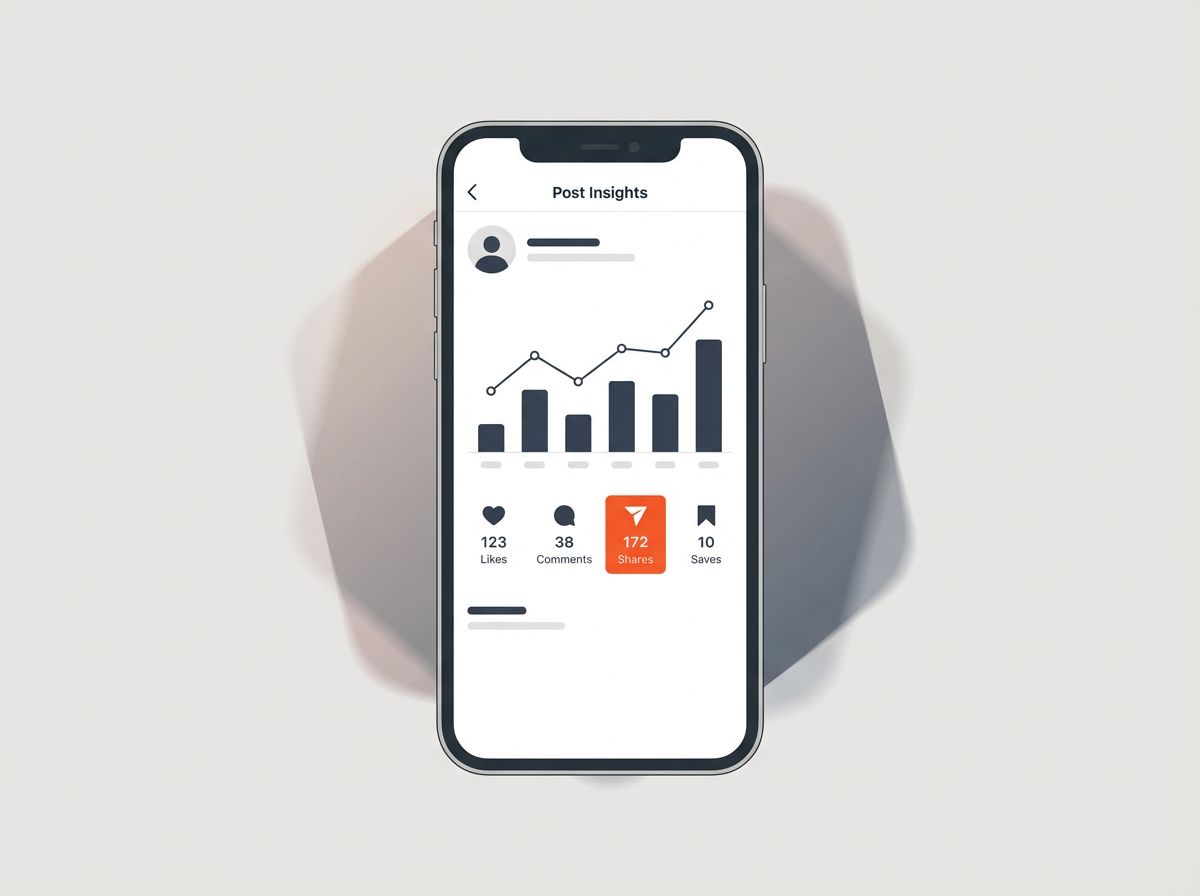
Instagram Insights is the main tool that shows share totals. You need a professional account to access most Insights features. Instagram calls these accounts “Business” or “Creator.”
4.1 Step 1: Switch to a professional account (if needed)
- Open Instagram and go to your profile.
- Tap the menu icon.
- Tap Account type and tools (wording can vary by app version).
- Tap Switch to professional account.
- Select Creator or Business.
4.2 Step 2: Check share count for a feed post
- Open the post you want to analyze.
- Tap View insights.
- Look for Shares.
4.3 Step 3: Check share count for a Reel
- Open the Reel.
- Tap the three dots menu.
- Tap Insights.
- Find Shares and compare it with Saves and Comments.
4.4 Step 4: Check share data for Stories
- Open your Story (while it is live) or open it in Archive.
- Swipe up (or tap Insights depending on your app).
- Review metrics such as Shares, Replies, and Link clicks (if you used a link sticker).
4.5 How to interpret share numbers the right way
- A high share count often means your post has strong “send to a friend” value.
- A high save count often means your post has strong “use later” value.
- A high reach with low shares can mean the post is interesting but not personal enough to send.
Next, you will learn how to find visible shares from Stories, mentions, and tags. This is where you can sometimes identify real accounts.
5 How to See Who Shared Your Post to Their Story
Story sharing is the most common place where you can identify a sharer. Instagram still limits what you can see, but you can catch many shares if you check the right areas.
5.1 Check Story mentions and tags
- Open your Notifications tab.
- Look for alerts like “mentioned you in their story.”
- Tap the notification to view the Story and the account.
5.2 Check your DMs for Story share alerts
- Open Messages.
- Look for a message that says someone mentioned you in their Story.
- Tap Add to your story or View story if available.
5.3 Use “View Story Reshares” when available
- Instagram sometimes shows a list for certain content types and contexts, but it is not consistent.
- If you see an option like “Story reshares,” use it right away because it can disappear after the Story expires.
5.4 Limits you should expect
- If a person shares to Story but does not tag you, you may never get a notification.
- If their account is private and you do not follow them, you may not see the Story.
- If they share your post link outside Instagram, Instagram does not show you who did it.
Next, you will learn the difference between “shares” and “reposts,” since many people confuse them. This helps you avoid false tools and wrong assumptions.
6 Shares vs Reposts: Know the Difference
Instagram uses “share” as a native action. “Repost” often happens through screenshots, screen recordings, or third-party repost apps. This matters because reposts can create visible credit, while shares often stay private.
6.1 What a native share looks like
- A DM share sends your post inside Instagram Messages.
- A Story share shows a preview sticker that links back to your post.
6.2 What a repost looks like
- A user posts your image again on their feed and tags you in the caption.
- A user uploads a screen recording of your Reel and adds their own text.
- A user posts your content on another platform with or without credit.
6.3 How reposts help you identify the person
- You can see the account because the repost is public on their profile (if their profile is public).
- You can get a tag notification if they tag you correctly.
Next, you will learn safe ways to estimate where shares come from, even if Instagram does not show names.
7 How to Infer Who Shared Your Instagram Post (Without a Name List)
You cannot get a full sharer list, but you can still collect strong clues. These clues help you understand which audience segments share your content most.
7.1 Use Insights breakdowns to spot the sharing audience
- Check Accounts reached and Engaged accounts.
- Review Top locations and Age range (available at the account level).
- Compare posts with high shares to posts with low shares to find patterns.
7.2 Watch for “share spikes” after specific events
- Track share increases after you post a Story that points to the post.
- Track share increases after a collaborator comments or engages.
- Track share increases after you use a trending audio on a Reel.
7.3 Use comments and DMs as direct signals
- A person may comment “I sent this to my friend.”
- A person may DM you a reaction after they share it.
- A person may ask a question that shows they saw it through a friend.
7.4 Ask for a tag in a clear way
- Add a caption line like: “Share this to your Story and tag me so I can repost it.”
- Add on-image text that says: “Tag me if you share.”
- Offer a simple reason: “I will feature my favorites.”
Next, you will learn how link tracking can help you measure shares outside Instagram without breaking rules.
8 How to Track Shares Outside Instagram (Safe Methods)
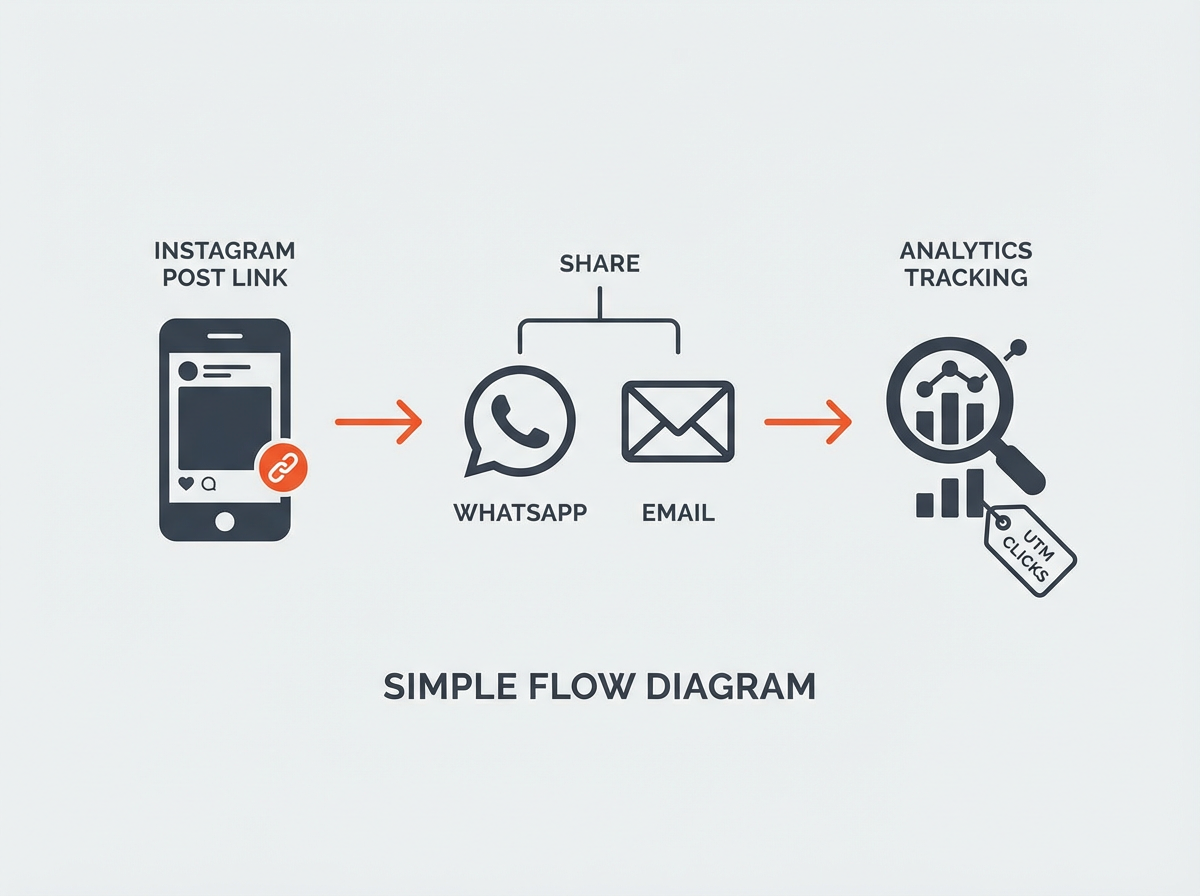
Instagram does not tell you who copied your link. You can still track traffic if you use links the right way. This helps if your goal is sales, sign-ups, or website visits.
8.1 Use UTM parameters for links you control
- Create a tracked link for your website using UTM parameters.
- Place the tracked link in your bio or a Story link sticker.
- Check Google Analytics (or another analytics tool) for traffic from Instagram.
8.2 Use a link shortener with analytics (with care)
- Use a trusted tool that shows click counts and referrers when available.
- Do not use spammy shorteners that trigger warnings.
- Do not expect user names. Expect totals, locations, and devices.
8.3 Use Instagram Story link sticker insights
- Add a link sticker to a Story that promotes your post or your offer.
- Check Story Insights for Link clicks.
- Compare link clicks with share counts to judge how people pass it along.
Next, you will learn what to avoid. Many tools claim they can show exactly who shared your post, but they often create risk.
9 Apps That Claim They Show Who Shared Your Post: What to Avoid
Many apps and websites promise a list of people who shared your Instagram post. Instagram does not provide that data through normal user access. This makes those promises a red flag.
9.1 Common red flags
- The tool asks for your Instagram password.
- The tool asks you to “verify” by logging in on a non-Instagram page.
- The tool promises “exact names of DM sharers.”
- The tool floods you with ads or forces app installs.
9.2 Real risks you can face
- Account takeover and lost access.
- Spam messages sent from your account.
- Shadowed reach or action blocks due to suspicious logins.
- Data collection from your profile and followers.
9.3 Safe alternatives
- Use Instagram Insights for share totals.
- Use Story mentions and tags for visible shares.
- Use link tracking for off-platform traffic.
Next, you will learn how to increase the number of visible shares, so you can identify more people who share your content.
10 How to Get More People to Share and Tag You
If you want to know who shared your Instagram post, you need more people to share in a way that creates a notification. You can influence that with clear prompts and share-friendly content.
10.1 Use captions that ask for a tag
- Use direct language: “Share this to your Story and tag @yourname.”
- Give a reason: “I will repost the best shares tomorrow.”
- Keep the request short and place it near the end of the caption.
10.2 Create content people want to send to a friend
- Checklists: “5 things to do before you buy.”
- Templates: “Copy this caption” or “Use this script.”
- Quick fixes: “Do this one change today.”
- Relatable posts: “Send this to a friend who needs it.”
10.3 Make sharing easy in the first 2 seconds (especially for Reels)
- Use a clear hook line on screen.
- Use large text and strong contrast.
- Keep the main point simple and specific.
10.4 Use collaboration tools to expand share visibility
- Use Collab posts when you create content with another account.
- Ask partners to share to Story and tag you.
- Reply to every tag fast to encourage more tags.
Next, you will learn how privacy settings affect what you can see. This explains why two creators can get different results.
11 Privacy and Account Settings That Change What You Can See
Instagram privacy settings control what you can view and what notifications you receive. These settings also affect whether you can identify a person who shared your post to their Story.
11.1 If your account is public vs private
- Public account: More people can share your post to Story and send it to others.
- Private account: Sharing options can be limited for people who do not follow you.
11.2 If the sharer account is public vs private
- Public sharer: You can often view their Story share if it appears in your notifications or if they tag you.
- Private sharer: You may not see the Story unless you follow them and they allow access.
11.3 Mentions settings that can block visibility
- A user can limit who can mention them, and you can also limit who can mention you.
- If a user shares without tagging, you may get no signal at all.
Next, you will get quick troubleshooting steps for common problems, like missing Insights or missing share metrics.
12 Troubleshooting: If You Cannot See Shares or Insights
If you cannot find share data, the issue is usually account type, app version, or the content format. Use these checks.
12.1 You do not see “View insights”
- Switch to a Creator or Business account.
- Update Instagram to the latest version.
- Log out and log back in.
12.2 You see Insights but no “Shares” metric
- Wait 24 hours. Some metrics populate after time passes.
- Check a different post or Reel to confirm it is not a one-post glitch.
- Confirm you are viewing the correct Insights screen for that content type.
12.3 Your share count looks wrong
- Instagram can remove spam activity, which can change counts.
- Instagram can delay reporting during outages.
- Shares can include multiple share paths, depending on the format.
Next, you will get short answers to the most common questions people ask about share tracking.
13 Frequently Asked Questions (FAQs)
13.1 How to know who shared your Instagram post in DM?
You cannot see the names of people who shared your post via DM. Instagram only shows share totals in Insights for eligible accounts.
13.2 Can I see who shared my Instagram post to their Story?
Sometimes. You can see them if they tag or mention you, or if you can view their public Story share. Instagram does not guarantee a complete list.
13.3 Does Instagram notify you when someone shares your post?
Instagram can notify you when someone mentions you in a Story. Instagram does not notify you for most DM shares.
13.4 Do third-party apps really show who shared my Instagram post?
Most do not. Many are unsafe and can risk your account. Instagram does not provide a standard way for those apps to show a full DM sharer list.
13.5 Why do I see “Shares” in Insights but no names?
Instagram reports shares as a count to protect user privacy. The platform does not attach names to most share actions.
13.6 How can I get more people to tag me when they share?
Ask directly in your caption and on the post image. Offer a simple reward like a repost or a feature, and respond fast to every tag.
14 Final Thoughts
If your main goal is how to know who shared your Instagram post, you need to use a mix of tools. Instagram Insights shows share totals, and Story mentions show some real accounts. Instagram does not show a full name list for DM shares, so you should avoid any app that promises that feature. Use clear “tag me” prompts, create share-friendly posts, and track link clicks for off-platform sharing. Now check your top post, open Insights, and add one caption line that asks for a Story tag on your next upload.
Test your knowledge
Take a quick 5-question quiz based on this page.